EUS0153210_YFact_Standard_E.pdf - 第17页
1-3 1 Installation of Factory T ools 4. When the "Select installation function" d ialog box appears, tick the check box for a function to install. When you want to install all the functions, clic k the [Select …
1-2
1
Installation of Factory Tools
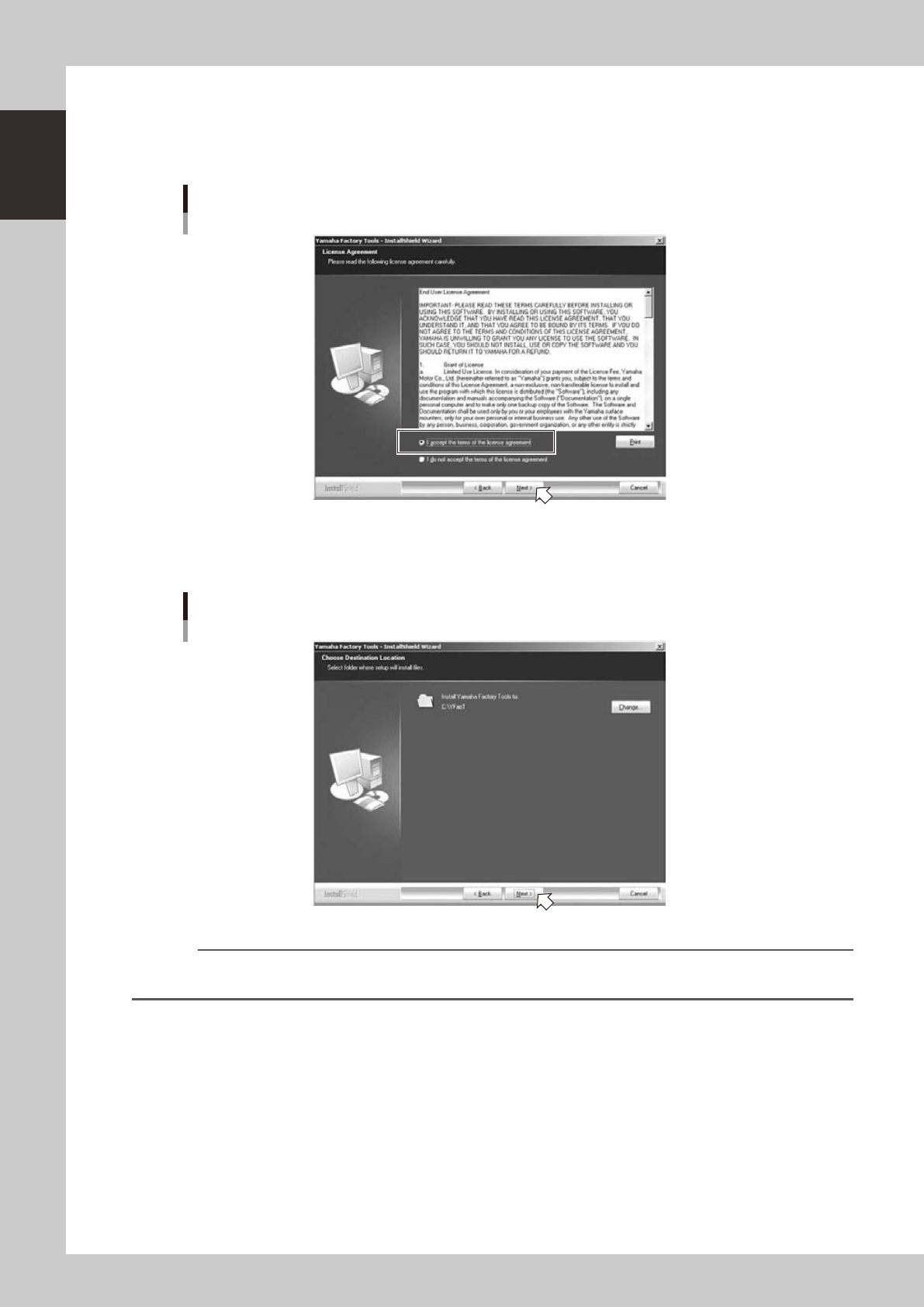
2. When the "Software license agreement" dialog box appears, carefully read the Software license
agreement.
Tick the radio button for the "I accept the terms in the license agreement" and click the [Next]
button.
“Software license agreement” dialog box
64101-S0-00
3. When the "Select installation destination" dialog box is shown, check the installation destination and
click the [Next] button.
“Select installation destination” dialog box
64102-S0-00
Reference
When you want to change the installation location of the Factory Tools, click the [Change] button.
When the “Select directory” dialog box appears, select a destination directory.
1-3
1
Installation of Factory Tools
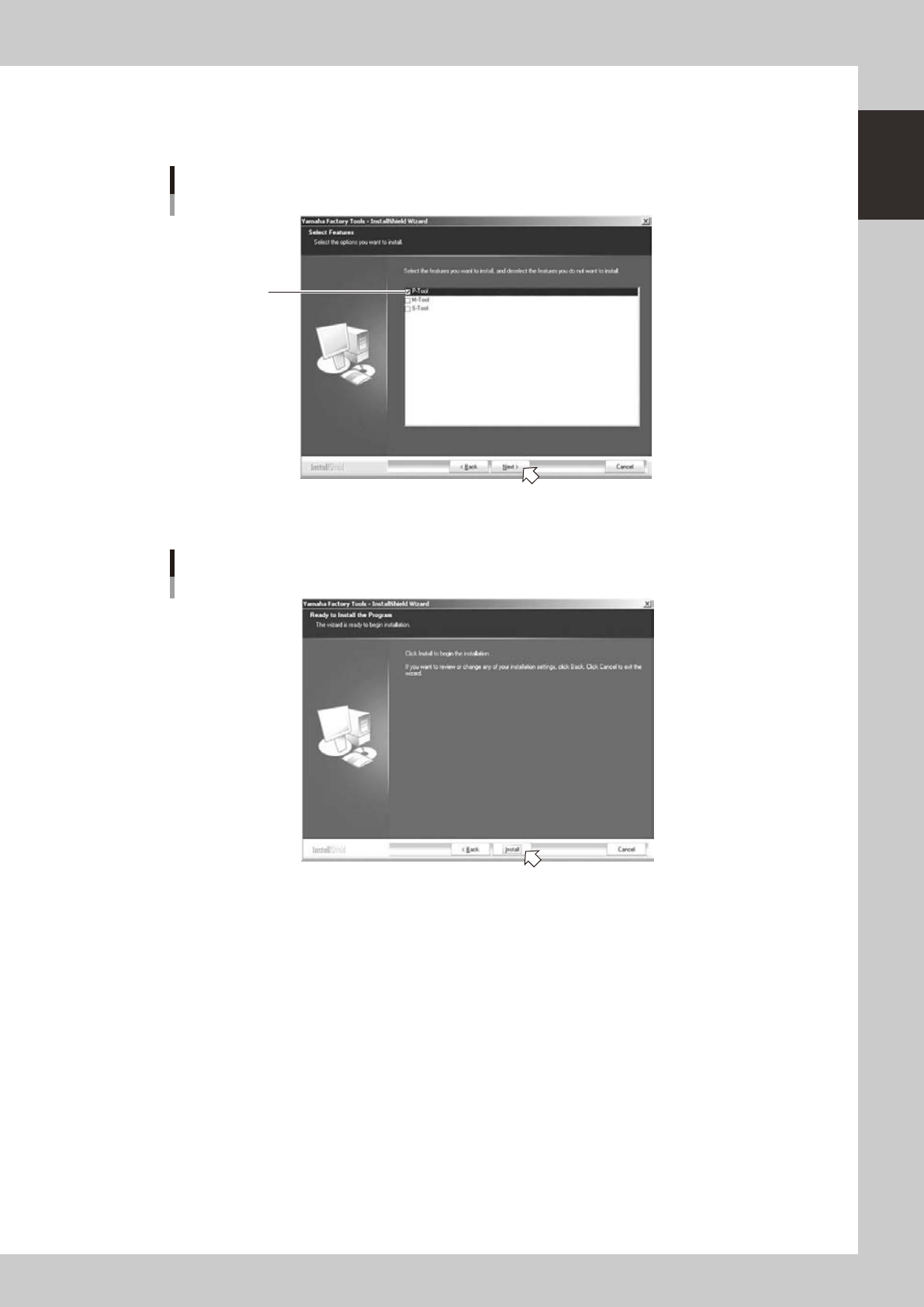
4. When the "Select installation function" dialog box appears, tick the check box for a function to install.
When you want to install all the functions, click the [Select all] button.
Click the [Next] button when the selection is completed.
“Select installation function” dialog box
Tick a check box
for a desired function
64103-S0-00
5. When the "Ready to install" dialog box appears, click the [Install] button. Installation will start.
“Ready to install” dialog box
64104-S0-00
1-4
1
Installation of Factory Tools
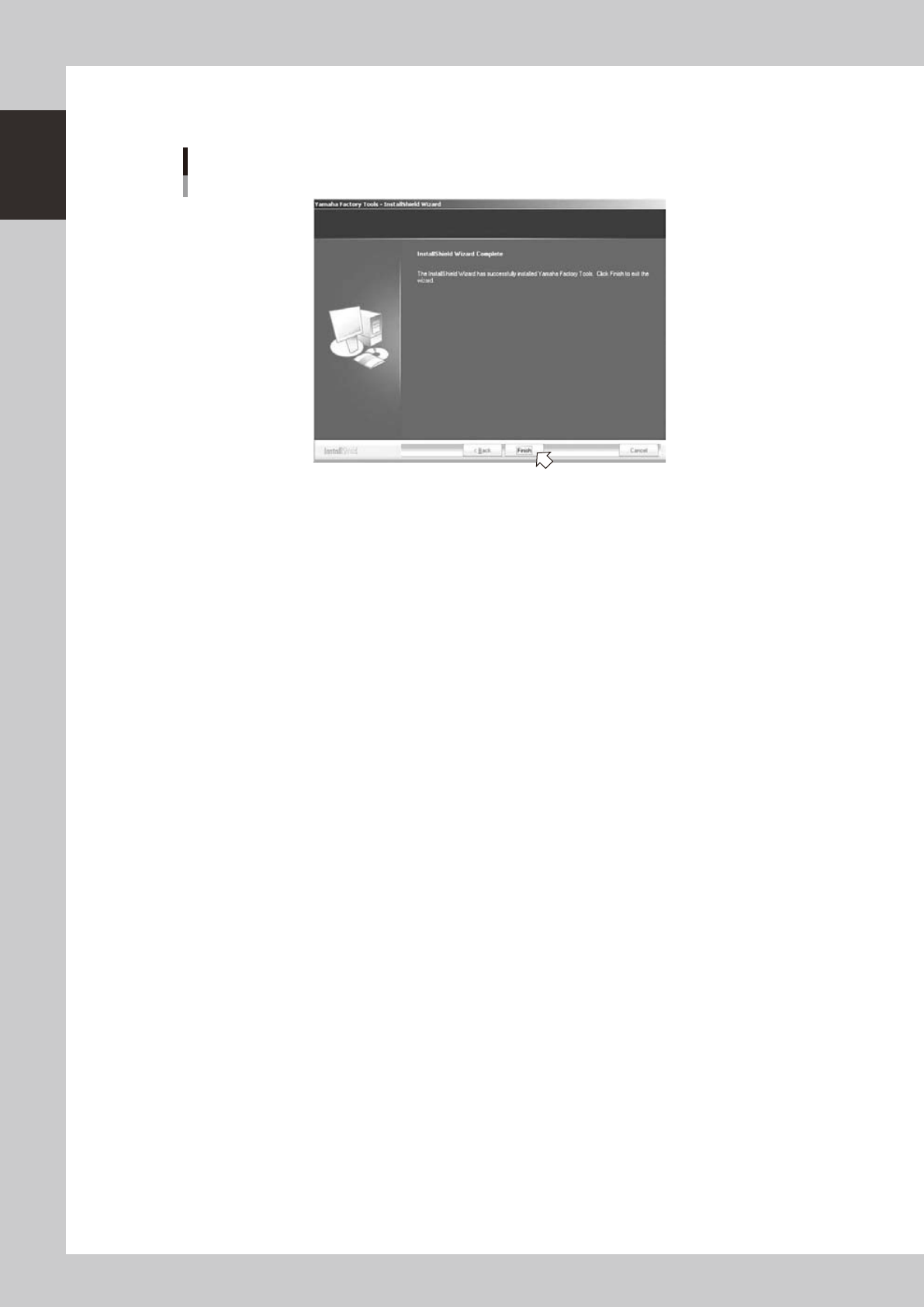
6. "InstallShield Wizard Completed" dialog box will appear when the installation is completed.
Click the [Finish] button to quit the "InstallShield Wizard".
“InstallShield Wizard Completed” dialog box
64105-S0-00
New installation of the Factory Tools is now completed.