EUS0153210_YFact_Standard_E.pdf - 第137页
3-17 3 Board Editor 3 Edit other items. Click the item you wan to edit or click the corr esponding tab in the detail view. The detail view switches to the contents of the selected item. Switching the detail view Select t…
3-16
3
Board Editor
2
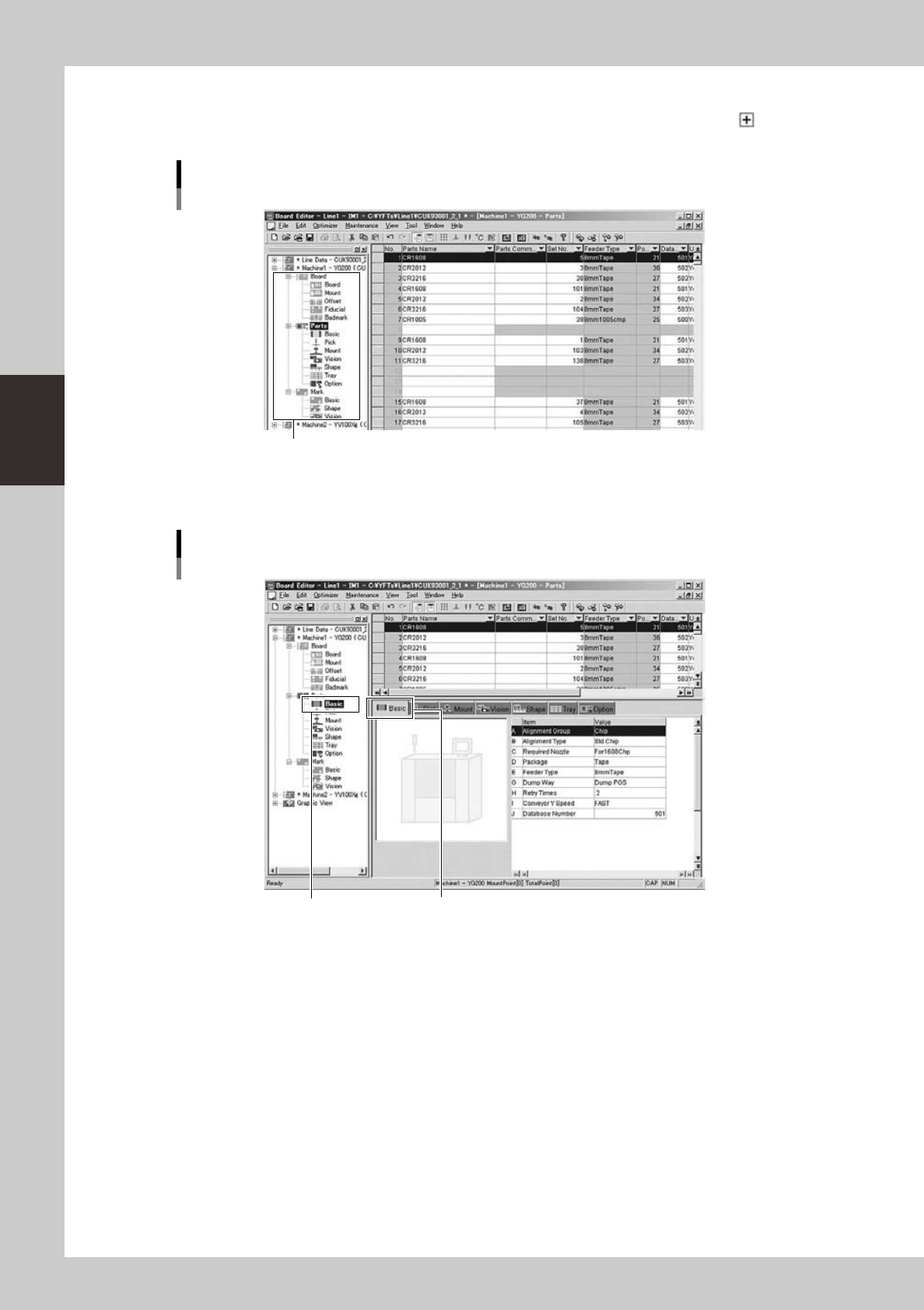
Display the detail view.
1. In the tree view, double-click the Parts or Mark icon you want to edit or click the " " mark.
Item icons are displayed under the Parts or Mark icon.
Item icons are displayed.
Icon display in tree view
64320-S0-00
2. Click the item icon you want to edit.
The contents of the selected item are displayed in the detail view.
Click the item icon.
Currently selected tab
Detail view display
64321-S0-00
3-17
3
Board Editor
3
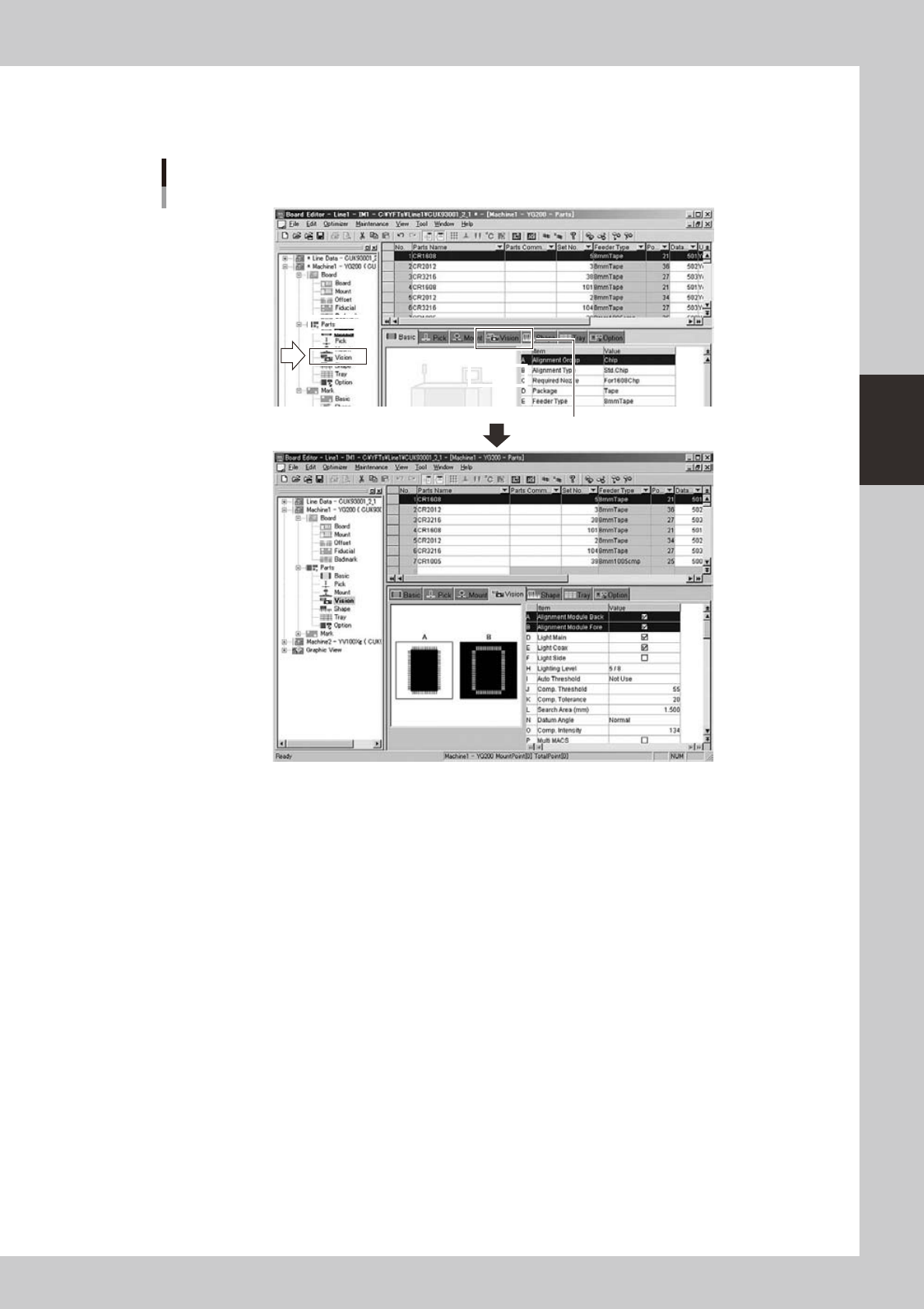
Edit other items.
Click the item you wan to edit or click the corresponding tab in the detail view.
The detail view switches to the contents of the selected item.
Switching the detail view
Select the item by
clicking it in tree view.
Select the item by clicking the tab.
64322-S0-00
3-18
3
Board Editor
2.4 Manipulating the detail view
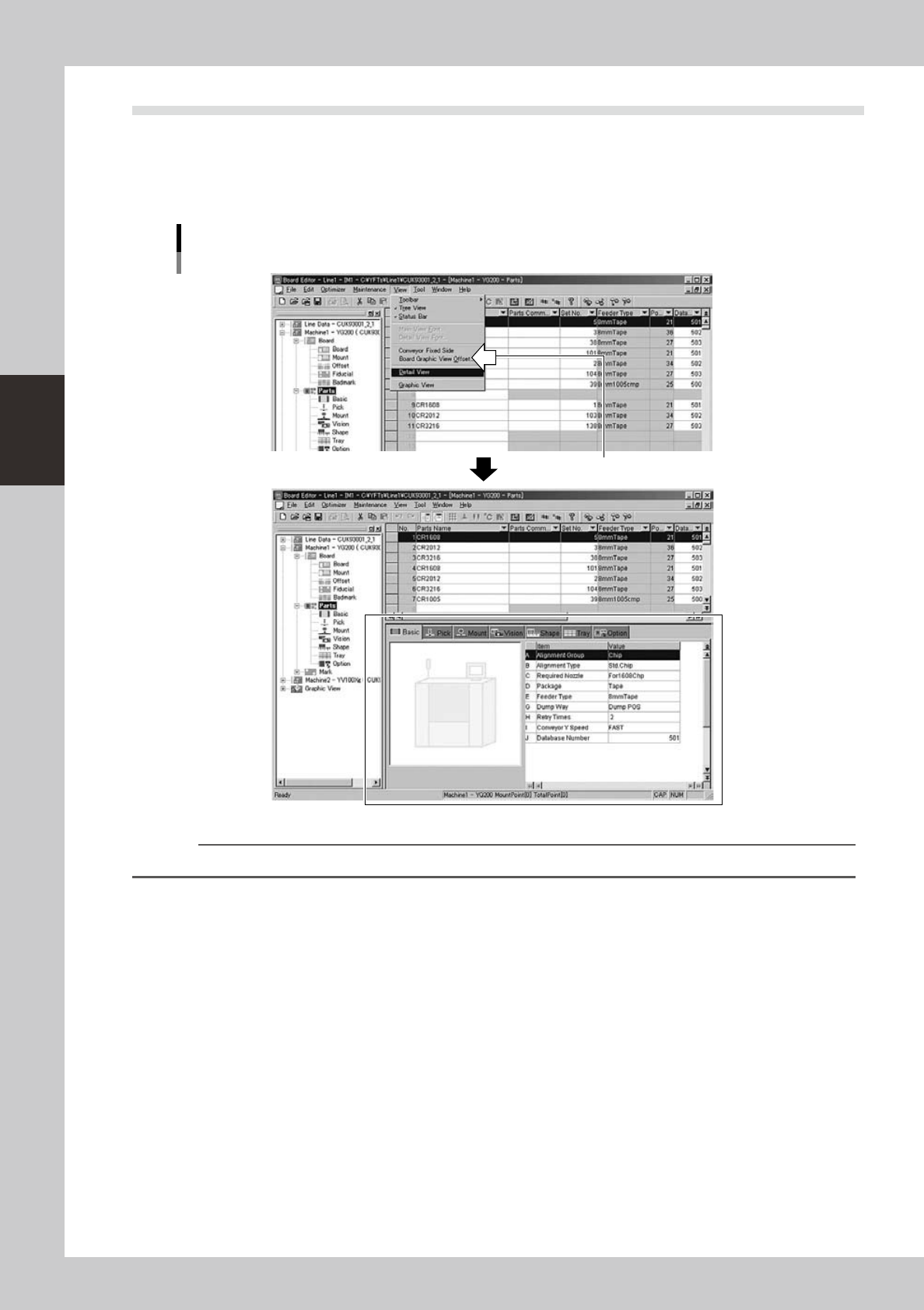
The parts information and mark information detail views can be displayed or hidden as needed.
●
Displaying the detail view
The detail view can be displayed while the main view is open.
Select the “Detail View” command from the View menu or click the item icon in the tree view.
Displaying the detail view
A check mark appears when selected.
64323-S0-00
Reference
Clicking the "Toggle Detail View" button on the toolbar displays or hides the detail view.