EUS0153210_YFact_Standard_E.pdf - 第22页
1-8 1 Installation of Factory T ools 2 Select functions to install additionally . 1. "Select function" dialog box will appear . Check mark is put for a function which is already in stalled. Leave it and tick th…
1-7
1
Installation of Factory Tools
1.3 Additional Installation of the Factory Tools Functions
The following explains the method for adding the Factory Tools functions.
1
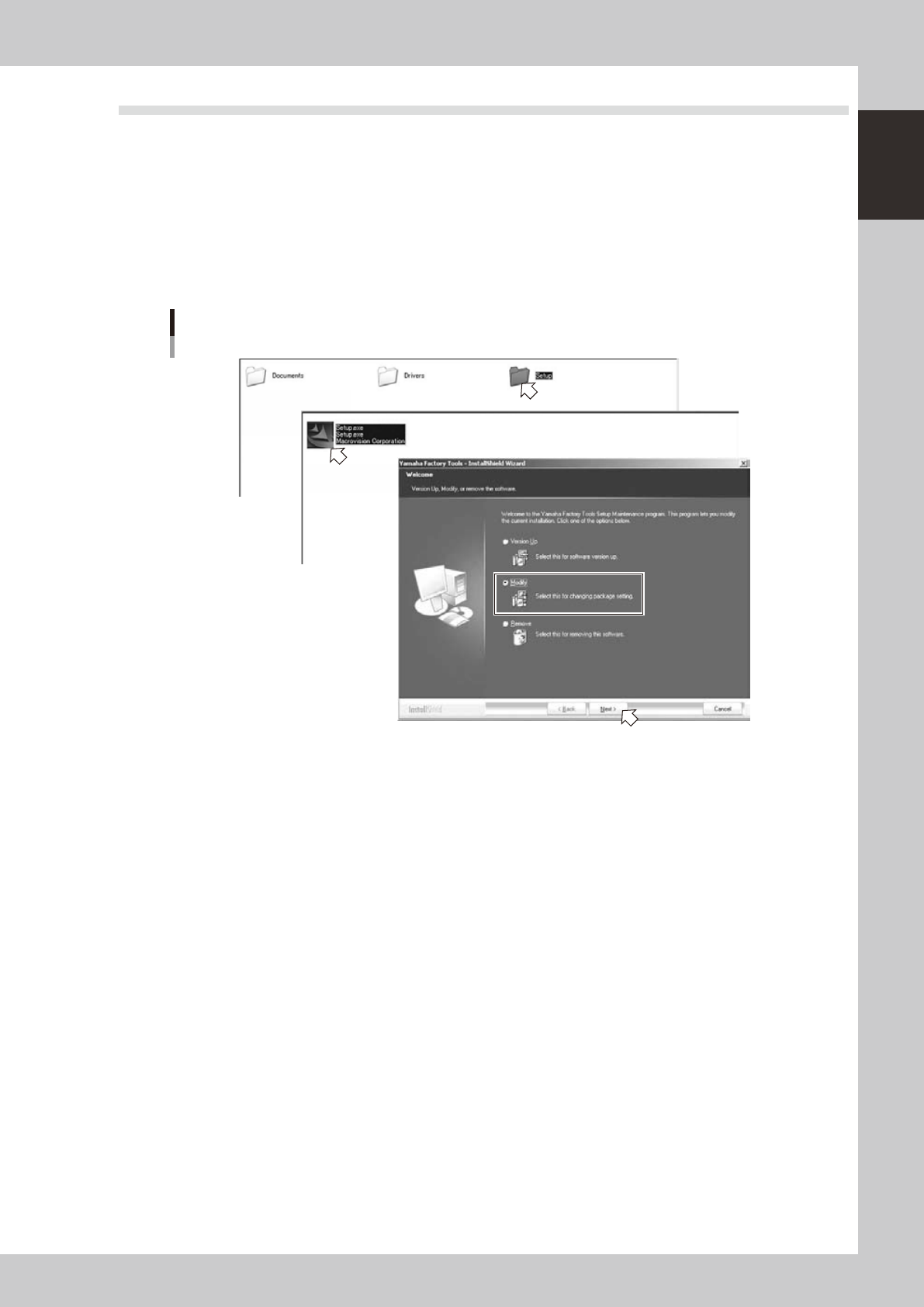
Start the installer.
1. Set the CD-ROM to the PC.
2. Double-click the "My Computer" icon of the PC and select the CD-ROM drive.
3. Open the "Setup" folder and double-click the "Setup.exe".
4. Tick the "Change" radio button in the "Software renewal/change" dialog box and click the [Next]
button.
Setup application
Addition of installation items
64107-S0-00
1-8
1
Installation of Factory Tools
2
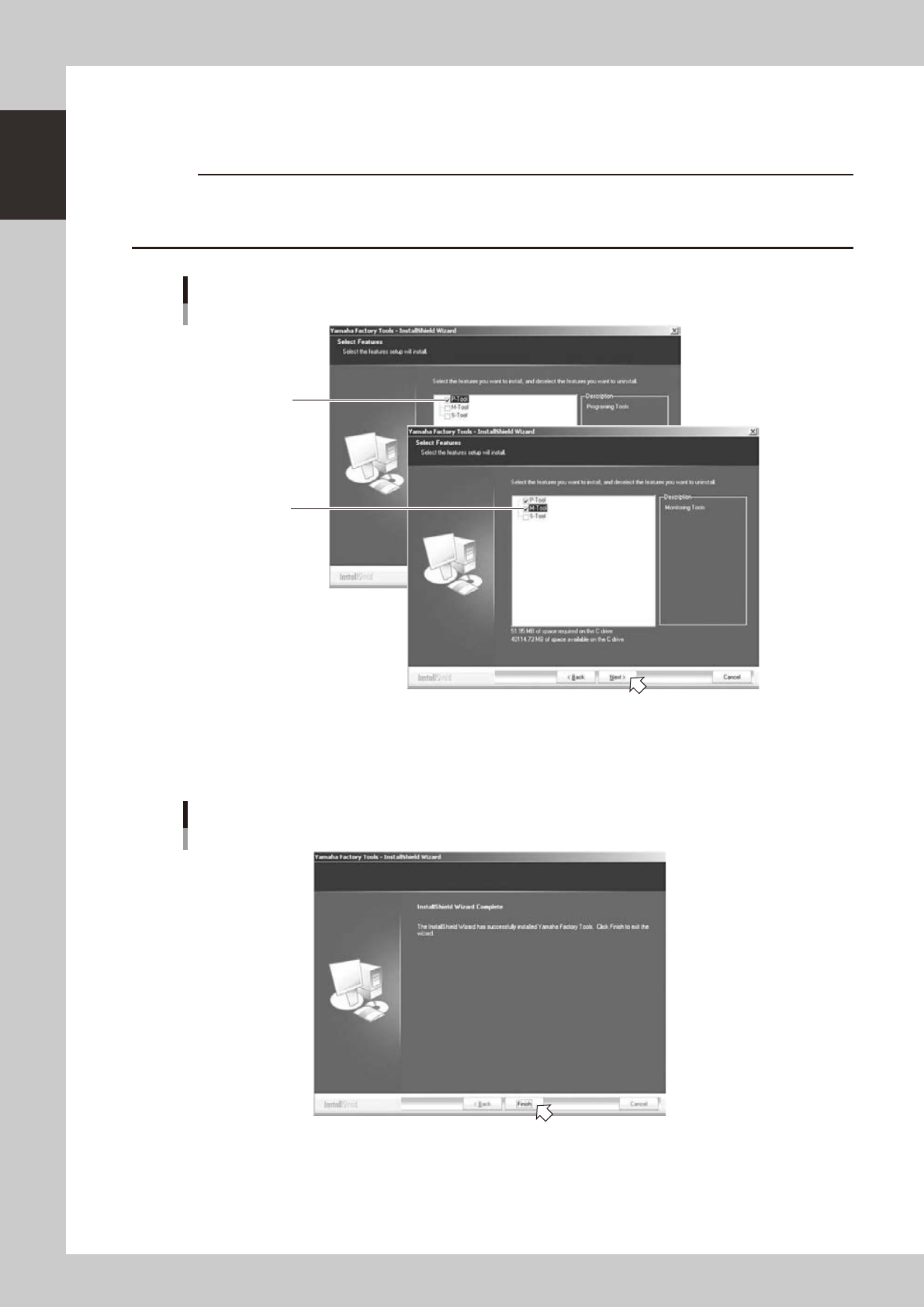
Select functions to install additionally.
1. "Select function" dialog box will appear. Check mark is put for a function which is already installed.
Leave it and tick the check box for a function to add.
c
CAUTION
Check mark is put for a function which is already installed. Don’t clear the existing check mark when ticking a check
mark to add a function. Pay attention not to clear a check mark for a function which is already installed or it will be
uninstalled.
“Select function” dialog box
Check mark is put for
a function which is
already installed.
Tick the check box
for a function to install.
64108-S0-00
2. "InstallShield Wizard Completed" dialog box will appear when the installation of additional function is
completed.
Click the [Finish] button to quit the "InstallShield Wizard".
“InstallShield Wizard Completed” dialog box
64105-S0-00
Installation of the additional functions of the Factory Tools is now completed.
1-9
1
Installation of Factory Tools
1.4 Uninstallation of Factory Tools
The following explains the method for uninstalling the Factory Tools.
1
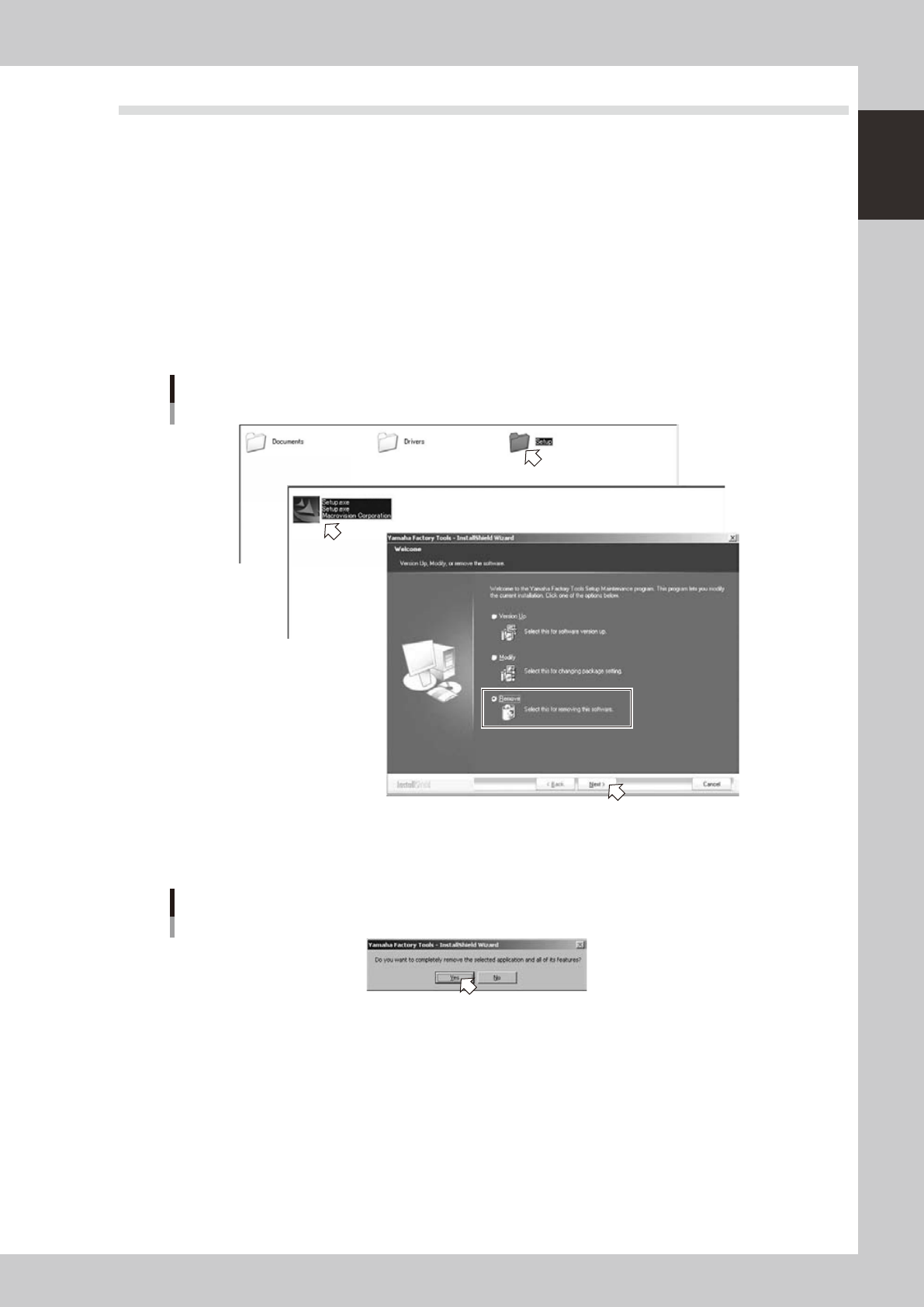
Start the installer.
1. Set the CD-ROM to the PC.
2. Double-click the "My Computer" icon of the PC and select the CD-ROM drive.
3. Open the "Setup" folder and double-click the "Setup.exe".
"Software renewal/change" dialog box will appear.
2
Uninstall the Factory Tools.
1. Tick the "Remove" radio button in the "Software renewal/change" dialog box and click the [Next]
button.
Setup application
Uninstallation of software
Step1
Step1
64109-S0-00
2. When the "Confirmation of deletion" dialog box appears, click the [Yes] button.
Uninstallation of the software will start.
“Confirmation of deletion” dialog box
64110-S0-00