EUS0153210_YFact_Standard_E.pdf - 第132页
3-12 3 Board Editor 1 T ab 2 2 3 3 Board data window part names Parts information Main view list Detail view 64314-S0-00
3-11
3
Board Editor
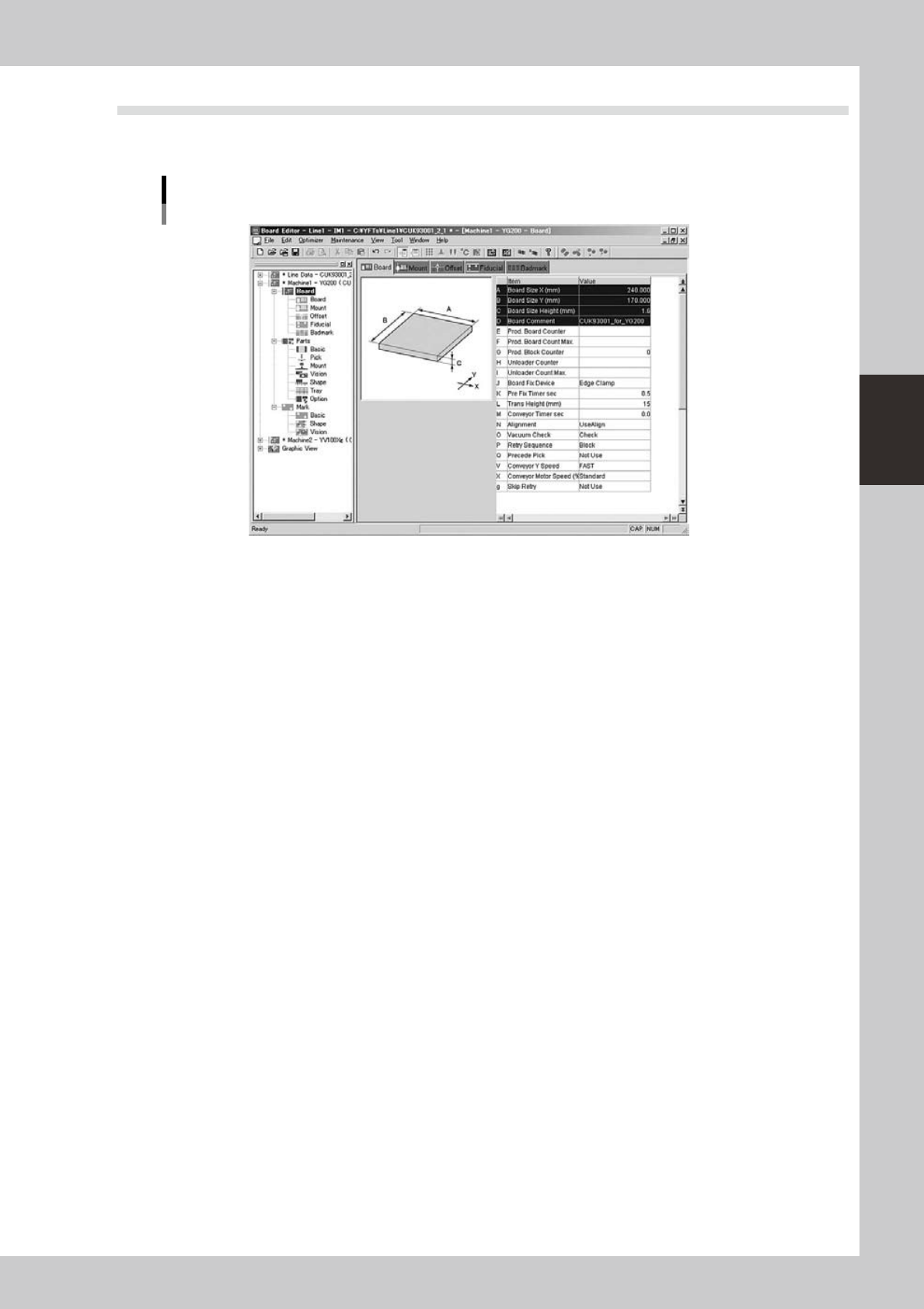
2.2 Board data window
A board data window appears when board data is opened. One Board window shows the contents of one
board data.
Board data window
64313-S0-00
3-12
3
Board Editor
1
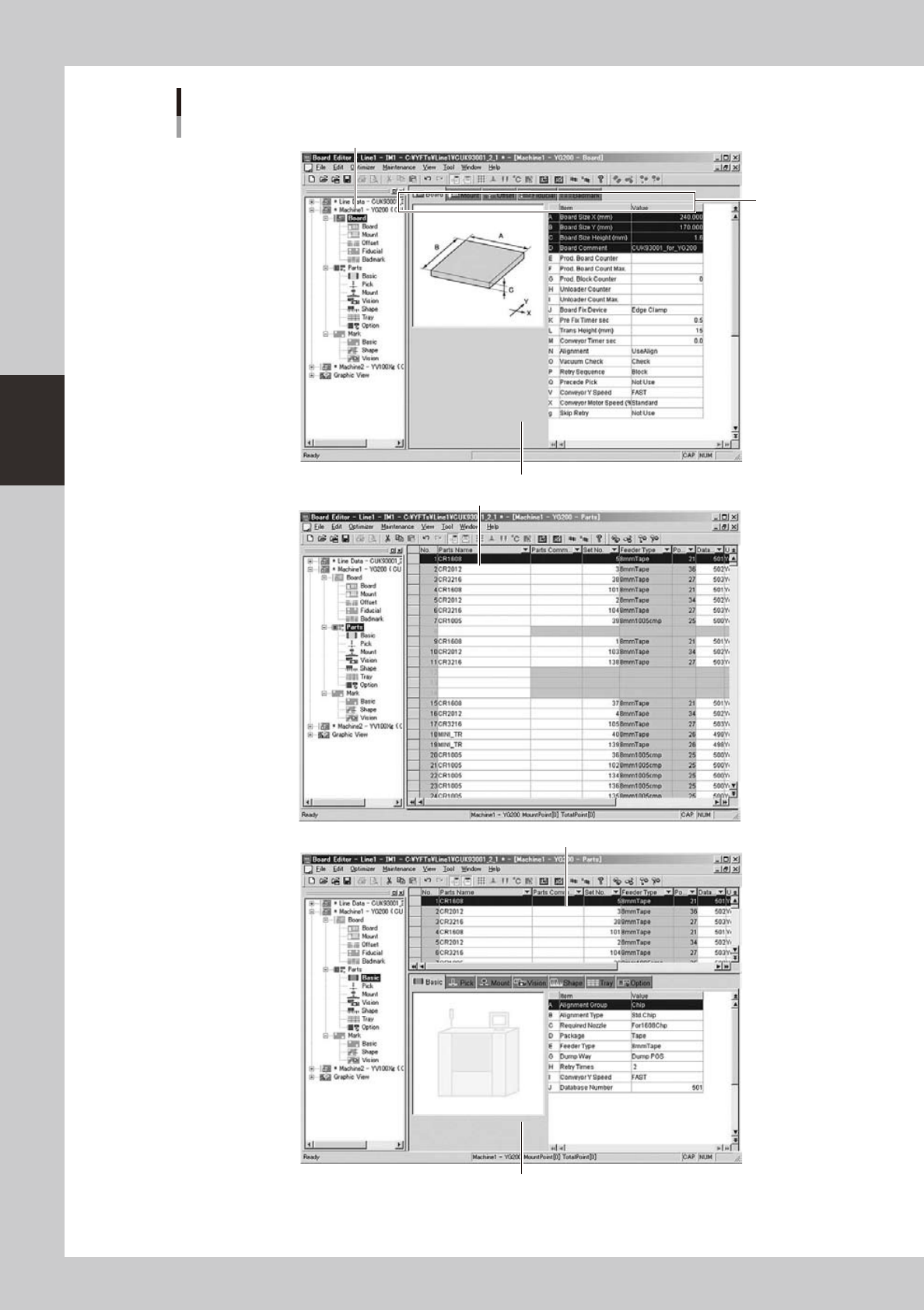
Tab
2
2
3
3
Board data window part names
Parts information
Main view list
Detail view
64314-S0-00
3-13
3
Board Editor
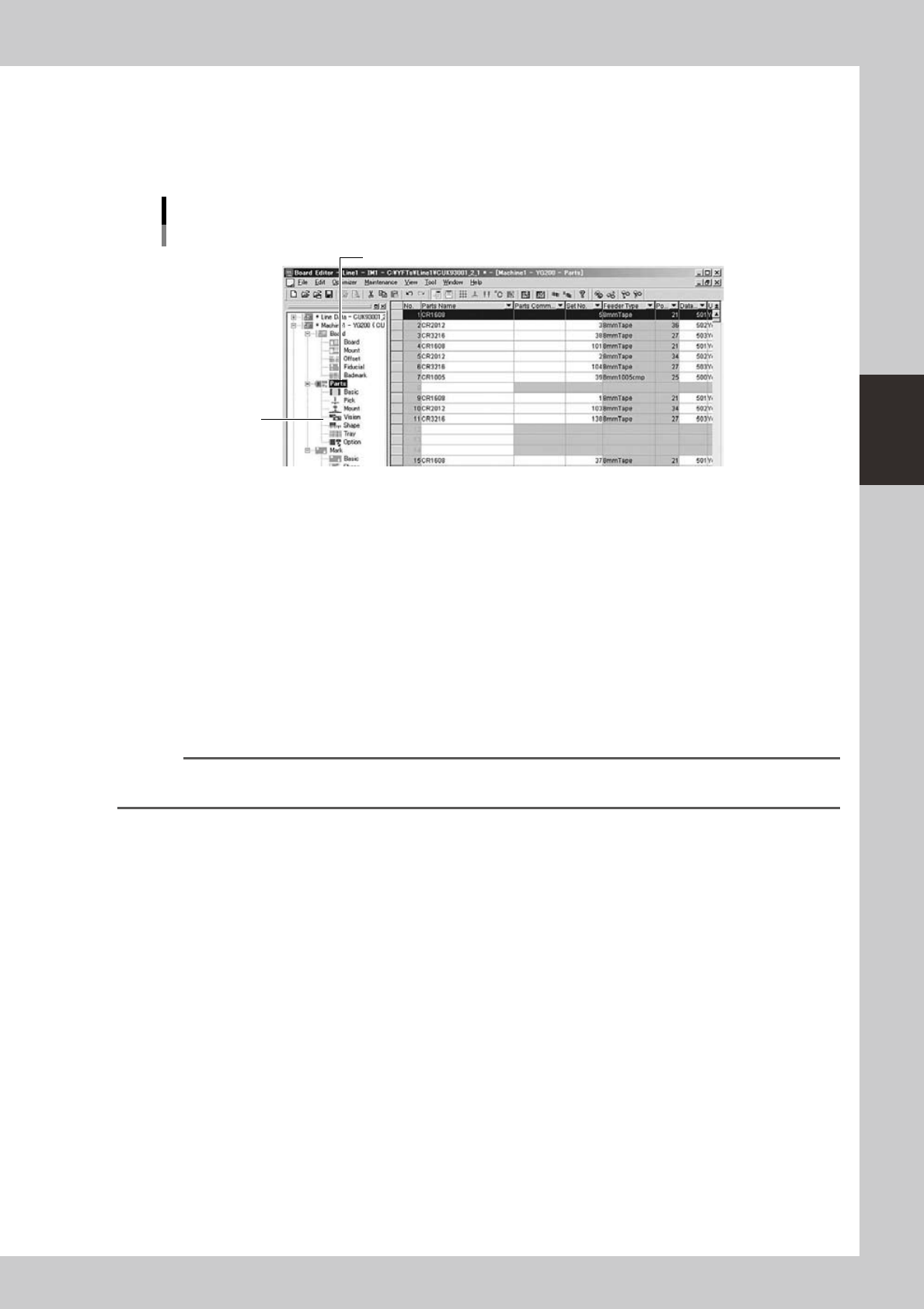
1. Tree view
Each board data contains various information items such as board information, mount information and parts information.
These information items are displayed in the main view and detail view in the right pane of the Board Editor window.
The tree view in the left pane hierarchically displays the icons representing these information items.
The tree view can be hidden and redisplayed by selecting the “Tree View” command from the View menu.
Icon of data item currently being edited
Item icons
Tree view
Board data window
64315-S0-00
Item icons
An item icon represents a group of various information items. Clicking an item icon displays the corresponding
information in the main view and/or detail view.
2. Main view
Displays the contents of the selected item icon.
If necessary, you can change the display font and its size by selecting the “Main View Font” command from the View
menu.
3. Detail view
Displays the contents of the selected item icon.
Board information, mount information and parts information can be edited.
If necessary, you can change the display font and its size by selecting the “Detail View Font” command from the View
menu.
Reference
The data contents displayed in the detail view can be switched by clicking the corresponding tab or by pressing the
[F4] key or the [Shift]+[F4] keys.