EUS0153210_YFact_Standard_E.pdf - 第123页
3-3 3 Board Editor 1.2 Quitting the Board Editor ToquittheBoardEditor,select“Exit”fromtheFilemenuorclickthe[Close]buttonintheupperrightcorner of the Board Editor window. Quitting the Board Editor [Cl…
3-2
3
Board Editor
2
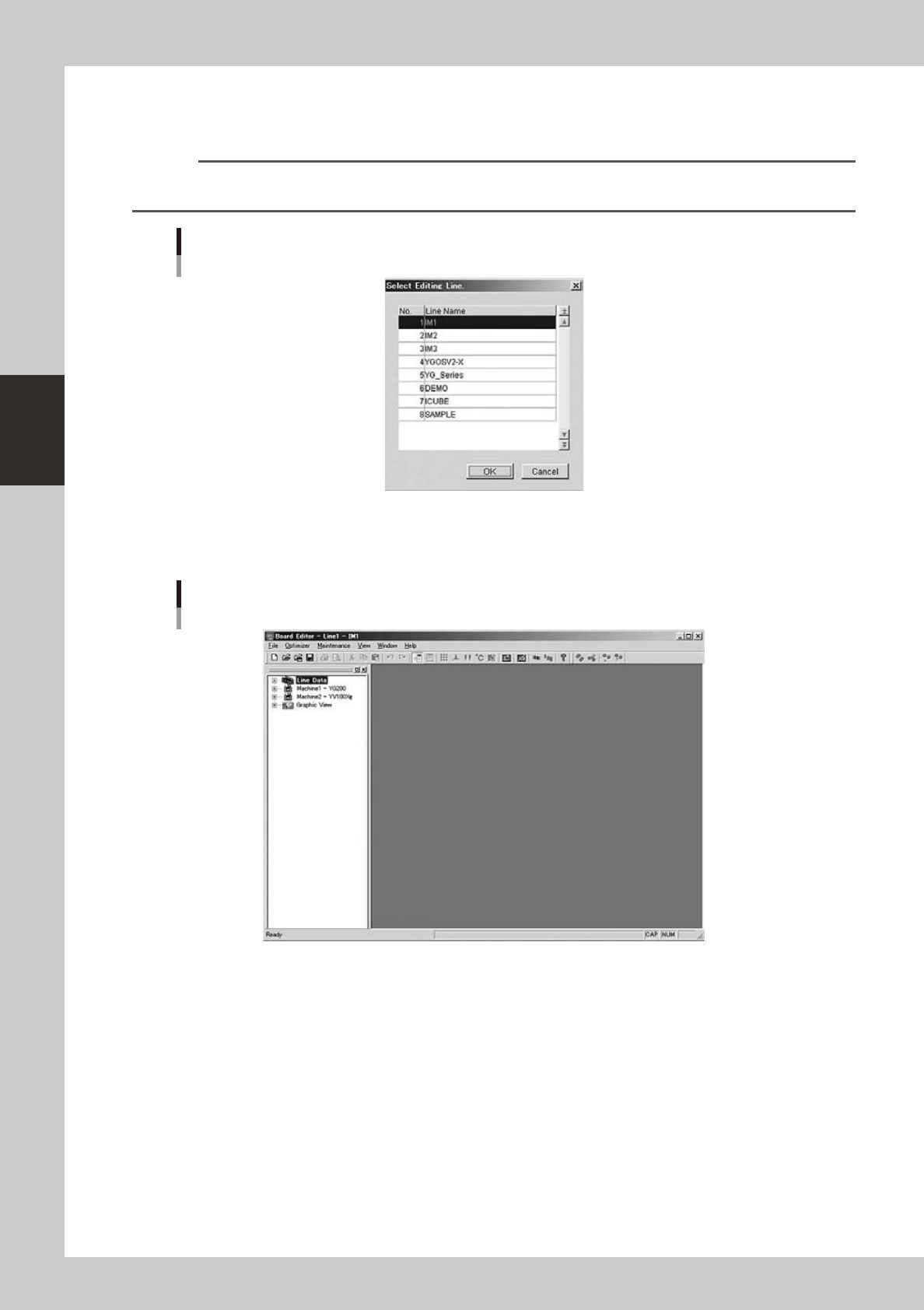
Select the line to use.
When the "Select Editing Line" dialog box appears, select the line (production line) to use and click the
[OK] button.
Reference
When only one line is registered, the "Select Editing Line" dialog box does not appear. If no line is registered, you must
start the Board Explorer to register at least one line.
"Select Editing Line" dialog box
64301-S0-00
3
The Board Editor starts.
The Board Editor window appears as shown below.
Board Editor window
64302-S0-00
3-3
3
Board Editor
1.2 Quitting the Board Editor
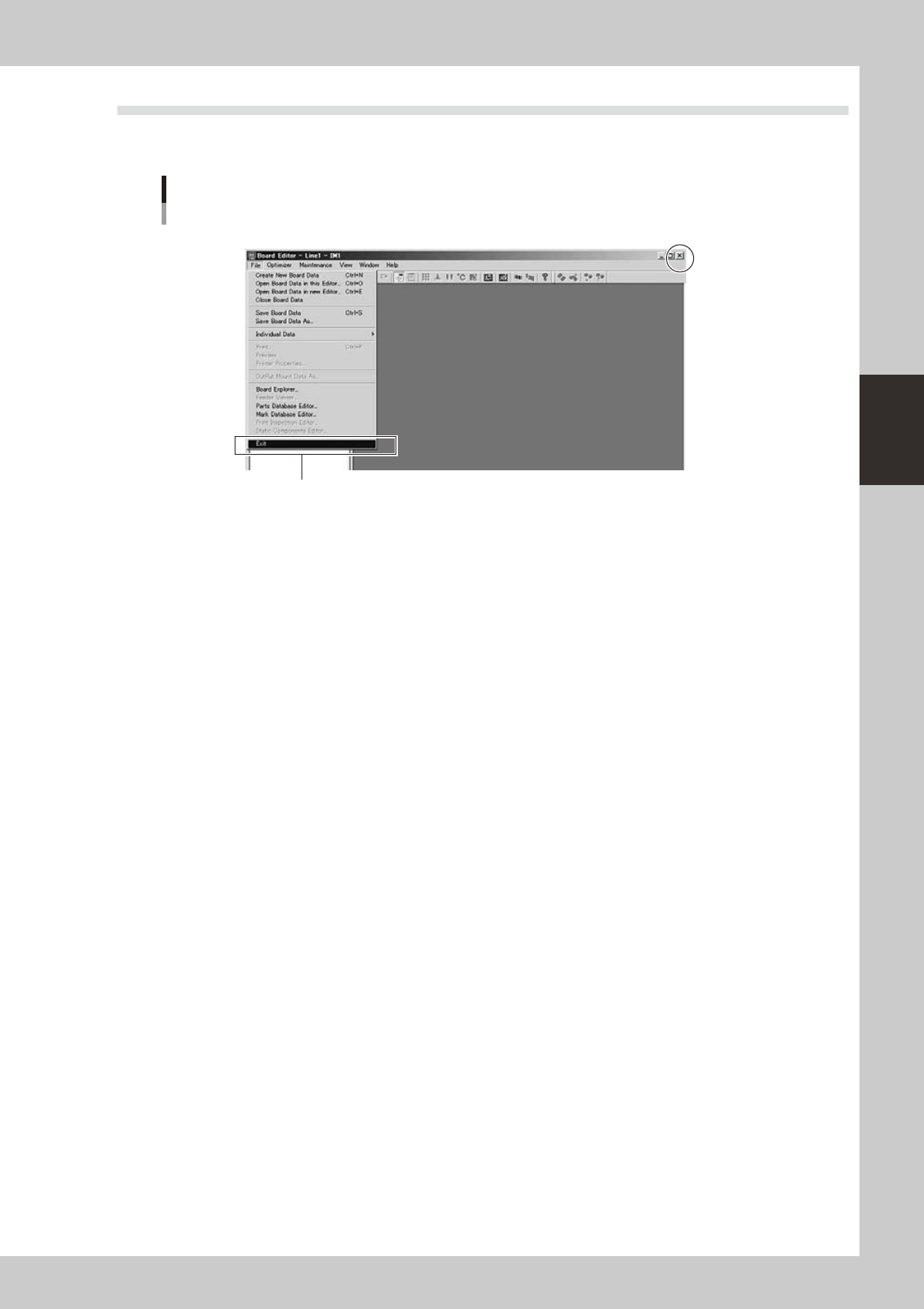
ToquittheBoardEditor,select“Exit”fromtheFilemenuorclickthe[Close]buttonintheupperrightcorner
of the Board Editor window.
Quitting the Board Editor
[Close] button
Select "Exit" from File menu.
64303-S0-00
3-4
3
Board Editor
2. Basic operation
This section explains basic operations for editing board data and creating production data.
2.1 Board Editor main window
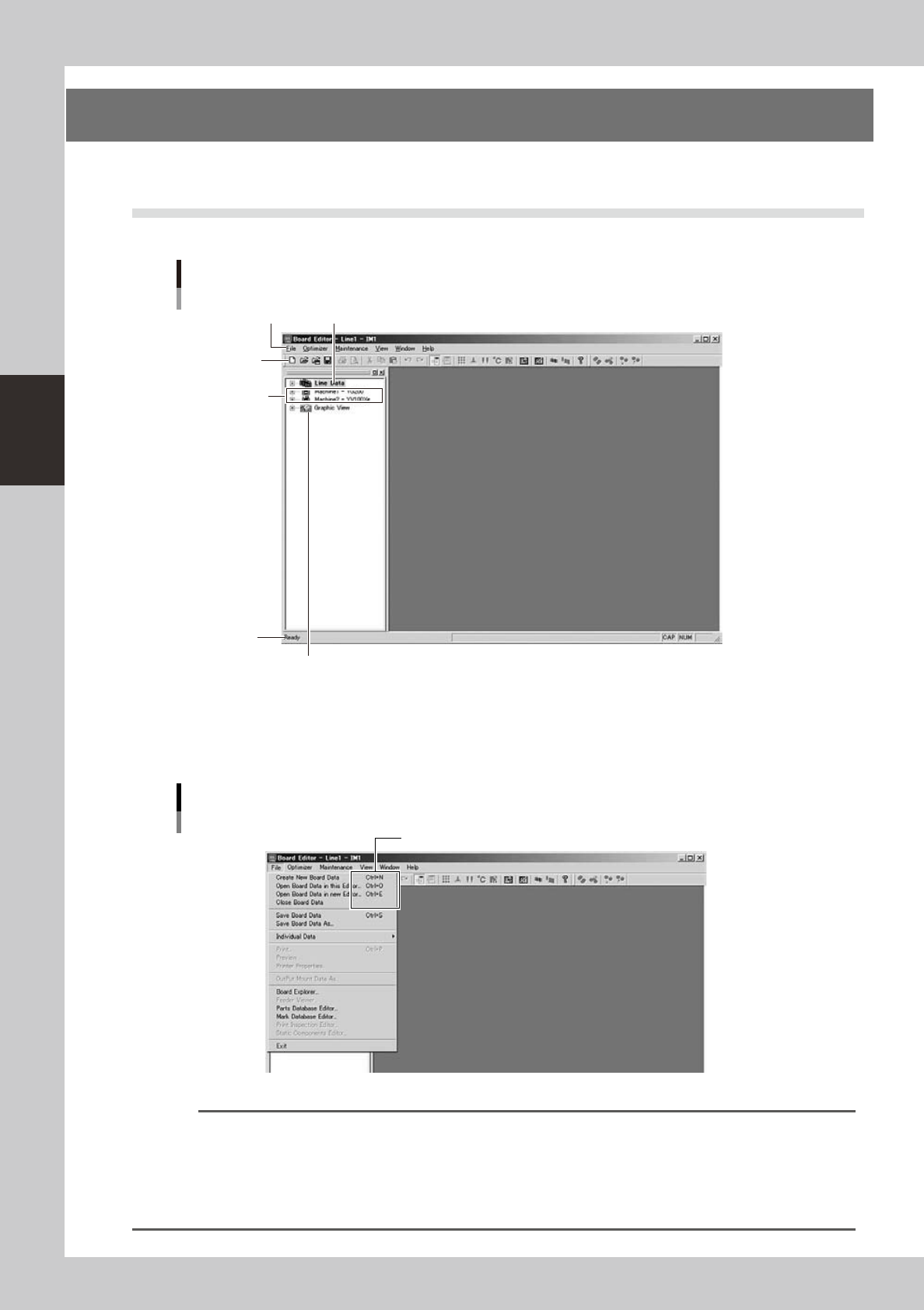
The following main window appears when the Board Editor starts.
Board Editor main window
Menu bar
"Line Data" icon
Toolbar
"Machine" icon
Graphic View icon
Status bar
64304-S0-00
●
Menu bar
ThemenubaratthetopoftheBoardEditormainwindowcontainspull-downmenuswithcommandsgroupedby
function.
Shortcut keys
Menu bar
64305-S0-00
Reference
A shortcut key is a combination of keys or a function key (such as [F1] and [F2] keys) on the keyboard to execute a
defined command. A shortcut key is displayed to the right of a command if it can be executed with the shortcut key.
For example, the "Create New Board Data" command on the Edit menu can be executed by pressing the [Ctrl] and
[N] keys simultaneously.
When you have become accustomed to operating the Board Explorer, try to use shortcut keys to edit data more
efficiently.