EUS0153210_YFact_Standard_E.pdf - 第118页
2-84 2 Board Explorer 10.2.2 Multi-Combined Program It is able to combine the board data for same board and both side. It is active only on line with dual lane machine and some single board data are selected on main view…
2-83
2
Board Explorer
10.2 Multi Lane Utility
Multi Lane Utility is a tool to combine single board data into combined board data or divide combined board
data into single board data.
Thiscanbeperformedbyselectingthemainviewboarddataandspecifyingtheoperationfromtheright-click
context menu. However, this feature is enabled only when "View" – "Multi Lane View" is enabled and line
board data is selected. Note that this feature does not work for machine single board data.
Multi Lane Utility
642F5-S0-10
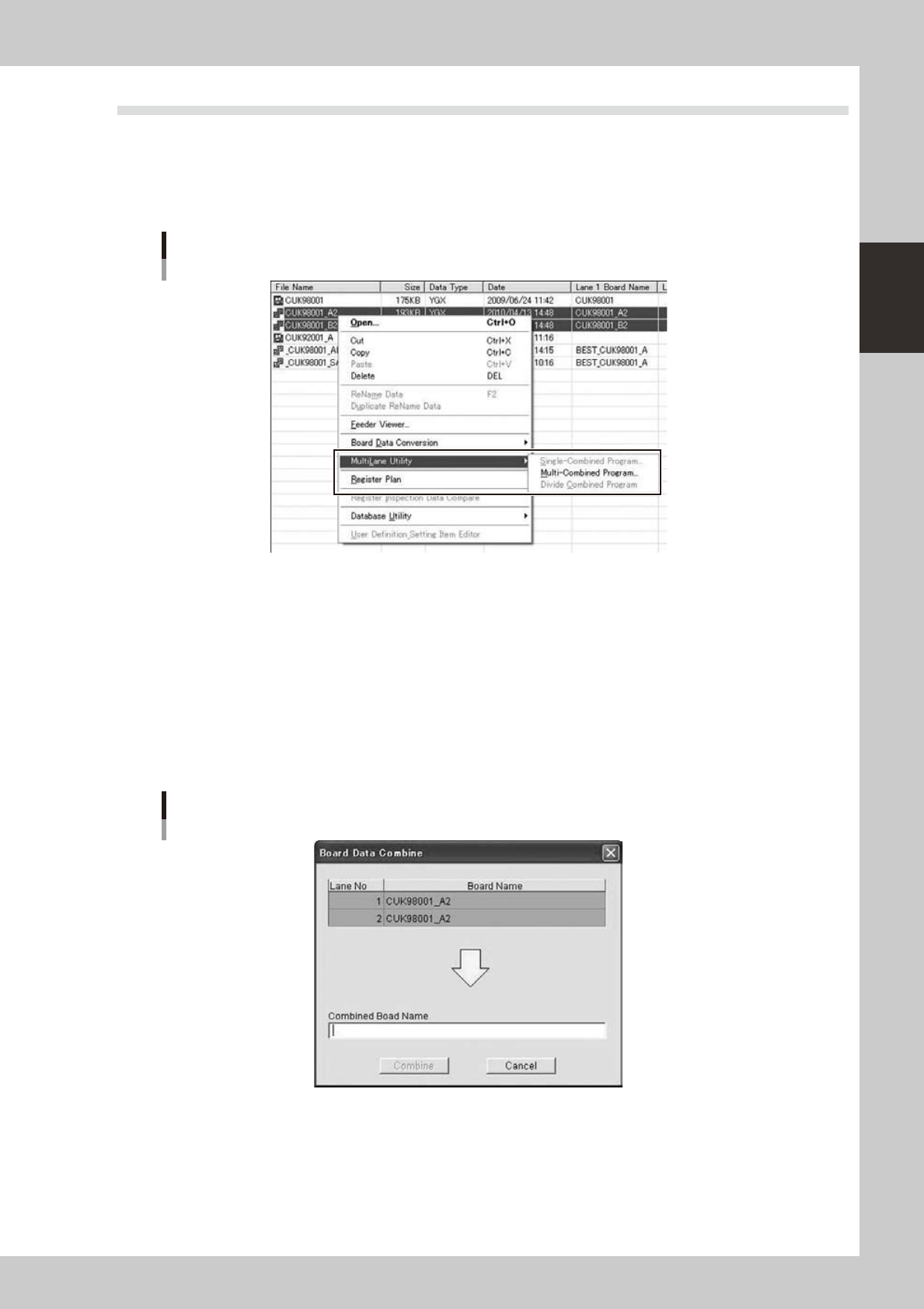
10.2.1 Single-Combined Program
It is able to combine to the board data for same board and same side. It is active only on line with dual lane
machine and one single board data is selected on main view.
1
Displaying the “Board Data Combine” dialog
Select the main view board data and select “Multi Lane Utility” – “Single-Combined Program” from the
right-click context menu to display the “Board Data Combine” dialog.
2
Combined board data name entry
Enter the name for the combined board data and click the [Combine] button.
“Board Data Combine” dialog
642F6-S0-00
2-84
2
Board Explorer
10.2.2 Multi-Combined Program
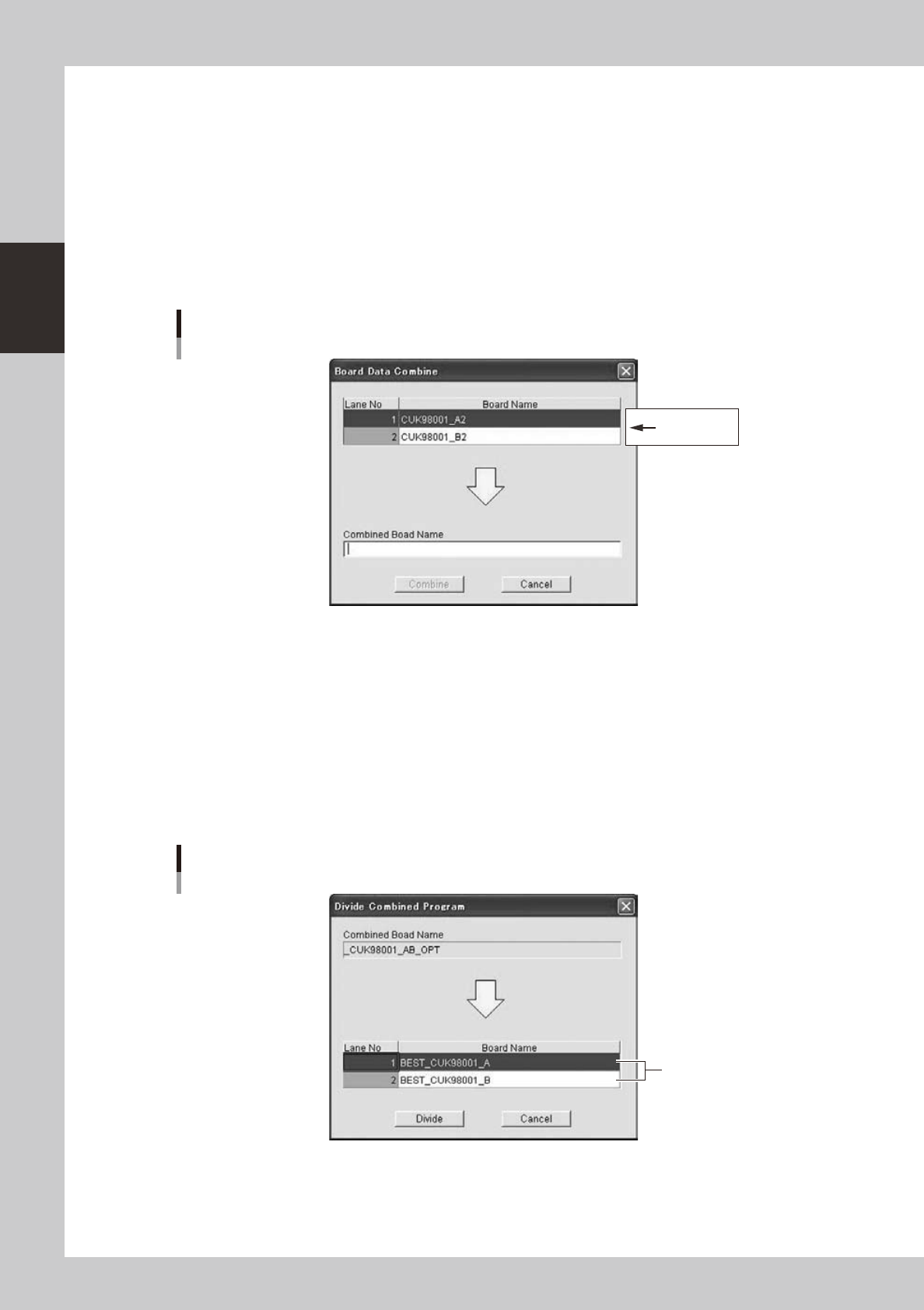
It is able to combine the board data for same board and both side. It is active only on line with dual lane
machine and some single board data are selected on main view. The mount mode (Parallel or Alternate) is set
automatically from the parts arrangement.
1
Displaying the “Board Data Combine” dialog
Select the main view board data and select “Multi Lane Utility” – “Multi-Combined Program” from the
right-click context menu to display the “Board Data Combine” dialog.
2
Combined board data name entry
Enter the name for the combined board data and click the [Combine] button.
“Board Data Combine” dialog
Changeable
642F7-S0-00
10.2.3 Divide Combined Program
It is able to divide the combined board data. It is active only when the combined board data is elected on main
view.
1
Displaying the “Divide Combined Program” dialog
Select the main view board data and select “Multi Lane Utility” – “Divide Combined Program” from the
right-click context menu to display the “Divide Combine Program” dialog.
2
Enter the names for the divided board data.
Enter the names for the divided board data in "Board name" and click the [Divide] button.
“Divide Combined Program” dialog
Enter the names for the
divided board data
642F8-S0-00

Chapter 3 Board Editor
Contents
1. Board Editor 3-1
1.1 Starting the Board Editor 3-1
1.2 Quitting the Board Editor 3-3
2. Basic operation 3-4
2.1 Board Editor main window 3-4
2.2 Board data window 3-11
2.3 Main view and detail view display manipulation 3-14
2.4 Manipulating the detail view 3-18
2.5 Working with multiple windows 3-20
2.6 Working with multiple board data 3-22
2.6.1 Arranging the Board Editor windows 3-22
2.7 Moving the cursor from one row to another (jump) 3-25
2.7.1 Moving the cursor to a specified line 3-25
2.7.2 Moving the cursor to the top line 3-26
2.7.3 Moving the cursor to the bottom line 3-26
2.7.4 Moving the cursor one row up or down 3-26
2.8 Copying and pasting the data 3-27
2.9 Filtering the data 3-29
2.9.1 Filtering the data 3-29
2.9.2 Canceling the filter 3-30
2.10 Search and replace 3-31
2.10.1 Search 3-31
2.10.2 Replace 3-33
2.10.3 Function of Replacing Data with Note 3-35
2.11 Data sorting 3-38
2.11.1 How to operate 3-38
2.11.2 Renumber Function 3-39
3. Graphic View 3-41
3.1 Displaying/closing the graphic view 3-41
3.2 Manipulating the graphic view 3-42
3.3 Editing the graphic view 3-45
3.3.1 Crating new mount information 3-45
3.3.2 Changing the mount positions 3-45
3.4 Board Graphic View Offset setting 3-47
4. Multi Lane Support 3-51
4.1 Board data select dialog is extended 3-51