EUS0153210_YFact_Standard_E.pdf - 第182页
4-7 4 Feeder Viewer T oolbar Plan information toolbar 1 2 3 4 64407-S0-00 1. [Par ts Info] button Displays information on all parts (components) used in the board data in the production board list. Reference The [Parts I…
4-6
4
Feeder Viewer
Toolbar
Board toolbar
1 2 3
4 5 6
64406-S0-10
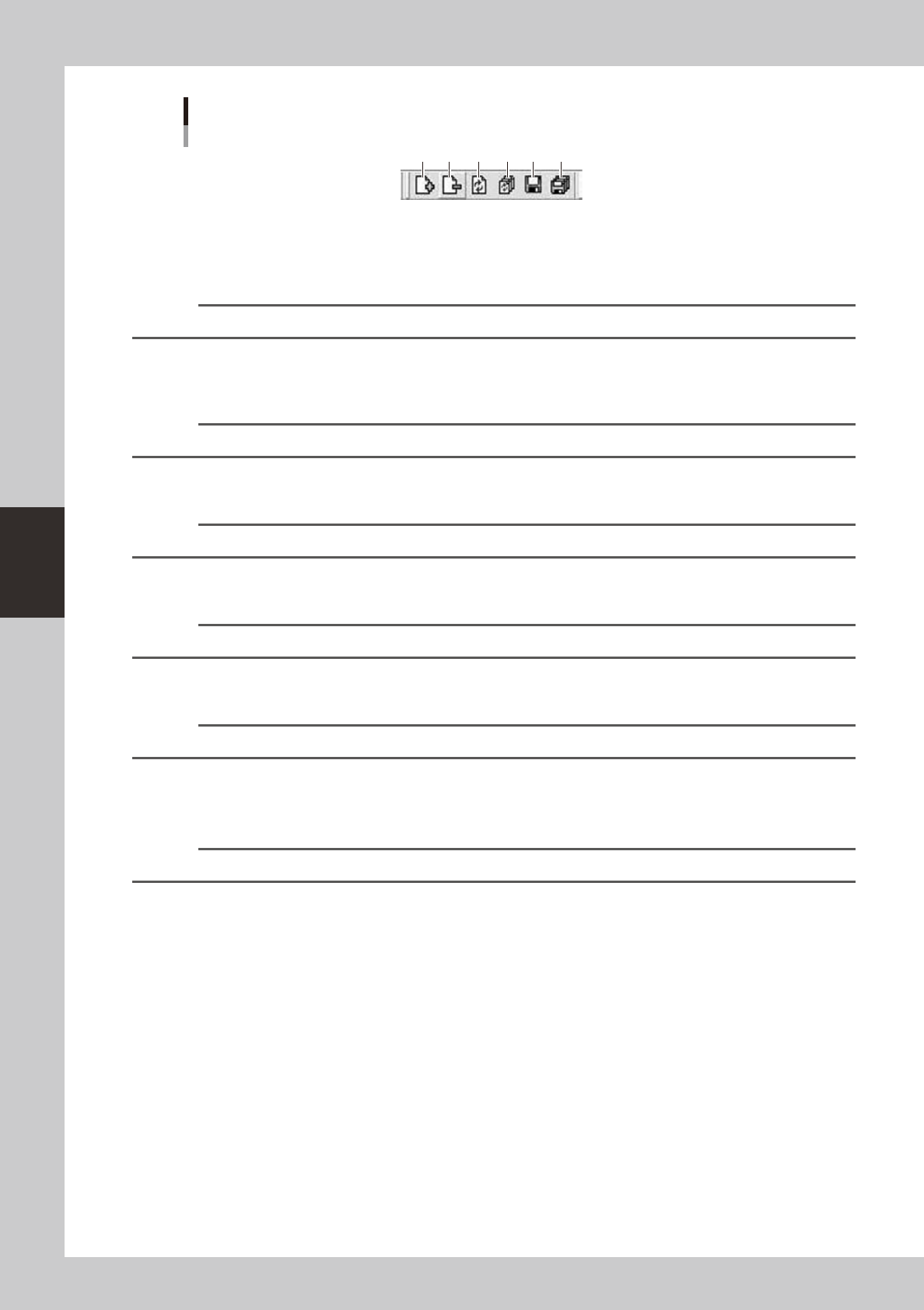
1. [Add Board] button
Whenaplaninformationwindoworaplaninformationfilealreadyregisteredisopen,clickingthisbuttonallowsyouto
add board data to the production board list in the left pane.
Reference
The [Add] button has the same function as the "Add Board" command in the Edit menu.
2. [Remove Board] button
Whenanewplaninformationwindoworaplaninformationfilealreadyregisteredisopen,clickingthisbuttondeletes
board data from the production board list in the left pane.
Reference
The [Remove Board] button has the same function as the "Remove Board" command in the Edit menu.
3. [Board Reload] button
Reloadsboarddata.
Reference
The [Board Reload] button has the same function as the "Board Reload" command in the Edit menu.
4. [Reload All Boards] button
Reloadsallboarddata.
Reference
The [Reload All Boards] button has the same function as the "Reload All Boards" command in the Edit menu.
5. [Save Board] button
Saves the currently selected board data by overwriting the existing data.
Reference
The [Save Board] button has the same function as the "Save Board" command in the Edit menu.
Whenyouwanttosavetheboarddataunderadifferentname,selectthe“SaveBoardAs”commandintheEditmenu.
6. [Save All Boards] button
Saves all board data currently opened.
Reference
The [Save All Boards] button has the same function as the "Save All Boards" command in the Edit menu.
4-7
4
Feeder Viewer
Toolbar
Plan information toolbar
1 2 3 4
64407-S0-00
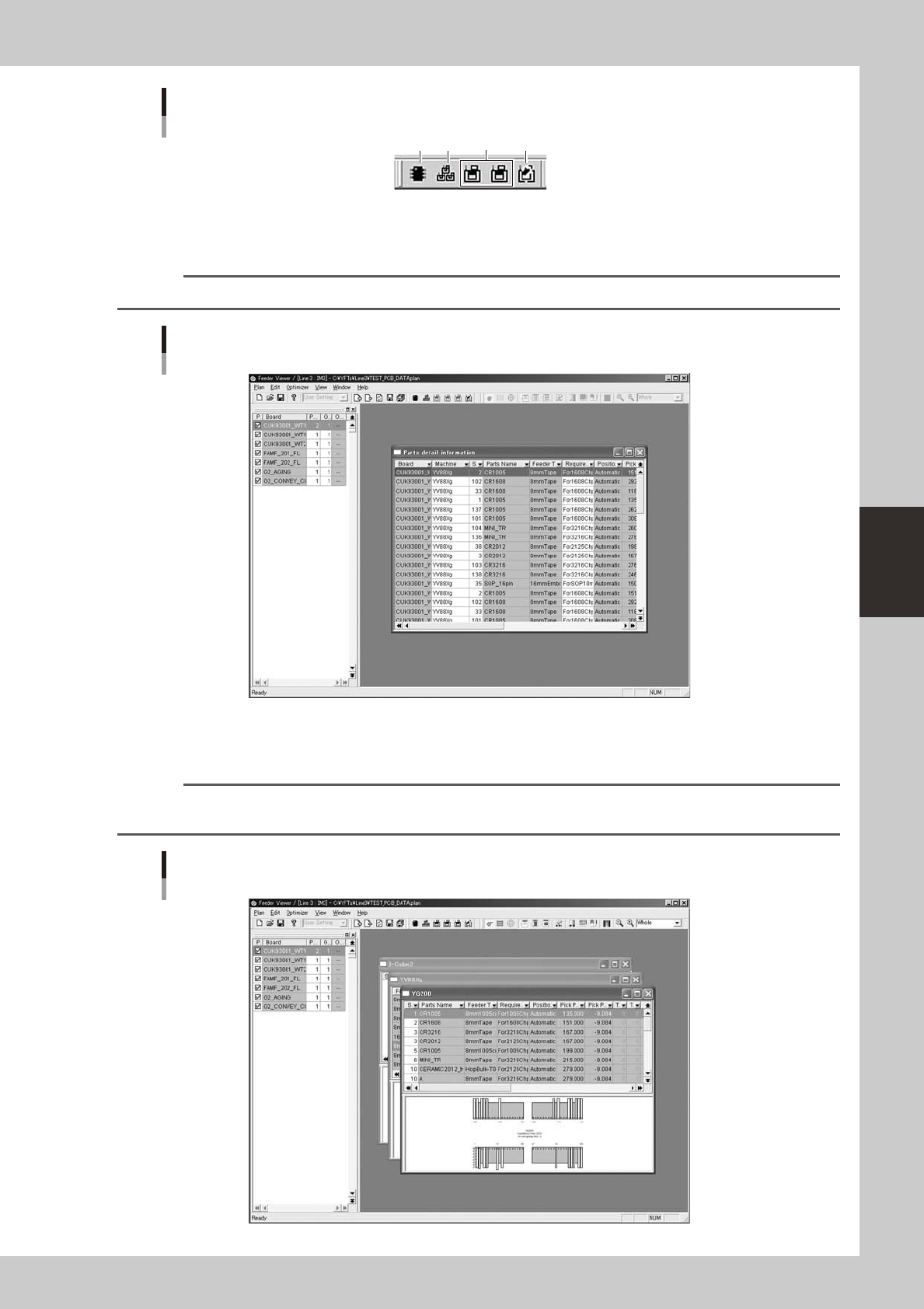
1. [Parts Info] button
Displays information on all parts (components) used in the board data in the production board list.
Reference
The [Parts Info] button has the same function as the "Parts Info" command in the Window menu.
Parts detail information used with all machines
64408-S0-00
2. [Plan Info on All Machines] button
Displays plan information on all machines.
Reference
The [Plan Info on All Machines] button has the same function as the "Plan Info on All Machines" command in the
Window menu.
Plan information on all machines
64409-S0-00
4-8
4
Feeder Viewer
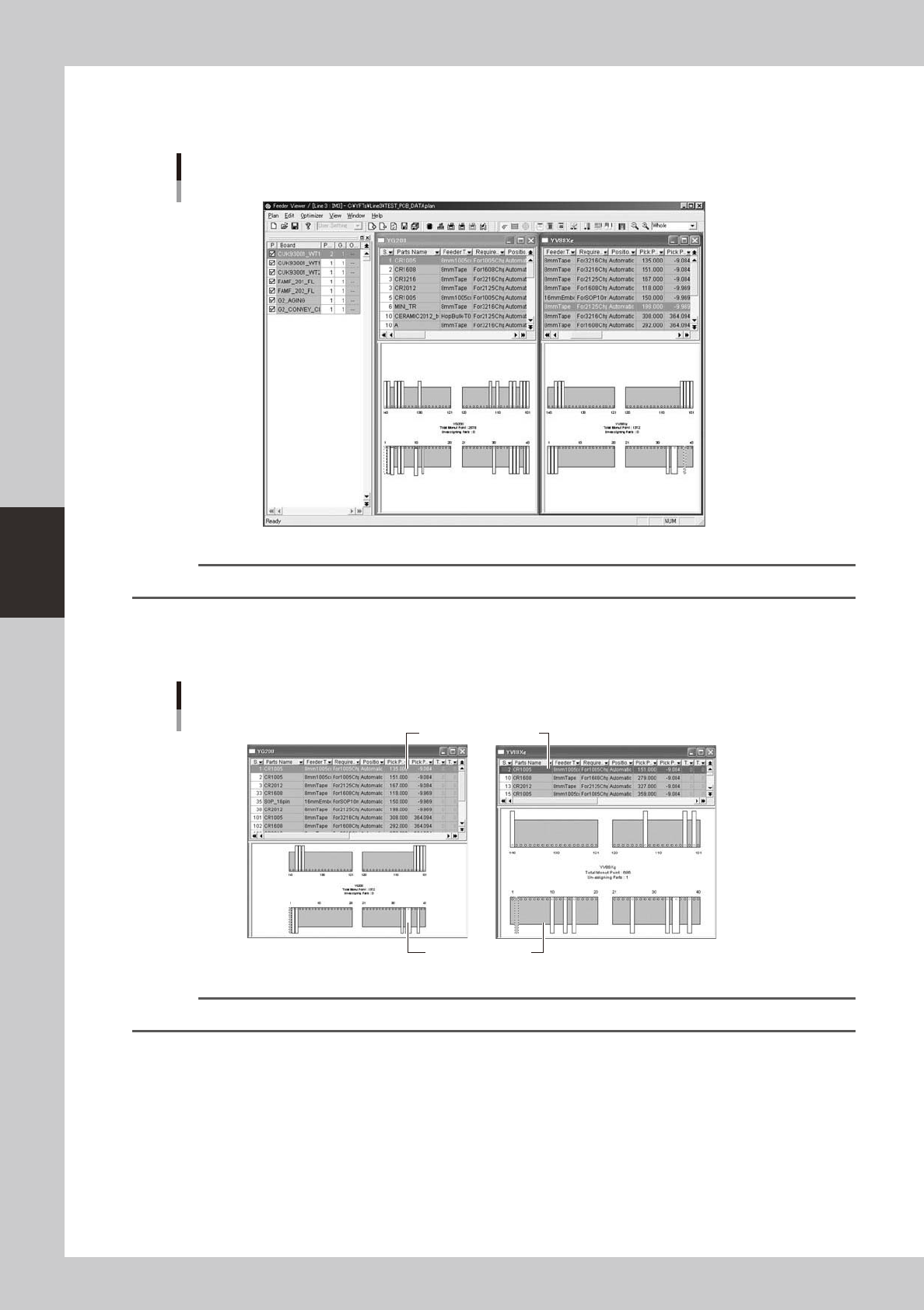
ThecommandsintheWindowmenuallowyoutoarrangetheplaninformationwindows.
For example, when two or more machine setup information windows are open, selecting the “Tile Vertically” or “Tile
Horizontally” command rearranges the windows.
Window arrangement from left to right
Plan information with feeder layout
64410-S0-00
Reference
The contents of the windows can be switched. For more details, refer to "Plan operation toolbar" explained later on.
3. [Select machine] buttons
Clicking these buttons shows the plan information on each machine by retrieving it from the board data displayed in the
production board list.
Plan information on each machine
Parts setup information
Feeder setup layout
64411-S0-00
Reference
The contents of the windows can be switched. For more details, refer to "Plan operation toolbar" explained later on.