EUS0153210_YFact_Standard_E.pdf - 第212页
4-37 4 Feeder Viewer 4. When the message box appears indicating that the parts have been combined successfully, click the [OK] button. 5. The message box closes and returns to the plan information screen. Plan informatio…
4-36
4
Feeder Viewer
3.8 Combining the parts
Whenpartsofthesametypeareloadedintwoormoredifferentfeeders,thosepartscanbecombinedsothat
they are supplied from one feeder.
c
CAUTION
To combine the parts, their name and feeder type registered in the board data must be the same.
1
Select the parts you want to combine.
On the feeder plate layout, double-click the feeder for parts you want to combine.
The feeder for the selected parts is enclosed by a dotted line.
When the parts setup information list is displayed in the upper grid, the selected parts row is highlighted.
Reference
When the parts setup information list is displayed in the upper grid, you can also select a part by clicking on its row.
2
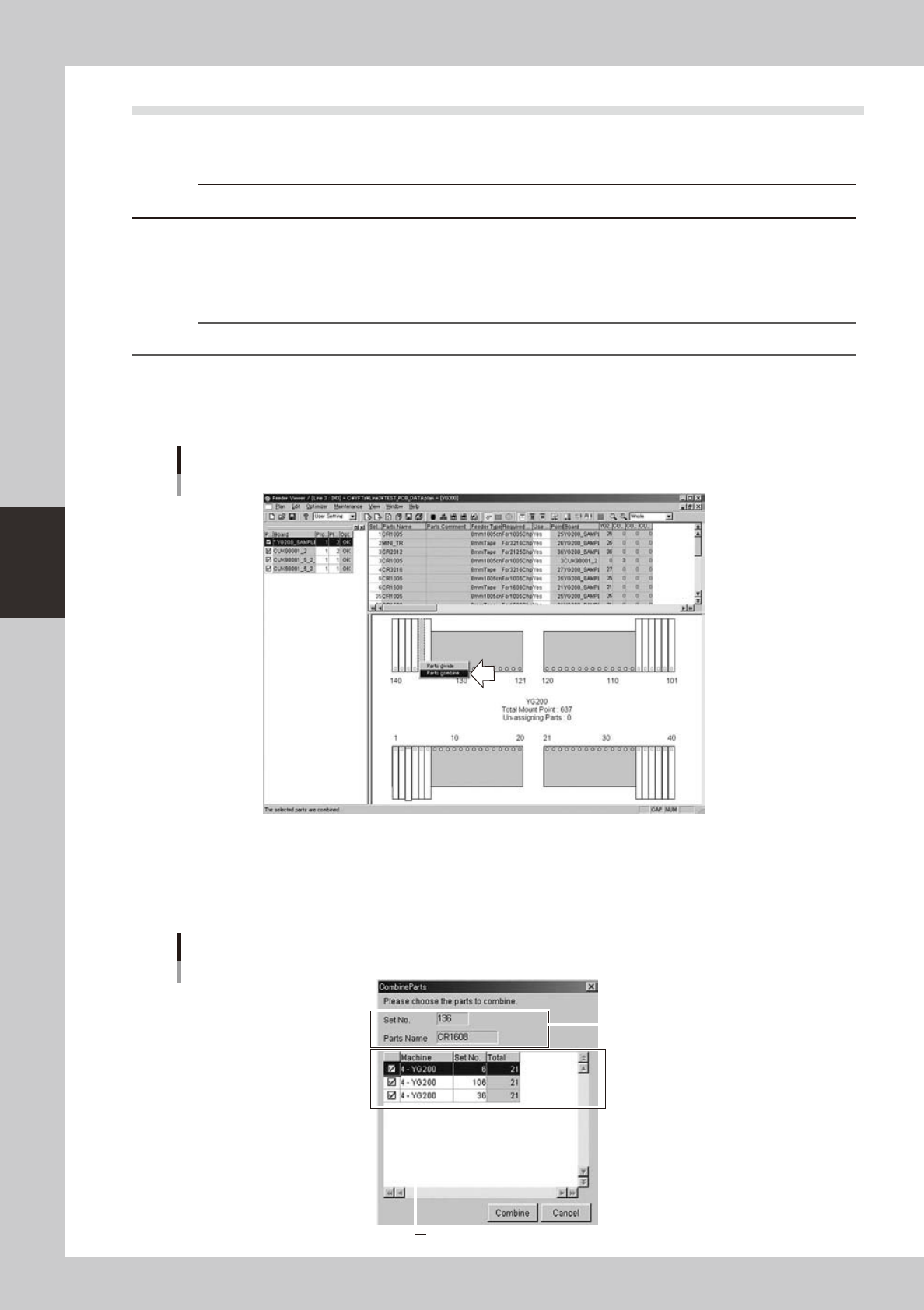
Execute the “Parts combine” command.
1. Select "Parts combine" from the context menu (right-click menu) that appears when the right mouse
button is clicked on the feeder for the selected parts.
Selecting the "Parts combine" command
64456-S0-00
2. The "Combine Parts" dialog box appears showing a list of parts that can be combined with the
selected parts.
3. Make sure that a check mark is placed in the check boxes for the parts you want to combine, and
then click the [Combine] button.
"Combine Parts" dialog box
Selected parts to perform "Parts combine"
These parts will be combined.
64457-S0-00
4-37
4
Feeder Viewer
4. When the message box appears indicating that the parts have been combined successfully, click
the [OK] button.
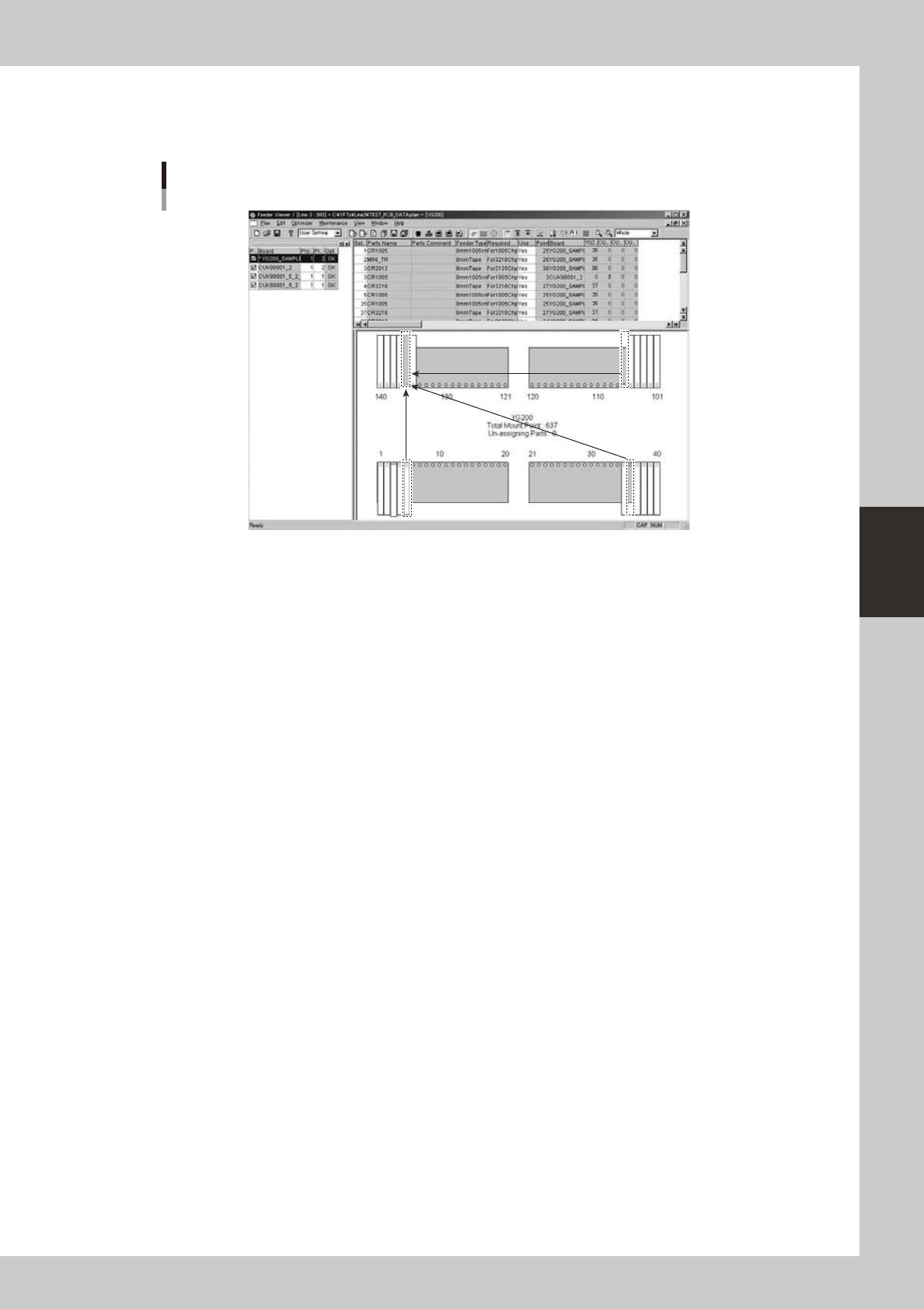
5. The message box closes and returns to the plan information screen.
Plan information screen after "Parts combine" has been performed
64458-S0-00
3
Save the data.
4-38
4
Feeder Viewer
4. Feeder Viewer Setting
4.1 Feeder Viewer Setting
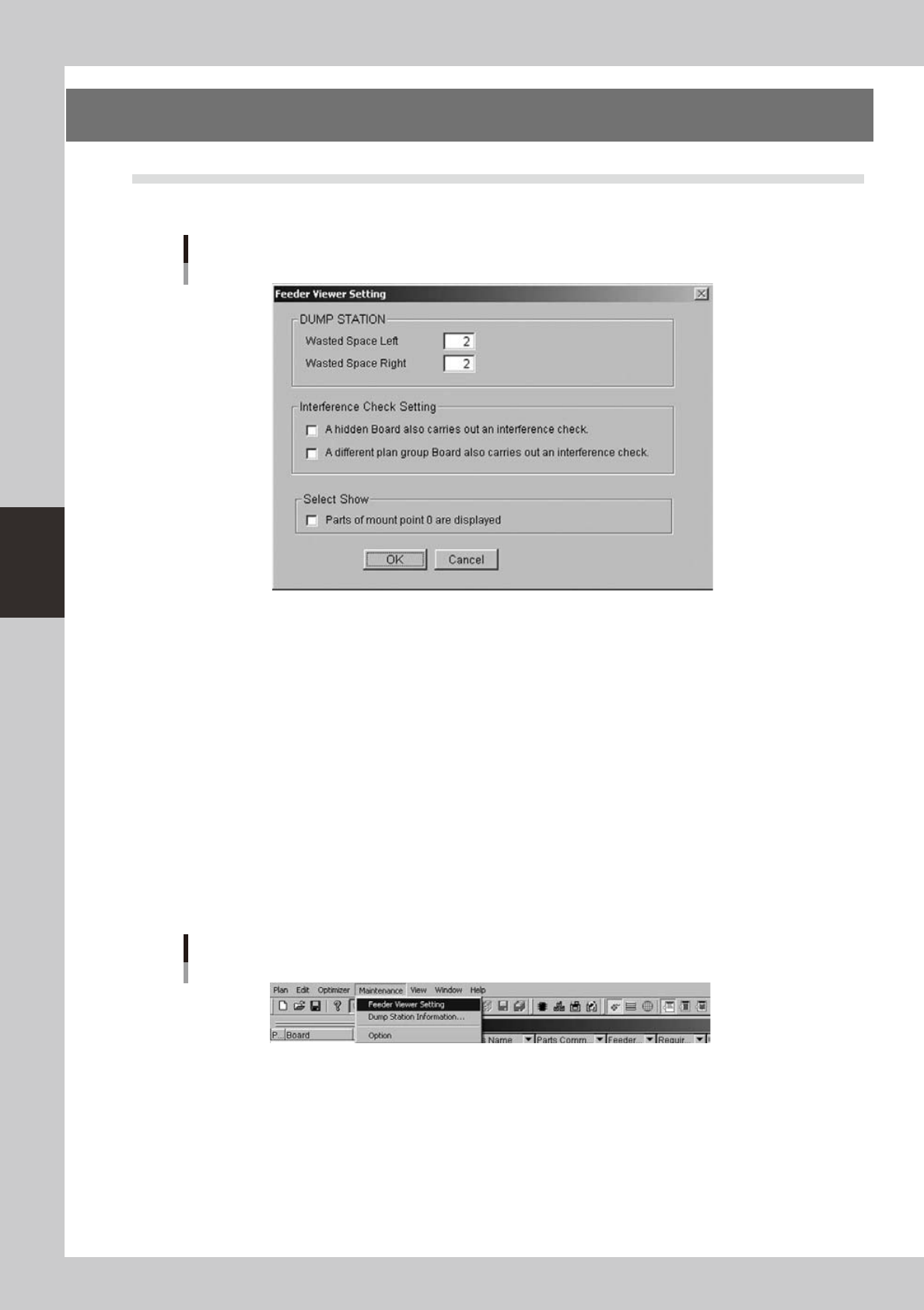
This function is a function to do various settings by the Feeder Viewer.
Feeder Viewer Setting Image
64460-S0-00
The setting of Feeder Viewer includes the following setting.
• Dump Station(DSTA)
It is a setting of the feeder occupation number of the Dump Station.
“Leftside”and“Rightside”aresetrespectively.
Whenthefeederviewerends,saveisdoneasforthesetting.
• Feeder interference check setting
It is a setting for the interference check.
Whenthefeederviewerends,saveisdoneasforthesetting.
• View setting
Settingfordisplay.Refertothesection4.3,“For0mountpointparts”fordetails.
4.1.1 Start of setting screen (menu selection)
Select “Feeder Viewer Setting” from the Maintenance menu.
Feeder Viewer Setting
64461-S0-00