EUS0153210_YFact_Standard_E.pdf - 第195页
4-20 4 Feeder Viewer 4 Sav e the plan information. Select "Save As" from the Plan menu. When the "Save Plan File" dialog box appears, en ter the plan information name in the Plan text box and click th…
4-19
4
Feeder Viewer
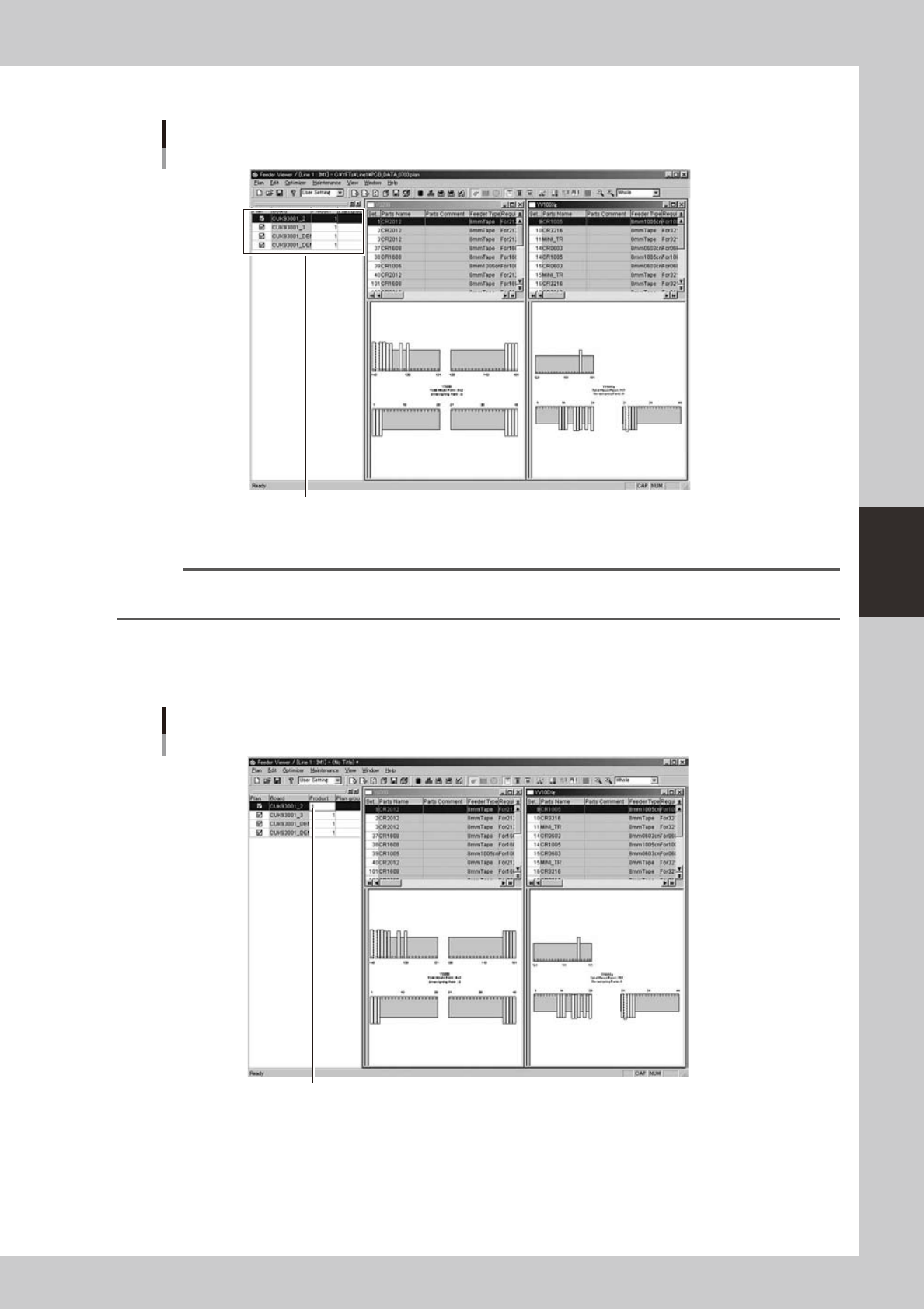
3. Check that the selected board data names have been added to the production board list.
Added Board data
Names of added Board data are shown here.
64430-S0-00
Repeat the above steps to add other board data if necessary.
Reference
The "Add Board" command can also be selected from the context menu (right-click menu) that appears when the
right mouse button is clicked at any point in the production board list pane.
3
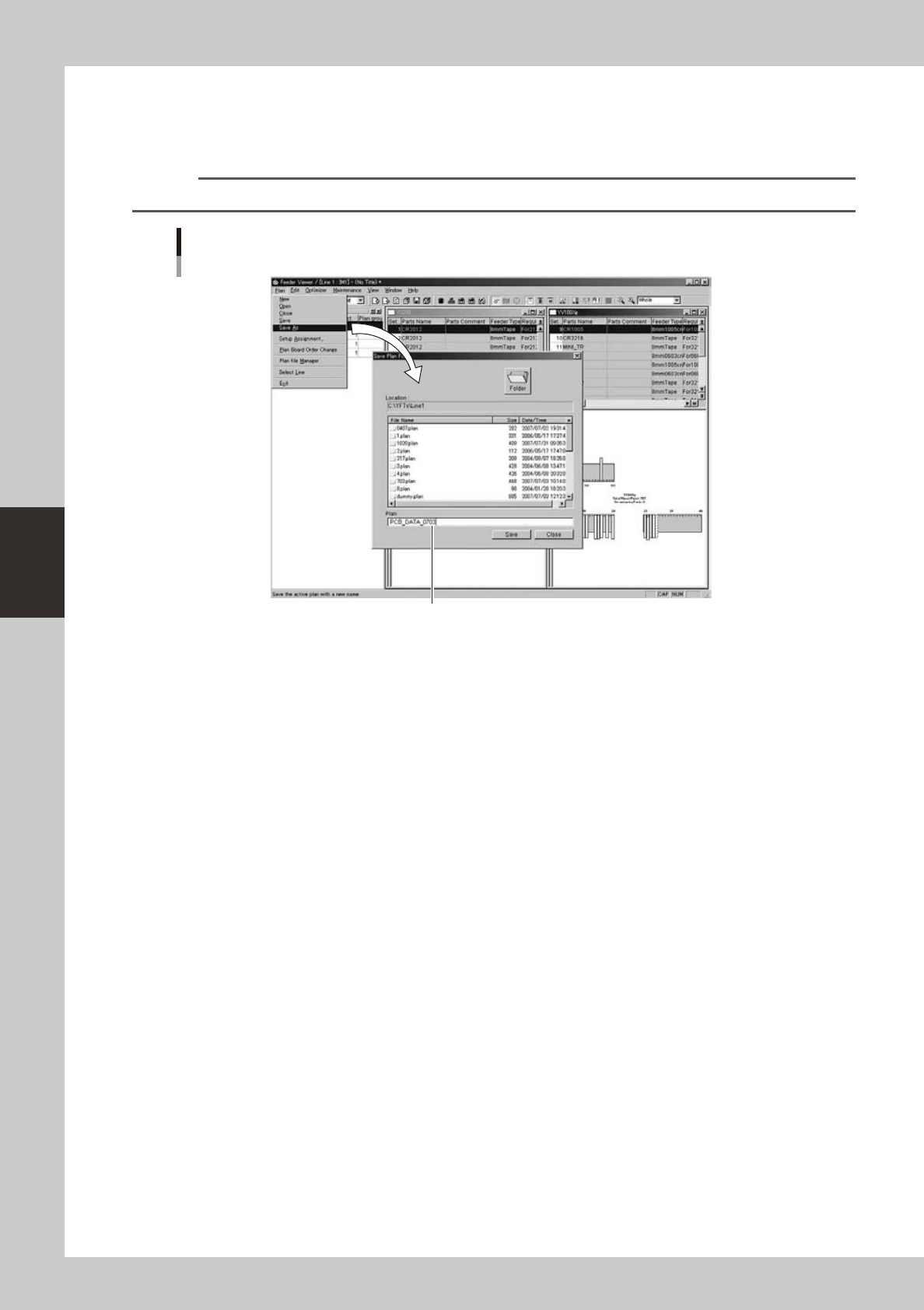
Set the number of boards to be produced.
In the Product column in the production board list, enter the number of boards to be produced and
press the [Enter] key.
Entering the number of production boards
Double-click and then enter the number of boards.
64431-S0-00
4-20
4
Feeder Viewer
4
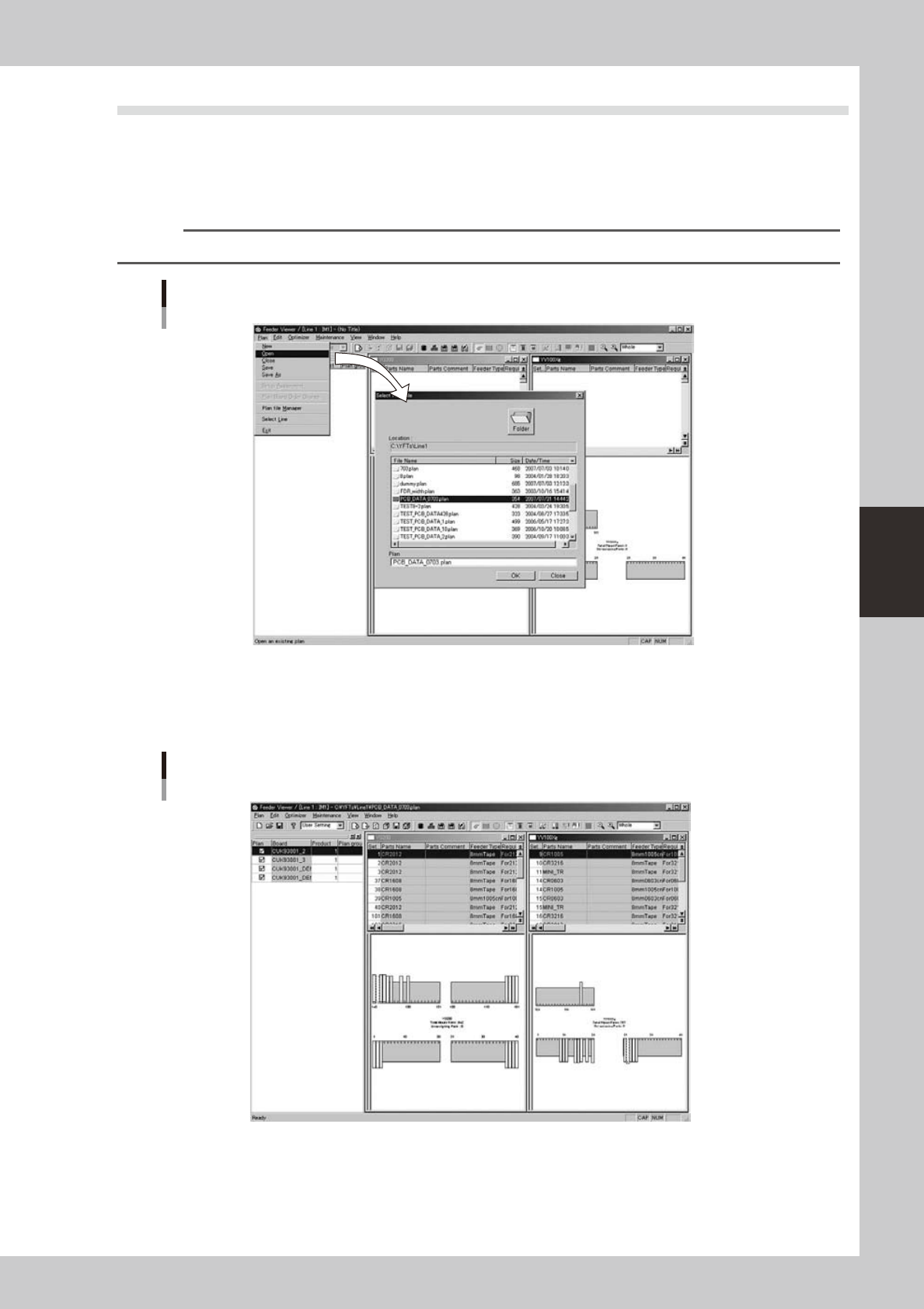
Save the plan information.
Select "Save As" from the Plan menu.
When the "Save Plan File" dialog box appears, enter the plan information name in the Plan text box and
click the [Save] button.
Reference
Clicking the [Save] button on the toolbar performs the same operation.
Selecting the "Save As" command
Enter a new name.
64432-S0-00
4-21
4
Feeder Viewer
2.3 Opening a plan file
To open a plan file that is already registered, follow these steps.
1
Select “Open” from the Plan file.
On the "Production Play (P)" menu, click "Open Setup (O)."
The "Select Plan File" dialog box appears.
Reference
Clicking the [Open] button on the toolbar performs the same operation.
Selecting the "Open" command
64433-S0-00
2
Select the file to open.
Select the file from the File Name list in the dialog box and click the [OK] button.
The plan information data is loaded from the selected file and then displayed.
Plan information screen
64434-S0-00