PPS Pro version 8.2.pdf - 第115页
4022 591 98 247 User Manual 05.07 P PS-Pro v8.2 111 Guidelines for using PPS-Pro On th e sel ection “ Prog ram ”/” Progr am All ” PPS-Pro will collect all n ecessary data for the optimizer to start the a ctual calculatio…
User Manual 4022 591 98247
110 PPS-Pro v8.2 05.07
Guidelines for using PPS-Pro
recognizable copper patterns that can function as fiducials. These artwork
fiducials are divided in 3 types: fiducials, Edge shapes and Free forms. With a
combination of artwork fiducials on a specific board PPS-Pro will create the
set of fiducials that can be used for Local Artwork Recognition.
■ Distributed mode
Default the distributed mode Distributed Standard Fiducial (DSF) is used,
because it can be used on all PCBs that have fiducials.
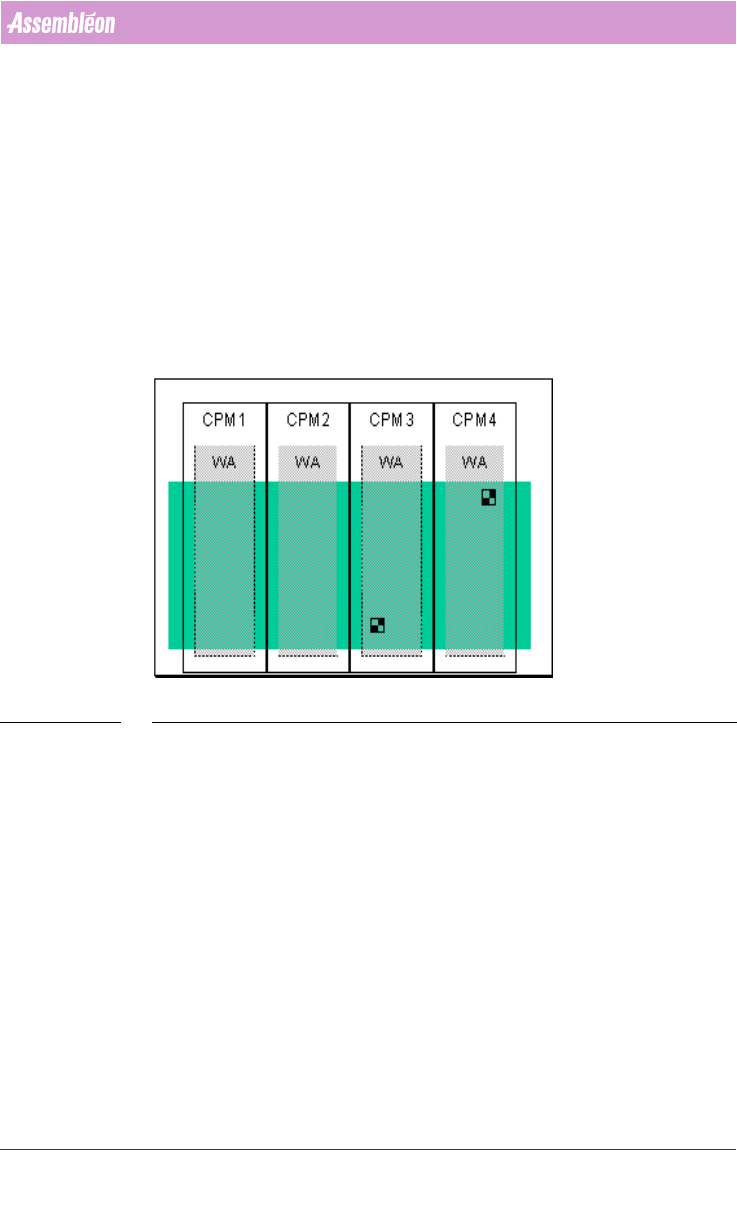
In DSF mode, after each return stroke and possibly after each index, one
board is positioned based on fiducial measurements by one or more Pick and
Place modules
(see FIGURE 9 on page 110). The results are distributed to the
central controller, which calculates the board offset and distributes the results
to the Pick and Place modules.
FIGURE 9 DSF Fiducial Alignment method
In the production mode Distributed the following alignment methods is
possible:
Distributed Standard Fiducials (DSF):
The standard fiducials are used.
For DSF no extra information except for CAD data is needed.
3.3.3.3 Optimizing Ax machine(s) in DISTRIBUTED mode
If production mode is set to DISTRIBUTED no artwork extraction tools are
started during the optimizing phase. Therefore, if the optimizer is set to
distributed mode (Refer to Description ALE-file 12nc 4022 591 98715), no
extra steps are required before the optimizer starts.
Calculation in DISTRIBUTED mode is done similar to the PowerLine optimizer
process:
4022 591 98247 User Manual
05.07 PPS-Pro v8.2 111
Guidelines for using PPS-Pro
On the selection “Program”/”Program All” PPS-Pro will collect all necessary
data for the optimizer to start the actual calculation.
On the selection “Optimize Cell”, the A-Series optimizer will start the
optimizer. The optimizer monitor will be shown (if optimizer results are set to
“good”
(see 2.25.1 on page 61)) and the Optimizer Monitor will pop up (see
SCREEN 44 on page 67).
NOTE: If not enough fidicials are located on the PCB it can happen that the first,
second or more placement robots will not be used for the placement of parts,
because not all fiducials could be measured. In most cases this happens if
only panel fiducials or PCBs with large boards are used: So there are no 2
fiducials under a placement robot. This means loss in performance or that
no results could be found (Placement Robots could not be used).
3.3.3.4 Optimize AX machine(s) in LOCAL mode
If production mode is set to LOCAL the Optimizer will always start with an
artwork extraction tool that extracts artwork fiducials from gerber data.
NOTE: If enough standard fiducials are on the product, artwork extraction can be
skipped.
NOTE: If artwork extraction is already done before on a previous optimizing run
(for a specific project and product), the artwork extraction process is
skipped and the optimizer is started immediately. If the artwork extraction
process needs to be re-done the artwork information (the file in the
directory ArtworkPatterns) must be removed then delete all files from
Documents and Settings\<username>\ArtworkPatterns. Where <username>
is the login name of the user.
Per user this results in a different location. If users wish to share this infor-
mation, they should copy the files to the account directories of all relevant
users. So if the optimizer is set to LOCAL mode (Refer to Description ALE-file
12nc 4022 591 98715), 2 extra steps are needed to collect the fiducials from
the artwork that is in the gerber data:
1. Select gerber files for artwork extraction
2. Aligning artwork with Cad-data
User Manual 4022 591 98247
112 PPS-Pro v8.2 05.07
Guidelines for using PPS-Pro
3.3.3.5 Gerber Data handling
PPS-Pro supports only version Gerber RS-274D for artwork extraction.
NOTE: To convert Gerber RS-274X to Gerber RS-274D special software tools can be
used. ExcelCAM and CAM350 are such tools.
NOTE: Restriction on Gerber Coordinates. Position Coordinates must be absolute
values. No leading and trailing zeros are not supported. All gerber layers
have the same unit size. No decimal programming is allowed.
This type of gerber data consists of at least two or more files:
■ Aperture file:
■ Copper layer:
■ Solder resists: layer:
■ Silkscreen layer: (optional):
At least one aperture file is needed for all layers. Alternatively it is also
possible to have an aperture file for each layer. The aperture file has no
standard layout and the columns can differ for each customer/end-user. For
AX machine artwork extraction the aperture file must have a specific format,
and therefore in most cases it should be changed to make it into accordance
with the requirements of the software.
NOTE: For information on Gerber refer to (see APPENDIX B on page 169)
3.3.3.6 Preparing the Gerber files
To make it possible to have artwork fiducial generation, gerber data is needed.
Artwork extraction supports gerber RS-274D format.
NOTE: Depending on what is present on the PCB useful spots on specific (visible)
layers must be found. These can be used as artwork fiducials. Also note that
if no text is printed on the board no Silk layer information is needed.