PPS Pro version 8.2.pdf - 第24页
User Manual 4022 591 98247 20 PPS-Pro v8.2 05.07 PPS-Pr o GUI 2.5.2 P art Data In this tab t he psi file or psi database, both consist of a series of fields that defin e each part or packa ge , can be selected (see SCREE…
4022 591 98247 User Manual
05.07 PPS-Pro v8.2 19
PPS-Pro GUI
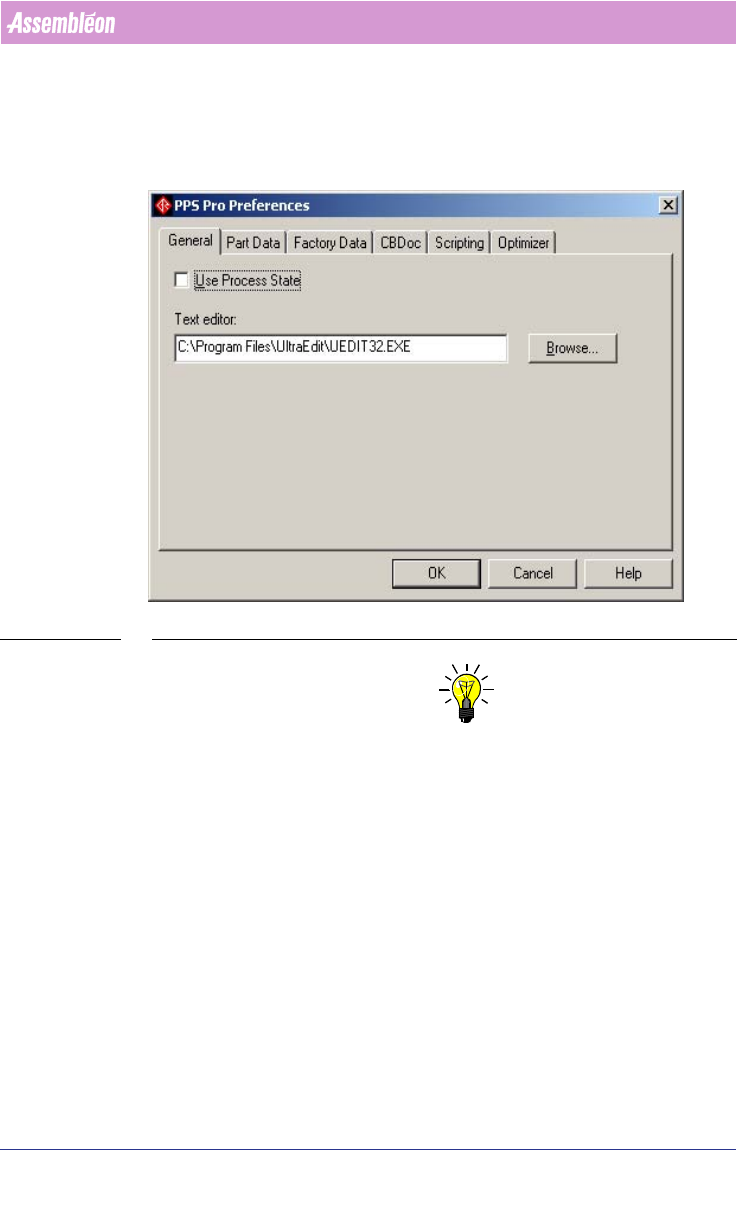
2.5.1 General
In this tab the default used text editor can be specified (see SCREEN 11 on
page 19). This editor will be launched when for example an action spec must
be viewed.
SCREEN 11 Preferences - General
NOTE: If AX machines are used or if XML related results files are open it is advised
to use an XML editor/viewer that can also handle text formats. XMLSpy is one
of those XML editors.
User Manual 4022 591 98247
20 PPS-Pro v8.2 05.07
PPS-Pro GUI
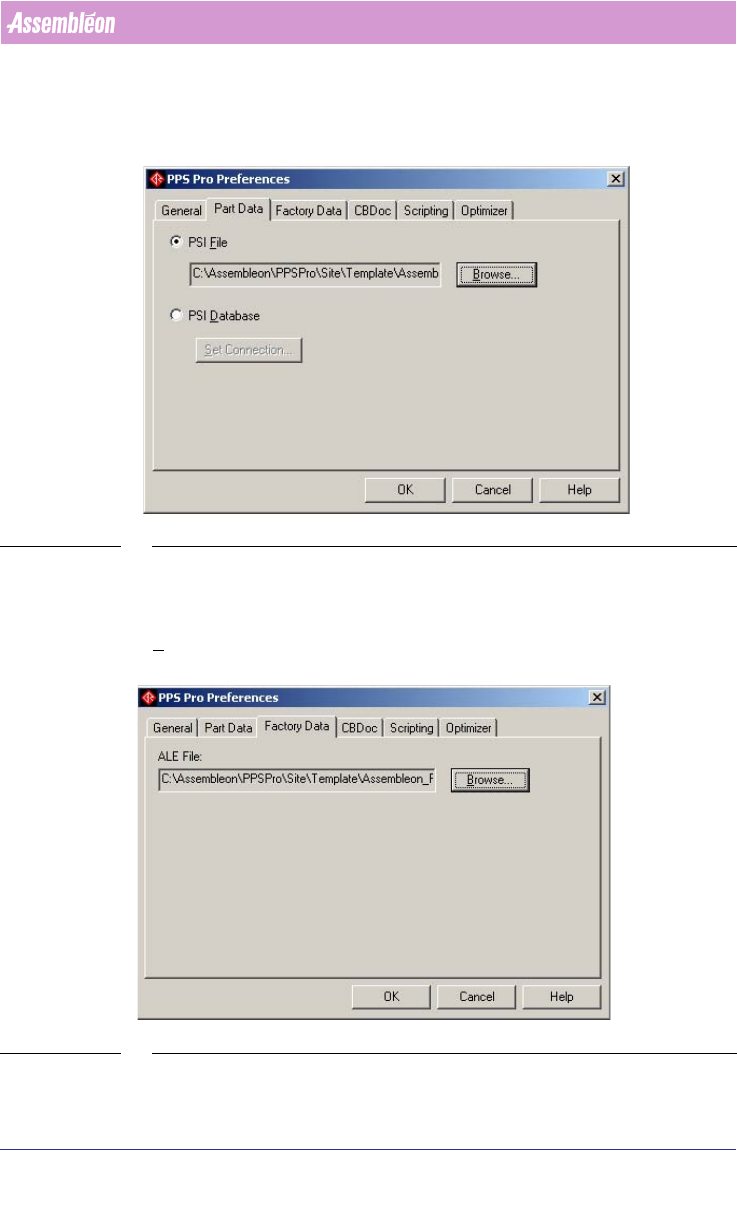
2.5.2 Part Data
In this tab the psi file or psi database, both consist of a series of fields that
define each part or package, can be selected
(see SCREEN 12 on page 20).
SCREEN 12 Preferences - Part Data
2.5.3 Factory Data
In this tab the ALE file, which describes the factory, can be selected. Use the
Browse... button to select the right file (see SCREEN 13 on page 20).
SCREEN 13 Preferences - Factory Data
4022 591 98247 User Manual
05.07 PPS-Pro v8.2 21
PPS-Pro GUI
2.5.4 Scripting
This function is not supported.
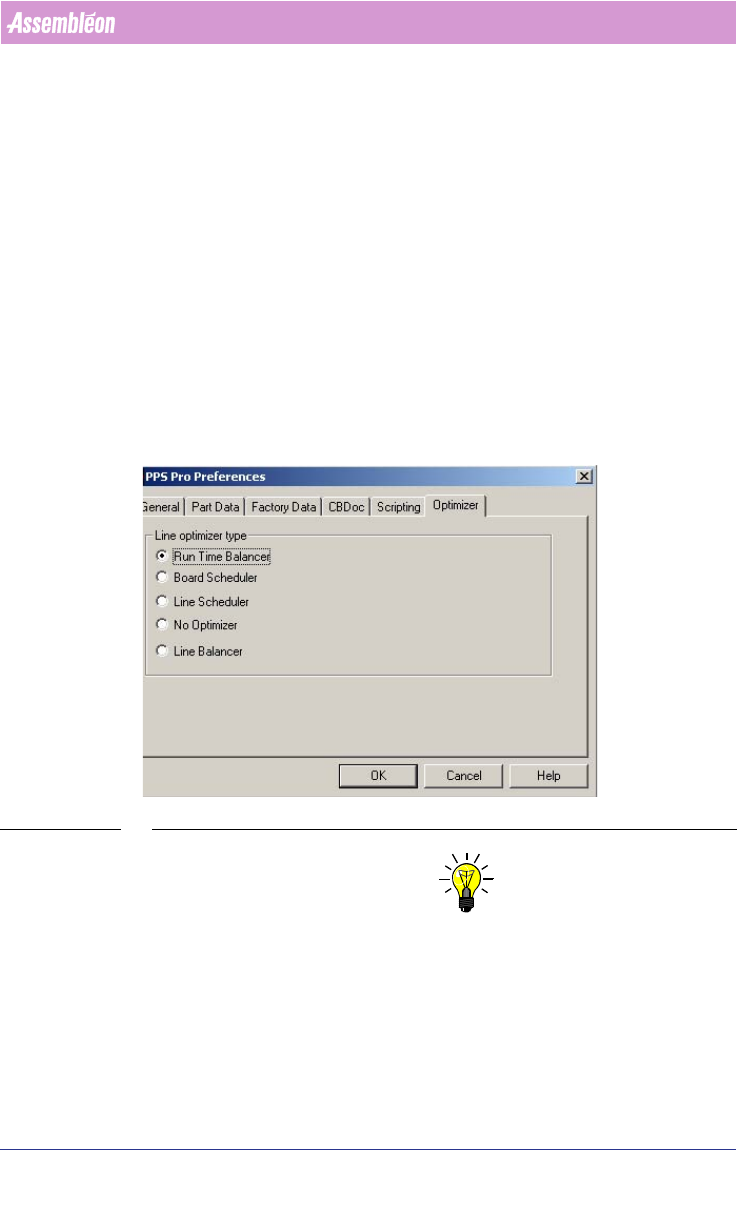
2.5.5 Optimizer
Based on which products are registered one or more of the optimizers can be
selected in this tab
(see SCREEN 14 on page 21). If all possible products are
registered and installed then there are five balancing options:
■ Run Time Balancer: Single product, one line.
■ Board Scheduler: Single product, one machine.
■ Line Scheduler: This is an older product which will be replaced by the Line
Balancer. Multiple products, one line. Optional available via Tecnomatix.
■ No Optimizer: Multiple products, one line (always optimize from MDF).
■ Line Balancer: Multiple products, one line. Optional available via
Tecnomatix.
SCREEN 14 Preferences - Optimizer
NOTE: If only one cell is used containing Assembléon Machines it is not necessary
to use one of the line optimizer and the Line optimizer type “No Optimizer”
can be used.
2.6 Set Project Settings
These settings are, as the name indicates, project related. In the Features
frame, several checkboxes can be selected. Every checkbox represents a single