PPS Pro version 8.2.pdf - 第95页
4022 591 98 247 User Manual 05.07 PPS-Pro v8.2 91 Guidelines for using PPS-Pro SCREEN 58 Forced Feeder T ype ITF2_08 3.1.9 Combined product calculation A combined pr oduct calculation con sists o f a set of PCBs that are…

User Manual 4022 591 98247
90 PPS-Pro v8.2 05.07
Guidelines for using PPS-Pro
3.1.7 Fiducial and reference holes lost when import exp. and
comb CAD in CAD2CAD
■ Description: When an expanded and combined CAD files created with
CAD2CAD are imported, the fiducials and reference holes are not imported.
■ Advice: Set the importer setting so that the importer also imports
‘Mechanical Parts’.
3.1.8 TTF feeders
Twin Tape Feeders are available for FCM II, FCM MF, FCM ME GemLine Xii and
AX. For FCM and A-Series optimizers, Twin tape feeder versus ITF feeder
selection is automatically determined by the optimizer, if the user has
specified specific inventory values, these are taken into account. For more
information on how to set the inventory refer to the Description ALE-file 12nc
4022 591 98715. For GemLine users selection of TTF is based on the contents
of the GemLine database.
3.1.8.1 Pre-assignment of parts or packages to ITF2_08 (Power-
Line and/or A-Series)
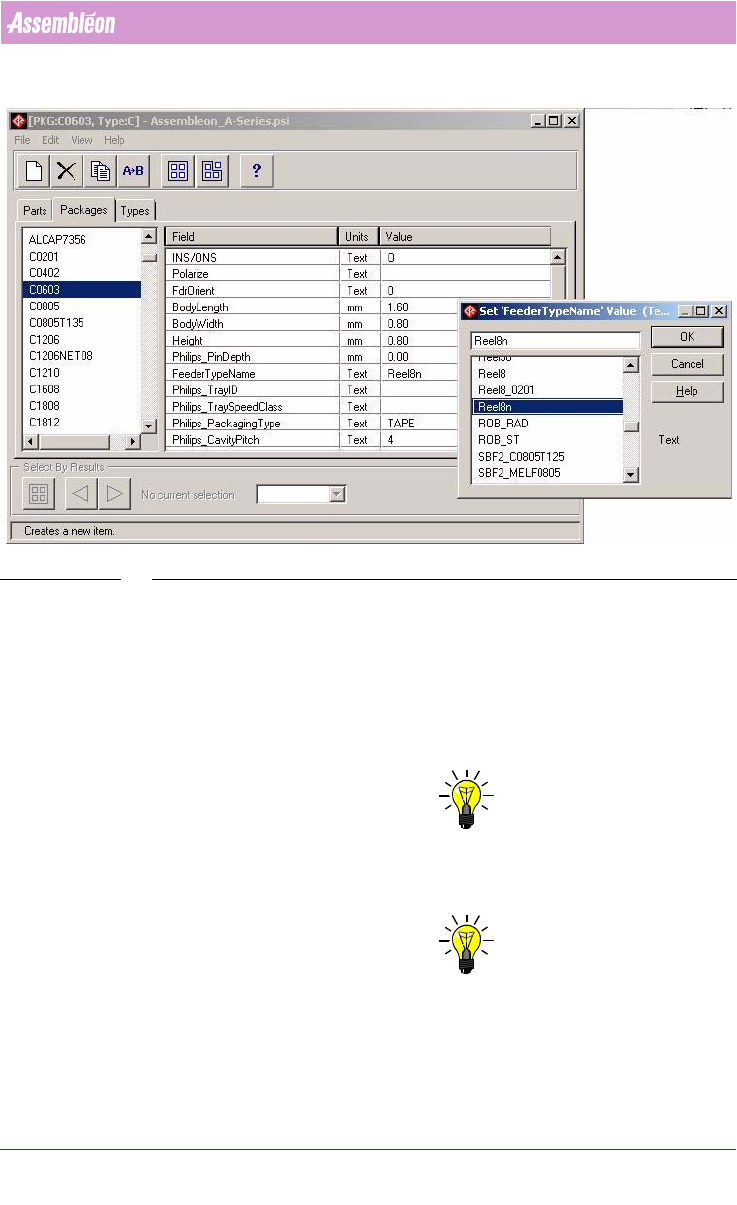
Edit the PSI file, click Packages (or Parts) tab, select package (or part) and
in the ‘Field’ select ‘Feeder Type Name’. Change this field to Reel8n and this
package/part will only be placed using ITF feeders. If set to Reel8 the
optimizer will decide between ITF2_08 and TTF_08.
4022 591 98247 User Manual
05.07 PPS-Pro v8.2 91
Guidelines for using PPS-Pro
SCREEN 58 Forced Feeder Type ITF2_08
3.1.9 Combined product calculation
A combined product calculation consists of a set of PCBs that are calculated in
one run. The result is one common setup for all PCBs and for each PCB an
action spec. The benefit of this approach is that the changeover time between
the action specs can be extremely low because neither feeder exchanges nor
manual nozzle exchanges have to take place.
NOTE: Depending on PCB size, most Combined Product Calculations can contain
max. 25 products (sometimes less). Note that top and bottom sides are
counted as 2 products.
NOTE: Depending on configuration of PC (System memory) and Windows (Pagefile)
a solution is not found if products are used that contain many parts.

User Manual 4022 591 98247
92 PPS-Pro v8.2 05.07
Guidelines for using PPS-Pro
The following actions must be done to obtain a combined product calculation:
All products (mdf-files) which must be combined have to be part of the same
project. Two cases can be distinguished:
1. The PCBs have identical dimensions and they are derived from the same
original CAD design. The PCBs are considered members of the same family.
The user has to take care that all parts that belong to the same circuit pattern
must have the same board-id in every MDF file.
The PCBs are unequal.
The user has to take care that all board-ids are unique.
Setting the board id can be done as follows:
Edit the MDF file using the MDF editor. Select all parts that belong to a
particular circuit, choose the Set > Board ID... menu item and enter a
positive integer (1, 2, 3 etc.)
(see 2.13 "Graphical/MDF editor" on page 40).
In the Program Machines tab of the main application all PCBs that have to be
combined need to be enabled explicitly. If a PCB is not enabled it will not be
part of the results of the combined product calculation. The entire calculation
needs to be done again.
(see 2.25 "Program Machines Tab" on page 61)
When the requested PCBs have been enabled the Program All button (see
SCREEN 42 "Program All" on page 65) can be used to start the preparation
phase (phase 1) of the calculation, which collects all data needed by the
optimizer.
After a successful completion of ‘Program All’, the Optimize Cell button will
be enabled. Clicking this button will start the actual optimization for the
combined product. When the combined product calculation has completed
successfully all action specifications are accessible from this screen. Note that
with the new ‘Optimizer Monitor’ a running calculation can be analysed and
stopped at any time of the optimization process.
3.1.10 Maximum runtime settings in Combined & Family
product calculations
If in case of a combined product or family product calculation the setting:
‘Max. Run Time’ and ‘Desired Cycle Time’
(see SCREEN 40 "Philips Optimizer
Machine-Specific Controls Powerline and A-Series" on page 63) of the selected
product in the ‘Select Product’ tab is used. The product shown at the bottom
of the “Program Machine” tab is the first selected.
3.1.11 Setting Production Quantity for Family and Combined
Production.
It is possible to set the production quantity per member of a family- or
combined product. The optimizer will optimize so the PCB(s) with the largest
production fraction has the best output. The numbers represent the relative