PPS Pro version 8.2.pdf - 第65页
4022 591 98 247 User Manual 05.07 PPS-Pro v8.2 61 PPS-Pro GUI Select th e PPS-Pro tab Optimize Line . And run the run tim e balan cer . The componen ts are divid e d between the differen t cell(s). NOTE: Please check the…
User Manual 4022 591 98247
60 PPS-Pro v8.2 05.07
PPS-Pro GUI
2.23 Verify the component data
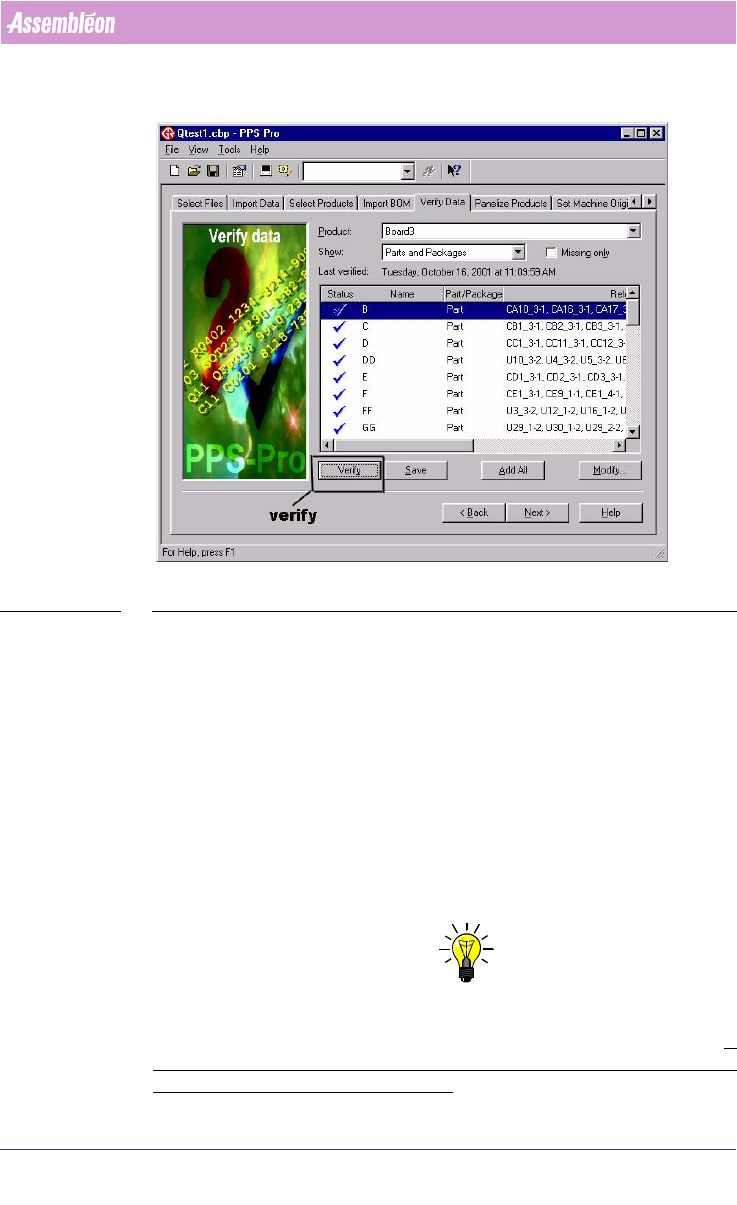
SCREEN 38 Verify Data
If a CAD file was imported and not all the parts were present in the PSI file,
you can go to verify data, define them, and add them to the PSI file. If CAD
import resulted in unwanted classification ‘TH’ (=Through Hole) of SMD parts,
then re-import the PCB again, before proceeding with successive calculations.
For undefined packages check if the creation of an alias in PSI is possible
before creating an entirely new package definition. In the verify data function
it is possible to select either action. It is also possible to create alias names for
packages in the PSI file by means of the PSI editor (PIM). Another alternative
is to specify Alias names for existing names in a cad overrides file during cad
import.
2.24 Line Optimize Tab
NOTE: If Multiple Cells (combination of Powerline, GemLine and A-series machines
are used) or Multiple different vendor placement machines are used the tab
Optimize Line must be used to distribute the components over the line.
If
only one cell is in the line configuration (with no other machines in the line)
it is not necessary to do Optimize Line!
4022 591 98247 User Manual
05.07 PPS-Pro v8.2 61
PPS-Pro GUI
Select the PPS-Pro tab Optimize Line. And run the run time balancer. The
components are divided between the different cell(s).
NOTE: Please check the log to find out if certain parts are skipped in all machines.
Check if the number of assigned parts to all machines is equal to the number
of parts on the PCB.
Refer to the run time balancer recipe document Manual RTB recipe 12NC 4022
591 98825.
NOTE: It may happen that the Line optimizer does not assign any parts to a
machine. This can be caused by restrictions such as: Feeder/tray does not fit
on the machine, No tooling to handle the part.
2.25 Program Machines Tab
2.25.1 Specify project related optimizer settings
To specify the optimizer settings in PPS-Pro the following things must be
done:
1. Go to the Program Machines tab and press the Settings... button.
2. Press the Modify button in the General controls frame of the appearing
window.
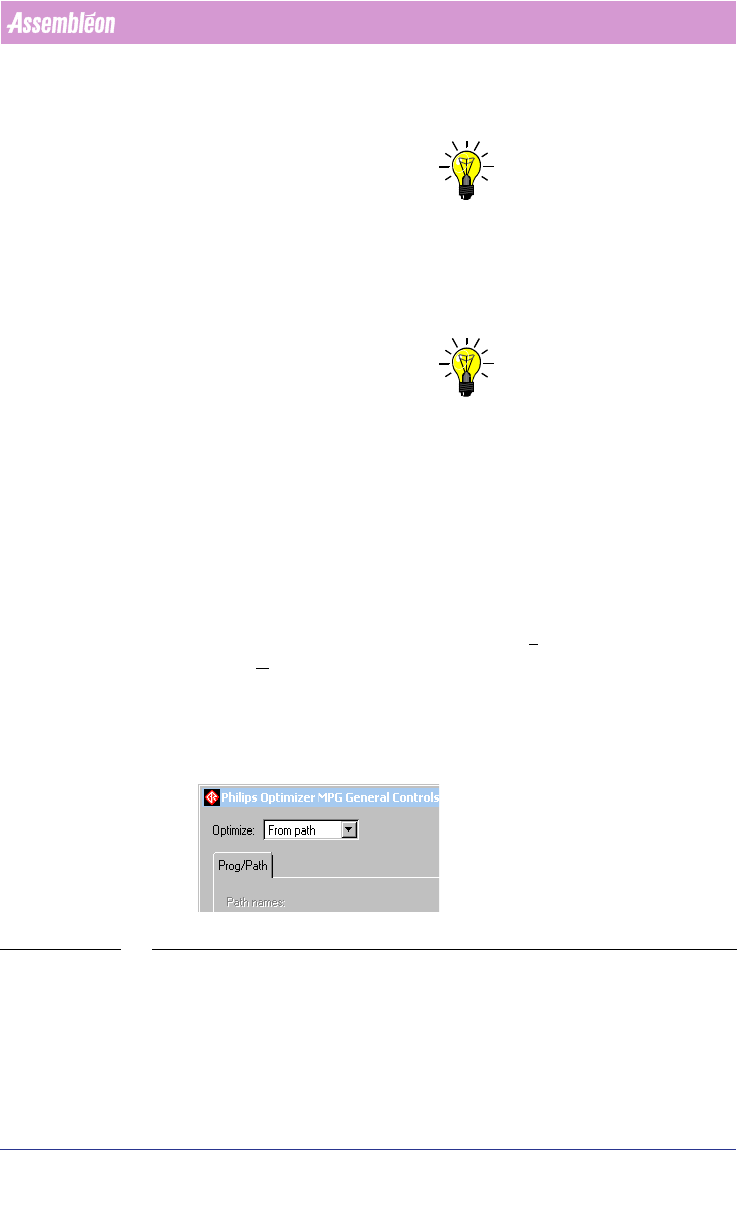
The Optimize: can be set to “From path” and “From MDF” (see SCREEN 39 "Set
From Path or From MDF" on page 61).
SCREEN 39 Set From Path or From MDF
a) From Path: This option is set if a Optimizer Line is used for
distribution.
(see 2.24 "Line Optimize Tab" on page 60).

User Manual 4022 591 98247
62 PPS-Pro v8.2 05.07
PPS-Pro GUI
NOTE: If no ‘Path’ is created for a specific machine (No parts are assigned to the
machine) the optimizer generates an error: “Path named ‘%machine_
name%’ for machine of name is not present”.
(see 2.24 "Line Optimize Tab"
on page 60)
b) From MDF: This option is set if no Optimize Line is used and
only one cell is used in the line.
(see 2.24 "Line Optimize Tab"
on page 60)
3. Press the Settings button in the Machine specific frame of the appearing
window.
After these steps, if a Powerline or A-series Cell is applicable the Philips
Optimizer Machine-Specific Controls
window appears Set the desired
calculation settings
(see 2.25.1.1 "Optimizer Machine Specific Control for
Powerline & A-series" on page 63).
If a Gemline type of Cell or machine is used a different screen is shown. Fill in
the desired calculation settings.