PPS Pro version 8.2.pdf - 第30页
User Manual 4022 591 98247 26 PPS-Pro v8.2 05.07 PPS-Pr o GUI 2.8.0.1 Import cad file with Smart CAD NOT E: If a CAD fil e is impor ted with S mar t CA D i t is pos sib le t o sele ct T op sid e or Bottom side. Ho wever …
4022 591 98247 User Manual
05.07 PPS-Pro v8.2 25
PPS-Pro GUI
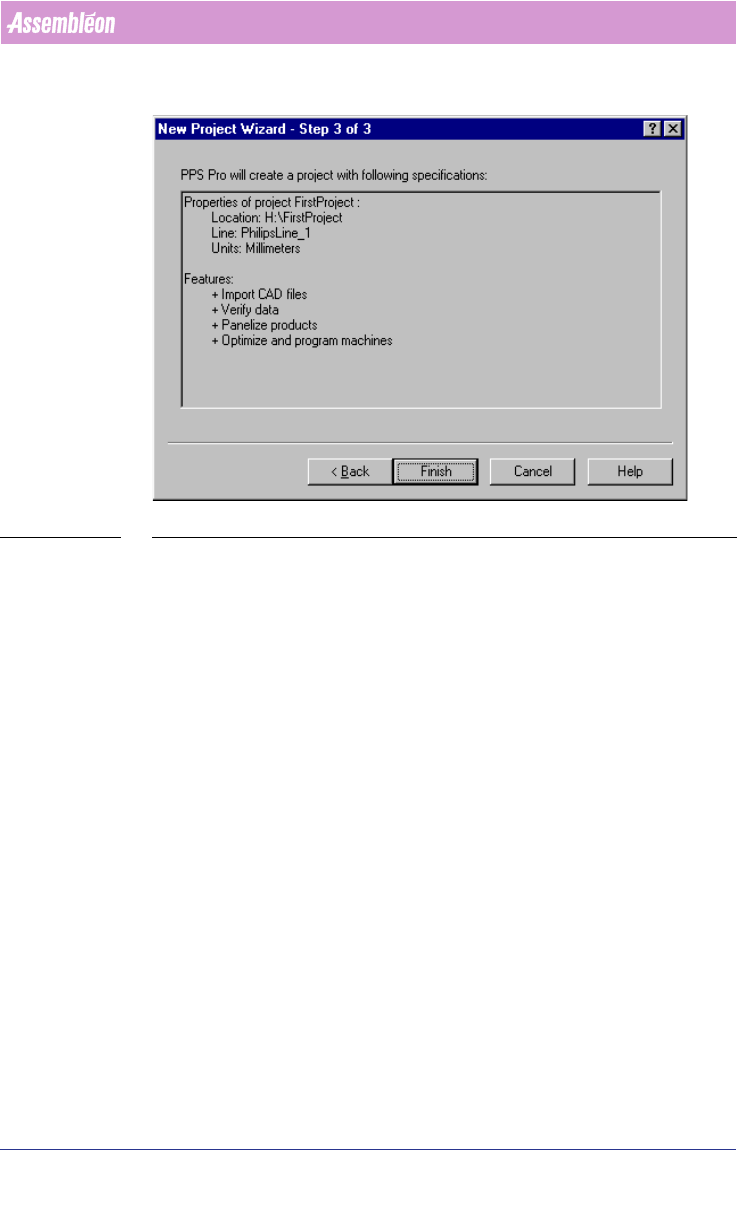
SCREEN 18 Step 3 New Project Wizard
2.8 Import a CAD file with a BOM file
PPS-Pro provides two ways to import a BOM-file:
1. Import via the “Import Data”-tab (see 2.8.1 on page 26).
This method will import a BOM-file to create or replace an MDF-file.
2. Import via the “Import BOM”-tab (see 2.11.1 on page 30).
This method will import a BOM-file to update component information in the
MDF-file.

User Manual 4022 591 98247
26 PPS-Pro v8.2 05.07
PPS-Pro GUI
2.8.0.1 Import cad file with Smart CAD
NOTE: If a CAD file is imported with Smart CAD it is possible to select Top side or
Bottom side. However no Step-and-repeat symbols will be generated on the
bottom side. These have to be added manually with the Graphical/MDF editor
see 2.13 "Graphical/MDF editor" on page 40.
2.8.1 Import BOM-file via the Import Data tab
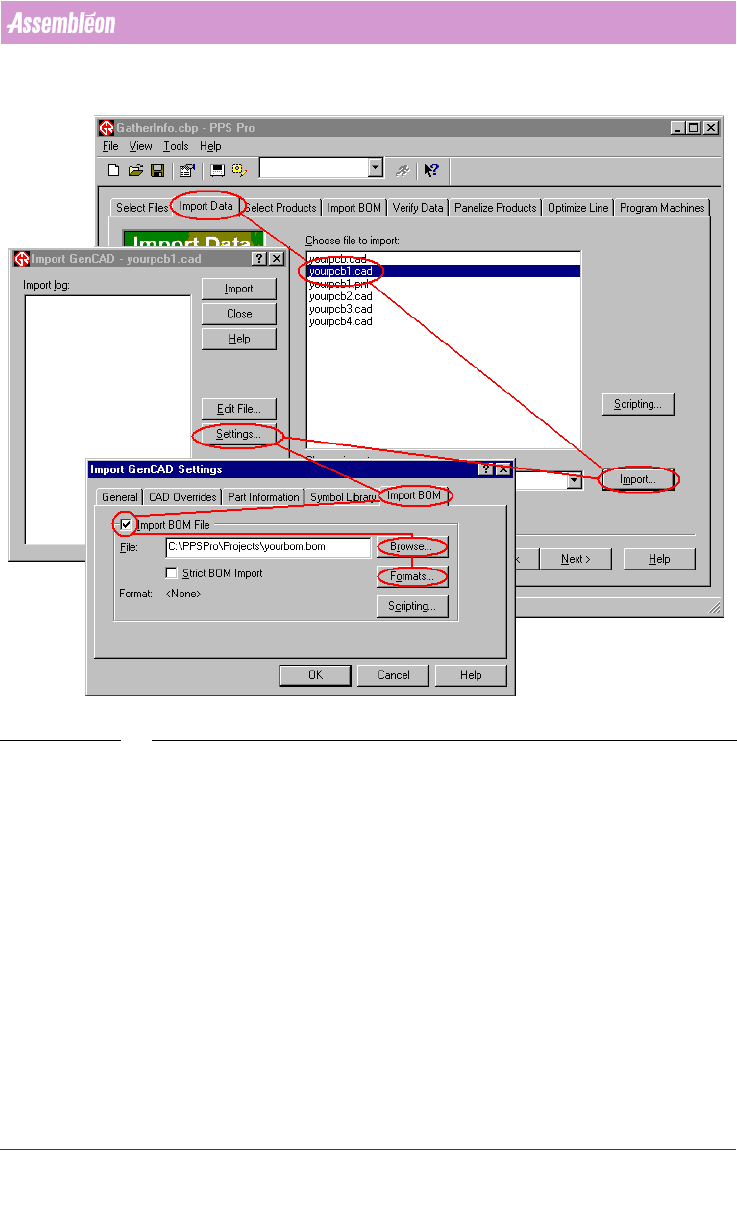
To import a BOM-file via the Import Data tab, the next steps must be taken:
1. Select the Import Data tab
2. Select a CAD file from the Choose file to import list
3. Press the Import button
4. Press the Settings... button
5. Select the Import BOM tab
6. Tick off the Import BOM File check box
7. Tick off the Strict BOM Import check box (only necessary for strict import
(see 2.11 on page 30))
8. Press the Browse... button and browse to the BOM-file
9. Press the Formats... button to startup the ‘BOM-Formats Explorer’ and
select the correct format from the list. If no correct format is available, a
new format must be made
(see 2.12.1 on page 32).
4022 591 98247 User Manual
05.07 PPS-Pro v8.2 27
PPS-Pro GUI
SCREEN 19 Import BOM
10. Press the Close button to close the ‘BOM-Formats Explorer’.
11. Press the OK button of the Import GenCAD Settings dialog
12. Press the Import button of the Import GenCAD dialog
13. Verify the BOM-file in the Verify BOM window
The Verify BOM dialog (see SCREEN 20 on page 28) box checks to see if each
line in your BOM-file is valid. Errors typically occur if discrepancies exist