00191297-02.pdf - 第191页
User Manual S-23 HM 6 Vision functions Software Version S R.405.xx 05/99 Issue 6.4 Access to the ’Teach Fiducial’ and ’Test Component’ Options 189 NOTE 6 Section 3 inc ludes a g enera l descr iption of 6 – us ing th e me…
6 Vision functions User Manual S-23 HM
6.4 Access to the ’Teach Fiducial’ and ’Test Component’ Options Software Version SR.405.xx 05/99 Issue
188
6
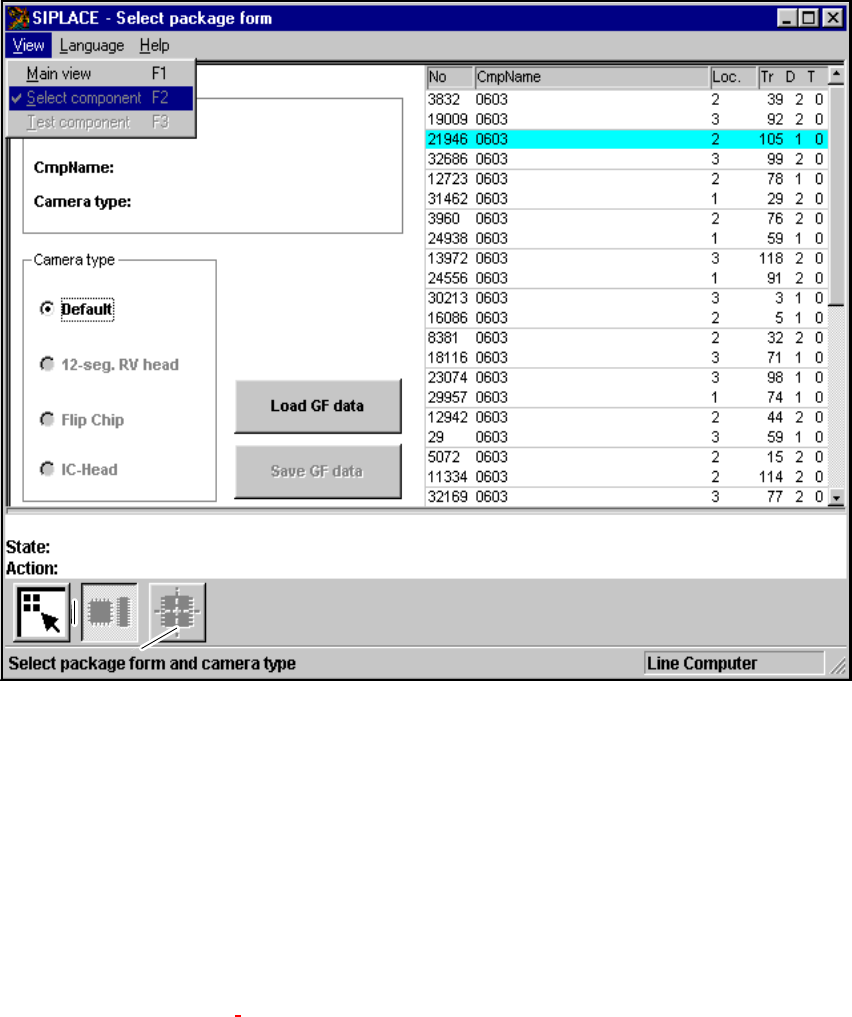
Fig. 6.4 - 3 Test component option: menus
You can select the following menus from the Test component option either by clicking on the
icons (buttons) or by pressing function keys F2 to F3: 6
– Select package form
– Test component
You can return to the Main view menu either by clicking on the Main view icon or by pressing
function key F1. 6
The options Teach fiducial and Test component are described in Section 6.5 from page 190 and
Section 6.6 from page 225.
6
To provide you with some orientation, at the start of each section you will find a flow chart and a
brief description for the Teach fiducial and Test component options. Each flow chart begins with
Main view menu and shows you the hierarchical structure of all of the menu options. 6
’Select package form’ icon
’Test component’ icon

User Manual S-23 HM 6 Vision functions
Software Version SR.405.xx 05/99 Issue 6.4 Access to the ’Teach Fiducial’ and ’Test Component’ Options
189
NOTE 6
Section 3 includes a general description of 6
– using the menus with trackball, touch screen and function keys F1 to F12.
– the layout of the screen.
– the screen displays.
6 Vision functions User Manual S-23 HM
6.5 Teach Fiducial Software Version SR.405.xx 05/99 Issue
190
6.5 Teach Fiducial
6.5.1 Teach Fiducial Flow Chart
The Teach fiducial flow chart shows in graphic form all menu options together with their sub-func-
tions. The menus are indicated by being bordered with a solid line, while the option boxes use a
dashed line and the input boxes a dotted line. 6
6.5.2 Information on the Flow Chart
6.5.2.1 Menus
The Teach fiducial option includes the following menus: 6
– Select fiducial
– Teach fiducial
– Contrast sensitivity
– Test fiducial
The Save fiducial data option box will be displayed each time you quit the Teach fiducial option
after having created or modified fiducial data. You are thus given the choice of saving these fidu-
cial parameters or of discarding them. 6
You can quit the individual menus by clicking on either the icon of another menu or on the Main
view icon. 6
6.5.2.2 Input Boxes, Option Boxes
The system provides the following input boxes for entering data, for displaying values and for ex-
ecuting actions: 6
– Define new fiducial
– Change fiducial name
– Program transform 5
You can quit the input boxes with OK, Accept or Cancel. 6
–Click on OK or Accept with the mouse and the data will be transferred to the program and
saved. The input box closes.
– Click on the Cancel button and the data will be discarded and the input box closed.