00191297-02.pdf - 第203页
User Manual S-23 HM 6 Vision functions Software Vers ion SR.405.xx 05/99 Iss ue 6.5 Teach Fiducial 201 6.5.3.3 Change Fiducial Name Option NOTE 6 This option can onl y be act ivated if y ou have already loaded a fiduc ia…
6 Vision functions User Manual S-23 HM
6.5 Teach Fiducial Software Version SR.405.xx 05/99 Issue
200
6.5.3.2 Load Fiducial Option
NOTE 6
When you call the Load fiducial option, the Save fiducial data option box will appear if you had
previously edited a fiducial (see Fig. 6.5 - 7). 6
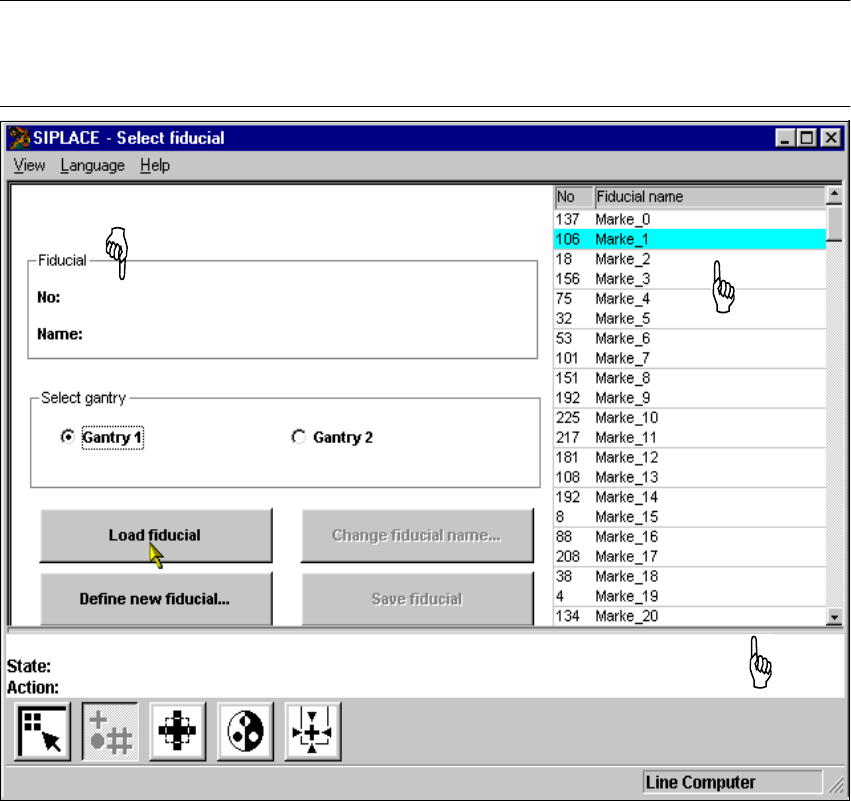
Fig. 6.5 - 9 Select fiducial menu, Load fiducial option
If you wish to save your data, the fiducial data will be transmitted to the line computer. The fiducial
numbers list will also be updated. 6
– From the list field use the mouse pointer to select a particular fiducial. The selected fiducial will
appear against a cyan-colored bar.
– Click on the Load fiducial button. In the Fiducial display field the fiducial name and the fiducial
number will be displayed.
The station computer will request from the line computer the fiducial data of the selected fiducial.
The pattern structure and search area will be transmitted to the machine controller which then
downloads it into the memory of the MVS system. Following this the teaching parameters structure
is initialized in the station computer with the current values. 6
List field
Display field for fiducial number and fiducial name
The selected
fiducial will be
shown against
a cyan-colored bar.
User Manual S-23 HM 6 Vision functions
Software Version SR.405.xx 05/99 Issue 6.5 Teach Fiducial
201
6.5.3.3 Change Fiducial Name Option
NOTE 6
This option can only be activated if you have already loaded a fiducial. If this is not the case, the
Change fiducial name button will be inactive. The grayed-out text on the button indicates this. 6
– Load the desired fiducial, as described in Section 6.5.3.2 on page 200.
– Click on the Change fiducial name button.
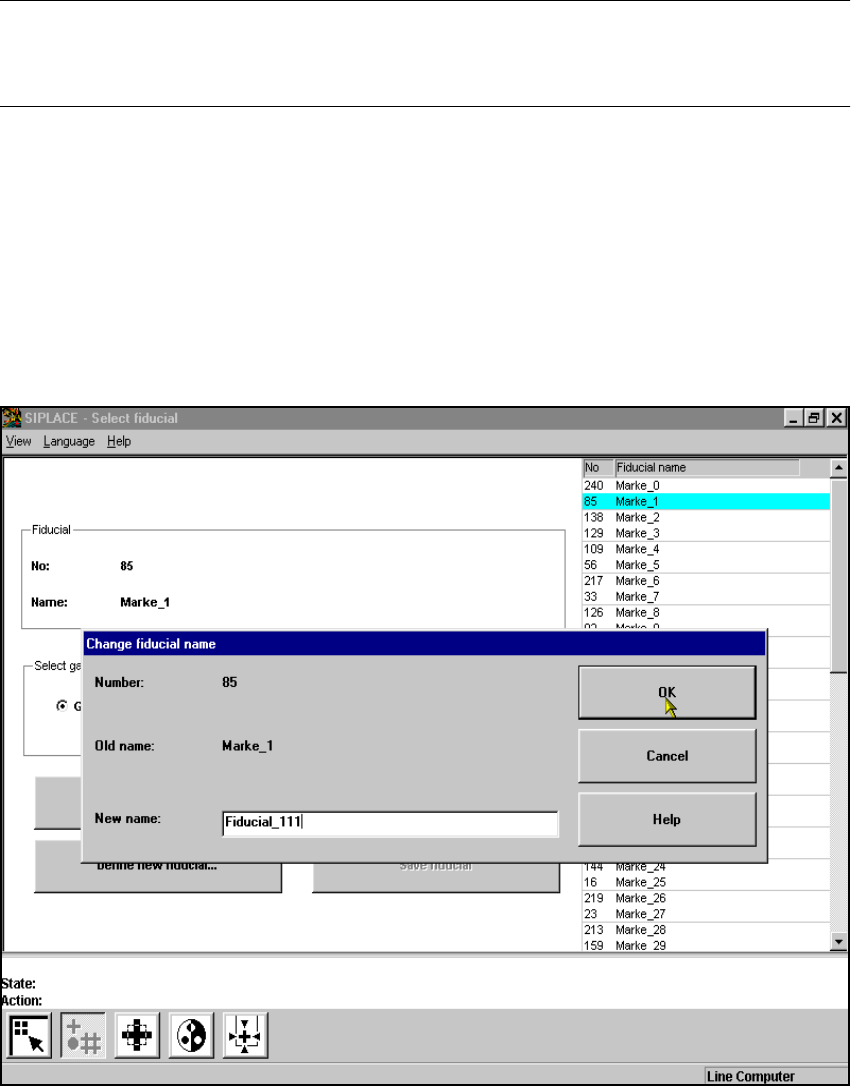
The input box will appear on the screen.
– Input the new fiducial name into the New name field.
–Click on OK if you wish the change to go ahead. The fiducial list will now be updated.
–Click on Cancel if you wish to discard the change.
6
Fig. 6.5 - 10 Change fiducial name option, input box for new fiducial name
6 Vision functions User Manual S-23 HM
6.5 Teach Fiducial Software Version SR.405.xx 05/99 Issue
202
6.5.3.4 Define New Fiducial Option
With this option you can generate a new fiducial. 6
– Click on the Define new fiducial button.
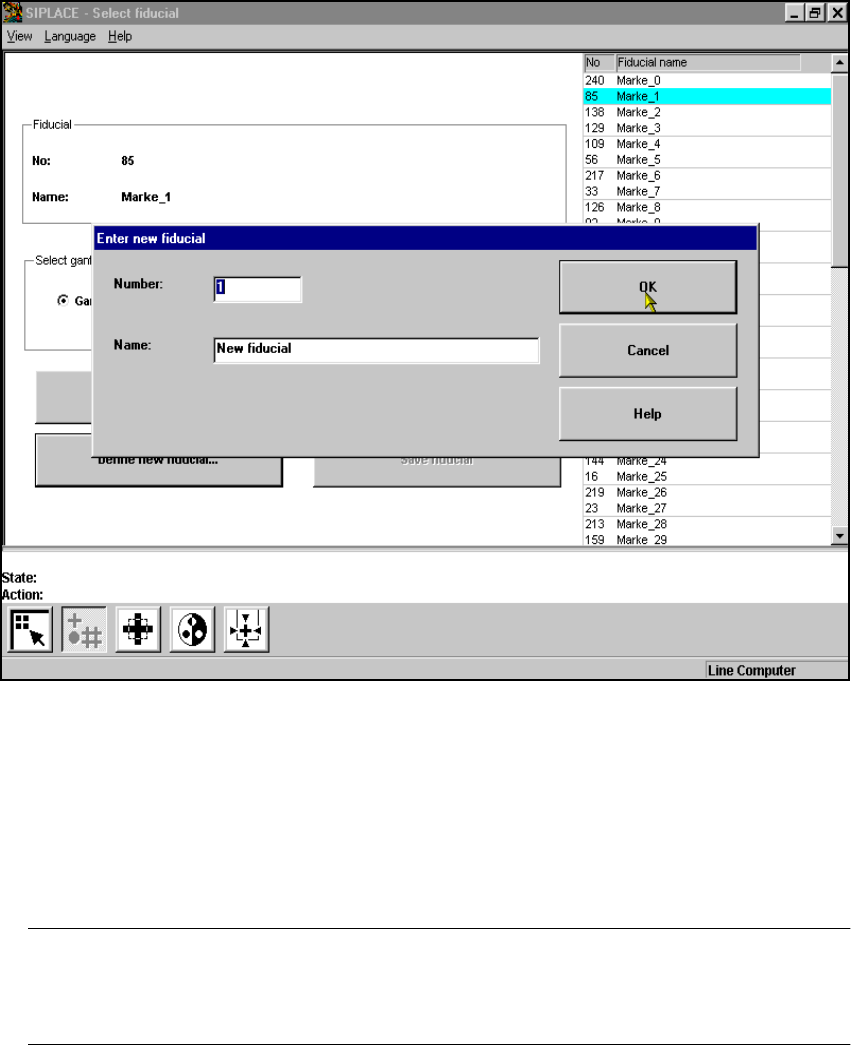
The input box for the fiducial number and the fiducial name will appear on the screen.
6
Fig. 6.5 - 11 Select fiducial menu, Define new fiducial option, input box
– Input a fiducial number and the fiducial name.
– Conclude your input with OK or discard your input with Cancel.
– The new fiducial can also be taught with standard values and further processed.
– When finished save the fiducial by clicking on the Save fiducial button.
NOTE 6
If a fiducial number already exists after clicking on OK you will be asked if you want to over-
write the existing fiducial. 6