00191297-02.pdf - 第99页
User Manual SIPLACE S-23 HM 3 Introduction and Basic Concepts Software Version SR.405.xx 05/99 Issue 3.2 Principles of the Graphic User I nterface 97 Nozzle configuration err or 3 3 3 Transport error 1 3 3 3 Fiducial er …
3 Introduction and Basic Concepts User Manual SIPLACE S-23 HM
3.2 Principles of the Graphic User Interface Software Version SR.405.xx 05/99 Issue
96
Meaning of the other icons and markings 3
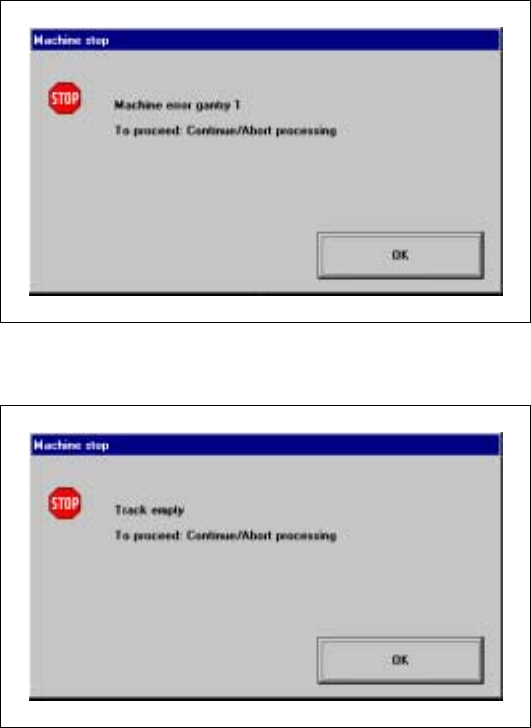
A message window will be overlaid if a track, machine or transport error occurs (see the following
examples). 3
Machine error gantry 1 3
3
3
3
3
3
3
3
3
Track empty error 3
3
3
User Manual SIPLACE S-23 HM 3 Introduction and Basic Concepts
Software Version SR.405.xx 05/99 Issue 3.2 Principles of the Graphic User Interface
97
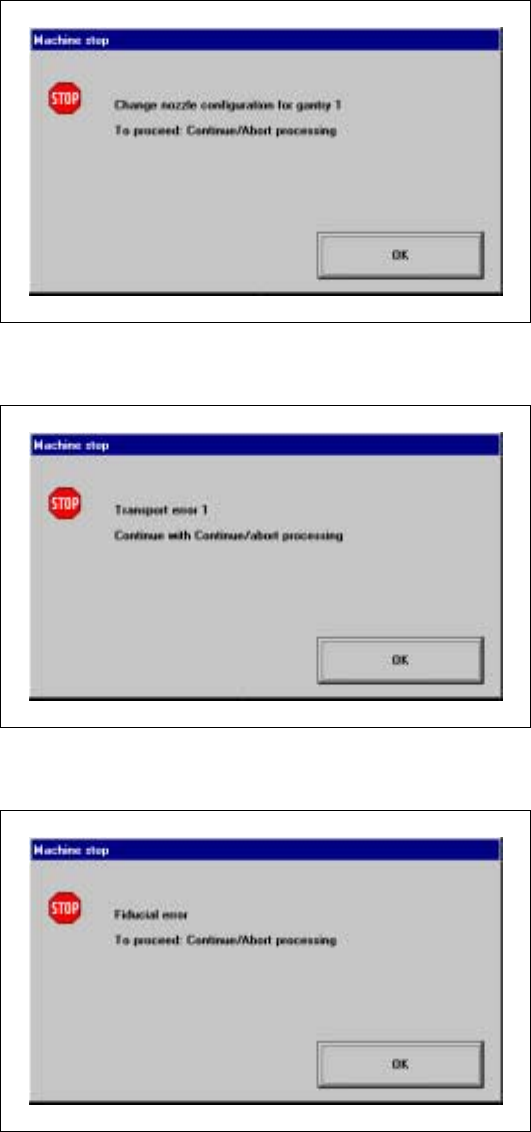
Nozzle configuration error 3
3
3
Transport error 1 3
3
3
Fiducial error 3
3
3
3
3
3
3
3
3
3
3 Introduction and Basic Concepts User Manual SIPLACE S-23 HM
3.2 Principles of the Graphic User Interface Software Version SR.405.xx 05/99 Issue
98
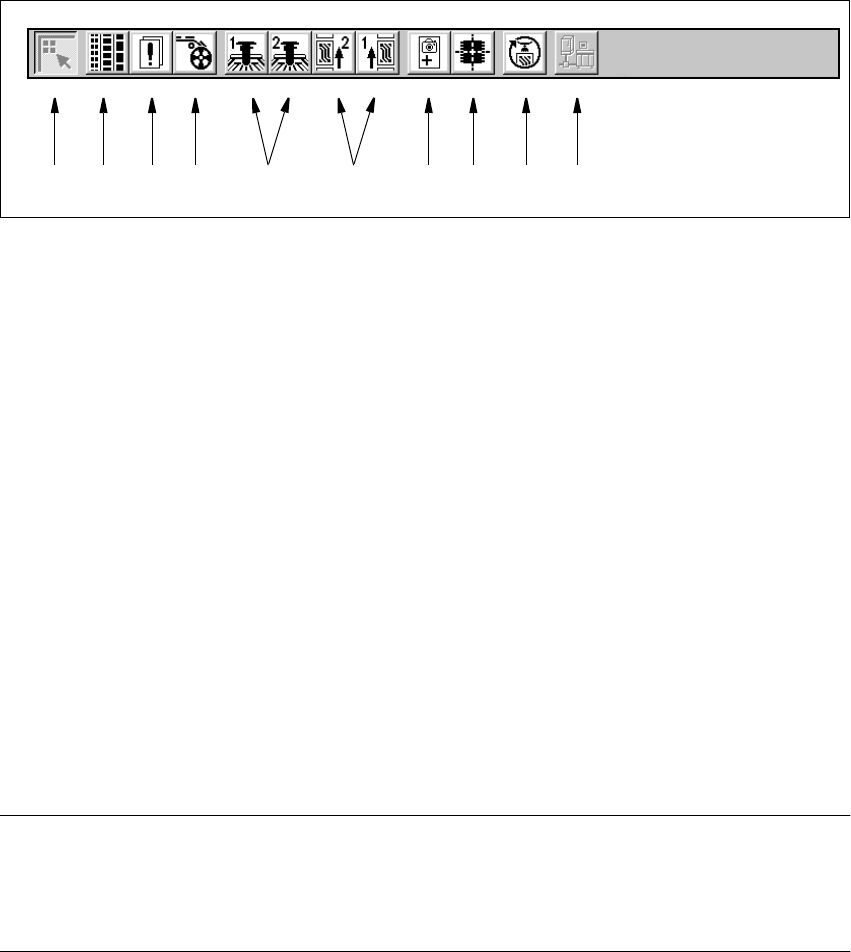
3.2.2.2 Toolbar in Main View
3
Fig. 3.2 - 2 Toolbar in main view
3
Key to Figure 3.2 - 2
(1) Main view
(2) Set-up, placement functions (for a description see Chapter 4)
(3) Error, placement functions (for a description see Chapter 4)
(4) Component feeder, placement functions(for a description see Chapter 4)
(5) Gantry 1 to 2, single functions (for a description see Chapter 5)
(6) Conveyor 1 and 2, single functions (for a description see Chapter 5)
(7) Teach fiducials, vision functions (for a description see Chapter 6)
(8) Test component, vision functions (for a description see Chapter 6)
(9) Start SITEST test program (for a description see User’s Manual
"Test Program SITEST")
(10) GEM interface (for a description see Chapter 12)
3
NOTES to points 6 and 10
The single functions for Conveyor 2 can only be called if a twin conveyor has been configured.
The GEM interface functions cannot be called unless this has been configured.
The "GEM Interface" option cannot be configured in the current software version. 3
È Click the required button in the toolbar.
The user interface is switched to the corresponding view.
The button corresponding to the view which is currently active itself becomes inactive.
3
1 8 9 1076432 5