1_NXT Conveyor(1.0)E.pdf - 第23页
4. Click [OK] and make the following settings in the COM1 Properties dialog: 5. On the HyperTerminal task bar select [File] – [Properties] and select the [Settings] ta b. Click [ASCII Setup…] and put check marks in the t…
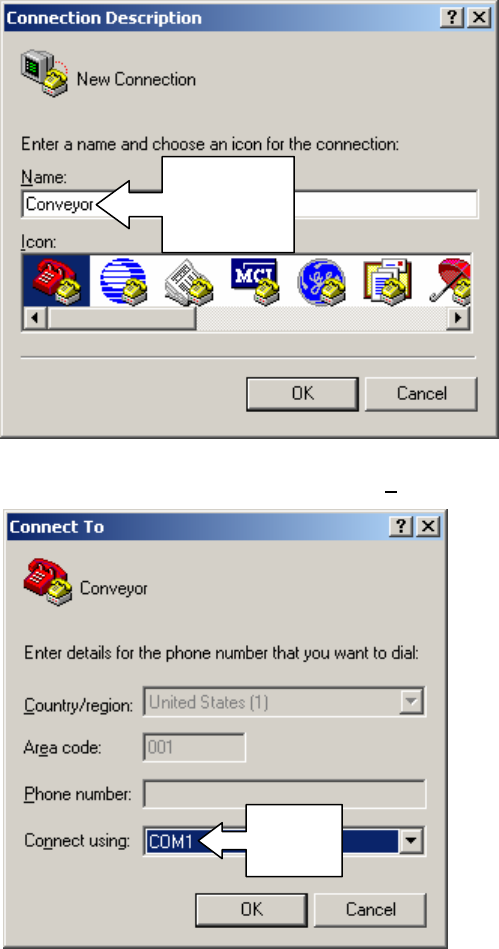
2.3 Setting up Hyper Terminal
1. Click [Start] – [All programs] – [Accessories] – [Communications] – [HyperTerminal].
2. In the Connection Description dialog input “Conveyor” as shown in the following screen
shot.
3. Click [OK] and select [COM1] in the [Con
nect using] list box.
Input
Conveyor
here
Select
COM1
NXT Repair Training Textbook
Conveyor Unit
FK-9F98-43-0E
Edition 1.0 21 / 46 FUJI Machine Mfg. Co., Ltd.
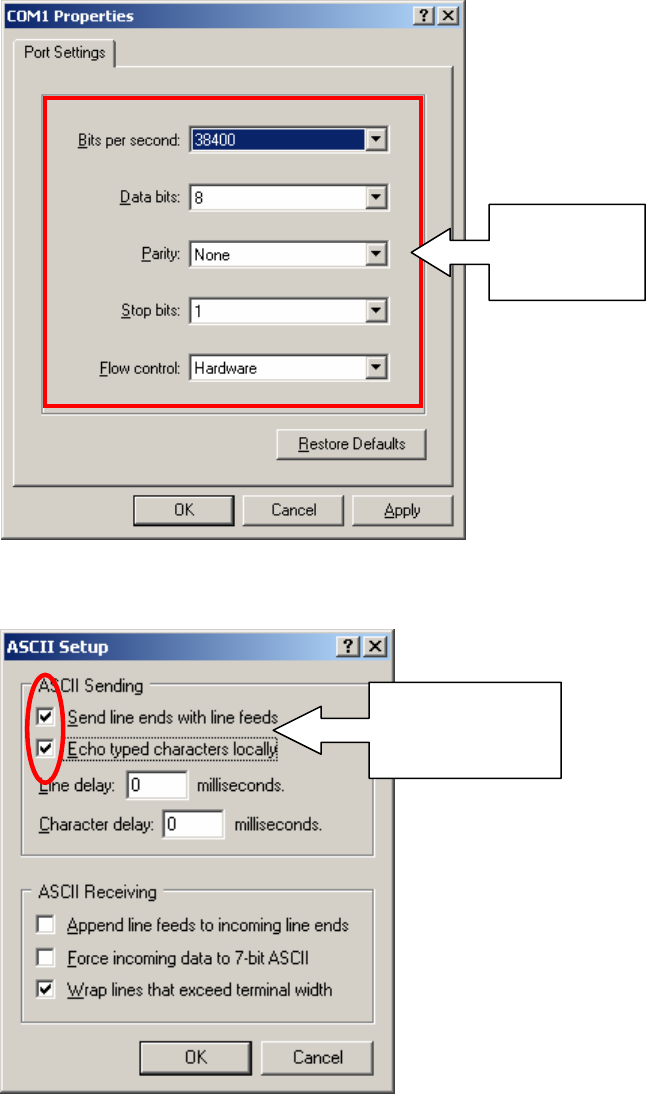
4. Click [OK] and make the following settings in the COM1 Properties dialog:
5. On the HyperTerminal task bar select [File] – [Properties] and select the [Settings] tab.
Click [ASCII Setup…] and put check marks in the two check boxes indicated below:
6. Click [OK] to finish.
Make the
settings
shown here
Put check marks
in these two
check boxes
NXT Repair Training Textbook
Conveyor Unit
FK-9F98-43-0E
Edition 1.0 22 / 46 FUJI Machine Mfg. Co., Ltd.
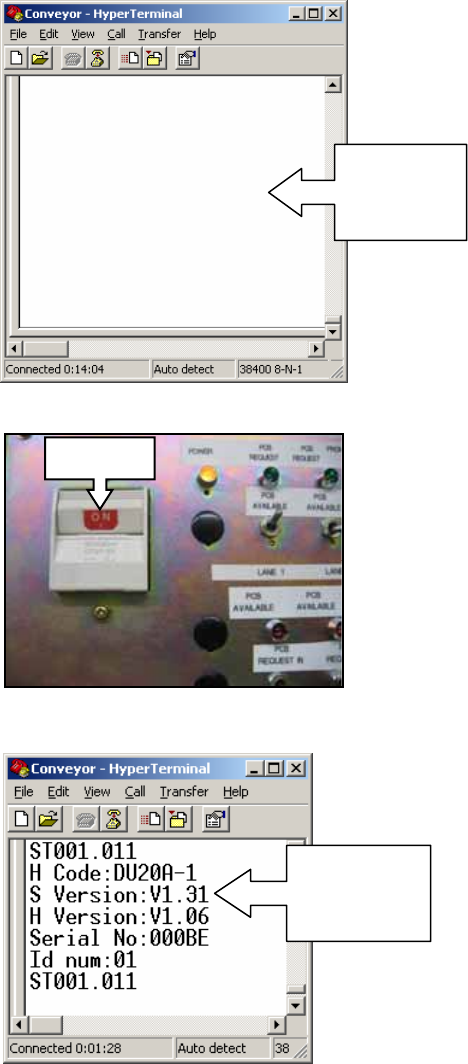
7. Select [Programs] – [Accessories] – [Communications] – [HyperTerminal] – [Conveyor]
to open the HyperTerminal window.
8. Turn ON the CID power.
9. The conveyor firmware version should display in the HyperTerminal window as shown:
10. If the firmware version does not display, check the cable connections.
Open
Hyper
Terminal
ON
Conveyor
firmware
version
NXT Repair Training Textbook
Conveyor Unit
FK-9F98-43-0E
Edition 1.0 23 / 46 FUJI Machine Mfg. Co., Ltd.