1_NXT Conveyor(1.0)E.pdf - 第47页
4. Check the data in the response data field. Check that the S Version of all the motors is V1.31. 2.16 Checking the equipment type parameters 1. Close HyperTerminal and startup ConveyorTestTool. 2. Select the [Transport…
7. Check that the conveyor type (K40.2) and the version number (K41.2) displayed in the
HyperTerminal window matches those shown in the table above.
8. Type ?90.3 in the HyperTerminal window and press [Enter] to display the parameters
for the number 3 motor.
9. Check that the conveyor type (K40.3) and the version number (K41.3) displayed in the
HyperTerminal window matches those shown in the table above.
10. Type ?90.4 in the HyperTerminal window and press [Enter] to display the parameters
for the number 4 motor.
11. Check that the conveyor type (K40.4) and the version number (K41.4) displayed in the
HyperTerminal window matches those shown in the table above.
12. Type ?90.5 in the HyperTerminal window and press [Enter] to display the parameters
for the number 5 motor.
13. Check that the conveyor type (K40.5) and the version number (K41.5) displayed in the
HyperTerminal window matches those shown in the table above.
2.13 Checking the bank version
1. Close HyperTerminal and startup ConveyorTestTool.
2. Select the [Transport] tab and click [Load] – [BankVer_chk] – [Open] to load the bank
version check command.
3. Click [Continuous] to execute the command.
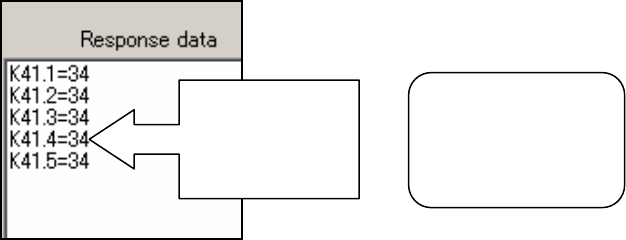
4. Check that the version number (K41.1) displays in the response data field as shown.
Check that the
version number
of each of the
motors is 34
Note: single lane
conveyors will have
only two motors
NXT Repair Training Textbook
Conveyor Unit
FK-9F98-43-0E
Edition 1.0 44 / 46 FUJI Machine Mfg. Co., Ltd.
2.14 Checking the bank operation
1. Close HyperTerminal and startup ConveyorTestTool.
2. Select the [Transport] tab and click [Load] – [BankOper_chk] – [Open] to load the bank
version check command.
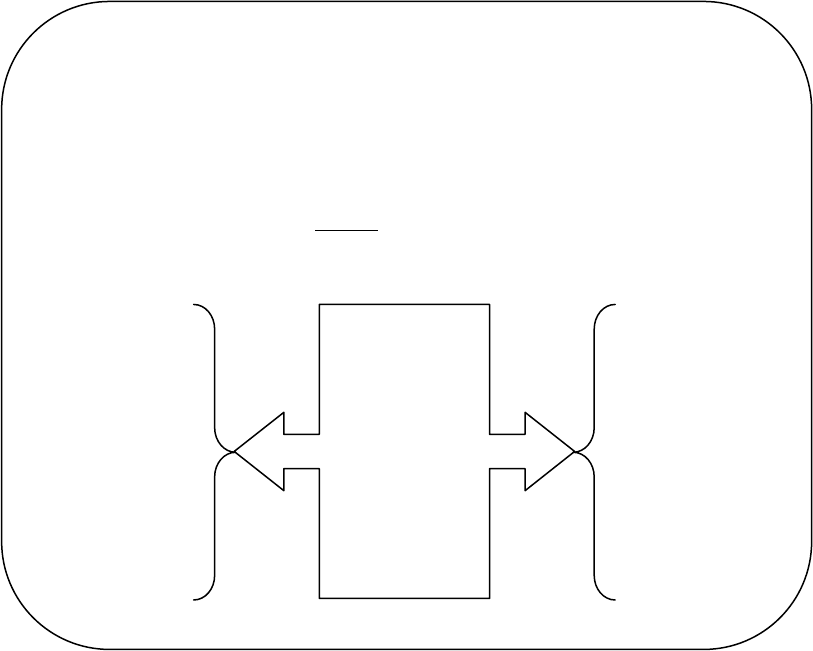
3. Click [Send1] and check the data that displays at the bottom of the response data field.
See example below.
4. If the conveyor is a double conveyor, click [Send4] and check the data that displays at
the bottom of the response data field. See example below.
2.15 Checking the firmware version
1. Close HyperTerminal and startup ConveyorTestTool.
2. Select the [Transport] tab and click [Load] – [FirmVer_chk] – [Open] to load the bank
version check command.
3. Click [Continuous] to execute the command.
Check that this
section of the
data is
displayed as
shown.
Occasionally
this section of
data fails to
save when
transmitting the
bank program.
I1.1, T0.1, T7.1
F41.1
I1.1, T0.1, J23.1
B58.1
I15.1, T5.1, T0.1
B59.1
I3.1, T0.1, T7.1
F41.1
I3.1, T0.1, J23.1
B60.1
I27.2, T0.1, C0.1
O3.1
C31.1
I3.1, T0.1, T5.1
I3.1, T0.1, J11.1
T1.1
F3.1
C56.1
I26.2, T1.1, T0.1
T1.1
I1.1, O3.1, F3.1
I1.4, T0.4, T7.4
F41.4
I1.4, T0.4, J23.4
B58.4
I15.4, T5.4, T0.4
B59.4
I3.4, T0.4, T7.4
F41.4
I3.4, T0.4, J23.4
B60.4
I27.5, T0.4, C0.4
O3.4
C31.4
I3.4, T0.4, T5.4
I3.4, T0.4, J11.4
T1.4
F3.4
C56.4
I26.5, T1.4, T0.4
T1.4
I1.4, O3.4, F3.4
Send1
Send4
Note: for single
conveyors you only
need to check the
data response for
Send1
NXT Repair Training Textbook
Conveyor Unit
FK-9F98-43-0E
Edition 1.0 45 / 46 FUJI Machine Mfg. Co., Ltd.
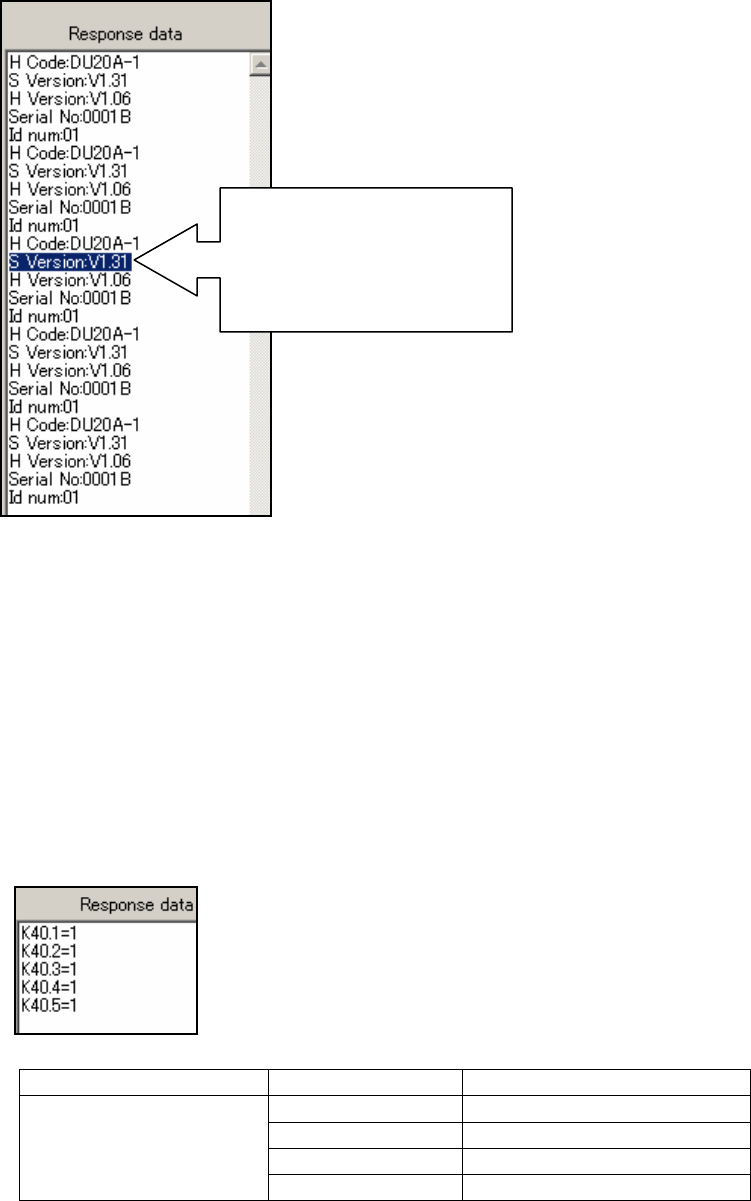
4. Check the data in the response data field. Check that the S Version of all the motors is
V1.31.
2.16 Checking the equipment type parameters
1. Close HyperTerminal and startup ConveyorTestTool.
2. Select the [Transport] tab and click [Load] – [EquipTypePara_chk] – [Open] to load the
bank version check command.
3. Click [Continuous] to execute the command.
4. Check that the conveyor type displayed in the response data field matches those
shown in the table below.
Send Command Conveyor Type Conveyor Type response
M3 Single K40.*=9
M3 Double K40.*=1
M6 Single K40.*=10
EquipTypePara_chk.txt
M6 Double K40.*=2
Check the S Version of all
the motors. In this
example the conveyor is an
M3 double conveyor so
there are 5 motors.
NXT Repair Training Textbook
Conveyor Unit
FK-9F98-43-0E
Edition 1.0 46 / 46 FUJI Machine Mfg. Co., Ltd.