1_NXT Conveyor(1.0)E.pdf - 第27页
9. Select the file to load from the following path: Conveyor/CHK_Command_Cvtool/ CV_Test_V83 (for old type conveyors) or CV_Test_V84 (for new type conveyors) /BankOper_chk. 10. Click [Open] to load the file into the Conv…
2.5 Transmitting K-parameter and bank program files (test version)
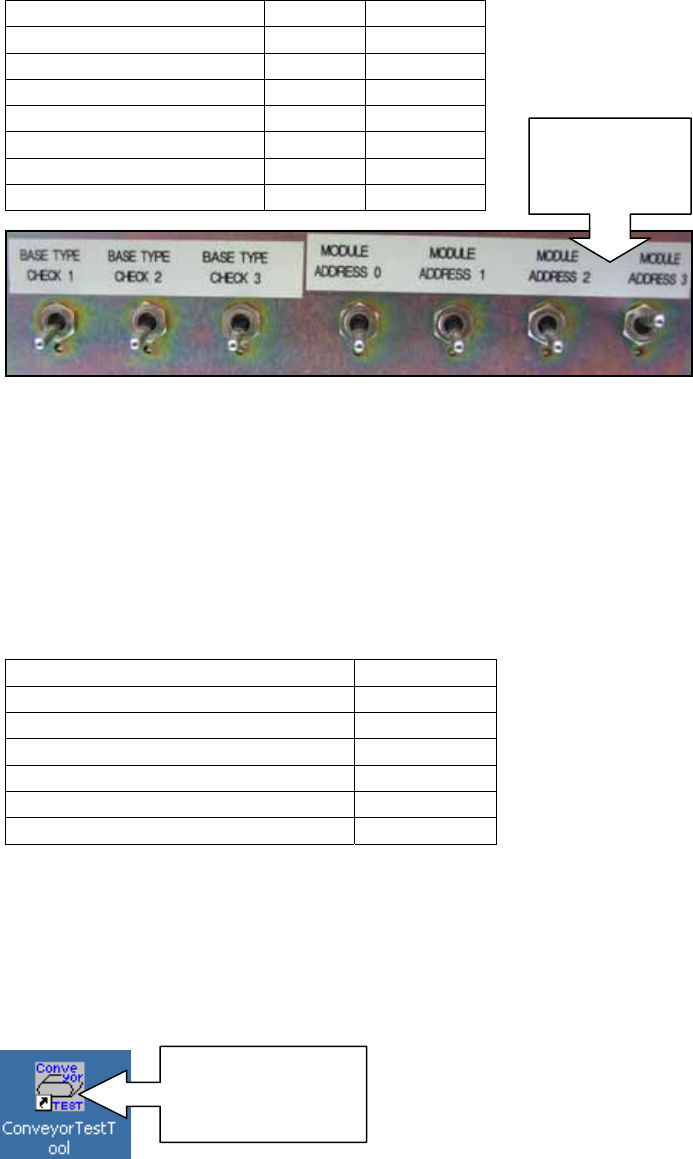
1. Set the toggle switches on the CID as shown.
2. Select [Programs] – [Accessories] – [Communications] – [HyperTerminal] – [Conveyor]
to open the HyperTerminal window.
3. From the [Transfer] menu select [Send Text File…] and select the text file from the
following path: Conveyor/Data/Double Conveyor or Single Conveyor depending on the
conveyor type.
4. Refer to the following table and choose the appropriate text file to transmit:
5. Click [Open] to transmit the text file to the conveyor.
6. Wait until all the data has been transmitted then select [File] – [Exit] – [Yes] to
disconnect Hyper Terminal.
7. Double click the ConveyorTestTool icon on the desktop to open the ConveyorTestTool
software.
8. Select the [Transport] tab and click [Load].
Toggle Switch Status Position
BASE TYPE CHECK 1 OFF Down
BASE TYPE CHECK 2 OFF Down
BASE TYPE CHECK 3 OFF Down
MODULE ADDRESS 0 OFF Down
MODULE ADDRESS 1 OFF Down
MODULE ADDRESS 2 OFF Down
MODULE ADDRESS 3 ON Up
Conveyor Type Text file
M3 Single Conveyor M3S-84.01
M6 Single Conveyor M63-84.01
M3 Double Conveyor (old type) M3-83.06
M3 Double Conveyor (new type) M3-84.00
M6 Double Conveyor (old type) M6-83.06
M6 Double Conveyor (new type) M6-84.00
Set the
dipswitches
as shown
Double Click to
open the
ConveyorTestTool
NXT Repair Training Textbook
Conveyor Unit
FK-9F98-43-0E
Edition 1.0 25 / 46 FUJI Machine Mfg. Co., Ltd.
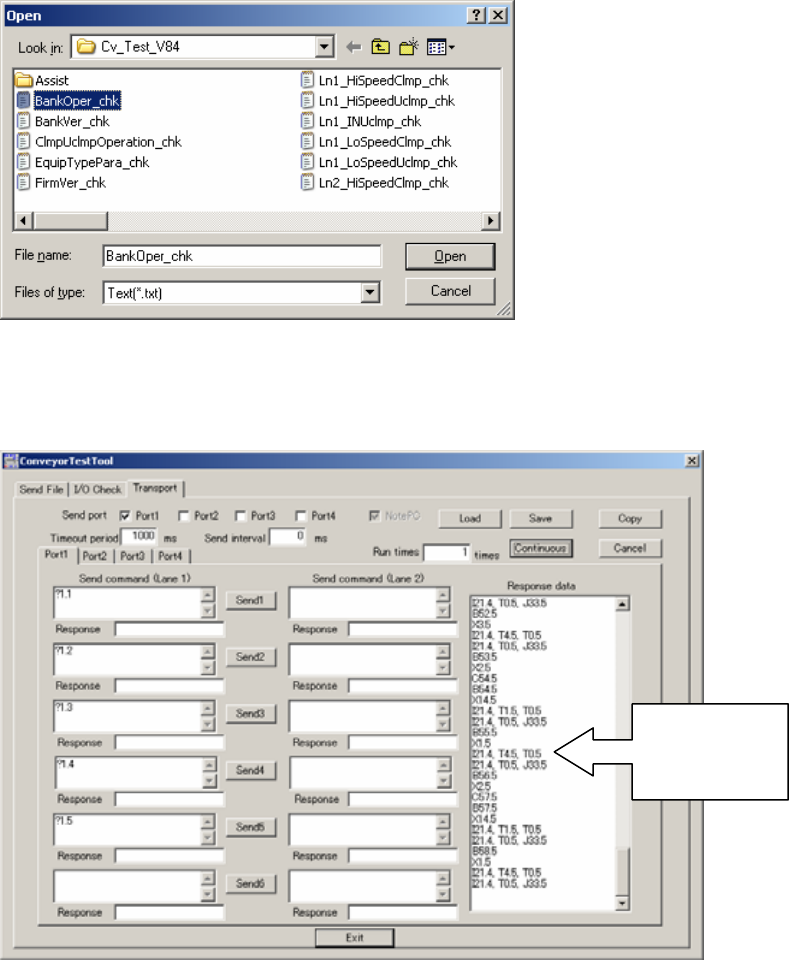
9. Select the file to load from the following path: Conveyor/CHK_Command_Cvtool/
CV_Test_V83 (for old type conveyors) or CV_Test_V84 (for new type conveyors)
/BankOper_chk.
10. Click [Open] to load the file into the ConveyorTestTool.
11. Click [Continuous] to send the file to the conveyor and confirm that data displays in the
[Response data] field.
12. Click [Load] and select BankVer_chk.txt – [Open] to load the file into the
ConveyorTestTool.
13. Click [Continuous] to send the file to the conveyor.
Check that
data displays
in this field
NXT Repair Training Textbook
Conveyor Unit
FK-9F98-43-0E
Edition 1.0 26 / 46 FUJI Machine Mfg. Co., Ltd.
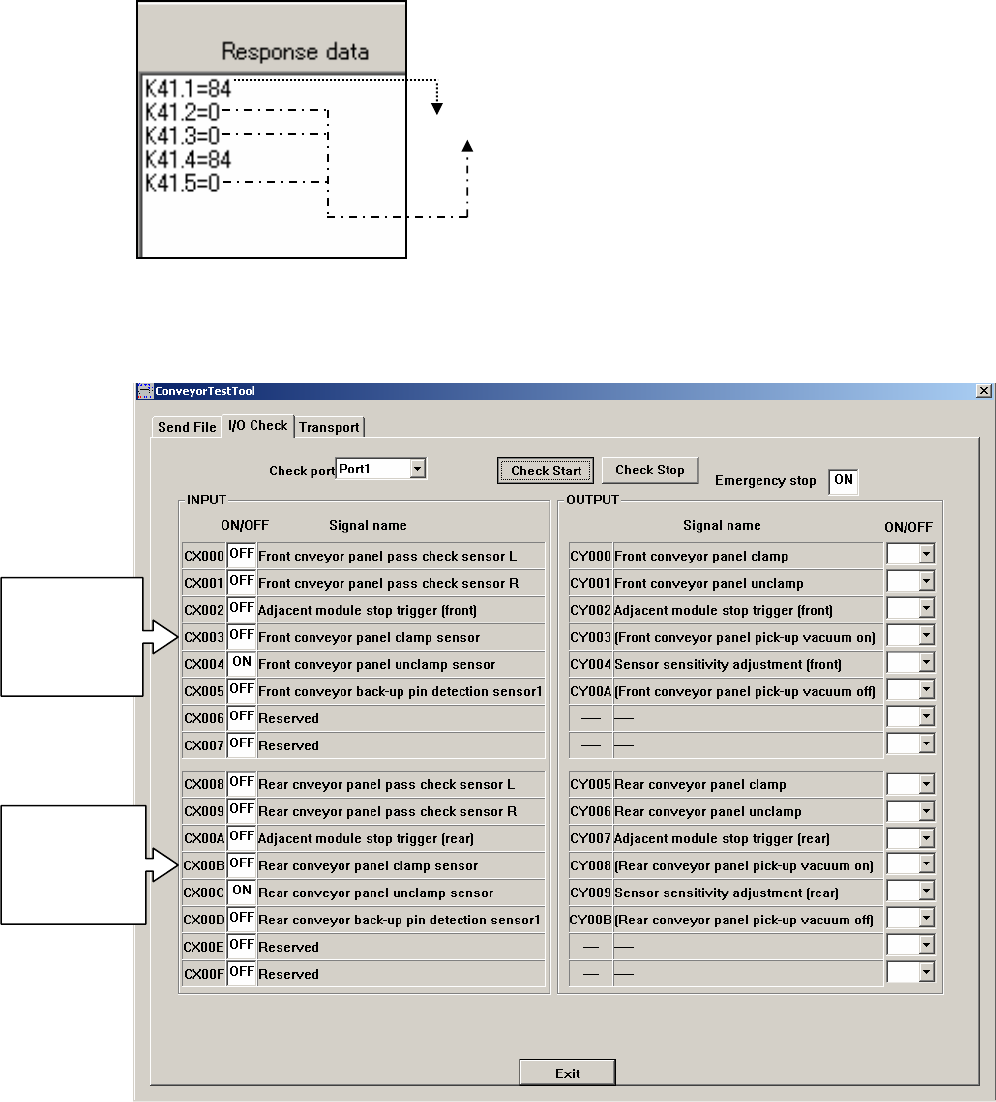
14. Check the data that displays in the [Response data] field. In the following example the
bank version is 84.0.
2.6 Checking the conveyor I/Os
1. Select the [I/O Check] tab in the ConveyorTestTool and click [Check Start].
84.0
Old type (not
currently used)
CX004 monitors
both clamp and
unclamp
Old type (not
currently used)
CX00C monitors
both clamp and
unclamp
NXT Repair Training Textbook
Conveyor Unit
FK-9F98-43-0E
Edition 1.0 27 / 46 FUJI Machine Mfg. Co., Ltd.