1_NXT Conveyor(1.0)E.pdf - 第43页
2.11 Transmitting K-parameter and bank program files (standard version) 1. Close the ConveyorTestTool. 2. Select [Programs] – [Accessories] – [C ommunications] – [HyperTerminal] – [Conveyor] to open the HyperTerminal win…
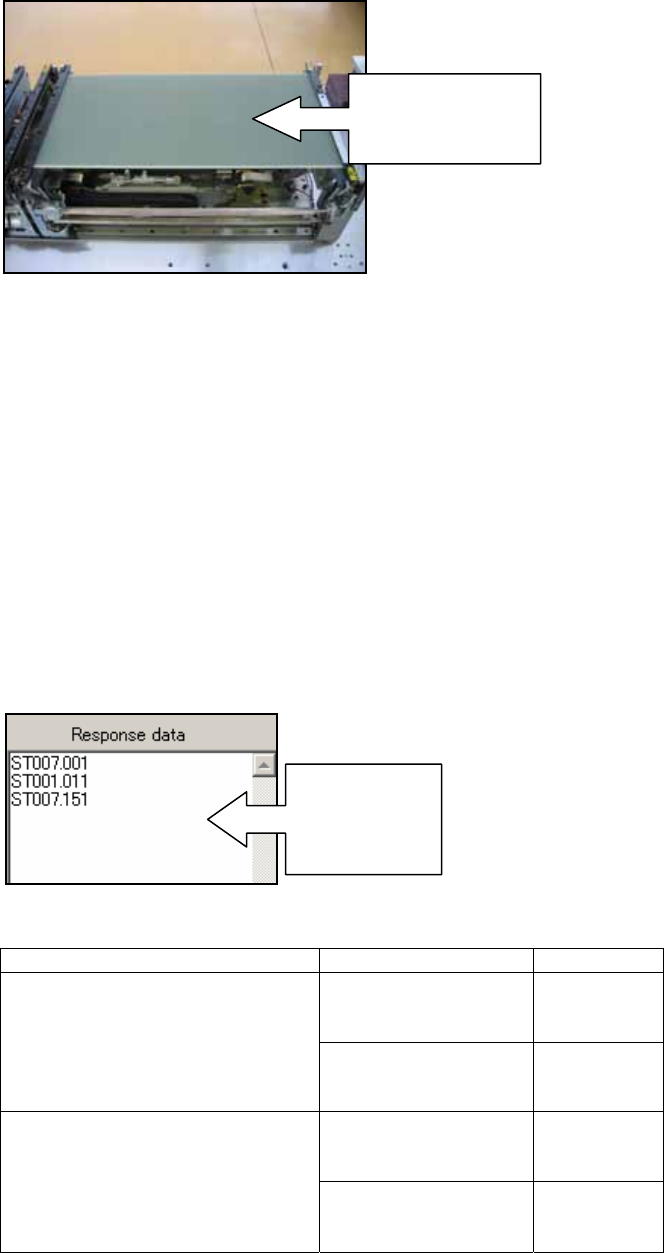
27. Put the maximum panel (L250 x W510 x t6mm) in the center of lane1.
28. Place a scale on the conveyor rail and line it up with the edge of the panel.
29. Click [Continuous] and use the scale to check that the panel always returns to the
same position in the center of the conveyor.
30. Confirm that the response data reads M25, and then click [Cancel] to stop the
conveyor operation.
2.10 RS485 response check (checking communication between conveyors)
1. Startup the ConveyorTestTool and select the [Transport] tab.
2. Click [Load] and select [RS485comm_SingleConv_chk] or
[RS485comm_DoubleConv_chk] depending on the conveyor type.
3. Click [Send1] and check the response in the “Response data” field.
4. Check that the response matches the response shown in the table below:
Send Command Device Type Response
M3 Single Conveyor ST007.001
ST001.011
ST007.151
RS485comm_SingleConv_chk
M6 Single Conveyor ST007.001
ST002.011
ST007.151
M3 Double Conveyor ST007.001
ST001.011
ST007.151
RS485comm_DoubleConv_chk
M6 Double Conveyor ST007.001
ST002.011
ST007.151
Put the maximum
panel in the
center of lane1
Check the
response
data in this
field
NXT Repair Training Textbook
Conveyor Unit
FK-9F98-43-0E
Edition 1.0 41 / 46 FUJI Machine Mfg. Co., Ltd.
2.11 Transmitting K-parameter and bank program files (standard version)
1. Close the ConveyorTestTool.
2. Select [Programs] – [Accessories] – [Communications] – [HyperTerminal] – [Conveyor]
to open the HyperTerminal window.
3. From the [Transfer] menu select [Send Text File…] and select the text file from the
following path: Conveyor/Data/Double Conveyor or Single Conveyor depending on the
conveyor type.
4. Refer to the following table and choose the appropriate text file to transmit:
5. Click [Open] to transmit the text file to the conveyor.
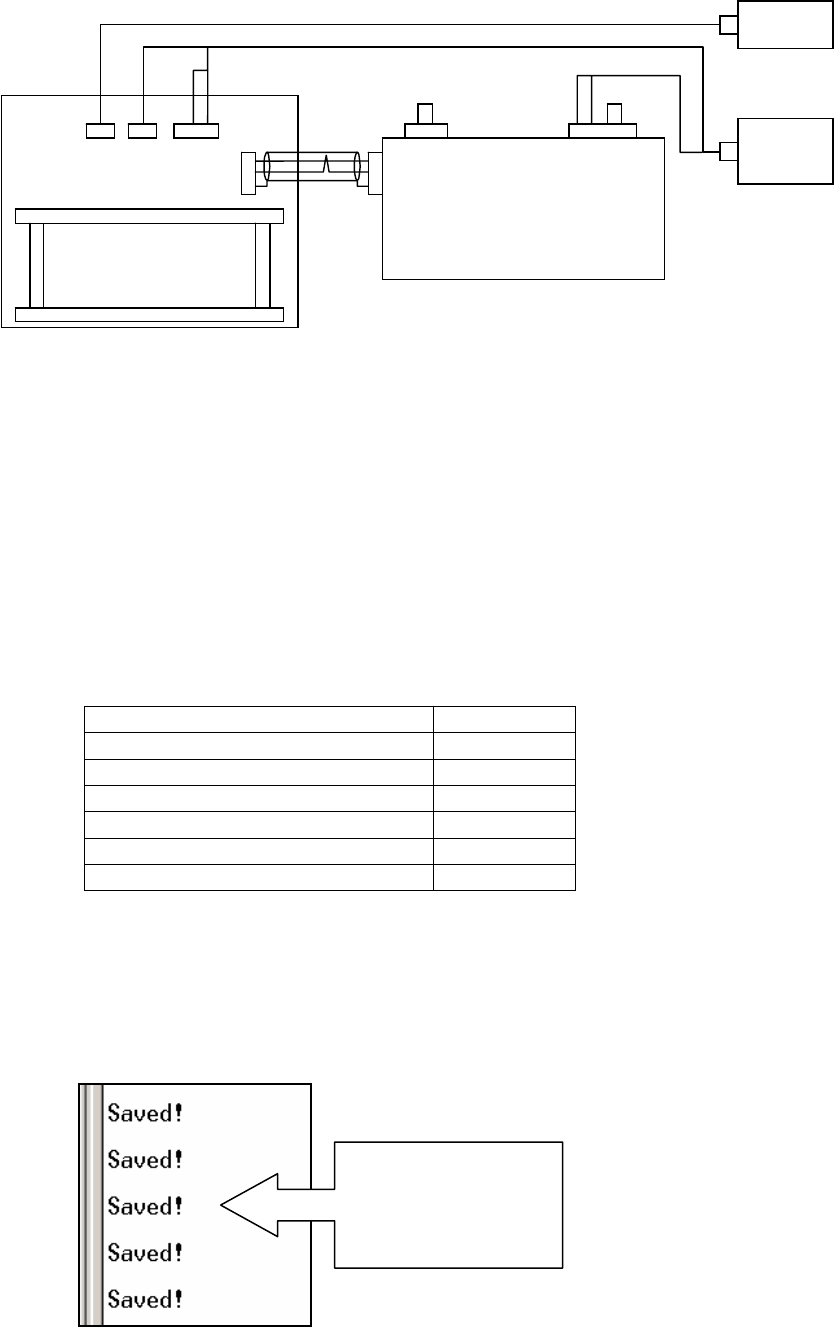
6. Once the text file has been saved the following message will appear in the
HyperTerminal window. The number of “Saved!” messages may vary from a minimum
of 2 to a maximum of 5.
Conveyor Type Text file
M3 Single Conveyor M3S-34
M6 Single Conveyor M63-34
M3 Double Conveyor (old type) M3-34
M3 Double Conveyor (new type) M3-34
M6 Double Conveyor (old type) M6-34
M6 Double Conveyor (new type) M6-34
SMEMA??
SB20
1
2
3
1
2
3
1 2 4 51 3
CN2
CN3
CN1
+24V
GND
RS232C
6 7
CN3-2
+24V
GND
Controller
SMEMA PCB
SB20
PC
DC
Power
This message
indicates that the file
has been saved to
the conveyor
NXT Repair Training Textbook
Conveyor Unit
FK-9F98-43-0E
Edition 1.0 42 / 46 FUJI Machine Mfg. Co., Ltd.
2.12 Confirming K-parameter and bank program file transmission
1. Make sure that the ConveyorTestTool is closed.
2. Select [Programs] – [Accessories] – [Communications] – [HyperTerminal] – [Conveyor]
to open the HyperTerminal window.
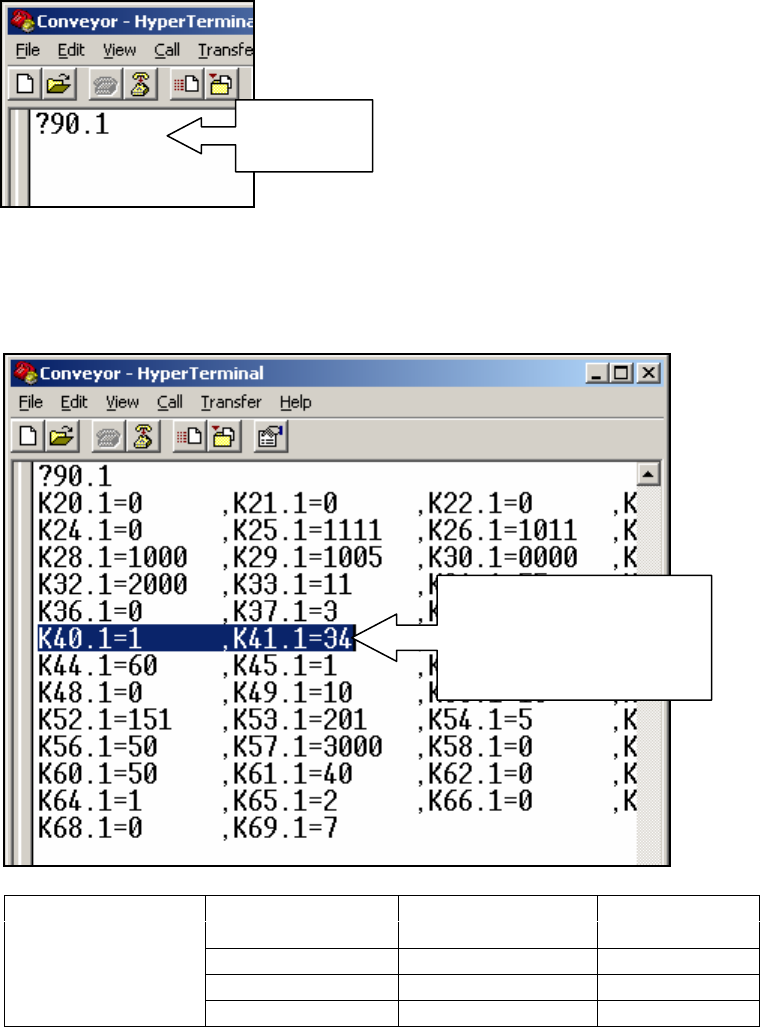
3. Type ?90.1 in the HyperTerminal window as shown below.
4. Press [Enter] to display the parameters for the number 1 motor.
5. Check that the conveyor type (K40.1) and the version number (K41.1) displayed in the
HyperTerminal window matches those shown in the table below.
6. Type ?90.2 in the HyperTerminal window and press [Enter] to display the parameters
for the number 2 motor.
Send Command Conveyor Type Conveyor Type Version No.
M3 Double K40.*=1 K41.*=34
M6 Single K40.*=10 K41.*=34
KparaRead.txt
M6 Double K40.*=2 K41.*=34
Type ?90.1
here
Check that the K40.1 &
K41.1 parameters match
those shown in the table
below.
NXT Repair Training Textbook
Conveyor Unit
FK-9F98-43-0E
Edition 1.0 43 / 46 FUJI Machine Mfg. Co., Ltd.