ACT - Accuracy Check Tool.pdf - 第186页
ACT with SSW 7xx / User Manual 07/2017 Edition 78 4.2.8 Finishing the ACT – Returning to Producti on 4.2.8.1 Finishing (e.g. under Stati on Software 7xx) ► Click the Schließen (Close) button in the measurement result s v…
ACT with SSW 7xx / User Manual 07/2017 Edition
77
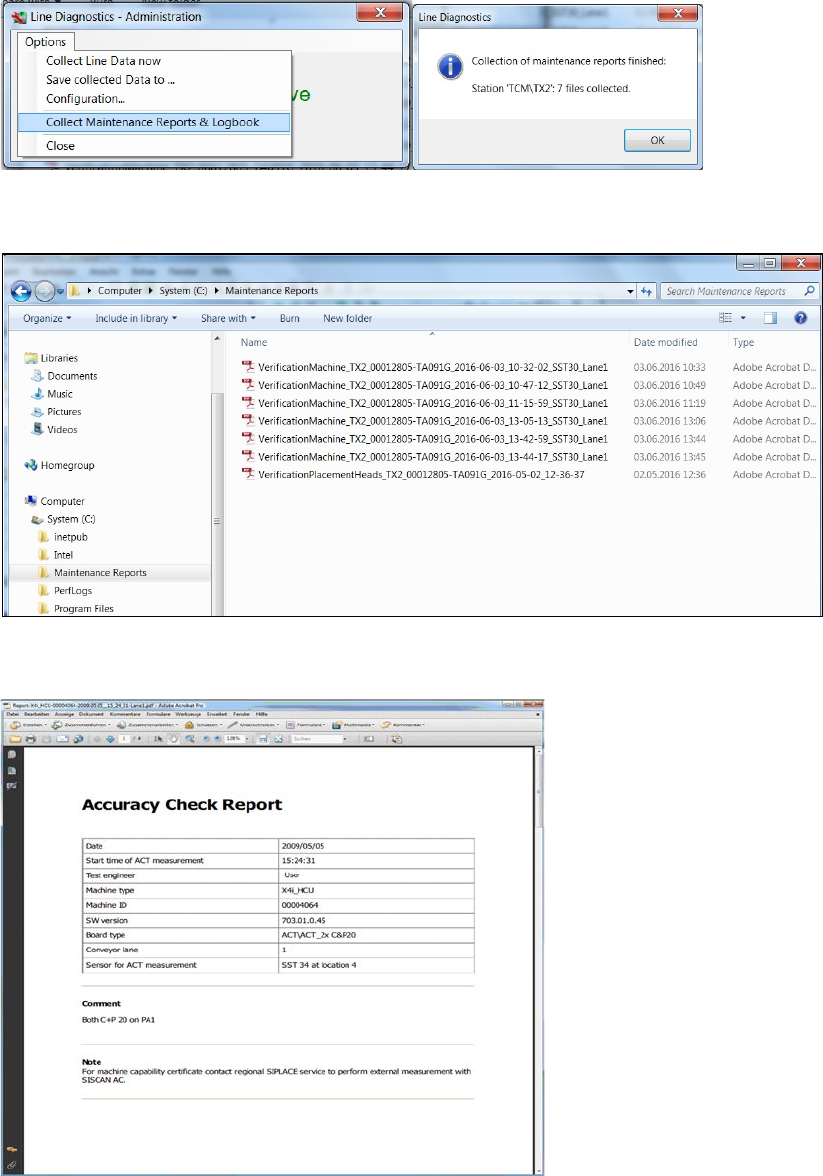
► In the Line Diagnostics – Administration windows, select the Collect Maintenance Reports
& Logbook function under Options.
Figure 4-54: Collect Maintenance Reports & Logbook
The reports collected by the stations are displayed in the C:\Maintenance Reports folder.
Figure 4-55: Maintenance Reports
Example:
Figure 4-56: Accuracy Check Report
ACT with SSW 7xx / User Manual 07/2017 Edition
78
4.2.8 Finishing the ACT – Returning to Production
4.2.8.1 Finishing (e.g. under Station Software 7xx)
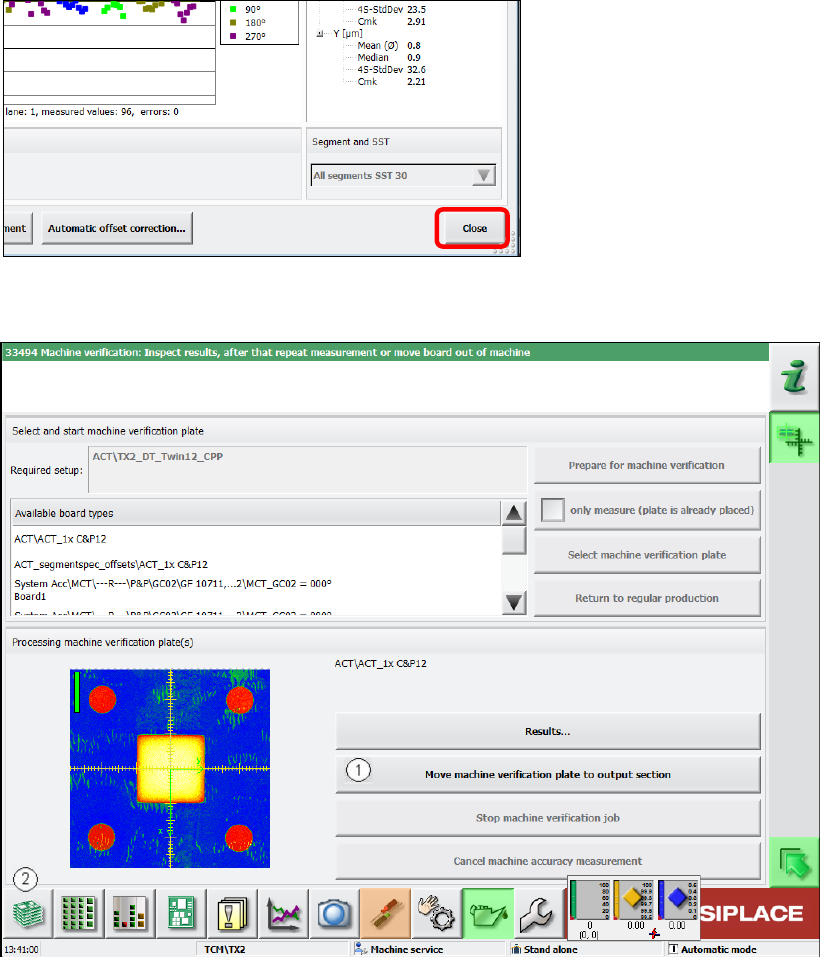
► Click the Schließen (Close) button in the measurement results view to close it.
Figure 4-57: Closing measurement results view
► Load the board into the output section (1).
Figure 4-58: Loading board into the output section
► Click on the button to the left at the bottom (2) to return to the main view of the GUI.
ACT with SSW 7xx / User Manual 07/2017 Edition
79
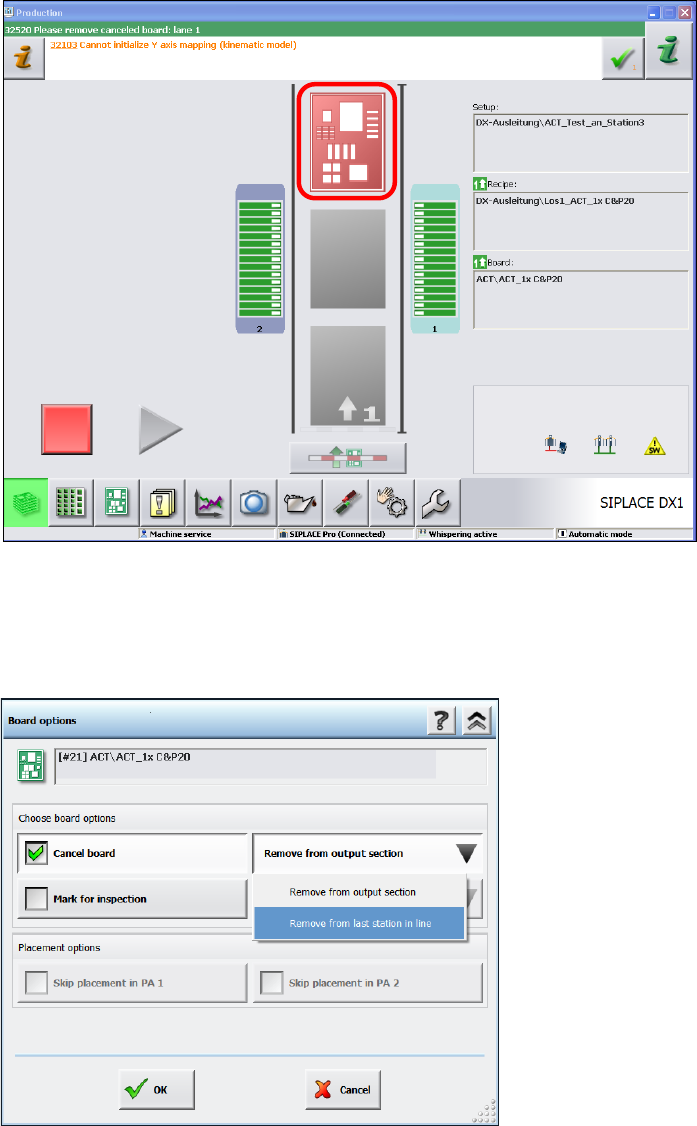
In the station main view you will now see the board highlighted in red in the output section,
from where you can remove it.
► Remove the board from the output section.
► If it is not possible to remove the board, because it is a machine of the SX- or DX-series that is
positioned in the middle of a line of several machines, then click on the red board.
Figure 4-59: State after ACT
► In the next window, select the Cancel board option.
► Select the sub-function Remove from last station of the line.
► Click OK to confirm.
Figure 4-60: Removing board from the last station of the line
► Press Start.
The board is unloaded from the station.