ACT - Accuracy Check Tool.pdf - 第187页
ACT with SSW 7xx / User Manual 07/2017 Edition 79 In the station main v iew you will now se e the board highlight ed in red in the out put section, from where you ca n remove it. ► Remove the board f rom the output se ct…
ACT with SSW 7xx / User Manual 07/2017 Edition
78
4.2.8 Finishing the ACT – Returning to Production
4.2.8.1 Finishing (e.g. under Station Software 7xx)
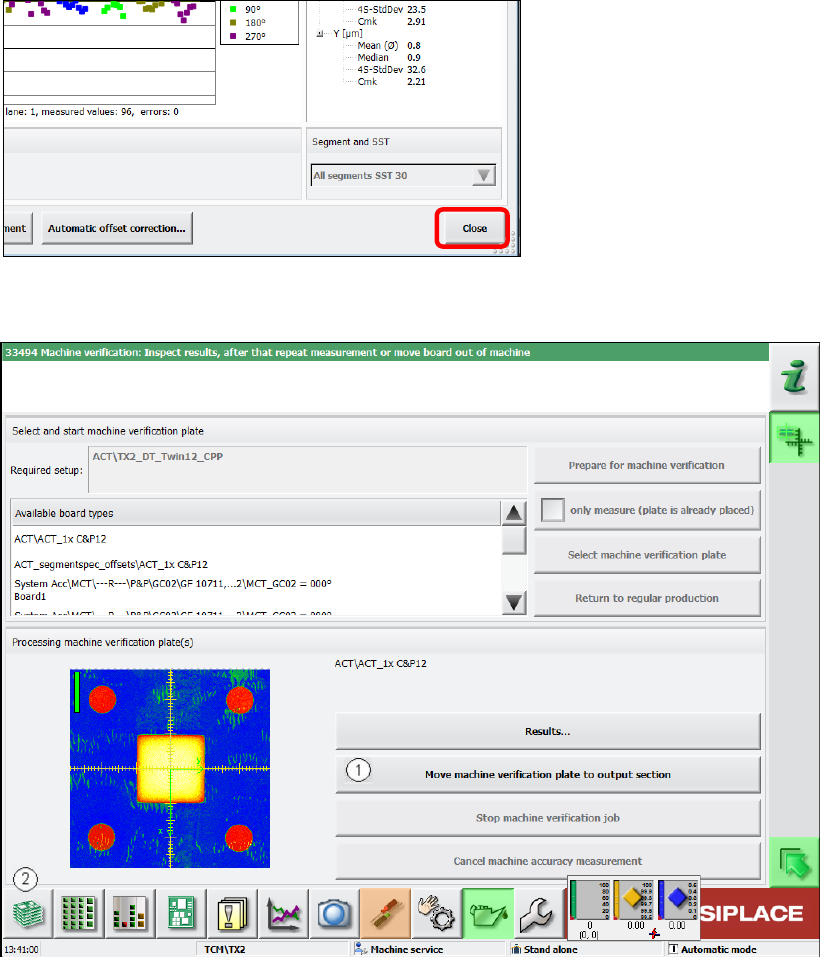
► Click the Schließen (Close) button in the measurement results view to close it.
Figure 4-57: Closing measurement results view
► Load the board into the output section (1).
Figure 4-58: Loading board into the output section
► Click on the button to the left at the bottom (2) to return to the main view of the GUI.
ACT with SSW 7xx / User Manual 07/2017 Edition
79
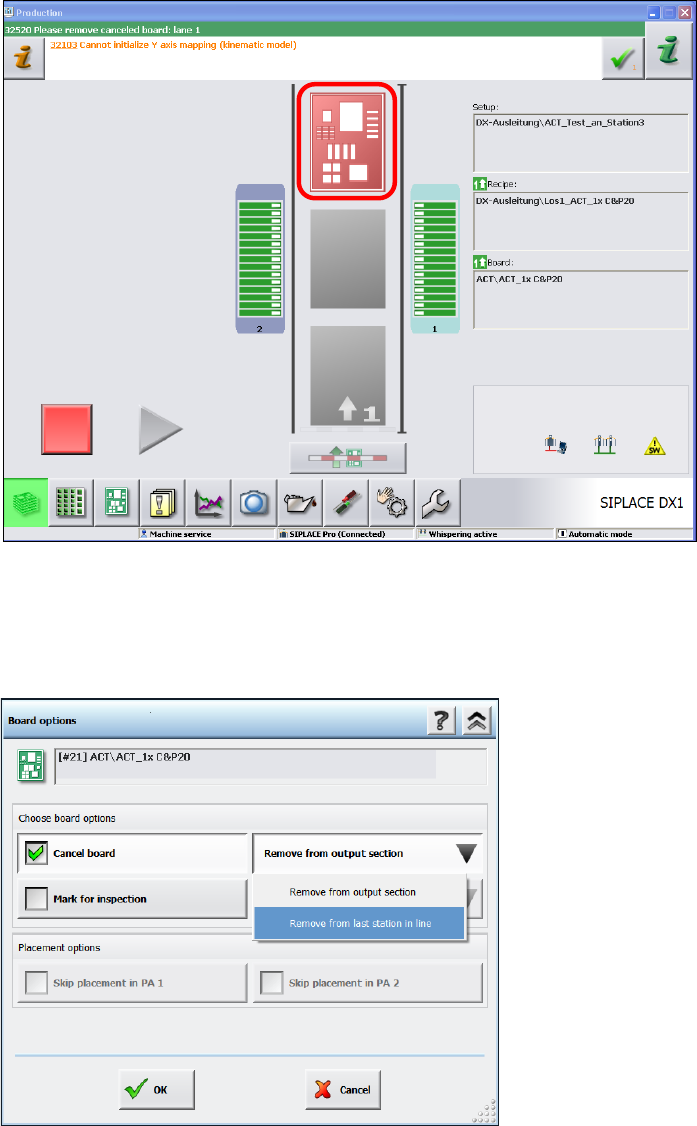
In the station main view you will now see the board highlighted in red in the output section,
from where you can remove it.
► Remove the board from the output section.
► If it is not possible to remove the board, because it is a machine of the SX- or DX-series that is
positioned in the middle of a line of several machines, then click on the red board.
Figure 4-59: State after ACT
► In the next window, select the Cancel board option.
► Select the sub-function Remove from last station of the line.
► Click OK to confirm.
Figure 4-60: Removing board from the last station of the line
► Press Start.
The board is unloaded from the station.
ACT with SSW 7xx / User Manual 07/2017 Edition
80
If one or more stations are positioned behind it, for which there is no specification for components
to be placed, the board is passed through these machines and can then be removed from the last
station of the line.
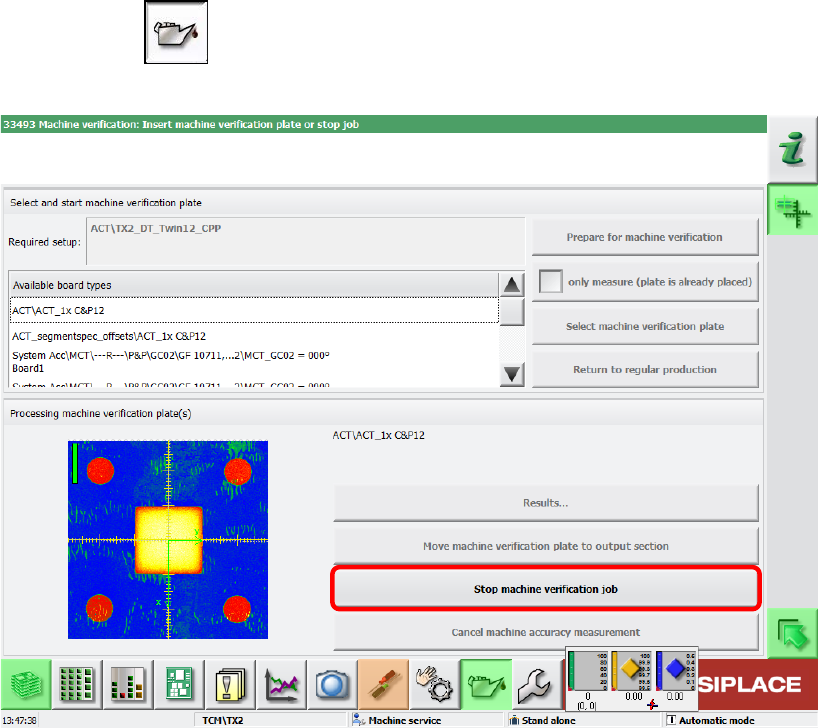
► Click on the button, to switch to the Service view.
► Click on the Stop machine verification job button.
Figure 4-61: Stop machine verification job