ACT - Accuracy Check Tool.pdf - 第205页
ACT with SSW 7xx / User Manual 07/2017 Edition 97 ► Select " 250 mm x 100 mm" under Conve yor – Va cuum tooling left . ► Select " 250 mm x 100 mm" under Conve yor – Va cuum tooling right . Figure 6-8:…
ACT with SSW 7xx / User Manual 07/2017 Edition
96
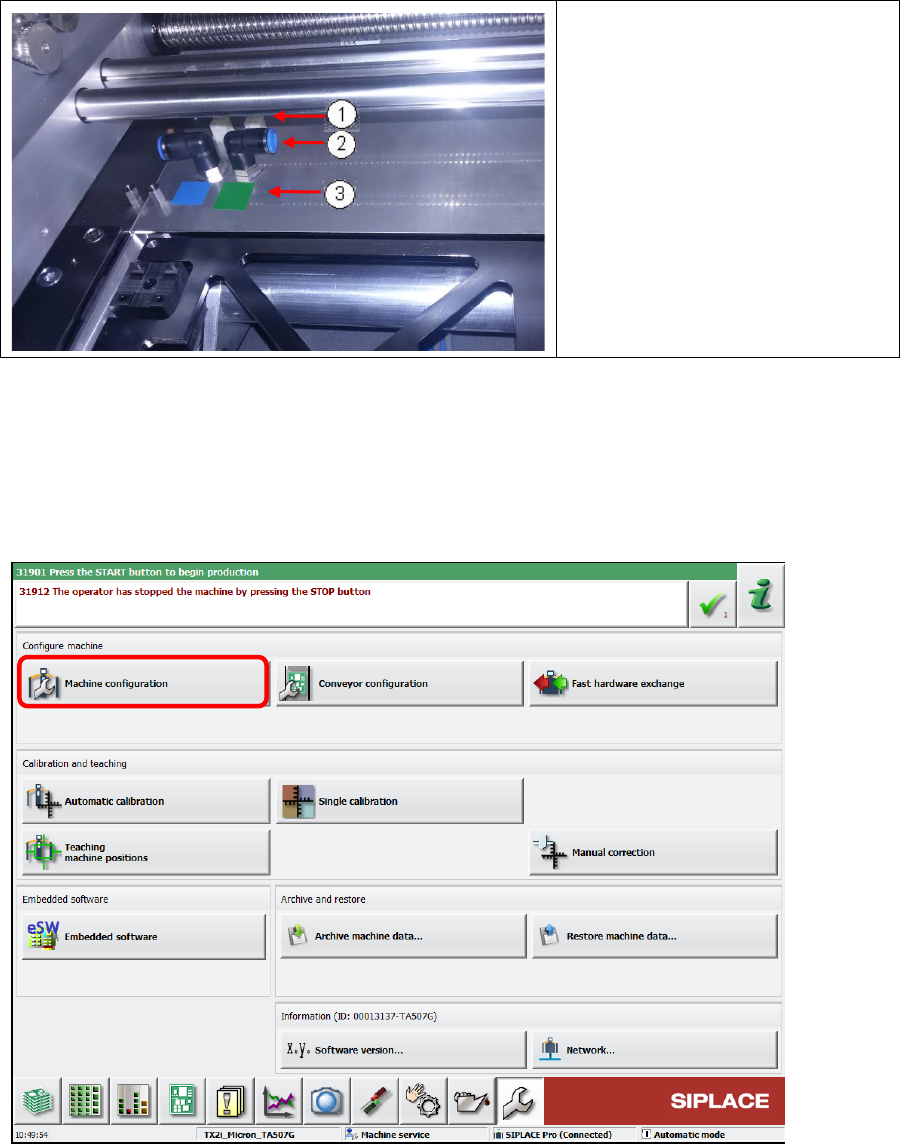
1. Connector
2. Vacuum hose connection
3. Color coding:
Green = Lane 1
Blue = Lane 2
► Connect the compressed air
hose and the cable of each
vacuum tooling according to the
color coding.
Figure 6-6: Connecting vacuum tooling
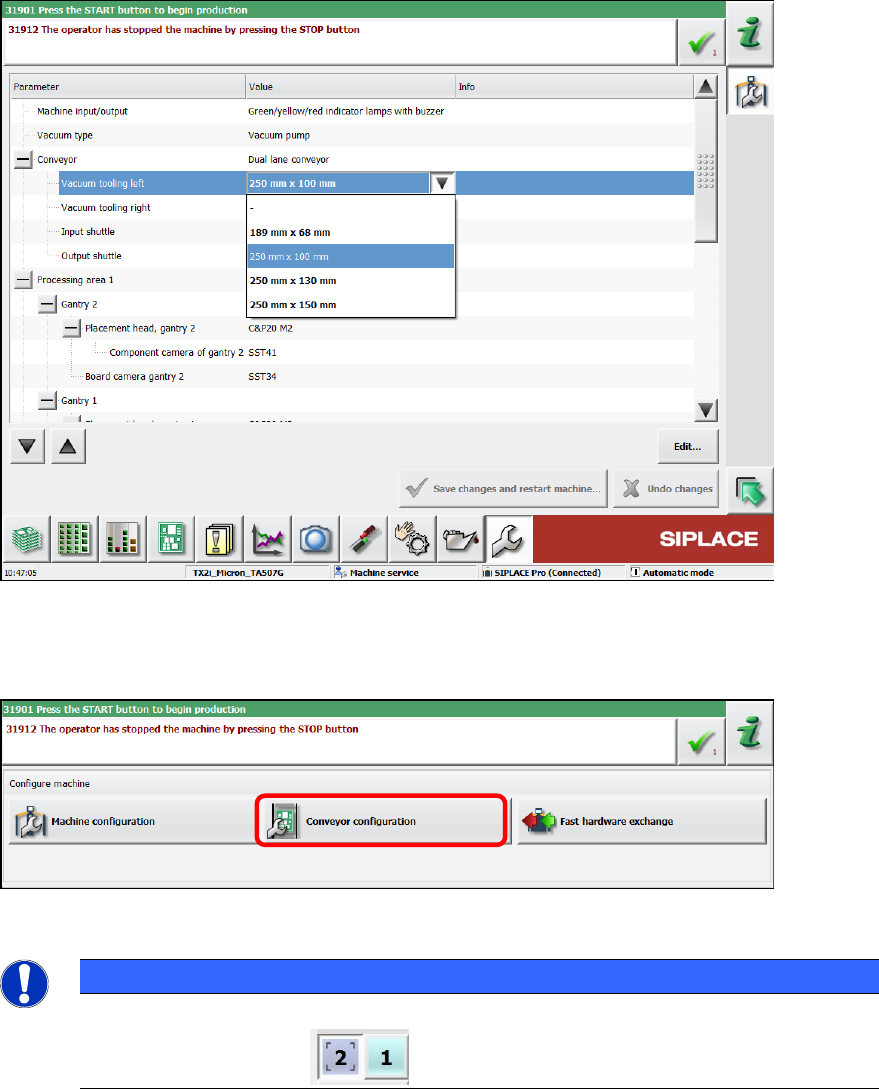
6.1.3.2 Software Settings of the ACT Vakuum Toolings
► Switch on the machine.
► Log in as Machine service user.
► Select Machine Configuration.
Figure 6-7: Machine configuration
ACT with SSW 7xx / User Manual 07/2017 Edition
97
► Select "250 mm x 100 mm" under Conveyor – Vacuum tooling left.
► Select "250 mm x 100 mm" under Conveyor – Vacuum tooling right.
Figure 6-8: Machine configuration, transport
► Click the Save changes and restart machine button.
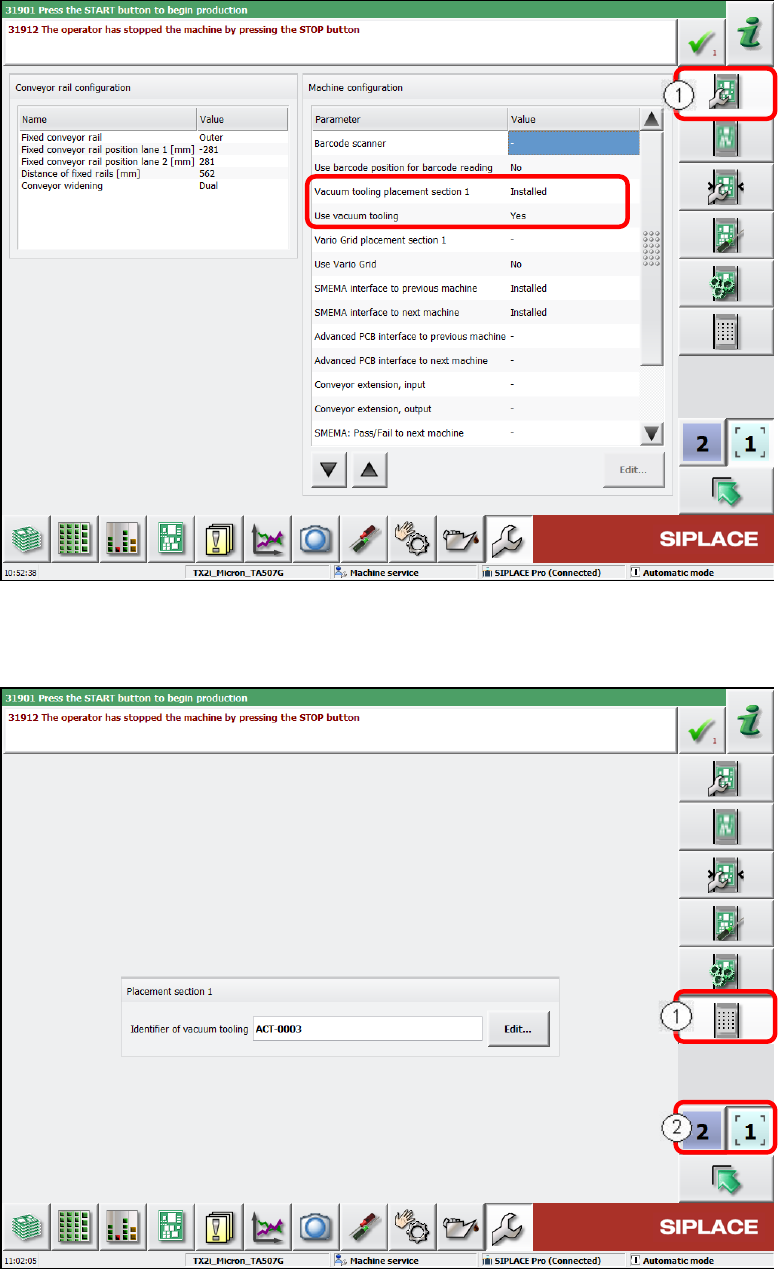
► Switch over to Conveyor configuration after the restart.
Figure 6-9: Conveyor configuration
NOTICE
► For the following settings, please observe that you always have to perform them on
both conveyor lanes !
ACT with SSW 7xx / User Manual 07/2017 Edition
98
► Select the Configure conveyor view (1).
► Set the Vacuum tooling placement section 1 parameter to Installed.
► Set the Use vacuum tooling parameter to Yes.
Figure 6-10: Configuring conveyor
► Under Conveyor configuration, switch over to the Set identifier of vacuum tooling and
transfer correction data view (1).
Figure 6-11: Setting identifier of vacuum tooling and transferring correction data