ACT - Accuracy Check Tool.pdf - 第207页
ACT with SSW 7xx / User Manual 07/2017 Edition 99 ► Click the Edit button and import the dat a from the en closed USB st ick of the respective v acuum tooling for each conv eyor lane (2). NOTICE The serial number of the …
ACT with SSW 7xx / User Manual 07/2017 Edition
98
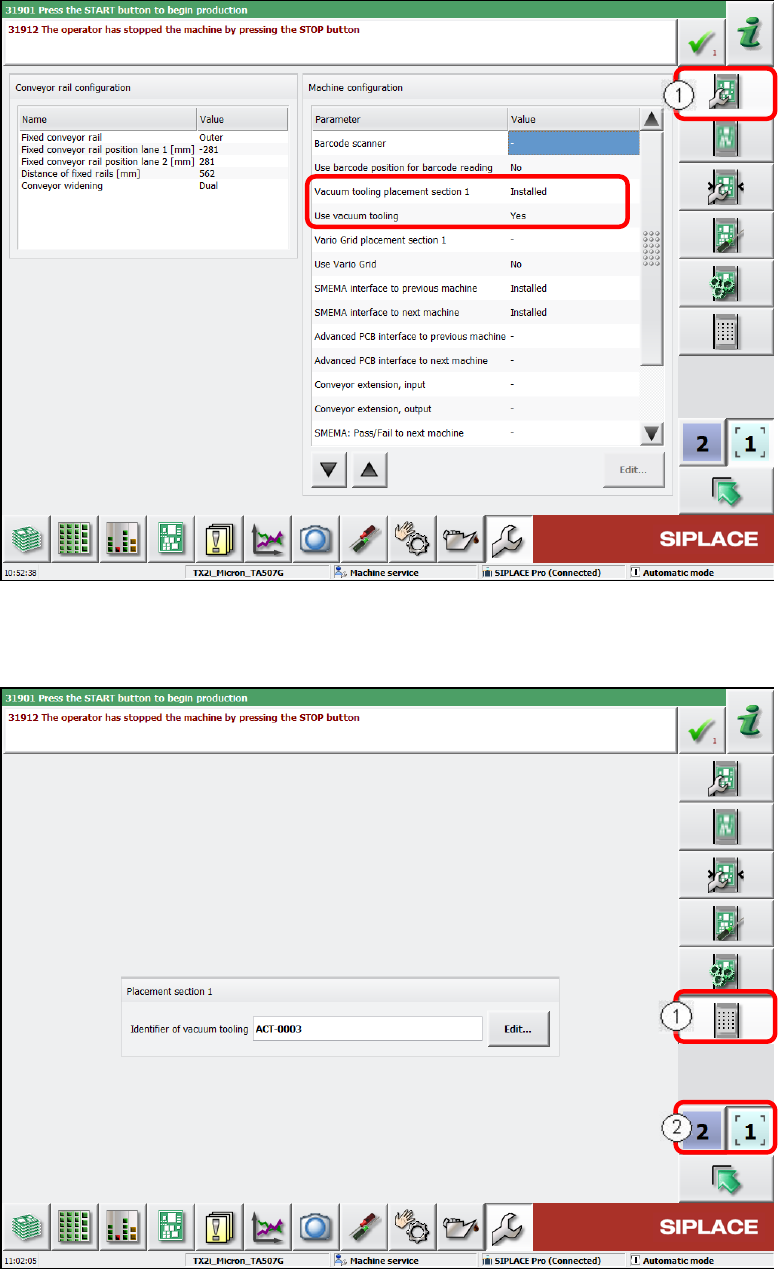
► Select the Configure conveyor view (1).
► Set the Vacuum tooling placement section 1 parameter to Installed.
► Set the Use vacuum tooling parameter to Yes.
Figure 6-10: Configuring conveyor
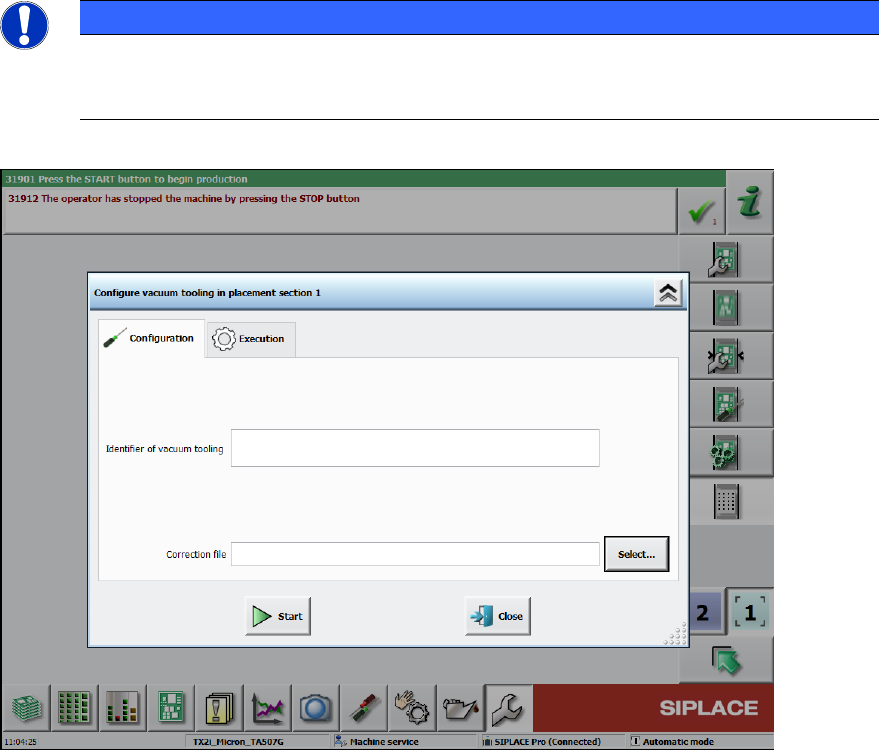
► Under Conveyor configuration, switch over to the Set identifier of vacuum tooling and
transfer correction data view (1).
Figure 6-11: Setting identifier of vacuum tooling and transferring correction data
ACT with SSW 7xx / User Manual 07/2017 Edition
99
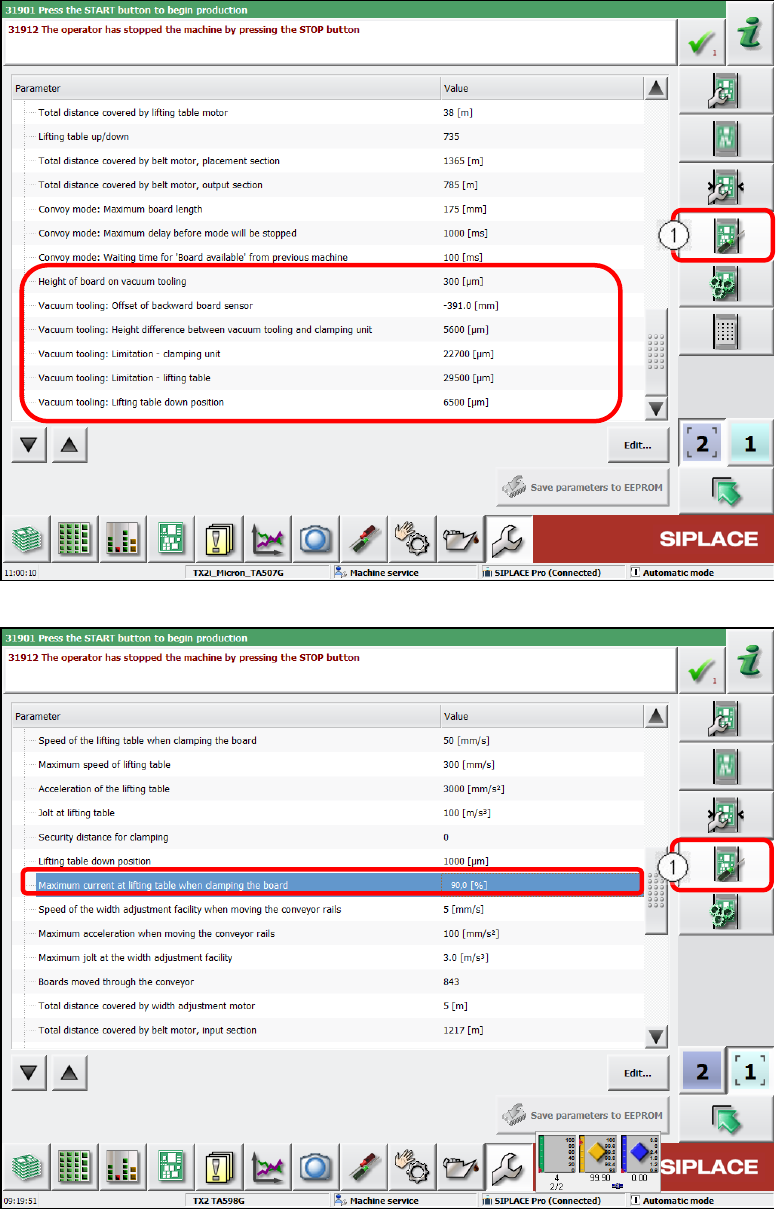
► Click the Edit button and import the data from the enclosed USB stick of the respective vacuum
tooling for each conveyor lane (2).
NOTICE
The serial number of the vacuum tooling is composed as follows:
Item number_4-digit sequential number
Lane 1 and Lane 2 have different material numbers!
Figure 6-12: Loading correction data
► Under Conveyor configuration switch over to the Conveyor lane set parameter view (1).
► Set the corresponding values as displayed in Figure 6-13 and Figure 6-14.
ACT with SSW 7xx / User Manual 07/2017 Edition
100
Figure 6-13: Conveyor configuration – Vacuum tooling parameter
Figure 6-14: Conveyor configuration – Maximum current at lifting table