User-Manual-NeoDen-K1830-20200618.pdf - 第25页
Feeder setting All compon ents’ setting on this files list, like : nozzle se lecting, sta ck setting, the lo cation o f pick compo nents, adjustment setting, and oth ers c omponen ts’ se tting n eed to be finished here .…
Upper right
Upper left
Lower left
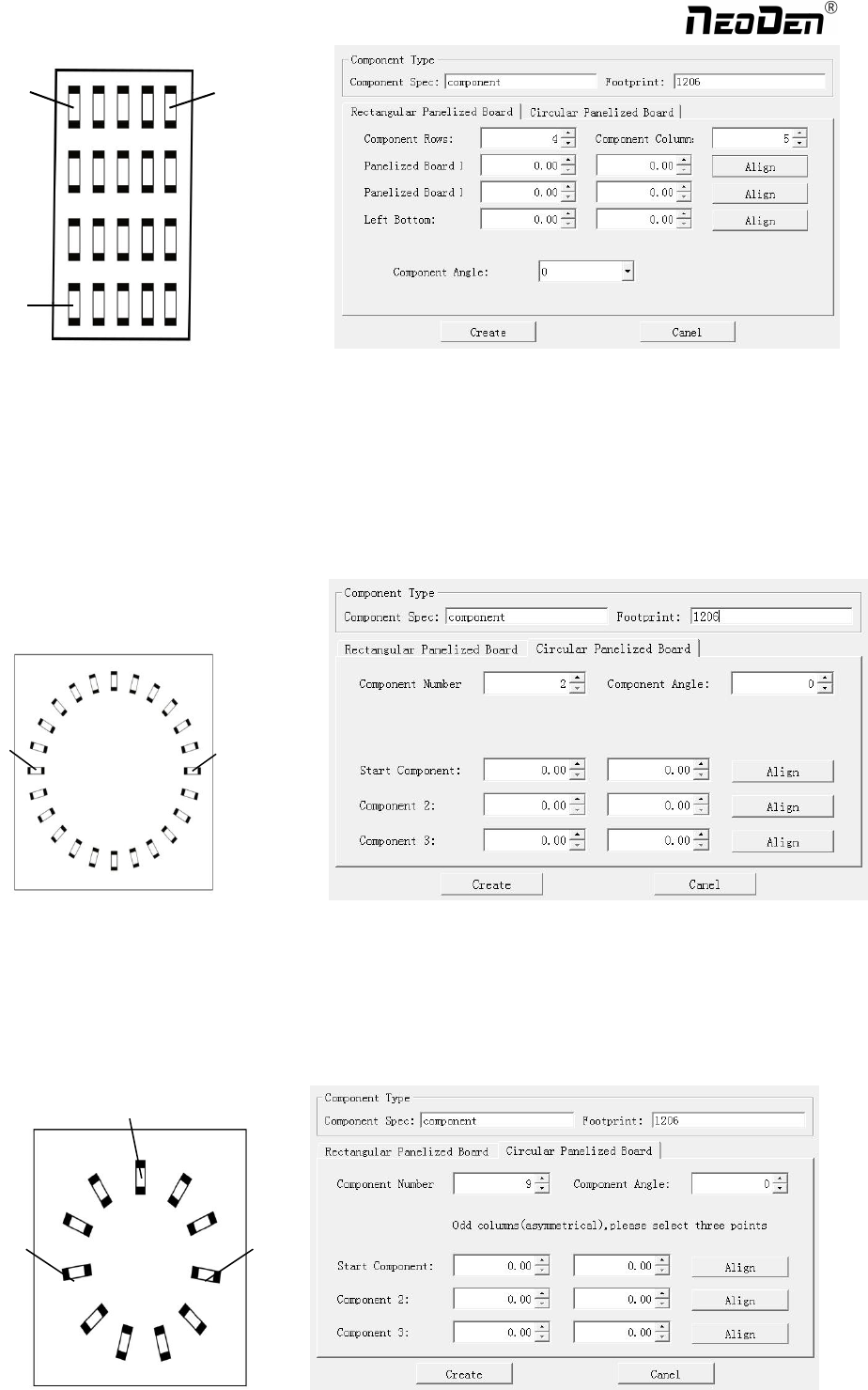
①The way to generate circle panel
When the quantity of component is even: Click: “batch create”, below dialogue will pop up. Please fill in specification
and footprint of component. Choose circle panel, the component number is 24 as the below picture, the angle is 0. As
the quantity of component is even number, we only need to find two symmetry components to align. Click create, the
24 components coordinate will be generate automatically.
Start
Point
Component
point 2
图(2.1.3.2-6)
When the quantity of component is odd: the component type will be the same. We can see that the panel has 9
components , as the quantity number is odd, we need to find 3 components that are in isosceles triangle, and then align
the coordinates of those three points in turn. Click ‘create’ to generate 9 components’ coordinate in circle panel.
Start
Point
Point
3
Com
p
onent
p
oint 2
24
Zhejiang NeoDen Technology Co.,Ltd.
Feeder setting
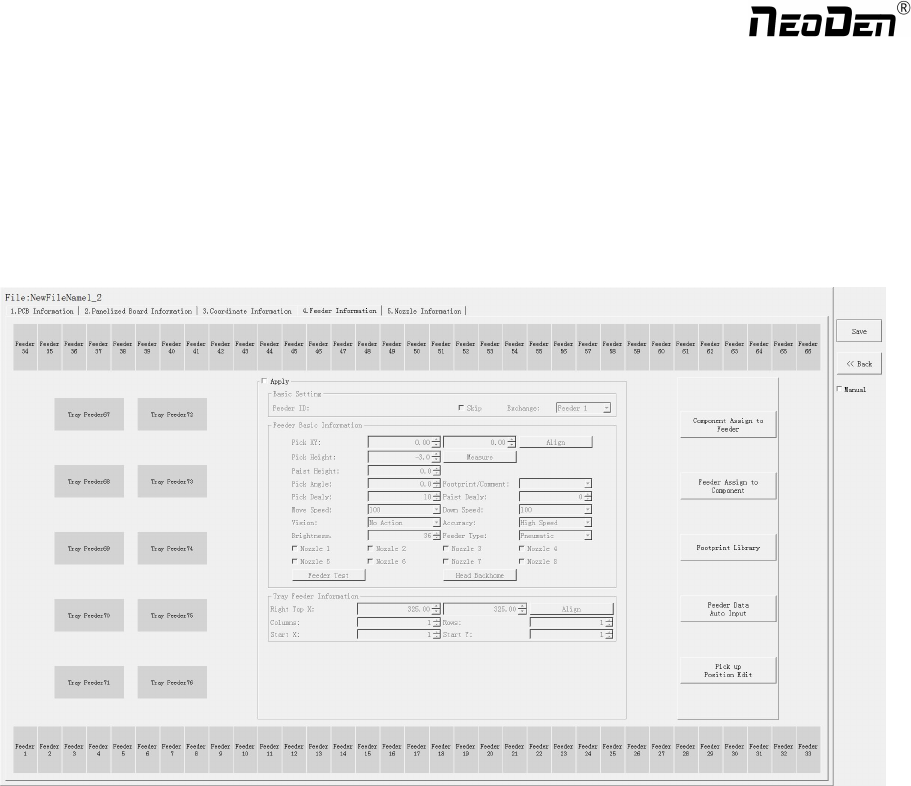
All components’ setting on this files list, like: nozzle selecting, stack setting, the location of pick components, adjustment
setting, and others components’ setting need to be finished here. We can see that No.1-33 stack on bottom line, No.34-66
stack on top line, No. 67-76 feeders are the tray stack.
5.1 Function of feeder setting interface
(1) Assign all sequentially: After complete component information setting, click ‘Assign all sequentially’, the setting
information will be assigned to each feeder automatically.
(2) Assign feeder and nozzle: After complete stack information and nozzle setting, click ‘Assign feeder and nozzle’, all
information will update to the component list automatically.
(3) Footprint library: The normal component information is saved in the footprint library including name, length, width,
height, edge, pitch etc. Please note the detail information for the IC is necessary. The interface of footprint library as below:
25
Zhejiang NeoDen Technology Co.,Ltd.
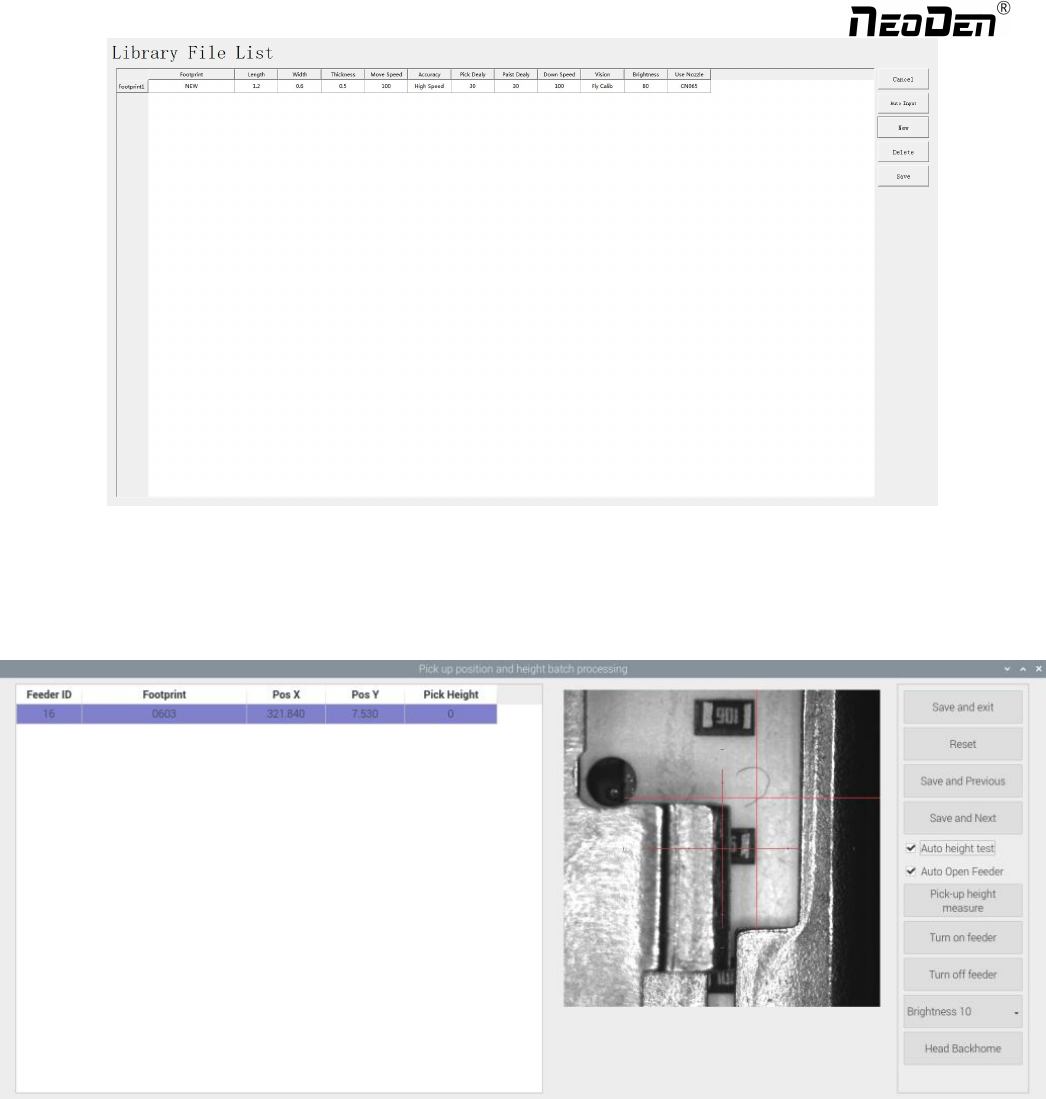
Press “Add” button, a new footprint can be edited into the library; For footprints not required, please directly select them
and press “Delete” button to move them. Save the setting before exit.
(4)Scale editing for pick position: Press this button, it will show below:
Scale setting for pick position: please select one stack to start setting (default start from the first assigned stack), at the same
time, a real-time image will be showed as right side. Please set the red cross to the component center ( generally if the
feeder is in off condition, red cross will be at the edge of feeder’s tape cover ), click “save and next” until all be set well and
there will be beep sound as a warning, then click “save and exit” will be OK. After that, you can select any feeder’s pick
position as a test.
While setting the pick position, the function of “Feeder open”/ “Feeder close” can help setting the cross position more
conveniently.
26
Zhejiang NeoDen Technology Co.,Ltd.