User-Manual-NeoDen-K1830-20200618.pdf - 第31页
(1) Left part is detailed ch ip list, and following the highlight blue will get a real-time asse mbly situation; (2) On right top is the cu rrent assembly speed, you can dra g the scroll bar to cha nge it and the max is …
photos taken by flying camera. If the photo showed with problem, you need to do some adjustment for the problematic
recognition.
Feed test: feeding component, this is used to test if the feeder works normally.
After above be set ready, click “component assign to feeder”, then component list will also be updated accordingly. Click
save.
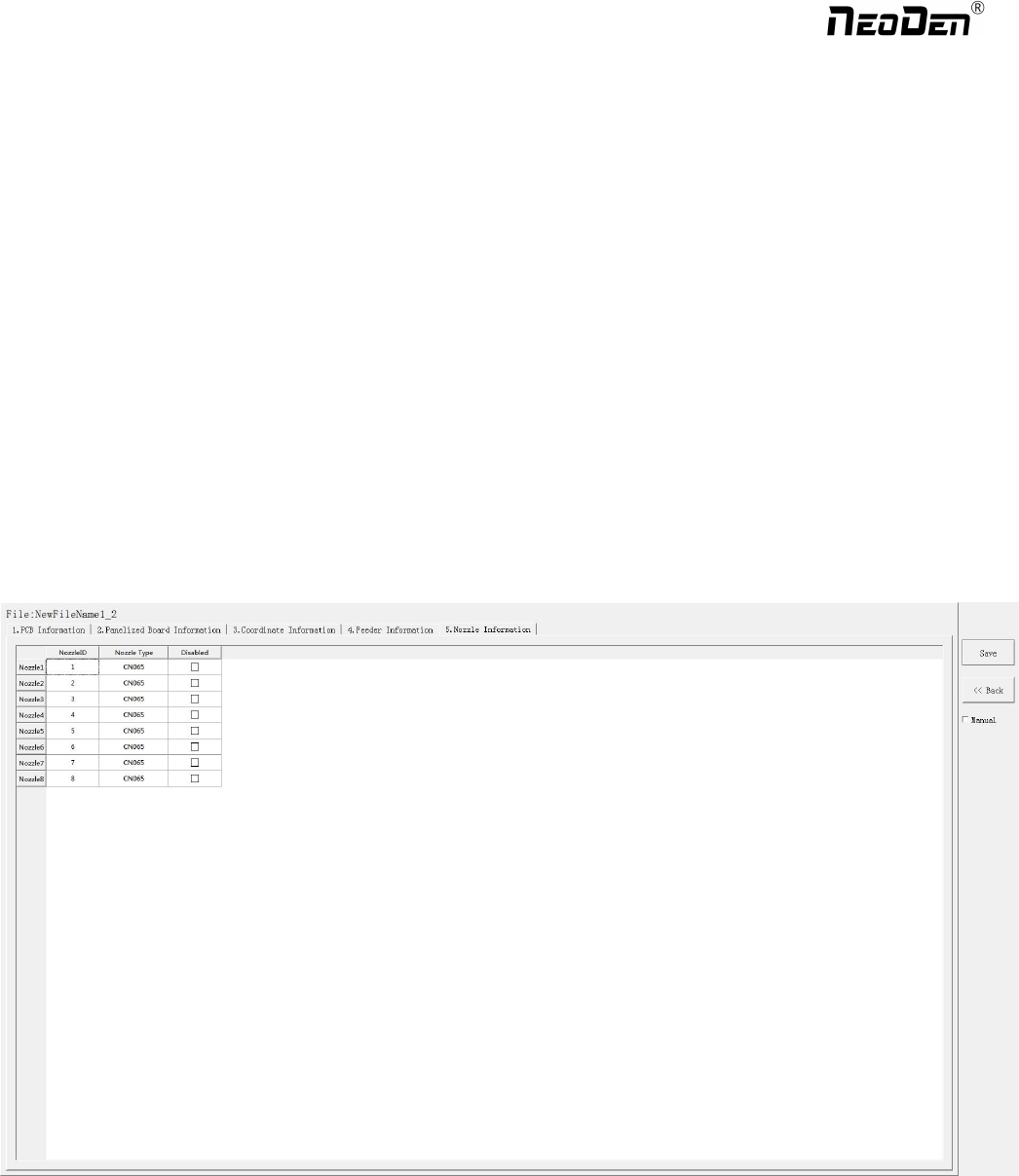
6.Nozzle Information
This interface will record which kind nozzle be installed on each nozzle head.
7. Assembly Interface
Choose the programmed file, click “Mount”, it will go into assembly interface as below:
30
Zhejiang NeoDen Technology Co.,Ltd.
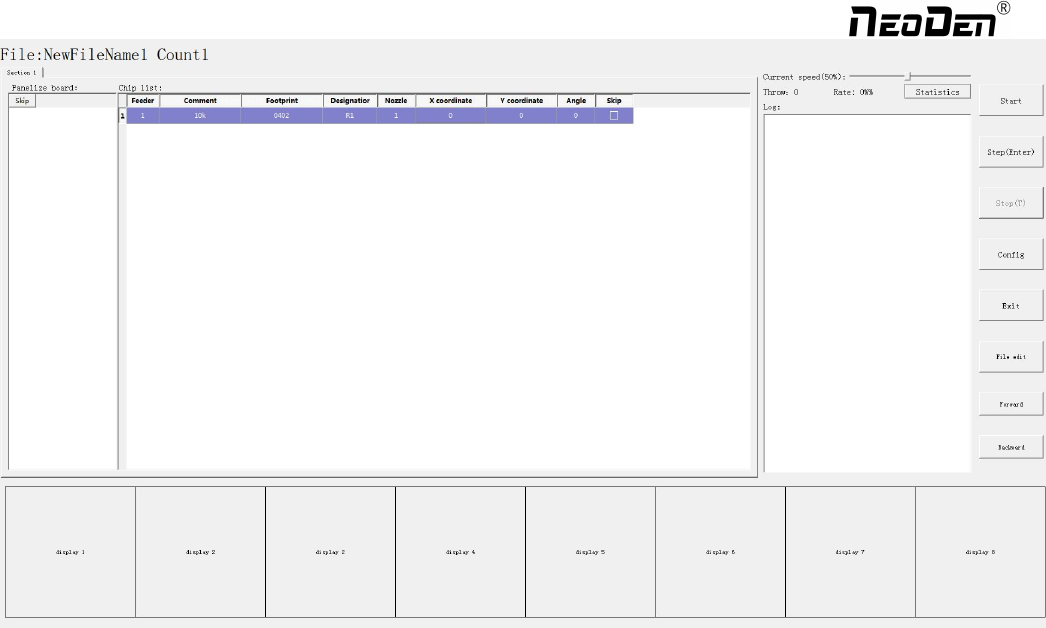
(1) Left part is detailed chip list, and following the highlight blue will get a real-time assembly situation;
(2) On right top is the current assembly speed, you can drag the scroll bar to change it and the max is 100%;
(3) Log will show some information like rate of throw component , current average speed and how many pieces
components have been assembled under the current file.
(4) Throw and Rate will make a statistics for threw components and you can also check each feeder’s component pick
failure rate then get which kind of component is easily pick failure, find solution to solve it.
(5) The bottom side 8 display windows are real-time feedback for component recognition.
(6)Right side buttons introduction:
Start: Machine starts the current file’s assembly procedure.
Step: operation for each single assembly procedure.
Stop: Stop current assembly work.
Config: press this button, a detailed configuration will pop out as below
31
Zhejiang NeoDen Technology Co.,Ltd.
32
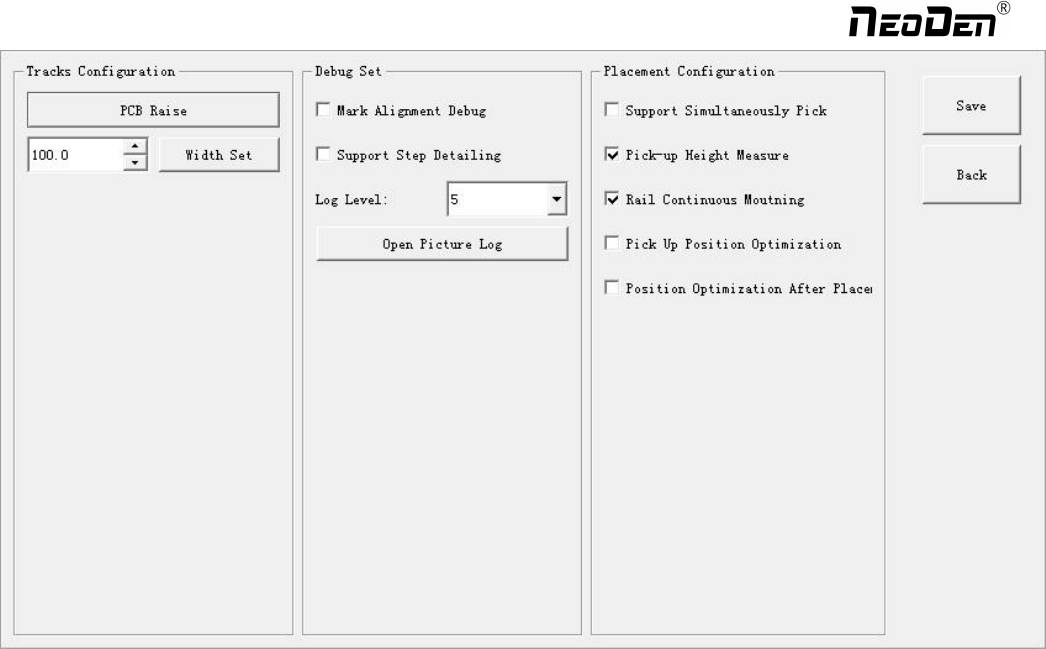
Tracks configuration: PCB Raise and Width Set are totally same as PCB Information interface.
Debug Set: details can be showed once you select the related item.
Support step detailing: once selected, every time you click “Step”, the machine will only execute one command. This is
strongly recommended for the first assembly procedure.
Log level: the level sequence from low to high is from class1 to class5. Higher level, more information.
Open picture log: press this button, the file for stocking recognition photos will be opened from which recognition details
can be checked.
Placement configuration:
(1)Support simultaneously pick: once selected, the nozzle head with same pick height can be downward to pick
components at the same time, it will greatly improve placement speed (It is recommended for component size bigger
than 0603).
(2) Rail continuous mounting: this is for PCB continuously feeding to realize automatic operation.
(3) Pick up position optimization: once selected this function, nozzle head can automatically optimize the pick position ( It
is recommended only for small components ).
(4) Position optimization after placement: If this function be selected in the first time, the position will be auto optimized in
future placement.
Exit: once assembly finished, please directly click this button and back to home interface.
File edit: If there’re many times of pick failure or big placement offset, which need to re-edit the file, please directly press
this button and it will directly turn to the file edit interface, after edit finished, save and back to the assembly interface will
be OK.
Zhejiang NeoDen Technology Co.,Ltd.