3OM-1054-002.pdf - 第105页
How to enter a parameter through keyboard navigation Fig. 3B138 Keyboard and Pointing Device (1) T o enter a parameter , press the text box quickly twice. Or , double-click the text box with the pointing device. Fig. 3B1…
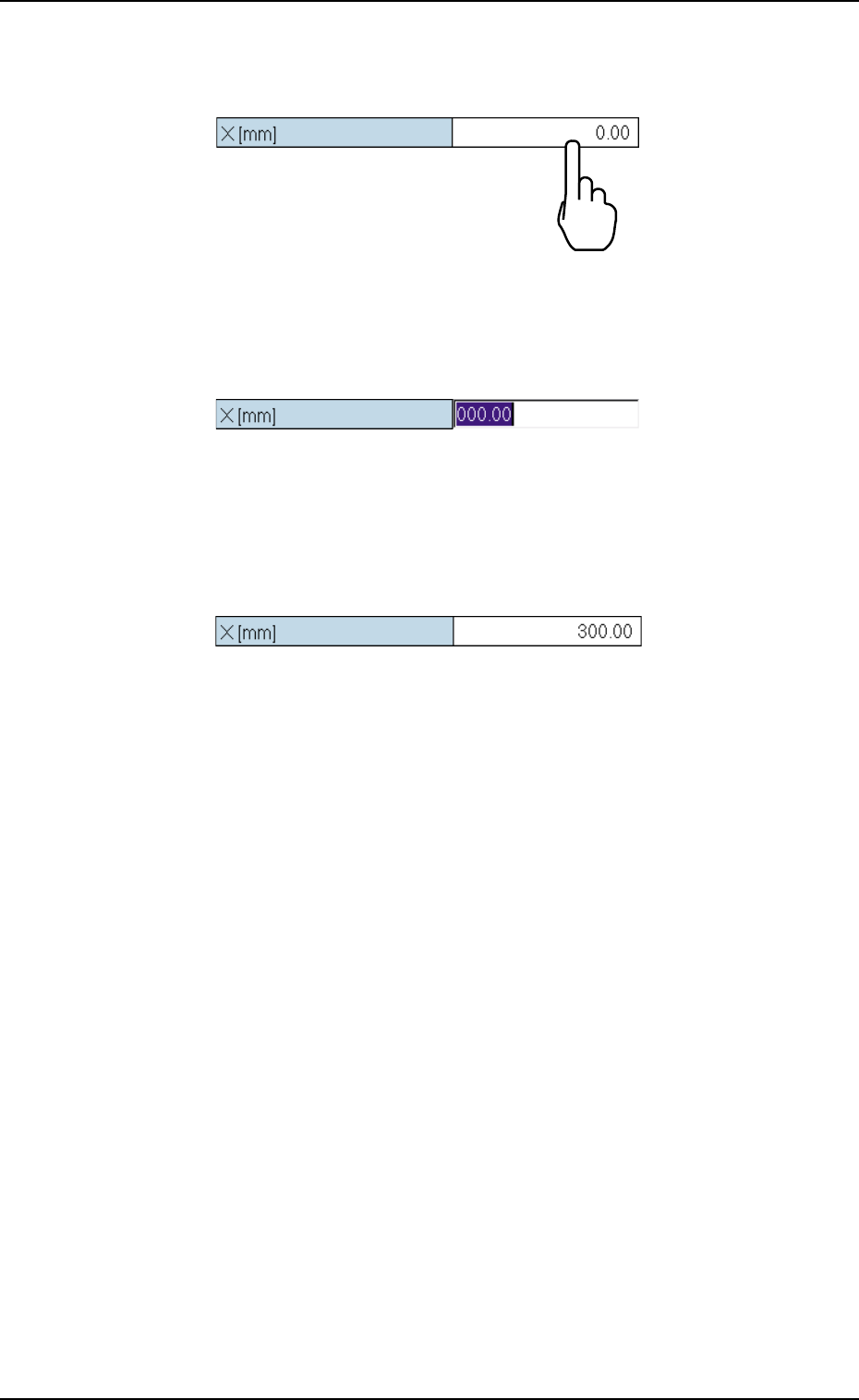
(2) To enter a parameter, press the text box quickly twice.
Or, double-click the text box with the pointing device.
Fig. 3B135
The text box is set ready for data entry.
Fig. 3B136
(3) When a parameter is entered, using the "Tenkey" window and the
[Ent] button is pressed, it is set in the text box.
Fig. 3B137
4.1 Basic Operation
01 12-003 2-85 AGS01EDTP
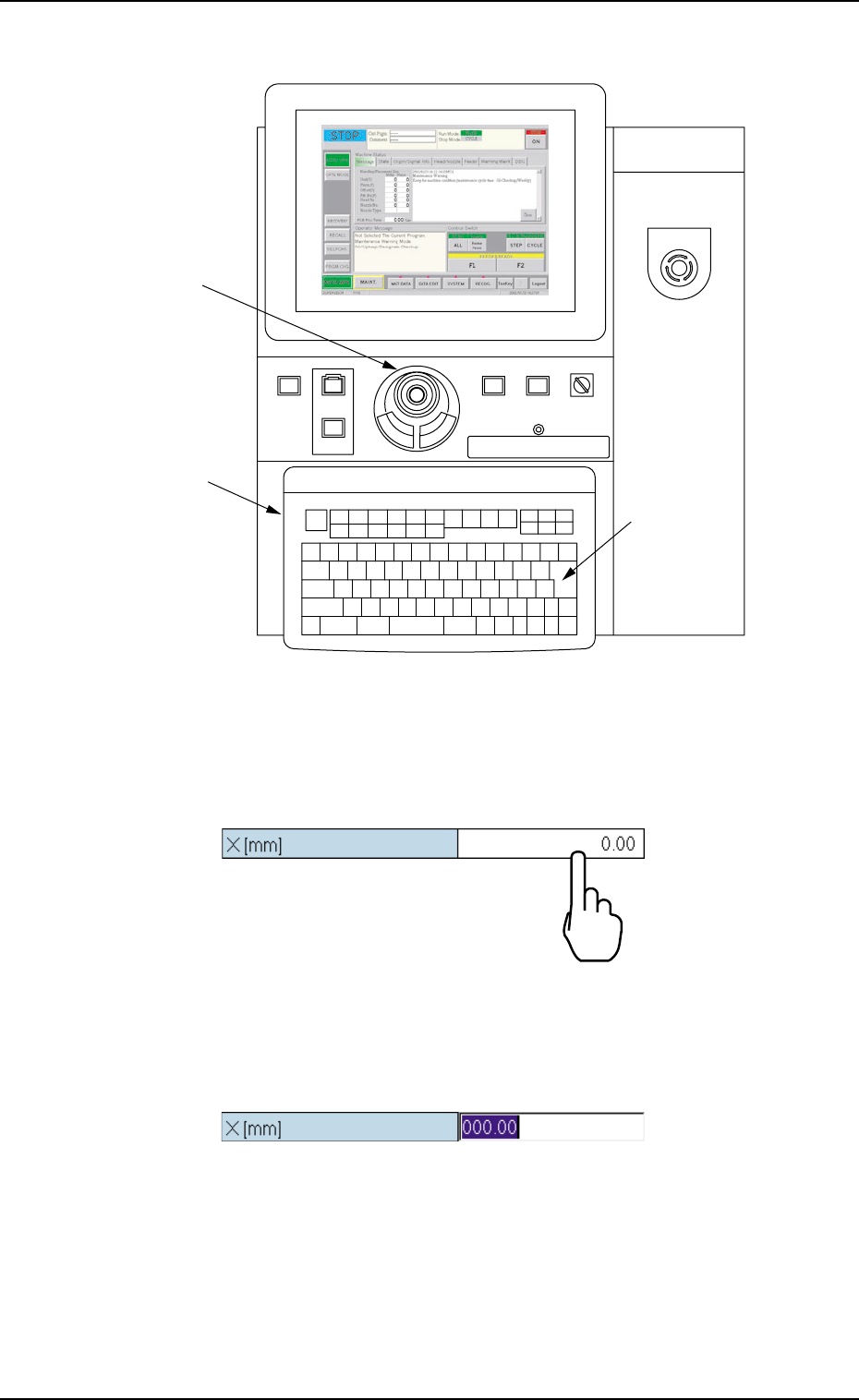
How to enter a parameter through keyboard navigation
Fig. 3B138 Keyboard and Pointing Device
(1) To enter a parameter, press the text box quickly twice.
Or, double-click the text box with the pointing device.
Fig. 3B139
The text box is set ready for data entry.
Fig. 3B140
POWER ON
STOP
START
ENABLE
RUN SETUP
OPERATION
LOCK
PNL CHANGE
Pointing Device
Keyboard
[ENTER] Key
EMERGENCY
4.1 Basic Operation
0307-005 2-86 AGS01EDTP
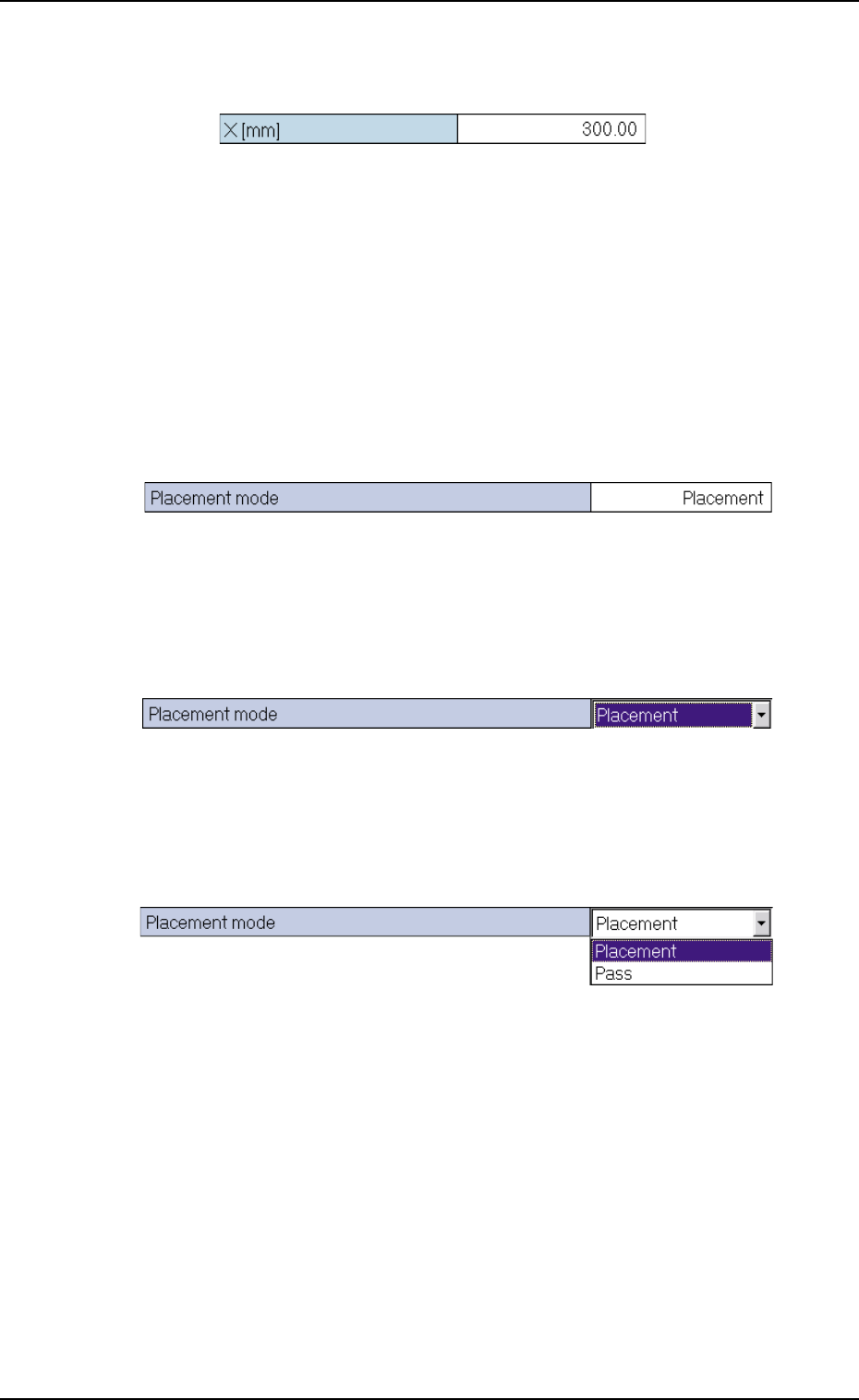
(2) When a parameter is entered through keyboard navigation and the
[Enter] key is pressed, it is set in the text box.
Fig. 3B141
• How to enter a string of characters
A string of characters can be entered by selecting an item from the
drop-down list.
Selection of Option in Drop-Down List
(1) To enter a string of characters, press the text box quickly twice. Or,
double-click the text box with the pointing device.
Fig. 3B142
The text box is changed to a combo box that has a down arrow on
the right side.
Fig. 3B143
(2) Press the down arrow. Or, click the down arrow with the pointing
device. The drop-down list box opens.
Fig. 3B144
4.1 Basic Operation
01 12-003 2-87 AGS01EDTP