3OM-1054-002.pdf - 第136页
2 . 2 "Selection of component ID" Window This session describes the composition of the "Selection of component ID" window . Fig. 3C4 "Selection of component ID" Window *1 Component shape, Co…
2. "Selection of component ID" Window
2.1 Window Layout
This session describes how to open the "Selection of component ID"
window.
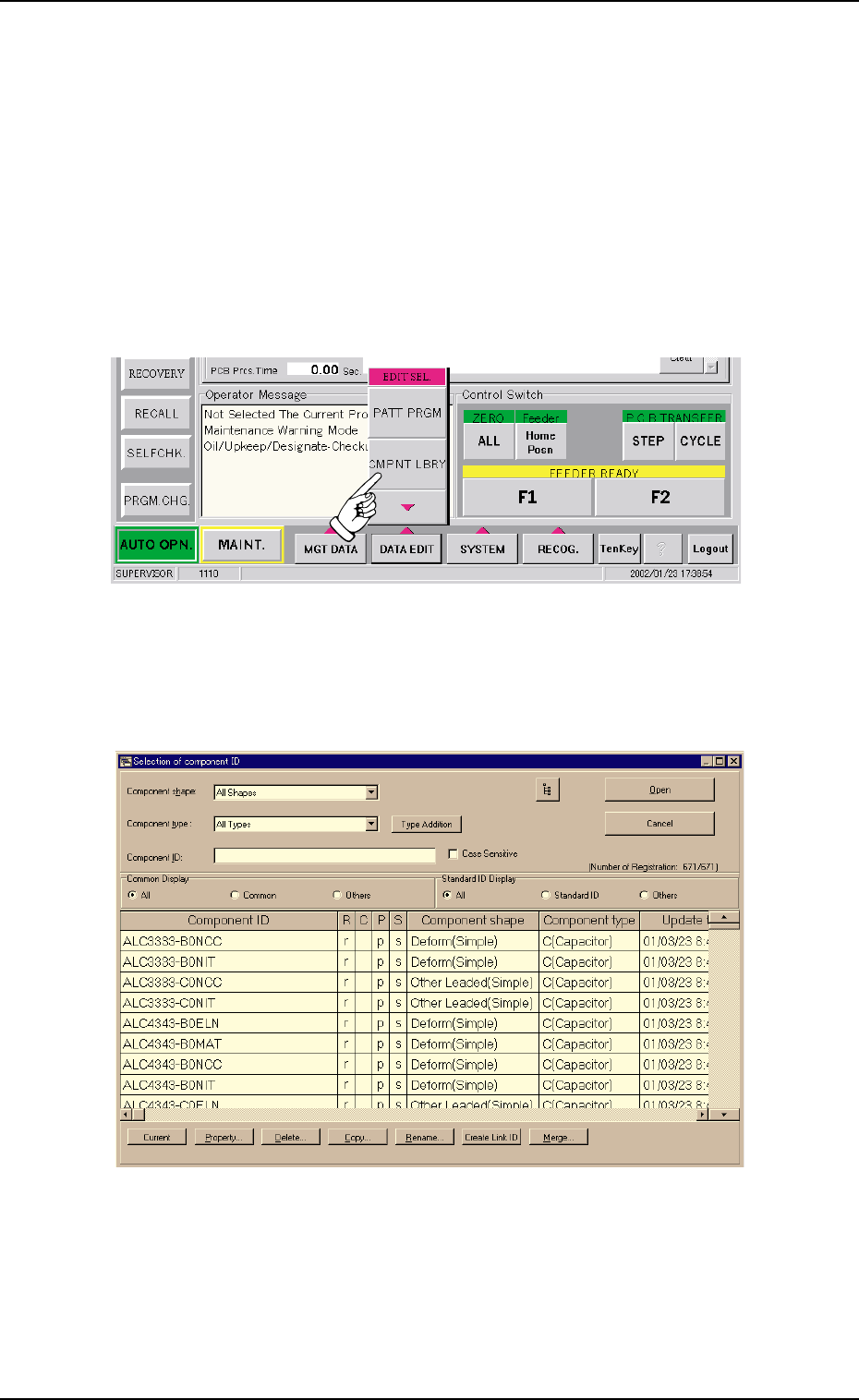
(1) Press the [DATA EDIT] button on the main menu bar. A "EDIT SEL."
menu opens.
Fig. 3C2 "EDIT SEL." Menu
(2) Press the [CMPNT LBRY] button. The "Selection of component ID"
window opens.
Fig. 3C3 "Selection of component ID" Window
2.1 Window Layout
0303-005 3-2 AGS01EDTP
2.2 "Selection of component ID" Window
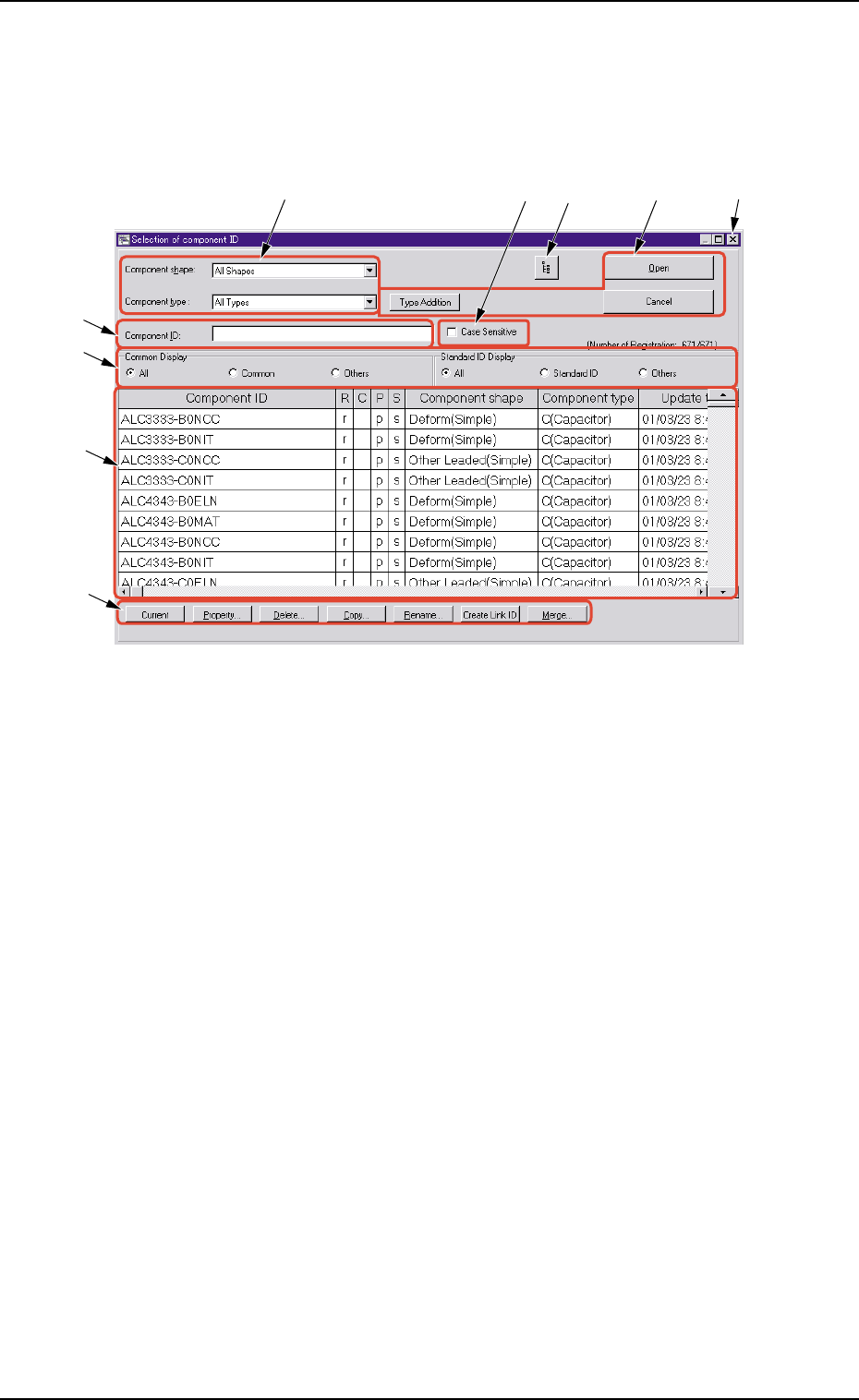
This session describes the composition of the "Selection of component
ID" window.
Fig. 3C4 "Selection of component ID" Window
*1 Component shape, Component type
Select the desired component shape and type from the corresponding
combo boxes.
The component types corresponding to the selected shape and type
appear in "*7".
*2 Component ID
Displayed is the component ID selected in "*7".
*3 [Open], [Cancel], and [Type Addition] Buttons
[Open] Button
When pressed, this button opens the "Component Library" window
related to the component ID selected in "*7".
[Cancel] Button
When pressed, this button opens the "Component Library" window
without the selected component ID.
The "Close", "New", and "Open" icons become available in the "Com-
ponent Library" window.
*1
*3
*2
*6
*5
*8
*4
*7
*9
2.2 "Selection of component ID" Window
0307-006 3-3 AGS01EDTP

[Type Addition] Button
When this button is pressed, the "Type Addition" window opens.
Refer to "2.3.1 Type Addition"(described later) for the de-
tailed information on the "Type Addition" dialog box.
*4 [Close] Button
When this button is pressed, the "Selection of component ID" win-
dow closes.
*5 Case Sensitive
It is possible to distinguish between uppercase and lowercase let-
ters for retrieval of a component ID.
When the check box is checked, the retrieval function becomes
case sensitive.
*6 Common Display and Standard ID Display
Select the desired option buttons.
Depending on which option buttons are selected, a list of compo-
nent IDs having specific attributes appears in "*7".
Option Buttons
: A dot inside the circle indicates that the corresponding function
is selected.
: The corresponding function is not selected.
Turning on or off an option button
When a blank circle is pressed, a dot appears inside the circle,
indicating that the function is selected.
When a dot-marked circle is pressed, the dot disappears, indicat-
ing that the function is not selected.
*7 "List of Component IDs" Pane
A list of component IDs is displayed.
Select the component ID whose data should be displayed in the
"Component Library" edit window or the component ID to be de-
leted, copied, or renamed.
Component ID : Component IDs are displayed.
R:When "r" is set, it indicates that the compo-
nent ID is a root one.
C:When "c" is set, it indicates that the compo-
nent ID is registered as a common one.
2.2 "Selection of component ID" Window
0307-005 3-4 AGS01EDTP