3OM-1054-002.pdf - 第120页
4.3.2 "Component ID List" Window • Window Layout When the [Component ID List] icon ( ) is pressed in the "Pattern Program" window , the "Component ID List" window opens. Fig. 3B157 "Com…
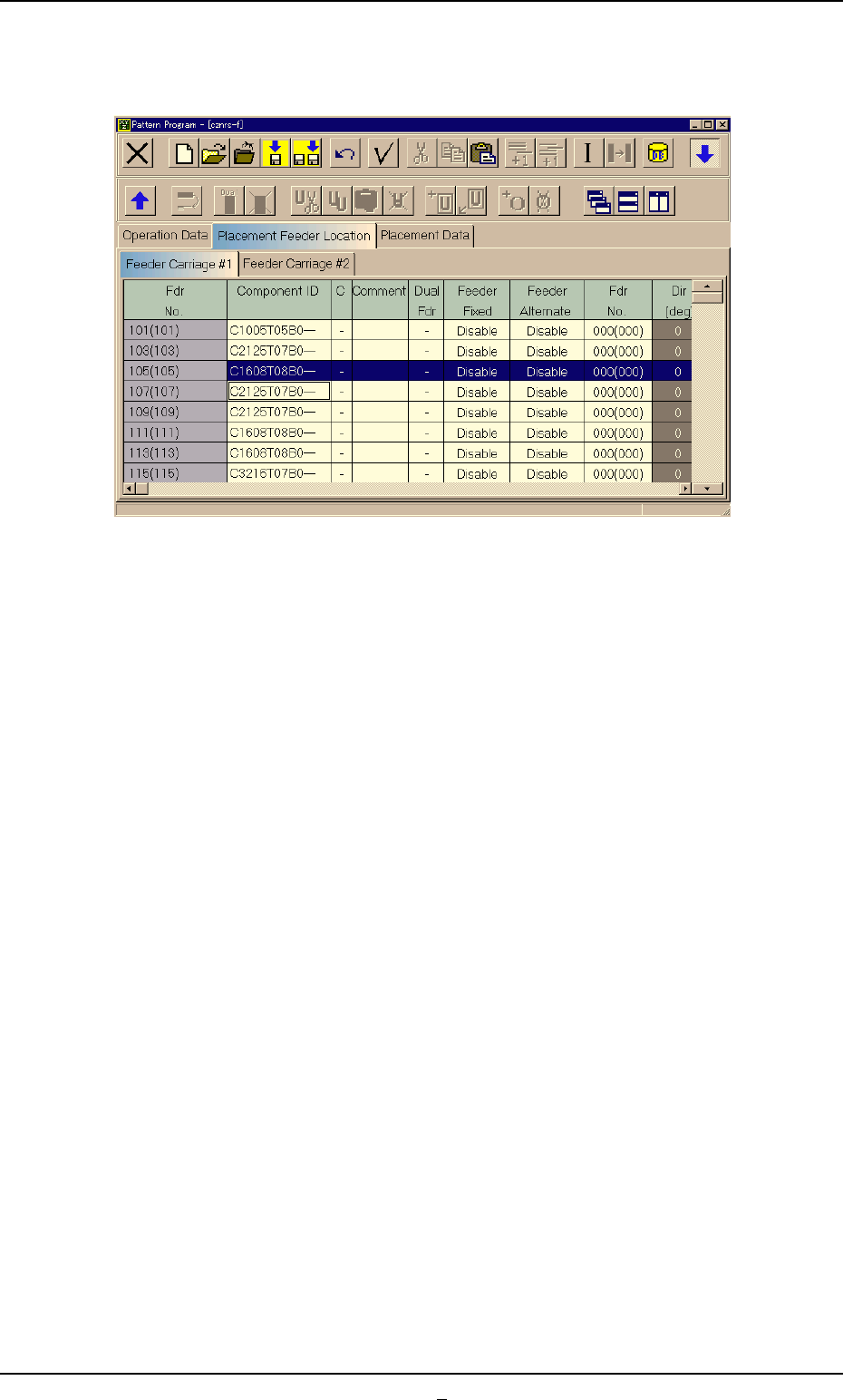
(4) Press the [YES] button. The line (step) of the selected Fdr. No. is
transferred to the step just above the specified line (step).
Fig. 3B156-3
4.3 "Placement Feeder Location" Tab
0303-001 2-99-1 AGS01EDTP
4.3.2 "Component ID List" Window
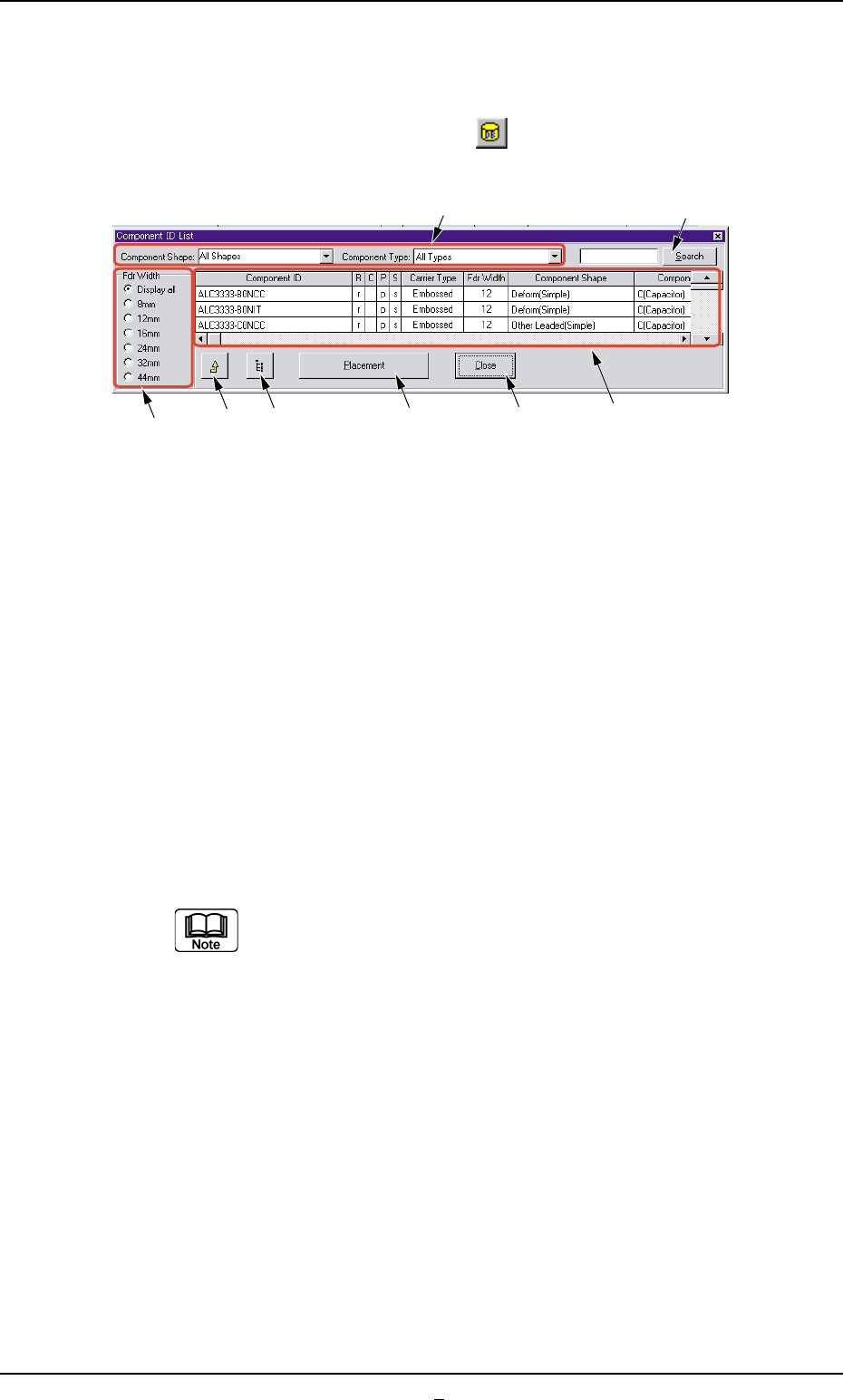
• Window Layout
When the [Component ID List] icon (
) is pressed in the "Pattern
Program" window, the "Component ID List" window opens.
Fig. 3B157 "Component ID List" Window
• Window Composition
*1 Component Shape and Component Type
Enter a parameter in each text box.
When parameters are set in the text boxes, a list of the correspond-
ing components appears in "*6".
*2 Fdr Width
Select the desired option button to specify the feeder width.
*3 "Component Library" Edit Window Button
When this icon is pressed, the "Component Library" edit window
opens, making it possible to edit the component library data.
Refer to "Section 3 Component Library" for the detailed in-
formation on how to edit the component library data.
*4 [Placement] Button
When this button is pressed, the component selected from the list
of component IDs is set in the placement feeder location data.
*5 [Close] Button
When this button is pressed, the "Component ID List" window closes.
*6 List of Component IDs
A list of component IDs is displayed.
*7 [Search] Button
When this button is pressed, the list of component IDs is searched.
*1
*4
*5
*6
*2
*3
*7
*8
4.3 "Placement Feeder Location" Tab
0303-004 2-100 AGS01EDTP

0303-001 2-100-1 AGS01EDTP
4.3 "Placement Feeder Location" Tab
*8 [Link ID] Button
Link and root IDs are arranged side by side and displayed in the tree
(hierarchical) file system.