Printer 600 Machine Programming.pdf - 第46页
0$&+,1( 352*5$00 ,1* 67$*(' 08/7,)/( ;722/,1* 1.46 User Manual Software Ve rsion 07SP04 21. Select Open Cover (F2). 22. Either: a. Open the front prin thead cover . or b. Raise the printhead shut ter . 23…
0$&+,1(352*5$00,1*
67$*('08/7,)/(;722/,1*
Software Version 07SP04 User Manual 1.45
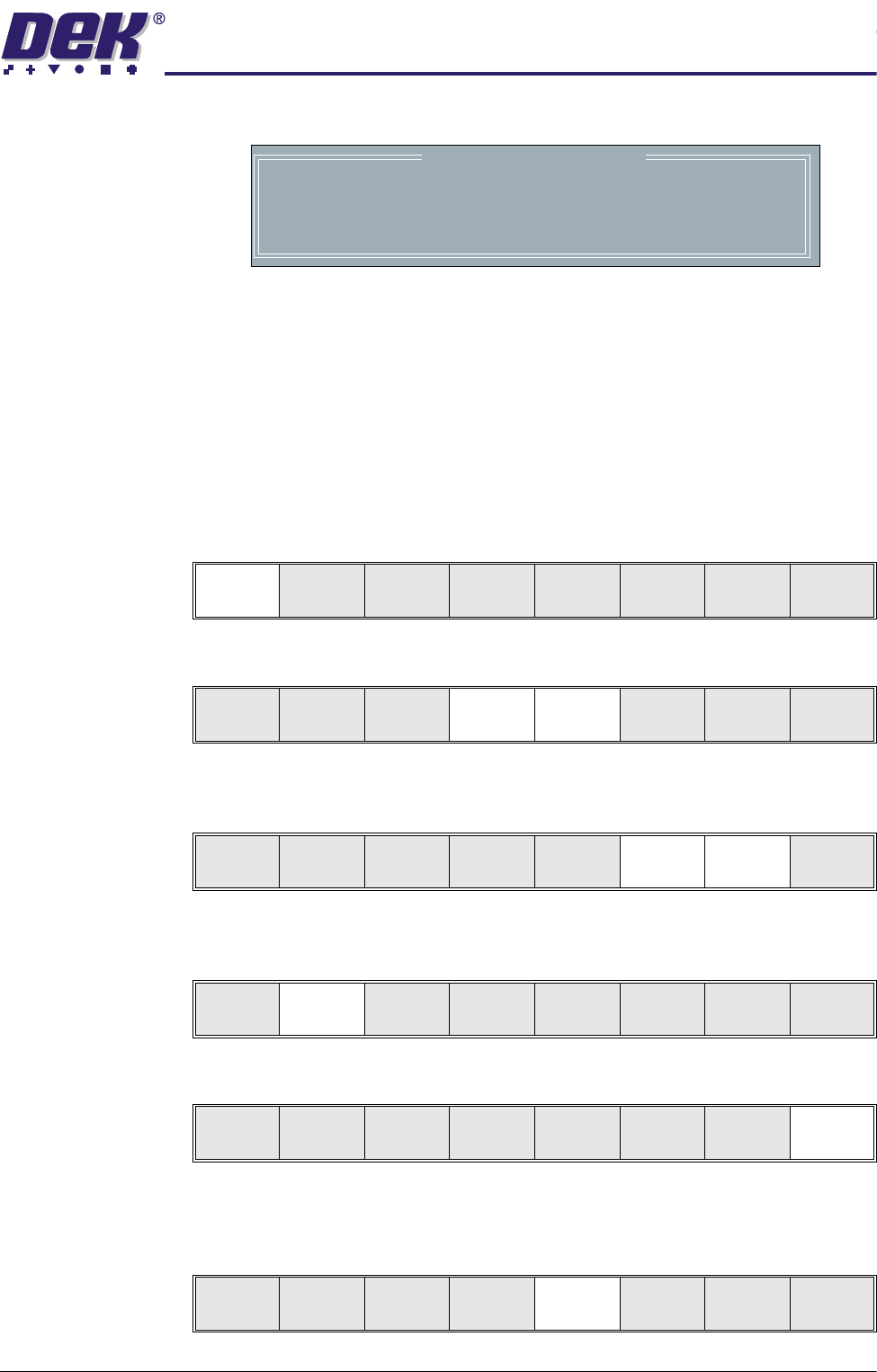
The Change Tooling Parameters window is displayed:
NOTE
If the remote board stop is fitted the Board Stop X and Board Stop Y
parameters are replaced by Remote Board Stop X.
14.Setting up the board stop position is automatically done using the board
dimensions previously set in the product file. If they need adjustment to re-
position the board stop for any reason, ie any routing on the board edge or
a badly positioned image on the stencil, this can be done now. If adjustment
is necessary continue with Step 14. If adjustment is not necessary go to
Step 19.
15.Select Adjust (F1).
16.Use the Next and Previous keys (F4 - F5) to highlight each parameter.
17.Use the Incr. and Decr. keys (F6 - F7), or the forward slash key (/) on the
keyboard, to change the parameter value.
18.Select Save (F2). The message ‘Saving fiducial data - Please wait Board
data file saved’ is displayed.
19.Select Exit (F8).
20.Select Full Width (F5). The message ‘Checking for a board on the belts’
is displayed. Whilst the rear rail is moving the message ‘Rail moving...’ is
displayed.
Change Tooling Parameters
BOARD WIDTH
BOARD STOP X
BOARD STOP Y
UNDER CLEARANCE
216.0
125.0
142.6
19.0
mm
mm
mm
mm
Adjust
Open
Cover
Home
Cleaner
Board
Stop
Full
Width
Load
Width
Generic
Tool ing
Exit
Save Next Previous Incr. Decr. Exit
Save Next Previous Incr. Decr. Exit
Save Next Previous Incr. Decr. Exit
Save Next Previous Incr. Decr. Exit
Adjust
Open
Cover
Home
Cleaner
Board
Stop
Full
Width
Load
Width
Generic
Tool ing
Exit
0$&+,1(352*5$00,1*
67$*('08/7,)/(;722/,1*
1.46 User Manual Software Version 07SP04
21.Select Open Cover (F2).
22.Either:
a. Open the front printhead cover.
or
b. Raise the printhead shutter.
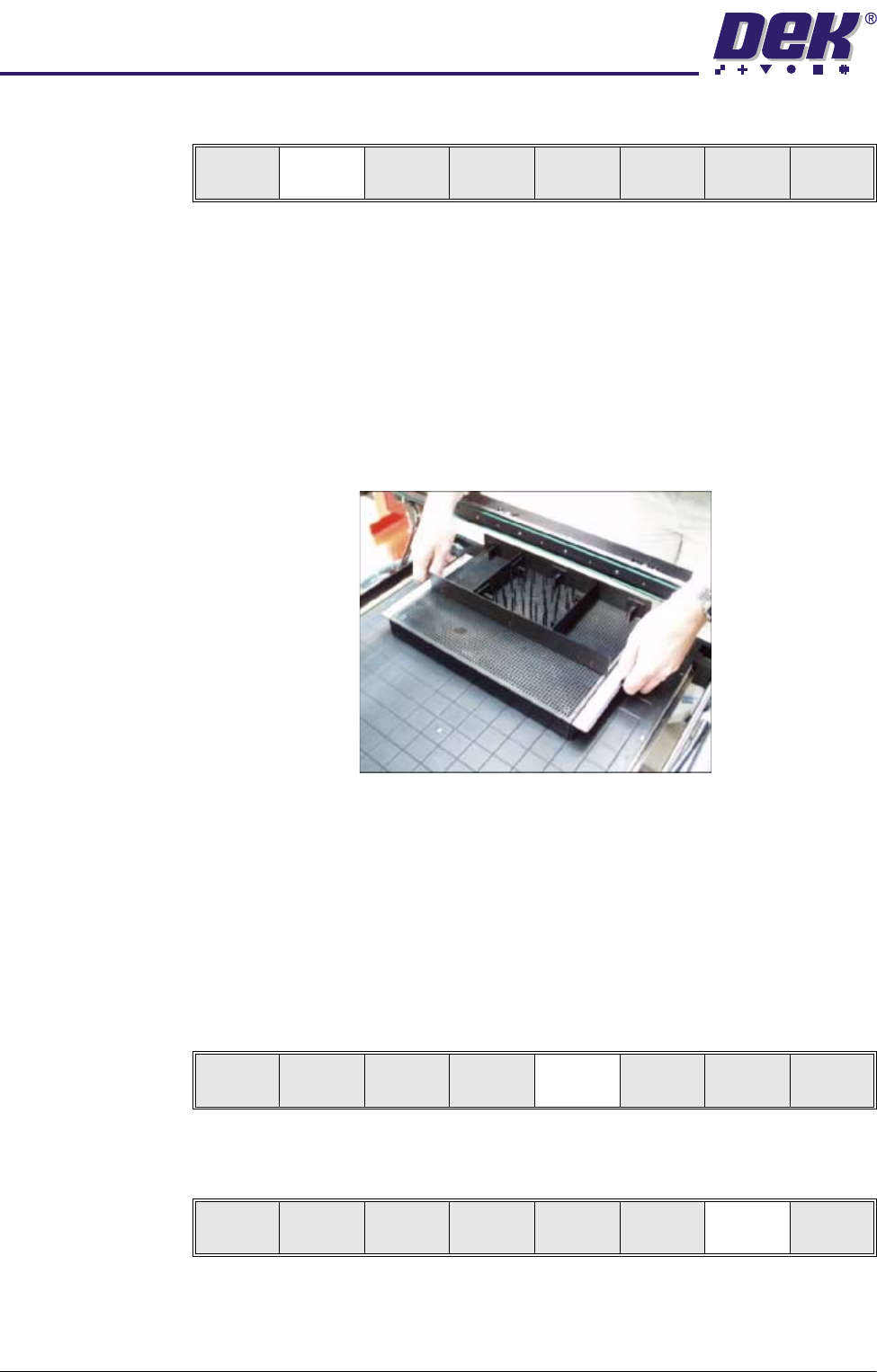
23.The MultiFlex tooling can now be fitted into the appropriate location holes in
the tooling plate. Ensure that the tooling is placed into the correct set of
holes, taking regard of the type of stencil being used and hence the position
of the fixed rail.
24.Either:
a. Close the front printhead cover.
or
b. Raise the drop down panel and lower the printhead shutter.
25.Press the System button.
26.Select Board Width (F5). The message ‘Checking for a board on the
belts’ is displayed. Whilst the rear rail is moving the message ‘Rail
moving...’ is displayed.
27.Select Generic Tooling (F7). The print carriage moves to the front of the
machine.
Adjust
Open
Cover
Home
Cleaner
Board
Stop
Board
Width
Load
Width
Generic
Tool ing
Exit
Adjust
Open
Cover
Home
Cleaner
Board
Stop
Board
Width
Load
Width
Generic
Tool ing
Exit
Adjust
Open
Cover
Home
Cleaner
Board
Stop
Full
Width
Load
Width
Generic
Tooling
Exit
0$&+,1(352*5$00,1*
67$*('08/7,)/(;722/,1*
Software Version 07SP04 User Manual 1.47
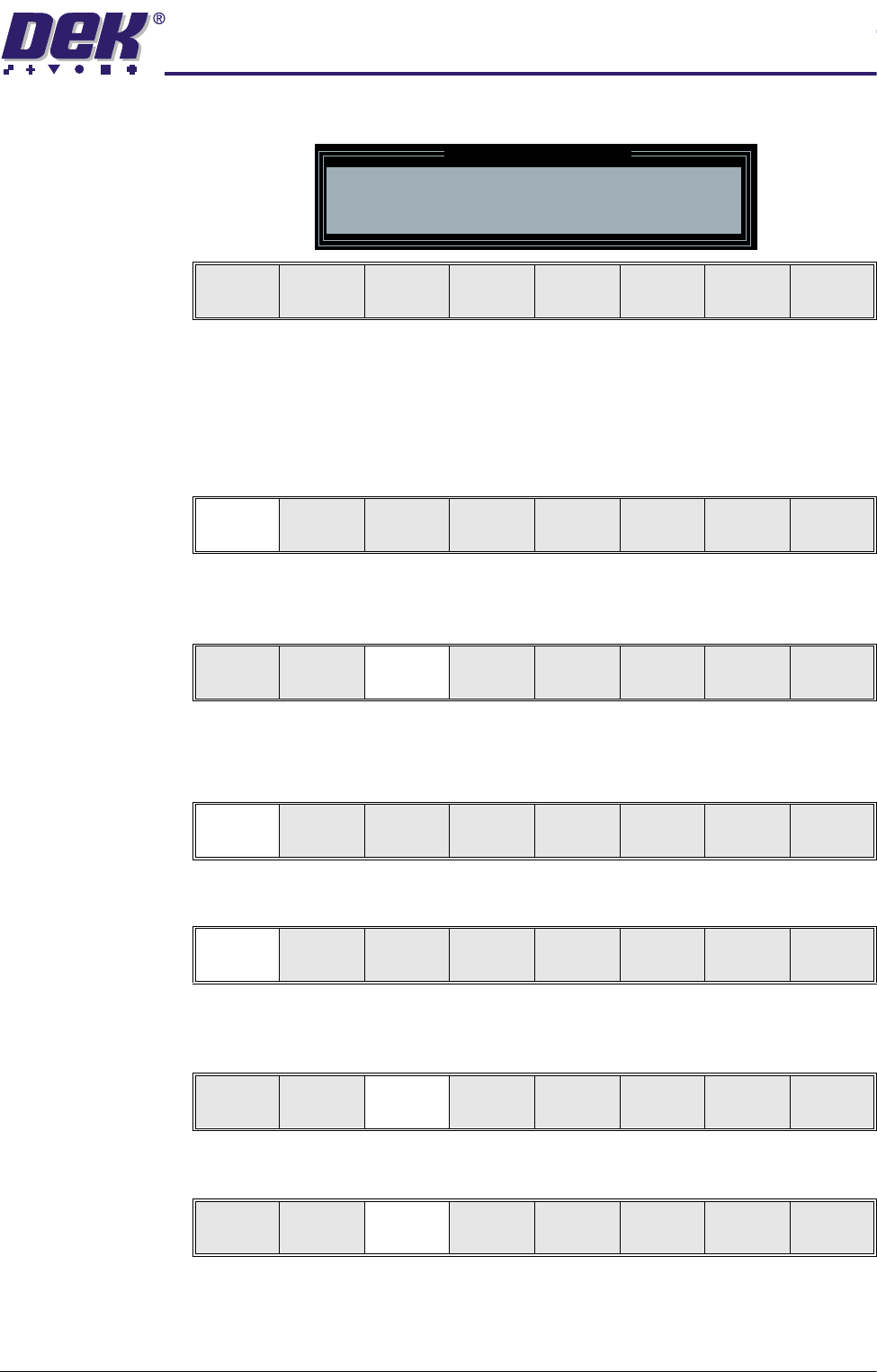
The following window and menu bar is displayed:
NOTE
If contaminated squeegees are fitted, these should be replaced at this point.
28.Select Continue (F1). Cleaner moves to the Home position and the print
carriage moves to the rear of the machine. The message ‘Table at Home
Height’ is displayed.
29.Select Transprt Height (F3). The message ‘Table at Transport Height’ is
displayed.
30.Place a board on the input sensor of the upline conveyor of the machine.
31.Select Load (F1).
32.Select Auto Board (F1).
33.Select Vision Height (F3). The message ‘Table at Vision Height. Check
Tooling Clearance’ is displayed.
34.Select Contact Height (F3).
Generic Tooling Warning
WARNING Paste may drip into the machine
Remove Squeegees NOW
Continue
Open
Cover
Exit
Continue
Open
Cover
Exit
Load
Transprt
Height
Board
Clamps
Change
Screen
Open
Cover
Exit
Load
Vision
Height
Home
Height
Board
Clamps
Change
Screen
Open
Cover
Exit
Auto
Board
Manual
Board
Unload
Vision
Height
Home
Height
Board
Clamps
Change
Screen
Open
Cover
Exit
Contact
Height
Tra nspr t
Height
Change
Screen
Open
Cover
Exit