Printer 600 Machine Programming.pdf - 第74页
0$&+,1( 352*5$00 ,1* 67$*( 9,6,216 <67(06 (783 1.74 User Manual Software Ve rsion 07SP04 Position al Informati on When selecting a Vi deo Model, if the image shapes have edges all in the X directi on or al…
0$&+,1(352*5$00,1*
67$*(9,6,216<67(06(783
Software Version 07SP04 User Manual 1.73
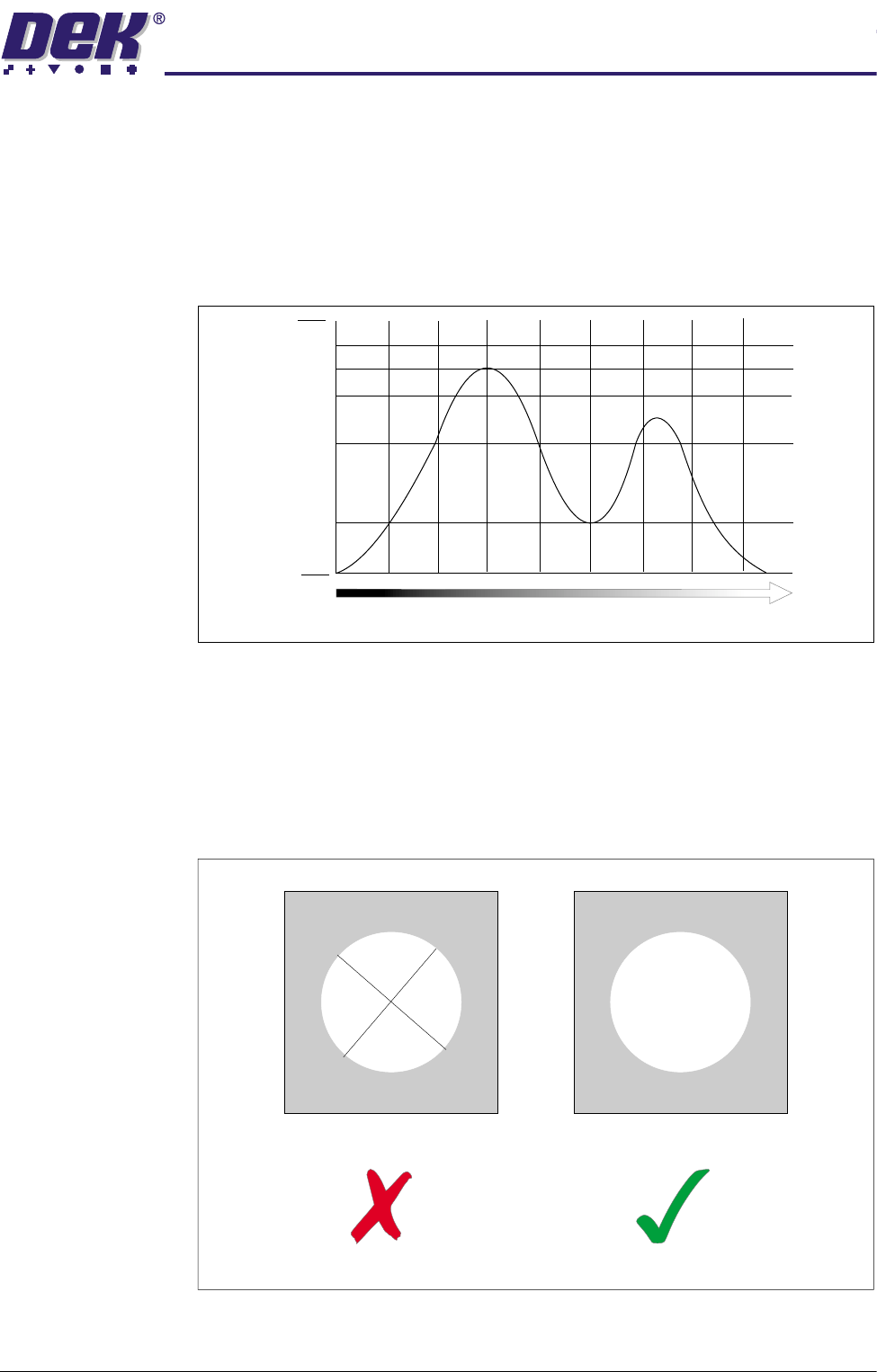
Histogram The histogram gives a graphical representation of the grey scale values within
the box set around the fiducial. As can be seen there are two peaks which
represent the light and dark areas of the picture. Ideally there should be two
distinct peaks, the separation of which can be changed by varying the lighting
levels.
Experience of changing these parameters whilst viewing the histogram, dem-
onstrates their effects.
Optimizing a Video
Model
When using a Video Model, selecting a good image shape is critical. In order
to achieve an optimum image selection, the following two paragraphs detail
some basic guidelines.
Fine and Course
Features
As with fiducials, areas of a board selected as a Video Model should have
shapes with a solid consistent tone within the boundaries (course features) and
not shapes with inner lines or lettering (fine features)
Black
% Area
Within Box
Mid Grey White
Model with Fine Features Model with Course Features
0$&+,1(352*5$00,1*
67$*(9,6,216<67(06(783
1.74 User Manual Software Version 07SP04
Positional
Information
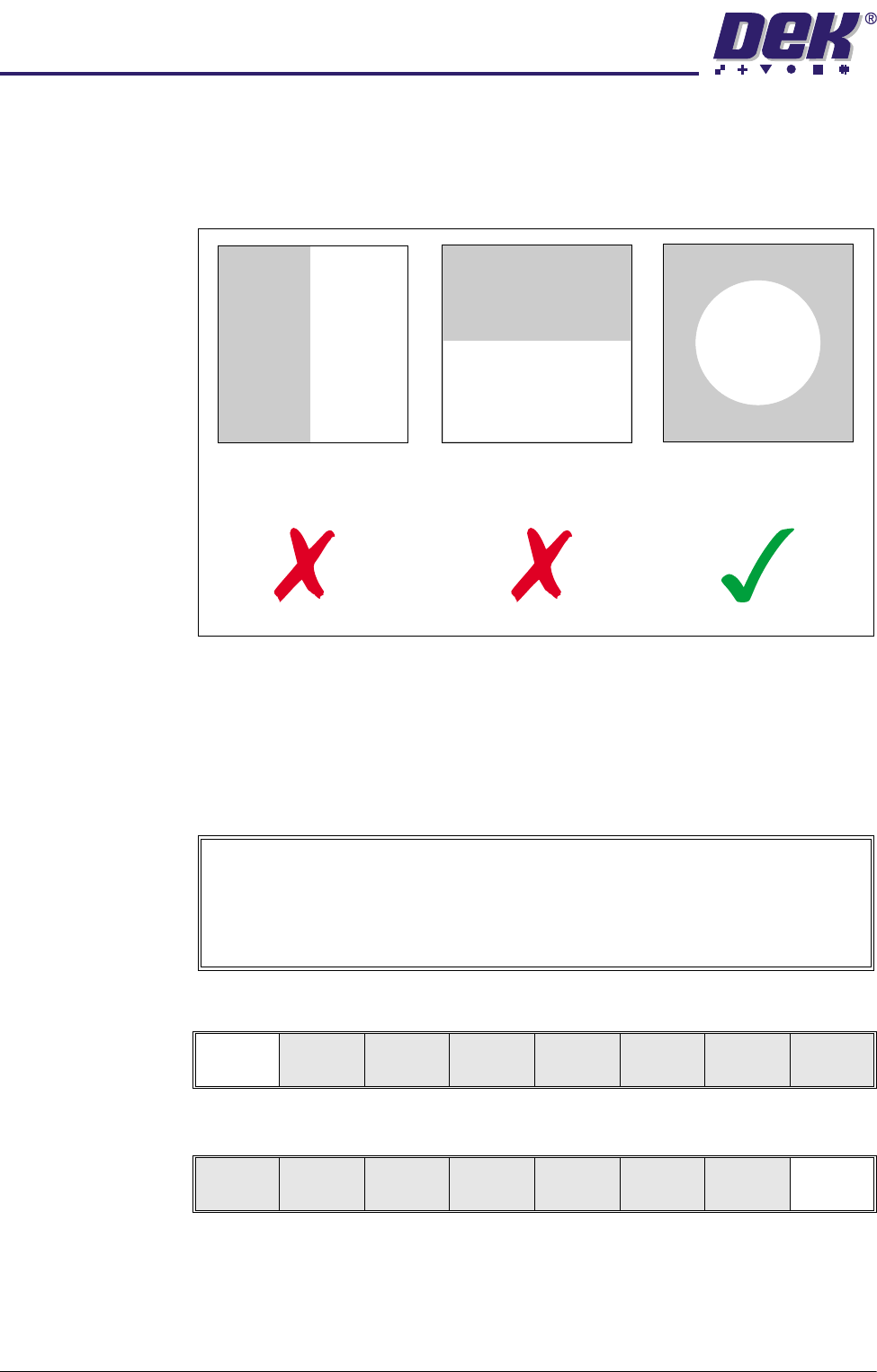
When selecting a Video Model, if the image shapes have edges all in the X
direction or all in the Y direction, not enough positional information exists for the
camera system. An image with good X and Y information is necessary for
accurate positioning:
Preparing the
Vision System
The vision system learns the fiducial during a board setup. The fiducial
coordinates are entered into the product file during the editing of a default file.
Initially this enables the camera to find the fiducials. The setup needs to be run
in step mode from the status page.
The following procedure is typical for all fiducial shapes, although in this
instance a circle fiducial shape is referred to throughout.
1. Select Mode (F1) until Step is indicated in the mode option on the monitor.
2. Select Exit (F8).
3. Place the board onto the conveyor.
No Positional information
in the X direction
No positional information
in the Y direction
Equal positional information
in the X and Y directions.
Video Model
The procedure for creating a Video Model is very similar to that for creating a
Fiducial, throughout the following fiducial procedure, boxes like this contain
alternative procedure steps, to allow the setup of a Video Model.
Mode
Load
Data
Edit
Data
Setup
Squeegee
Change
Screen
Change
Tool ing
Change
Language
Exit
Mode
Load
Data
Edit
Data
Setup
Squeegee
Change
Screen
Change
Tool ing
Change
Language
Exit
0$&+,1(352*5$00,1*
67$*(9,6,216<67(06(783
Software Version 07SP04 User Manual 1.75
4. Select Run (F1).
5. Select Auto Board (F1).
6. Select Step (F1).
7. Select Step (F1).
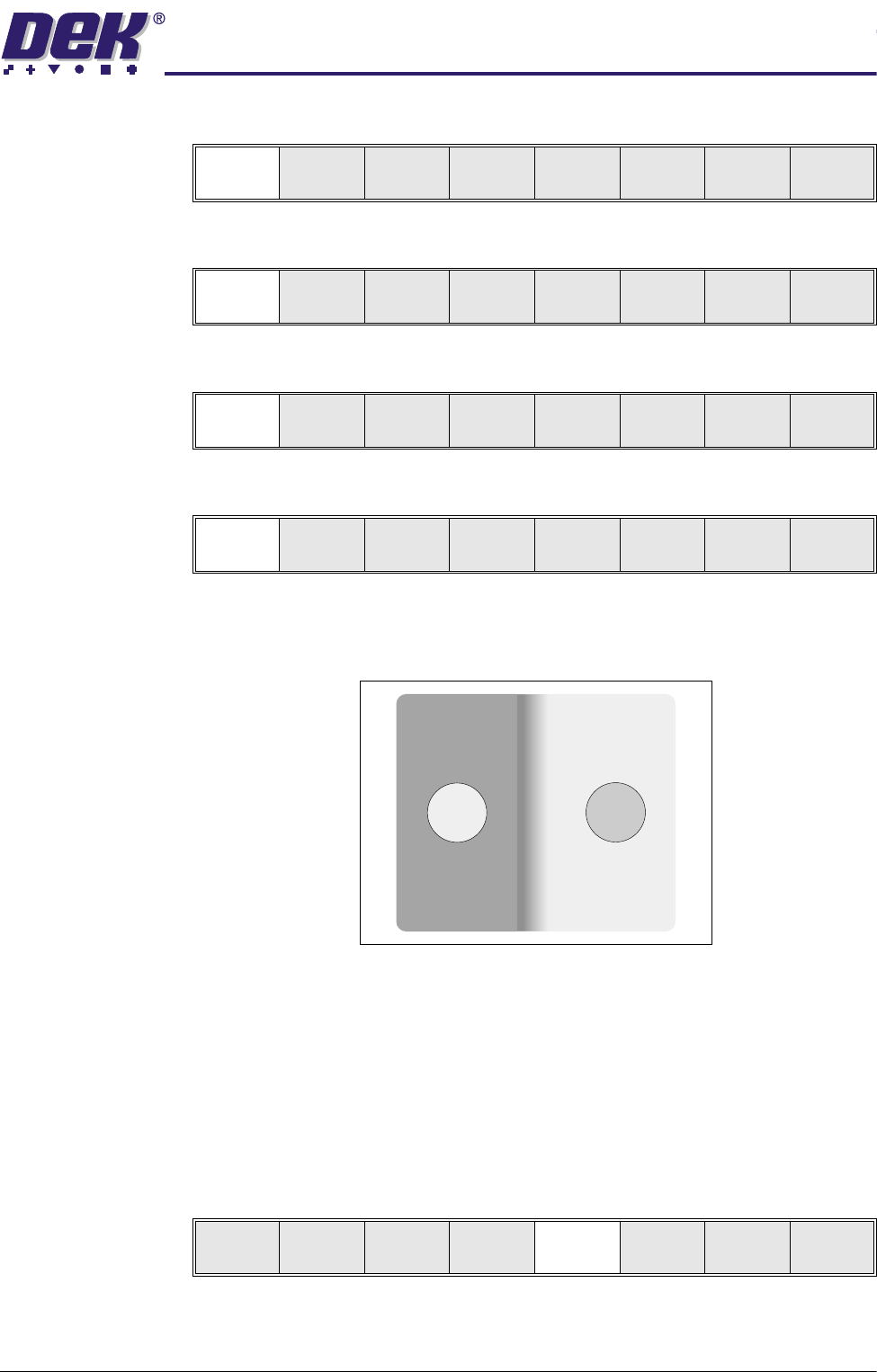
The board fiducial/select mark should now be visible on the vision data
window.
If selective print/pass through is enabled, the image on the left hand side of
the monitor is the board select mark. The right hand side of the monitor
shows the corresponding position on the stencil, which is a mirror image of
the board without the select mark. While the select mark is being setup and
the menu bar is as Step 8, the message ‘The form of this fiducial will
select Print / Pass through’. is displayed.
If the fiducial is in the field of view go to Step 10. If the fiducial is not in the
field of view, continue with Step 8.
8. Select Search Step (F5).
For each press of Search Step the camera conducts an increasing spiral
search to enable the operator to locate the fiducial. If this search is not
Run
Open
Cover
Paste
Load
Clean
Screen
Adjust Setup Monitor Maint.
Auto
Board
Manual
Board
Knead
Paste
Exit
Step
Open
Cover
Inspect
Setup
Single Exit
Step
Open
Cover
Inspect
Setup
Single Exit
Step
Open
Cover
Fiducial
Setup
Adjust
Search
Step
Search
Reset
Single Exit