Printer 600 Machine Programming.pdf - 第60页
0$&+,1( 352*5$00 ,1* 67$*(( )250)/(; 722/,1* 1.60 User Manual Software Ve rsion 07SP04 b. Lif t the adjuster cl ear of the two locati ng screws. c. Using the inner p air of keyway slot s locate the adjuster on…
0$&+,1(352*5$00,1*
67$*(()250)/(;722/,1*
Software Version 07SP04 User Manual 1.59
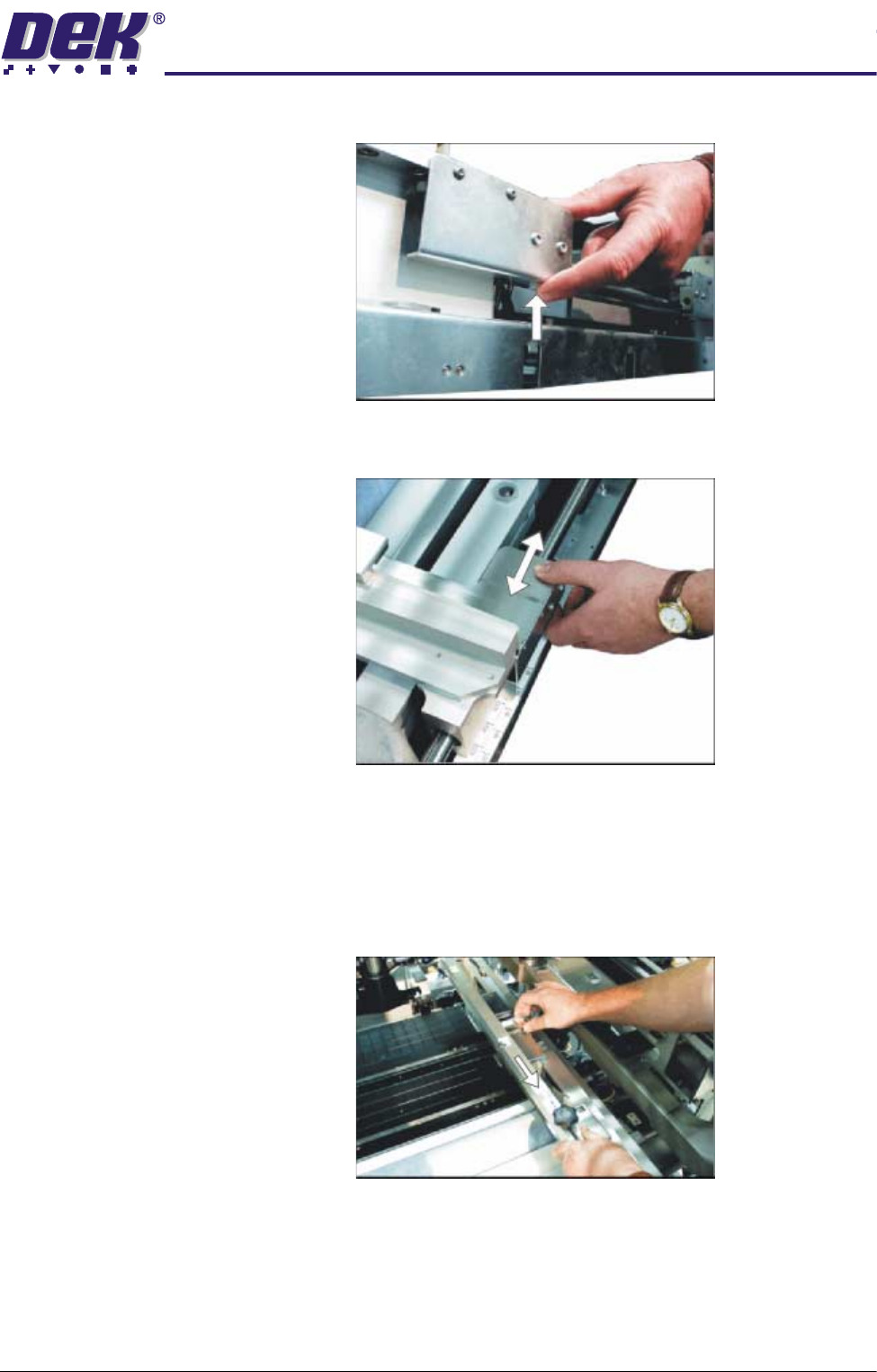
a. Press and hold the left hand chase rail push button valve.
b. Slide the left hand chase rail to the desired position indicated on the
graduated scale.
c. Release the push button valve.
d. Repeat the procedure for the right hand chase rail.
46.If the stencil size is less than 29″ x 29″ the screen depth adjuster position is
to be adjusted as follows (ASM only):
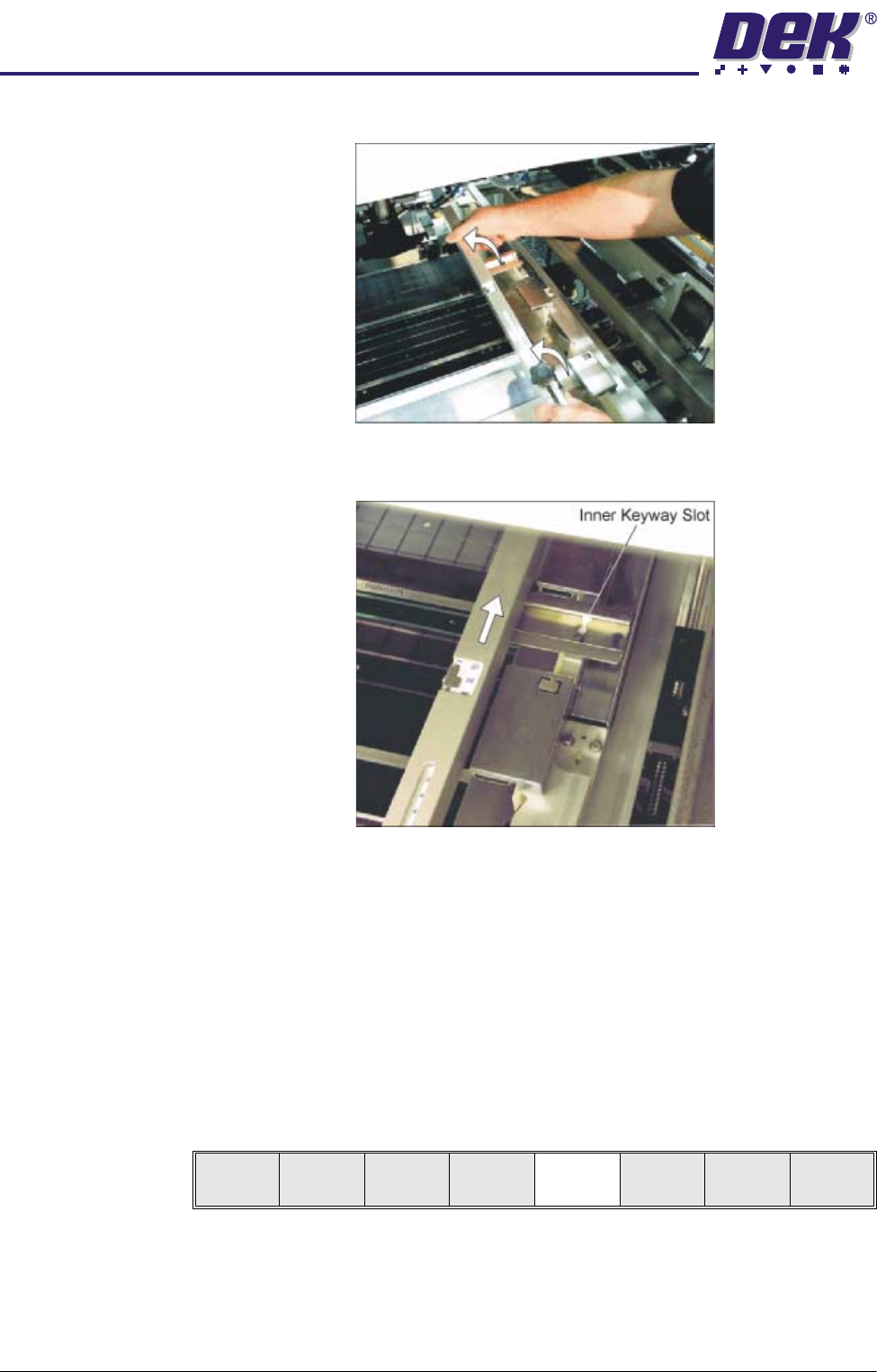
a. Slide the screen depth adjuster towards the front of the machine.
0$&+,1(352*5$00,1*
67$*(()250)/(;722/,1*
1.60 User Manual Software Version 07SP04
b. Lift the adjuster clear of the two locating screws.
c. Using the inner pair of keyway slots locate the adjuster on the chase and
slide the adjuster to the rear of the machine to lock in place.
47.Ensuring for the correct orientation of the stencil, load the stencil against the
left hand chase rail.
48.If fitted, toggle screen clamp switch to down position (on).
49.Either:
a. Close the front printhead cover.
or
b. Raise the drop down panel and lower the printhead shutter.
50.Press the System button.
51.Select Change Screen (F2).
52.Go to Stage 6.
Mode
Load
Data
Edit
Data
Setup
Squeegee
Change
Screen
Change
Tool ing
Change
Language
Exit
0$&+,1(352*5$00,1*
67$*(()250)/(;722/,1*
Software Version 07SP04 User Manual 1.61
Universal Set Plate Procedure
WARNING
BOARD CLAMPS. EXTREME CARE MUST BE EXERCISED WHEN WORKING IN
THE TOOLING AREA OF THE MACHINE TO AVOID INJURY. THE FOILS ON THE
FRONT AND REAR BOARD CLAMPS ARE VERY SHARP.
CAUTION
BOARD CLAMPS.
Care must be taken to ensure that the board clamps are
not damaged when removing or replacing tooling.
NOTE
1. Ensure that Generic Tooling is set to Enabled in Set Prefs.
2. When using FormFlex, the print gap in the product file must be set to zero.
1. If there is a screen loaded continue with Step 2. If there is no screen loaded
go to Step 7.
2. Select Change Screen (F5). The message ‘Open Front Cover and
Remove Screen’ is displayed.
3. Either:
a. Open the front printhead cover.
or
b. Raise the printhead shutter and lower the drop down panel.
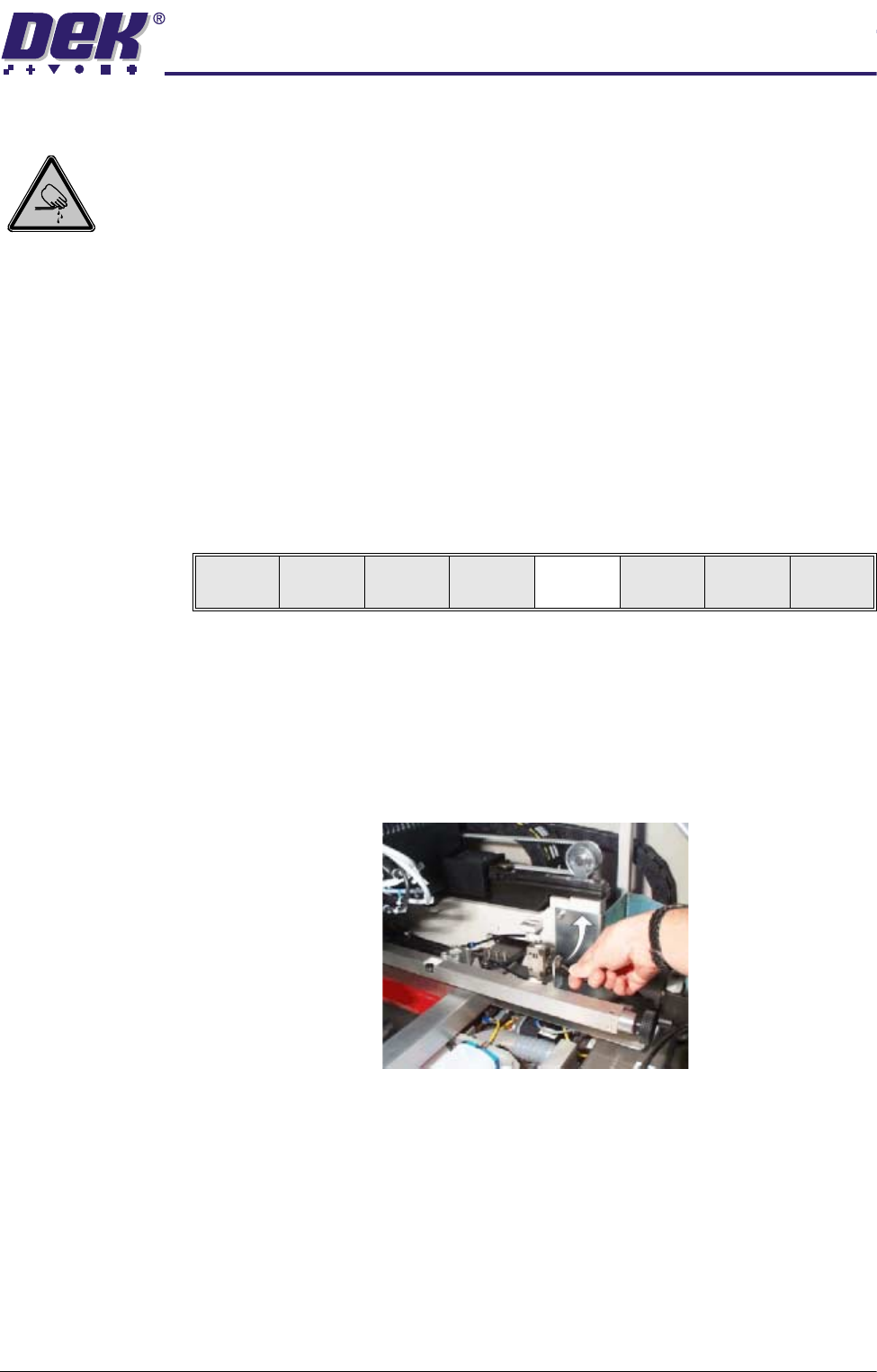
4. If fitted, toggle screen clamp switch to up position (off).
5. Remove the stencil from the printer.
6. Either:
a. Close the front printhead cover.
or
b. Raise the drop down panel and lower the printhead shutter.
7. Press the System button.
8. Select Change Tooling (F6). The print carriage and the under screen
Mode
Load
Data
Edit
Data
Setup
Squeegee
Change
Screen
Change
Tool ing
Change
language
Exit