Printer 600 Machine Programming.pdf - 第73页
0$&+,1 (352*5$0 0,1* 67$*( 9,6,21 6<67(0 6(783 Software Version 07SP04 User Manual 1.73 Histogram The histogr am gives a graphical repres entati on of the grey scal e values wit hin the box set ar ound the…
0$&+,1(352*5$00,1*
67$*(9,6,216<67(06(783
1.72 User Manual Software Version 07SP04
Select Mark A select mark is an identification mark placed only on the board. This differen-
tiates between boards to be printed and boards to be passed through the printer
without printing. A select mark has the same properties and parameters as a
fiducial, (as described earlier in this chapter). Select marks are only used for
the selective print/pass through option, (where different product boards are fed
through the printer).
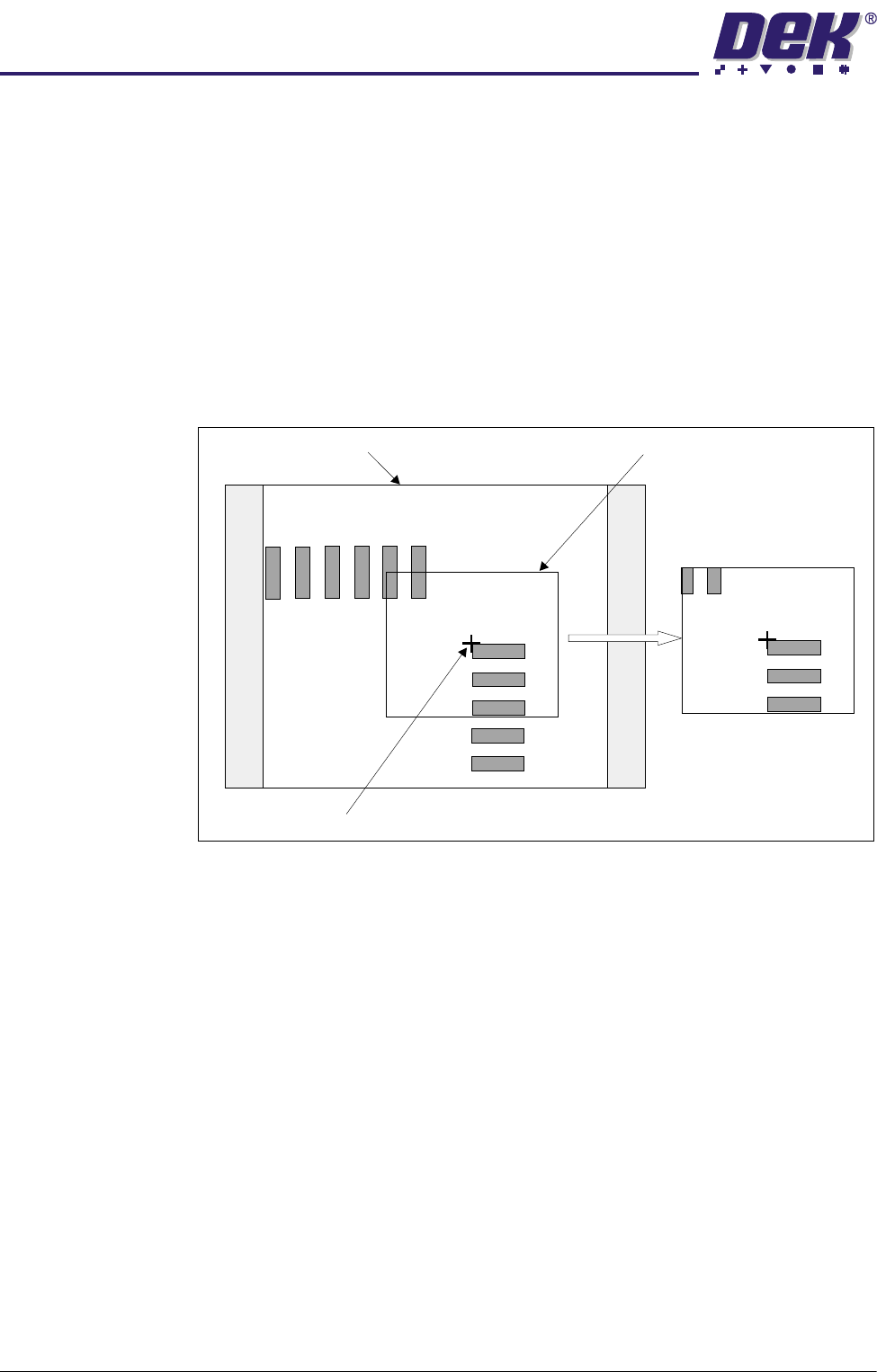
Video Model The video model is an alternative to using fiducials for board alignment. Video
models use correlation between the image of an area of the stencil and the
image of the same area of the board to align the two. This is useful if the board
has no fiducials or the condition of the fiducials does not allow satisfactory
recognition (Optimizing a Video Model paragraph refers).
Image Quality The vision system is able to accept a wide variation in the quality of fiducials,
therefore any variation in lighting normally causes no problems with fiducial
recognition. However, image quality can be optimized by ensuring the lighting
levels are correct. Changing the intensity of the vision illumination is achieved
by the adjustment of the software controlled lighting during Fiducial Setup.
X Y Reference
Video Model Fiducial
Mono Monitor Fiducial Box
0$&+,1(352*5$00,1*
67$*(9,6,216<67(06(783
Software Version 07SP04 User Manual 1.73
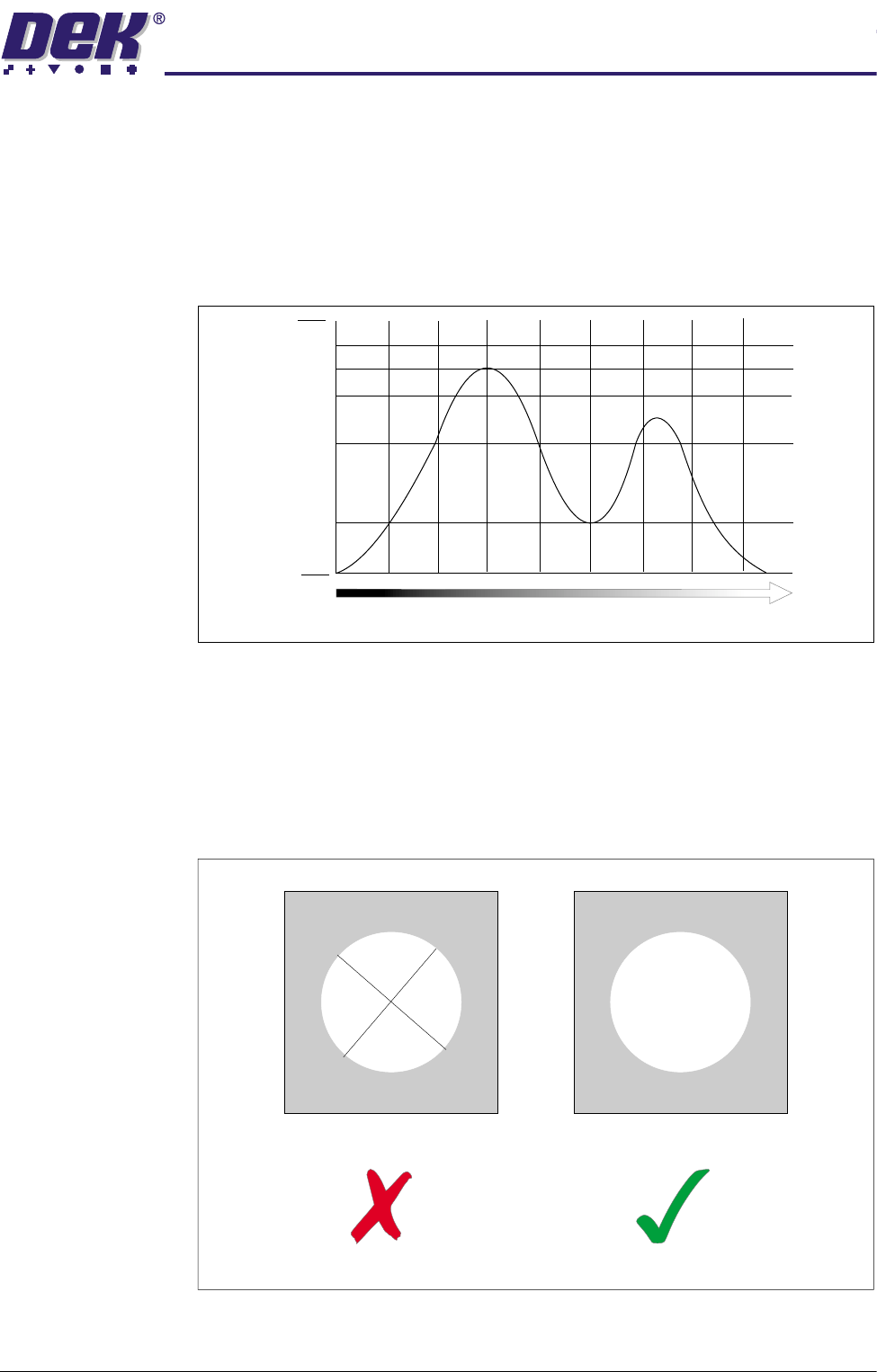
Histogram The histogram gives a graphical representation of the grey scale values within
the box set around the fiducial. As can be seen there are two peaks which
represent the light and dark areas of the picture. Ideally there should be two
distinct peaks, the separation of which can be changed by varying the lighting
levels.
Experience of changing these parameters whilst viewing the histogram, dem-
onstrates their effects.
Optimizing a Video
Model
When using a Video Model, selecting a good image shape is critical. In order
to achieve an optimum image selection, the following two paragraphs detail
some basic guidelines.
Fine and Course
Features
As with fiducials, areas of a board selected as a Video Model should have
shapes with a solid consistent tone within the boundaries (course features) and
not shapes with inner lines or lettering (fine features)
Black
% Area
Within Box
Mid Grey White
Model with Fine Features Model with Course Features
0$&+,1(352*5$00,1*
67$*(9,6,216<67(06(783
1.74 User Manual Software Version 07SP04
Positional
Information
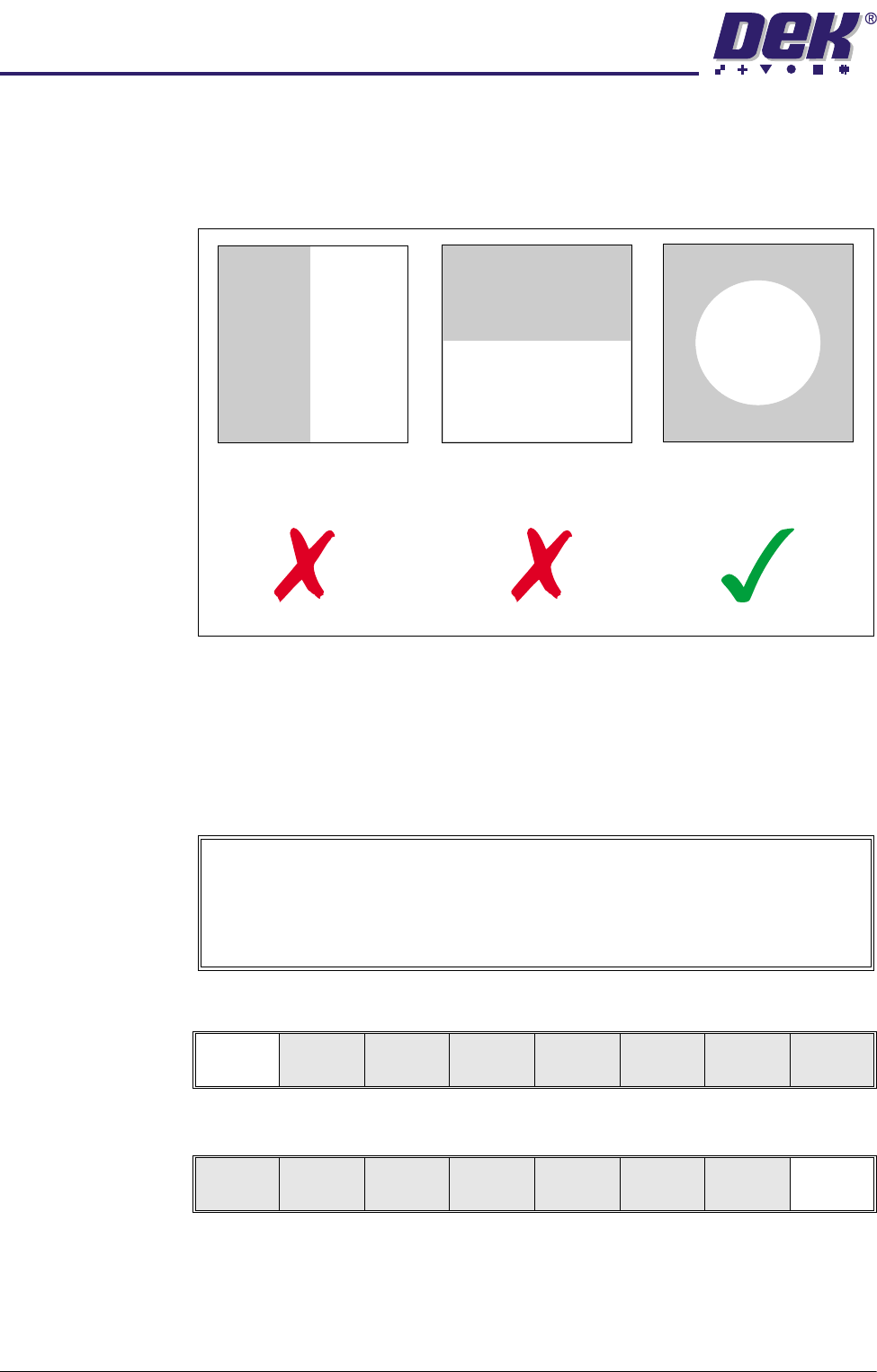
When selecting a Video Model, if the image shapes have edges all in the X
direction or all in the Y direction, not enough positional information exists for the
camera system. An image with good X and Y information is necessary for
accurate positioning:
Preparing the
Vision System
The vision system learns the fiducial during a board setup. The fiducial
coordinates are entered into the product file during the editing of a default file.
Initially this enables the camera to find the fiducials. The setup needs to be run
in step mode from the status page.
The following procedure is typical for all fiducial shapes, although in this
instance a circle fiducial shape is referred to throughout.
1. Select Mode (F1) until Step is indicated in the mode option on the monitor.
2. Select Exit (F8).
3. Place the board onto the conveyor.
No Positional information
in the X direction
No positional information
in the Y direction
Equal positional information
in the X and Y directions.
Video Model
The procedure for creating a Video Model is very similar to that for creating a
Fiducial, throughout the following fiducial procedure, boxes like this contain
alternative procedure steps, to allow the setup of a Video Model.
Mode
Load
Data
Edit
Data
Setup
Squeegee
Change
Screen
Change
Tool ing
Change
Language
Exit
Mode
Load
Data
Edit
Data
Setup
Squeegee
Change
Screen
Change
Tool ing
Change
Language
Exit