2500_Users_Manual-.pdf - 第115页
4 Operation For System Operators and Administra tors Before you read this chapter, be familiar with the information in Chapter 1, especially the major components on the 2500. Chapter 1 has detailed drawings of the beam, …
Tasks
and
Kits
<
Fl=Help
2500
iMport
Task/Kit.
.
.
s
<
FZ=Uie“
>
TaskLink
ProMaster
Tawkw/Kitw
defined
in
ASCII
file
Edit
Task/Kit.
..
Duplicate
Task/Kit.
..
ReMove
Task/Kit.
.
.
Help
Copyright
1394
Data
I/O
Corp.
Tasks
Utilities
Options
Exit!
Run
Task/Kit.
.
.
人
T
Run
Task/Kit
Batch
File.
..
Add
Task.
..
Add
Kit.
.
.
TaskLink
Setup
Data
Program
7
7
Ilie
Some
Task
Data
Source
SuMcheck
Device
Process
Notes
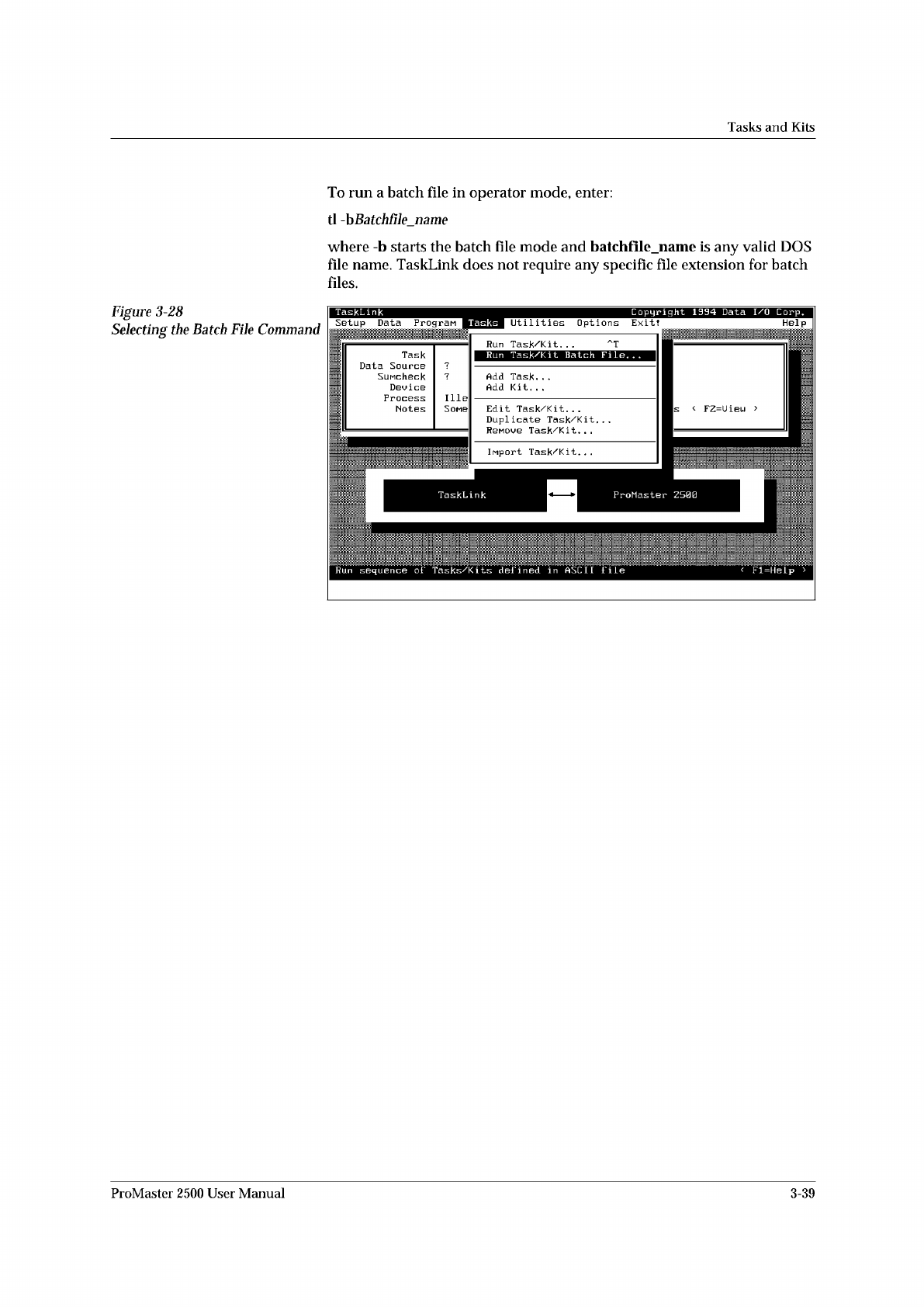
To
run
a
batch
file
in
operator
mode,
enter:
tl
-bBatchfile_naine
where
-b
starts
the
batch
file
mode
and
batchfile_name
is
any
valid
DOS
file
name.
TaskLink
does
not
require
any
specific
file
extension
for
batch
files.
Figure
3-28
Selecting
the
Batch
File
Command
ProMaster
2500
User
Manual
3-39
4
Operation
For
System
Operators
and
Administra
tors
Before
you
read
this
chapter,
be
familiar
with
the
information
in
Chapter
1,
especially
the
major
components
on
the
2500.
Chapter
1
has
detailed
drawings
of
the
beam,
track
sections,
and
labeler
that
identify
parts
that
will
be
referred
to
in
this
chapter.
Chapter
1
also
introduces
TaskLink
concepts
and
describes
how
to
move
around
between
items
on
the
screen.
This
chapter
describes
actions
an
operator
will
perform
during
a
typical
day
operating
the
ProMaster
2500
system.
Some
of
the
topics
covered
in
this
chapter
include:
What
Is
a
Task?
4-2
Overview:
Starting
a
New
Task
4-2
Reconfiguring
the
System
for
a
New
Device
4-7
Running
a
Task
4-23
Aligning
a
Device
to
a
PLCC
Programming
Module
4-27
Aligning
a
Device
to
a
DIP/SOIC/32-pin
PLCC
Programming
Module
4-32
Introduction
to
Kits
4-36
Adjusting
Track
Air
4-40
WARNING:
Handler
components
travel
at
high
speeds
and
with
sufficient
force
to
cause
personal
injury.
The
ProMaster
2500
has
a
safety
interlock
switch
that
prevents
handler
components
from
moving
while
the
hood
is
up.
Do
not
attempt
to
bypass
this
safety
feature
and
operate
the
handler
with
the
hood
raised.
ProMaster
2500
User
Manual
4-1
Operation
What
Is
a
Task?
A
Task
is
a
job
setup
containing
all
the
information
necessary
for
programming
and/or
testing
a
particular
part.
A
Task
records
all
the
parameters
of
the
job
setup
from
the
device
type
and
data
file
used
to
the
label
text
printed
and
placed
on
the
device.
Once
a
Task
has
been
selected,
TaskLink
performs
most
of
the
system
setup
automatically
and
prompts
the
operator
to
insert
devices
to
begin
processing.
Overview:
Starting
a
New
Task
There
are
several
steps
that
you
will
routinely
need
to
perform
each
time
you
select
a
device
that
uses
a
different
package
type
or
size.
These
steps
are
listed
below
and
can
be
used
as
an
overview
of
the
process
for
new
operators
and
as
a
refresher
for
experienced
users.
Each
step
has
its
number
called
out
in
Figure
4-1.
1.
Configure
and
install
a
new
programming
module
(page
4-8).
2.
Adjust
track
width
(page
4-12).
3.
Install
new
chuck
(page
4-16).
4.
Check
high
and
low
air
pressure
(page
4-17).
5.
Install
new
labels
(page
4-18).
6.
Perform
an
ADC
label
calibration
(pages
4-19
and
4-22).
7.
Insert
an
input
tube
and
two
empty
output
tubes
(page
4-22).
8.
Start
TaskLink
(page
4-23).
9.
Select
a
Task
from
the
screen
list
(page
4-24).
10.
Select
device
from
the
choices
on
the
screen
(page
4-24).
11.
Align
the
beam-to-device
and
the
device-to-module
(page
4-27).
12.
Press
START
to
start
the
Task.
13.
If
needed,
check
the
track
air
during
operation
(page
4-40).
4-2
ProMaster
2500
User
Manual