2500_Users_Manual-.pdf - 第443页
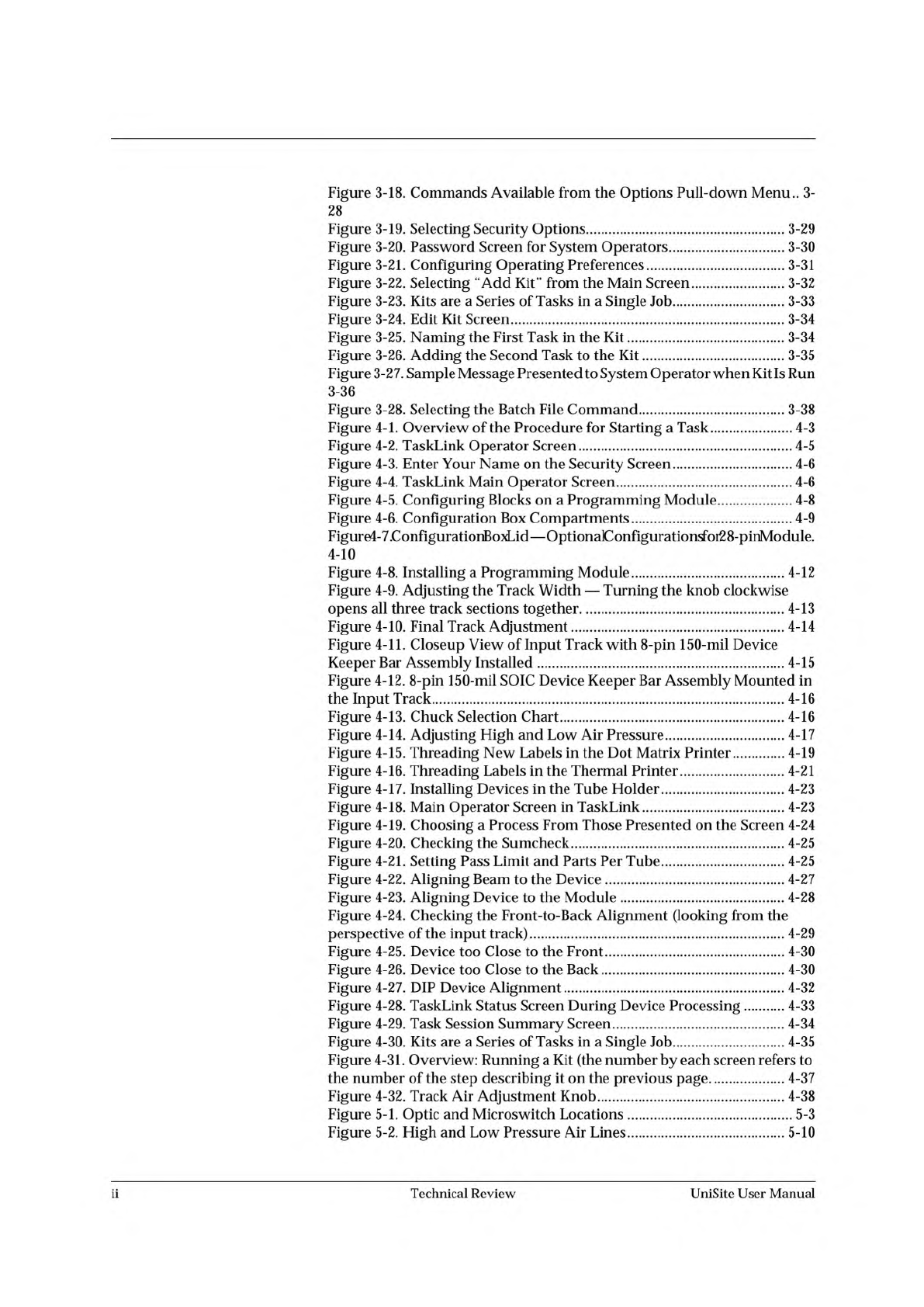
Figure 3-18. Commands Available from the Options Pull-down Menu.. 3- 28 Figure 3-19. Selecting Security Options 3-29 Figure 3-20. Password Screen for System Operators 3-30 Figure 3-21. Configuring Operating Preferences 3…

Figure
1-1.
ProMaster
2500
System
1-2
Figure
1-2.
External
Features
of
the
2500
1-3
Figure
1-3.
System
Air
Adjustment
Knobs
1-5
Figure
1-4.
External
Features
on
the
ProMaster
2500
(rear
view)
1-5
Figure
1-5.
Major
Features
Under
the
Hood
1-6
Figure
1-6.
Dot
Matrix
Labeler
Component
Identification
Drawing
1-7
Figurel-7
BeamsandProgrammingStationComponenfldentificationDrawing
1-8
Figure
1-8.
The
ProMaster
2500
Front
Panel
1-9
Figure
1-9.
TaskLink
Main
Screen:
Options
Pull-Down
Menu
Selected
..
1-
12
Figure
1-10.
TaskLink
General
Parameters
Dialog
Box
1-13
Figure
2-1.
Connecting
the
Air
Line
from
the
External
Source
to
the
2500..
2-2
Figure
2-2.
The
2500
Shipping
Crate
2-3
Figure
2-3.
System
Contents
2-4
Figure
2-4.
Selecting
the
Correct
Quick
Connect
2-5
Figure
2-5.
Connecting
the
External
Air
to
the
2500
2-6
Figure
2-6.
Adjusting
High
and
Low
Air
Pressure
2-7
Figure
2-7.
Chuck
Selection
Chart
2-8
Figure
2-8.
Adjusting
Plate
Height
2-9
Figure
2-9.
Loading
Labels
in
the
Dot
Matrix
Printer
2-10
Figure
2-10.
Installing
the
Labeler
Ribbon
Cassette
in
the
Dot
Matrix
Printer
2-12
Figure
2-11.
Threading
Labels
in
the
Thermal
Printer
2-14
Figure
2-12.
Threading
a
Ribbon
in
the
Thermal
Printer
2-15
Figure
2-13.
TaskLink
Main
Screen
(Administrator
Mode)
2-18
Figure
2-14.
Labeler
Setup
Path
(Local
mode
on
the
front
panel)
2-23
Figure
2-15.
Changing
the
Label
Calibration
Value
2-24
Figure
2-16.
Changing
the
Label
Placement
Value
2-25
Figure
2-17.
Changing
the
Dot
Split
Value
2-26
Figure
2-18.
Print
Shift
(affects
vertical
position)
2-27
Figure
2-19.
Label
Calibration
(affects
horizontal
position)
2-28
Figure
2-20.
Location
of
Firmware
EPROMs
on
the
Main
Controller
Board
2-31
Figure
3-1.
Overview
of
the
Steps
Involved
in
Creating
Tasks
3-3
Figure
3-2.
Add
Task
Pull-down
Menu
3-4
Figure
3-3.
Add
Task
Dialog
Box
3-5
Figure
3-4.
Edit
Task
Dialog
Box
3-6
Figure
3-5.
Illegal
Bit
Condition
3-8
Figure
3-6.
ProMaster
Dialog
Box
3-9
Figure3-7.SelectingOrientationofDevicePinlintheInputTubeUsin^TaskLink
3-10
Figure
3-8.
Recommended
Device
Orientation
in
Input
Device
3-11
Figure
3-9.
Logic
Device
Parameters
3-12
Figure
3-10.
Memory
Device
Task
3-14
Figure
3-11.
Memory
Parameters
Dialog
Box
3-15
Figure
3-12.
Commands
Available
under
Setup
3-19
Figure
3-13.
Log
File
Format
Compared
to
Task
Statistics
Screen
3-19
Figure
3-14.
General
Parameters
Dialog
Box
3-20
Figure
3-15.
Serialization
Parameters
Dialog
Box
3-22
Figure
3-16.
The
Serialization
Process
3-23
Figure
3-17.
Utilities
Pull-down
Menu
3-27
UniSite
User
Manual
Technical
Review
Figure
3-18.
Commands
Available
from
the
Options
Pull-down
Menu..
3-
28
Figure
3-19.
Selecting
Security
Options
3-29
Figure
3-20.
Password
Screen
for
System
Operators
3-30
Figure
3-21.
Configuring
Operating
Preferences
3-31
Figure
3-22.
Selecting
“Add
Kit”
from
the
Main
Screen
3-32
Figure
3-23.
Kits
are
a
Series
of
Tasks
in
a
Single
Job
3-33
Figure
3-24.
Edit
Kit
Screen
3-34
Figure
3-25.
Naming
the
First
Task
in
the
Kit
3-34
Figure
3-26.
Adding
the
Second
Task
to
the
Kit
3-35
Figure
3-27.
Sample
Message
Presented
to
System
Operator
when
Kit
Is
Run
3-36
、
Figure
3-28.
Selecting
the
Batch
File
Command
3-38
Figure
4-1.
Overview
of
the
Procedure
for
Starting
a
Task
4-3
Figure
4-2.
TaskLink
Operator
Screen
4-5
Figure
4-3.
Enter
Your
Name
on
the
Security
Screen
4-6
Figure
4-4.
TaskLink
Main
Operator
Screen
4-6
Figure
4-5.
Configuring
Blocks
on
a
Programming
Module
4-8
Figure
4-6.
Configuration
Box
Compartments
4-9
Figure4-7.ConfigurationBoji.id
—
OptionalConfigurationsfoi28-pinModule.
4-10
Figure
4-8.
Installing
a
Programming
Module
4-12
Figure
4-9.
Adjusting
the
Track
Width
—
Turning
the
knob
clockwise
opens
all
three
track
sections
together
4-13
Figure
4-10.
Final
Track
Adjustment
4-14
Figure
4-11.
Closeup
View
of
Input
Track
with
8-pin
150-mil
Device
Keeper
Bar
Assembly
Installed
4-15
Figure
4-12.
8-pin
150-mil
SOIC
Device
Keeper
Bar
Assembly
Mounted
in
the
Input
Track
4-16
Figure
4-13.
Chuck
Selection
Chart
4-16
Figure
4-14.
Adjusting
High
and
Low
Air
Pressure
4-17
Figure
4-15.
Threading
New
Labels
in
the
Dot
Matrix
Printer
4-19
Figure
4-16.
Threading
Labels
in
the
Thermal
Printer
4-21
Figure
4-17.
Installing
Devices
in
the
Tube
Holder
4-23
Figure
4-18.
Main
Operator
Screen
in
TaskLink
4-23
Figure
4-19.
Choosing
a
Process
From
Those
Presented
on
the
Screen
4-24
Figure
4-20.
Checking
the
Sumcheck
4-25
Figure
4-21.
Setting
Pass
Limit
and
Parts
Per
Tube
4-25
Figure
4-22.
Aligning
Beam
to
the
Device
4-27
Figure
4-23.
Aligning
Device
to
the
Module
4-28
Figure
4-24.
Checking
the
Front-to-Back
Alignment
(looking
from
the
perspective
of
the
input
track)
4-29
Figure
4-25.
Device
too
Close
to
the
Front
4-30
Figure
4-26.
Device
too
Close
to
the
Back
4-30
Figure
4-27.
DIP
Device
Alignment
4-32
Figure
4-28.
TaskLink
Status
Screen
During
Device
Processing
4-33
Figure
4-29.
Task
Session
Summary
Screen
4-34
Figure
4-30.
Kits
are
a
Series
of
Tasks
in
a
Single
Job
4-35
Figure
4-31.
Overview:
Running
a
Kit
(the
number
by
each
screen
refers
to
the
number
of
the
step
describing
it
on
the
previous
page
4-37
Figure
4-32.
Track
Air
Adjustment
Knob
4-38
Figure
5-1.
Optic
and
Microswitch
Locations
5-3
Figure
5-2.
High
and
Low
Pressure
Air
Lines
5-10
Technical
Review
UniSite
User
Manual
Figure
5-3.
Beam
Air
Holes
5-11
Figure
5-4.
Power
Supplies
5-14
Figure
5-5.
Missing
Character
Dots
in
Label
Printout
5-22
Figure
5-6.
Adjusting
Label
Calibration
5-25
Figure
5-7.
Print
Shift
(affects
vertical
position)
5-26
Figure
5-8.
Label
Calibration
(affects
horizontal
position)
5-26
Figure
5-9.
Thermal
Printer
Ribbon
Path
5-29
Figure
5-10.
Diagnostics
Command
Tree
5-30
Figure
5-11.
Inserting
the
Hood
Interlock
Switch
5-31
Figure
5-12.
Optic
and
Microswitch
Locations
5-33
Figure
5-13.
Adjusting
the
Dot
Matrix
Printer
ADC
Optic
During
Calibration
5-35
、
「
Figure
5-14.
Thermal
Printer,
Front
View,
Showing
the
ADC
Label
Optic
.
5-37
、
Figure
5-15.
Locations
of
the
Solenoids
Under
the
Main
Plate
5-38
Figure
5-16.
Solenoids
on
the
Beam
(test
numbers
shown)
5-39
Figure
5-17.
Location
of
the
Motors
5-41
Figure
5-18.
Recommended
Orientation
of
Pin
1
for
DIP
and
PLCC
Devices
5-45
Figure
5-19.
Interior
View
of
the
2500,s
Base
5-47
Figure
5-20.
Print
Head
LEDs
on
Handler
Controller
Board
5-47
Figure
5-21.
Position
of
the
78-pin
Connector
on
the
Mass
Storage
Module
5-52
Figure
5-22.
Test
Points
on
the
MSM
78-pin
Connector
5-53
Figure
5-23.
Removing
the
Ribbon
Cassette
5-58
Figure
5-24.
Installing
a
New
Dot
Matrix
Printer
Ribbon
Cassette
5-58
Figure
5-25.
Threading
the
Ribbon
in
the
Thermal
Printer
5-59
Figure
5-26.
Location
of
the
Lead
Screw
and
the
Carriage
5-63
Figure
5-27.
Adjusting
the
Track
Height
5-64
Figure
5-28.
Input
and
Output
Track
Funnel
Adjustment
5-65
Figure
5-29.
Adjusting
the
Track
Width
Cables
5-66
Figure
6-1.
Power-up
Failures
(page
numbers
are
in
parentheses)
6-7
Figure
6-2.
The
Beam
Does
Not
Pick
Up
the
Device
Correctly
(page
numbers
are
in
parentheses)
6-8
Figure
6-3.
The
Beam
Does
Not
Insert
the
Device
Correctly
into
the
Programming
Module
(page
numbers
are
in
parentheses)
6-9
Figure
6-4.
Programming
Failures
(page
numbers
are
in
parentheses)
6-10
Figure
6-5.
Label
Printing
Problems,
Dot
Matrix
Printer
(page
numbers
are
in
parentheses)
6-11
Figure
6-6.
Label
Application
Problems,
Dot
Matrix
Printer
(page
numbers
are
in
parentheses)
6-12
Figure
6-6
(continued).
Label
Application
Problems,
Dot
Matrix
Printer
(page
numbers
are
in
parentheses)
6-13
Figure
6-7.
The
Beam
Does
Not
Deliver
the
Device
Correctly
(page
numbers
are
in
parentheses)
6-14
Figure
7-1.
Opening
the
Power
Input
Assembly
to
Access
the
Fuse
7-2
Figure
7-2.
Removing
the
Fuse
7-2
Figure
7-3.
Location
of
the
Main
Plate
Screws
7-3
Figure
7-4.
Polarity
of
the
Cables
on
the
Programming
Electronics
Assembly
7-4
'
'
Figure
7-5.
Remove
the
Module
Clamp
Assembly
Screws
7-5
Figure
7-6.
Lower
the
Clamp
Assembly
and
Remove
the
Retaining
Bar
7-6
Figure
7-7.
Programming
Electronics
Assembly
Alignment
7-6
UniSite
User
Manual
Technical
Review
iii