2500_Users_Manual-.pdf - 第442页
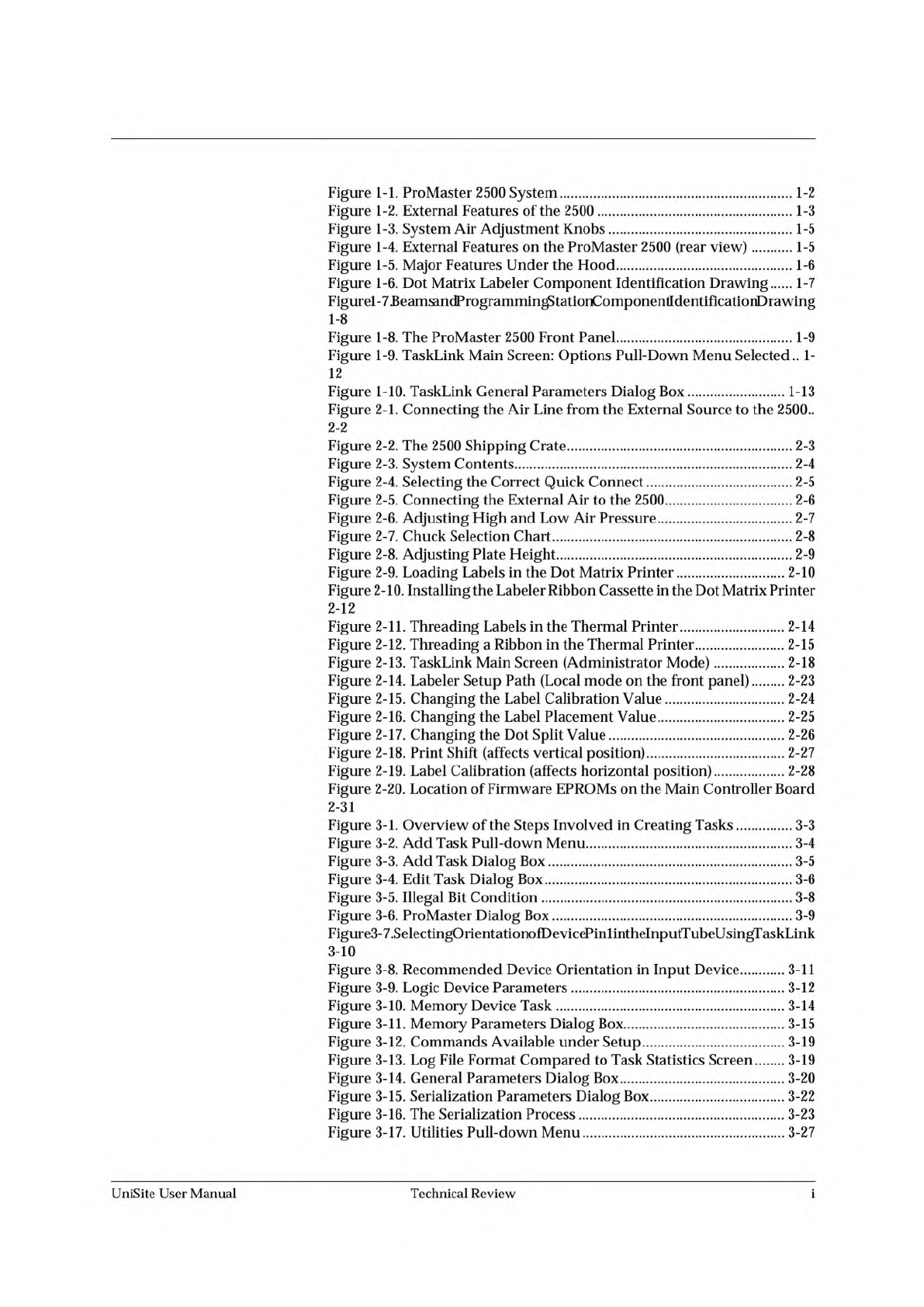
Figure 1-1. ProMaster 2500 System 1-2 Figure 1-2. External Features of the 2500 1-3 Figure 1-3. System Air Adjustment Knobs 1-5 Figure 1-4. External Features on the ProMaster 2500 (rear view) 1-5 Figure 1-5. Major Featur…
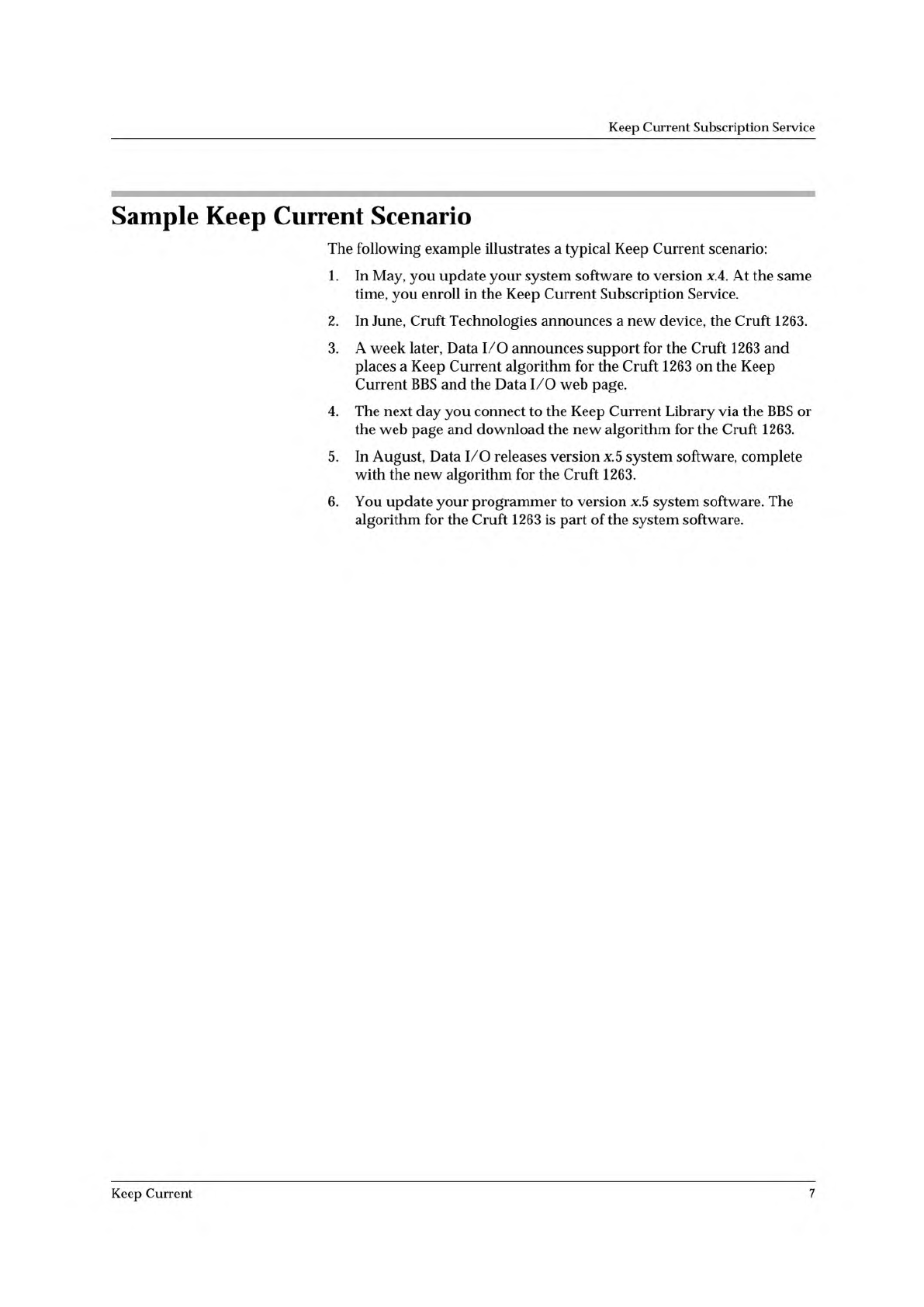
Keep
Current
Subscription
Service
Sample
Keep
Current
Scenario
The
following
example
illustrates
a
typical
Keep
Current
scenario:
1.
In
May,
you
update
your
system
software
to
version
x.4.
At
the
same
time,
you
enroll
in
the
Keep
Current
Subscription
Service.
2.
In
June,
Cruft
Technologies
announces
a
new
device,
the
Cruft
1263.
3.
A
week
later,
Data
I/O
announces
support
for
the
Cruft
1263
and
places
a
Keep
Current
algorithm
for
the
Cruft
1263
on
the
Keep
Current
BBS
and
the
Data
I/O
web
page.
4.
The
next
day
you
connect
to
the
Keep
Current
Library
via
the
BBS
or
the
web
page
and
download
the
new
algorithm
for
the
Cruft
1263.
5.
In
August,
Data
I/O
releases
version
x.5
system
software,
complete
with
the
new
algorithm
for
the
Cruft
1263.
6.
You
update
your
programmer
to
version
x.5
system
software.
The
algorithm
for
the
Cruft
1263
is
part
of
the
system
software.
Keep
Current
7
Figure
1-1.
ProMaster
2500
System
1-2
Figure
1-2.
External
Features
of
the
2500
1-3
Figure
1-3.
System
Air
Adjustment
Knobs
1-5
Figure
1-4.
External
Features
on
the
ProMaster
2500
(rear
view)
1-5
Figure
1-5.
Major
Features
Under
the
Hood
1-6
Figure
1-6.
Dot
Matrix
Labeler
Component
Identification
Drawing
1-7
Figurel-7
BeamsandProgrammingStationComponenfldentificationDrawing
1-8
Figure
1-8.
The
ProMaster
2500
Front
Panel
1-9
Figure
1-9.
TaskLink
Main
Screen:
Options
Pull-Down
Menu
Selected
..
1-
12
Figure
1-10.
TaskLink
General
Parameters
Dialog
Box
1-13
Figure
2-1.
Connecting
the
Air
Line
from
the
External
Source
to
the
2500..
2-2
Figure
2-2.
The
2500
Shipping
Crate
2-3
Figure
2-3.
System
Contents
2-4
Figure
2-4.
Selecting
the
Correct
Quick
Connect
2-5
Figure
2-5.
Connecting
the
External
Air
to
the
2500
2-6
Figure
2-6.
Adjusting
High
and
Low
Air
Pressure
2-7
Figure
2-7.
Chuck
Selection
Chart
2-8
Figure
2-8.
Adjusting
Plate
Height
2-9
Figure
2-9.
Loading
Labels
in
the
Dot
Matrix
Printer
2-10
Figure
2-10.
Installing
the
Labeler
Ribbon
Cassette
in
the
Dot
Matrix
Printer
2-12
Figure
2-11.
Threading
Labels
in
the
Thermal
Printer
2-14
Figure
2-12.
Threading
a
Ribbon
in
the
Thermal
Printer
2-15
Figure
2-13.
TaskLink
Main
Screen
(Administrator
Mode)
2-18
Figure
2-14.
Labeler
Setup
Path
(Local
mode
on
the
front
panel)
2-23
Figure
2-15.
Changing
the
Label
Calibration
Value
2-24
Figure
2-16.
Changing
the
Label
Placement
Value
2-25
Figure
2-17.
Changing
the
Dot
Split
Value
2-26
Figure
2-18.
Print
Shift
(affects
vertical
position)
2-27
Figure
2-19.
Label
Calibration
(affects
horizontal
position)
2-28
Figure
2-20.
Location
of
Firmware
EPROMs
on
the
Main
Controller
Board
2-31
Figure
3-1.
Overview
of
the
Steps
Involved
in
Creating
Tasks
3-3
Figure
3-2.
Add
Task
Pull-down
Menu
3-4
Figure
3-3.
Add
Task
Dialog
Box
3-5
Figure
3-4.
Edit
Task
Dialog
Box
3-6
Figure
3-5.
Illegal
Bit
Condition
3-8
Figure
3-6.
ProMaster
Dialog
Box
3-9
Figure3-7.SelectingOrientationofDevicePinlintheInputTubeUsin^TaskLink
3-10
Figure
3-8.
Recommended
Device
Orientation
in
Input
Device
3-11
Figure
3-9.
Logic
Device
Parameters
3-12
Figure
3-10.
Memory
Device
Task
3-14
Figure
3-11.
Memory
Parameters
Dialog
Box
3-15
Figure
3-12.
Commands
Available
under
Setup
3-19
Figure
3-13.
Log
File
Format
Compared
to
Task
Statistics
Screen
3-19
Figure
3-14.
General
Parameters
Dialog
Box
3-20
Figure
3-15.
Serialization
Parameters
Dialog
Box
3-22
Figure
3-16.
The
Serialization
Process
3-23
Figure
3-17.
Utilities
Pull-down
Menu
3-27
UniSite
User
Manual
Technical
Review
Figure
3-18.
Commands
Available
from
the
Options
Pull-down
Menu..
3-
28
Figure
3-19.
Selecting
Security
Options
3-29
Figure
3-20.
Password
Screen
for
System
Operators
3-30
Figure
3-21.
Configuring
Operating
Preferences
3-31
Figure
3-22.
Selecting
“Add
Kit”
from
the
Main
Screen
3-32
Figure
3-23.
Kits
are
a
Series
of
Tasks
in
a
Single
Job
3-33
Figure
3-24.
Edit
Kit
Screen
3-34
Figure
3-25.
Naming
the
First
Task
in
the
Kit
3-34
Figure
3-26.
Adding
the
Second
Task
to
the
Kit
3-35
Figure
3-27.
Sample
Message
Presented
to
System
Operator
when
Kit
Is
Run
3-36
、
Figure
3-28.
Selecting
the
Batch
File
Command
3-38
Figure
4-1.
Overview
of
the
Procedure
for
Starting
a
Task
4-3
Figure
4-2.
TaskLink
Operator
Screen
4-5
Figure
4-3.
Enter
Your
Name
on
the
Security
Screen
4-6
Figure
4-4.
TaskLink
Main
Operator
Screen
4-6
Figure
4-5.
Configuring
Blocks
on
a
Programming
Module
4-8
Figure
4-6.
Configuration
Box
Compartments
4-9
Figure4-7.ConfigurationBoji.id
—
OptionalConfigurationsfoi28-pinModule.
4-10
Figure
4-8.
Installing
a
Programming
Module
4-12
Figure
4-9.
Adjusting
the
Track
Width
—
Turning
the
knob
clockwise
opens
all
three
track
sections
together
4-13
Figure
4-10.
Final
Track
Adjustment
4-14
Figure
4-11.
Closeup
View
of
Input
Track
with
8-pin
150-mil
Device
Keeper
Bar
Assembly
Installed
4-15
Figure
4-12.
8-pin
150-mil
SOIC
Device
Keeper
Bar
Assembly
Mounted
in
the
Input
Track
4-16
Figure
4-13.
Chuck
Selection
Chart
4-16
Figure
4-14.
Adjusting
High
and
Low
Air
Pressure
4-17
Figure
4-15.
Threading
New
Labels
in
the
Dot
Matrix
Printer
4-19
Figure
4-16.
Threading
Labels
in
the
Thermal
Printer
4-21
Figure
4-17.
Installing
Devices
in
the
Tube
Holder
4-23
Figure
4-18.
Main
Operator
Screen
in
TaskLink
4-23
Figure
4-19.
Choosing
a
Process
From
Those
Presented
on
the
Screen
4-24
Figure
4-20.
Checking
the
Sumcheck
4-25
Figure
4-21.
Setting
Pass
Limit
and
Parts
Per
Tube
4-25
Figure
4-22.
Aligning
Beam
to
the
Device
4-27
Figure
4-23.
Aligning
Device
to
the
Module
4-28
Figure
4-24.
Checking
the
Front-to-Back
Alignment
(looking
from
the
perspective
of
the
input
track)
4-29
Figure
4-25.
Device
too
Close
to
the
Front
4-30
Figure
4-26.
Device
too
Close
to
the
Back
4-30
Figure
4-27.
DIP
Device
Alignment
4-32
Figure
4-28.
TaskLink
Status
Screen
During
Device
Processing
4-33
Figure
4-29.
Task
Session
Summary
Screen
4-34
Figure
4-30.
Kits
are
a
Series
of
Tasks
in
a
Single
Job
4-35
Figure
4-31.
Overview:
Running
a
Kit
(the
number
by
each
screen
refers
to
the
number
of
the
step
describing
it
on
the
previous
page
4-37
Figure
4-32.
Track
Air
Adjustment
Knob
4-38
Figure
5-1.
Optic
and
Microswitch
Locations
5-3
Figure
5-2.
High
and
Low
Pressure
Air
Lines
5-10
Technical
Review
UniSite
User
Manual