2500_Users_Manual-.pdf - 第412页
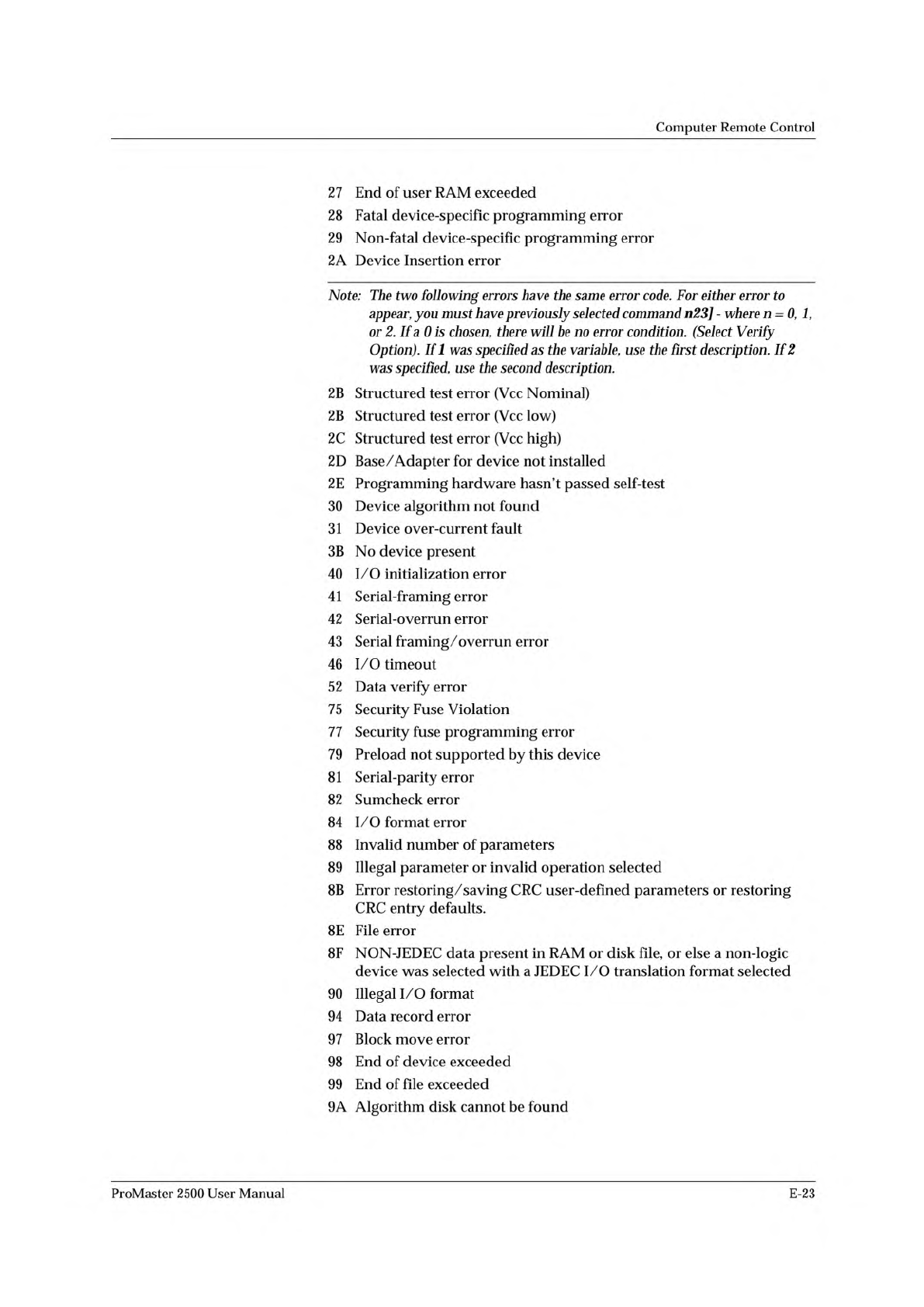
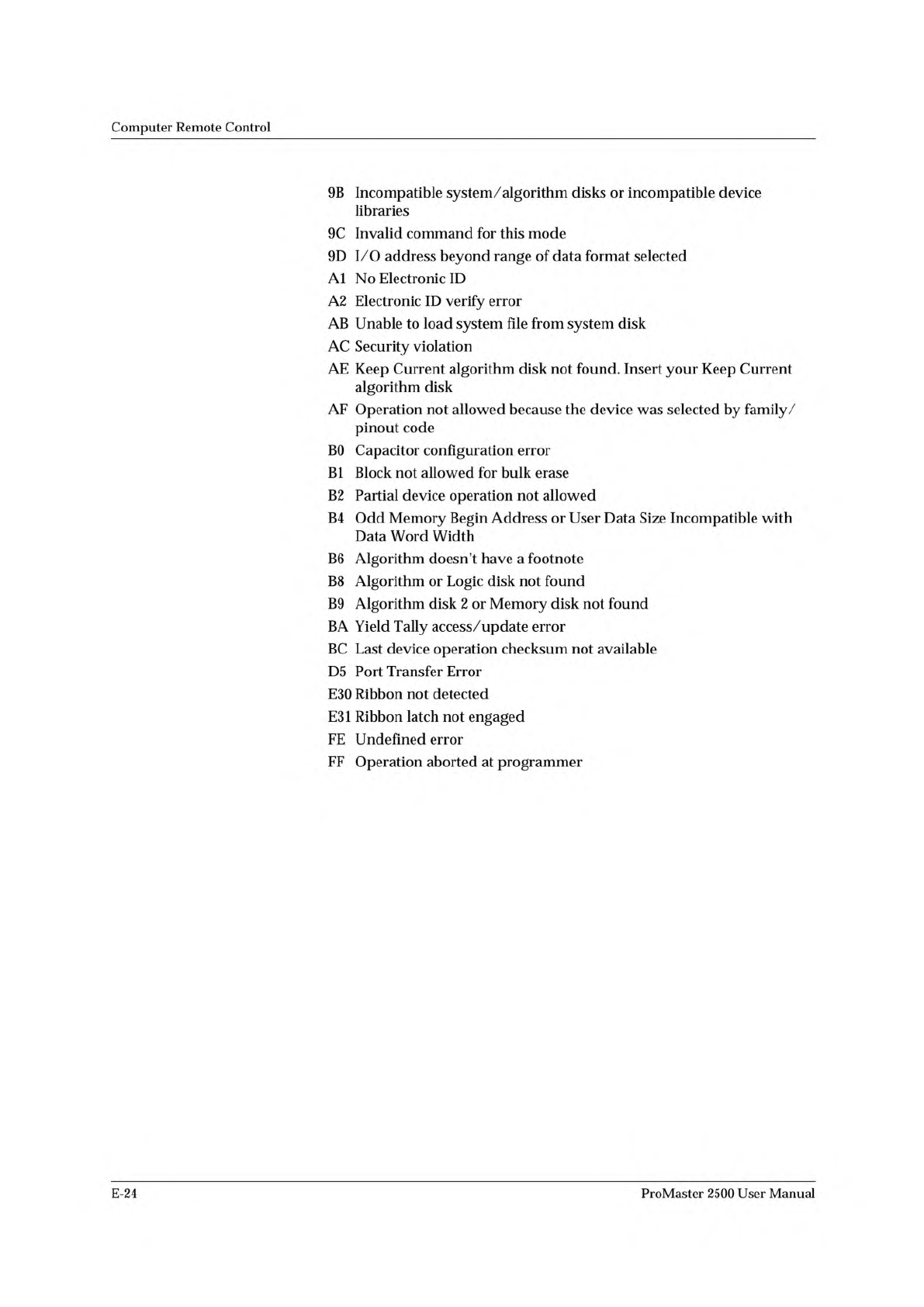
Computer Remote Control 9B Incompatible system/algorithm disks or incompatible device libraries 9c Invalid command for this mode 9D I/O address beyond range of data format selected Al No Electronic ID A2 Electronic ID ve…
Computer
Remote
Control
27
End
of
user
RAM
exceeded
28
Fatal
device-specific
programming
error
29
Non-fatal
device-specific
programming
error
2A
Device
Insertion
error
Note:
The
two
following
errors
have
the
same
error
code.
For
either
error
to
appear,
you
must
have
previously
selected
command
n23]
-
where
n
=
0,
1,
or
2.
If
a
0
is
chosen,
there
will
be
no
error
condition.
(Select
Verify
Option).
Ifl
was
specified
as
the
variable,
use
the
first
description.
If
2
was
specified,
use
the
second
description.
2B
Structured
test
error
(Vcc
Nominal)
2B
Structured
test
error
(Vcc
low)
2c
Structured
test
error
(Vcc
high)
2D
Base
/Adapter
for
device
not
installed
2E
Programming
hardware
hasn't
passed
self-test
30
Device
algorithm
not
found
31
Device
over-current
fault
3B
No
device
present
40
1/
O
initialization
error
41
Serial-framing
error
42
Serial-overrun
error
43
Serial
framing/
overrun
error
46
I/O
timeout
52
Data
verify
error
75
Security
Fuse
Violation
77
Security
fuse
programming
error
79
Preload
not
supported
by
this
device
81
Serial-parity
error
82
Sumcheck
error
84
I/O
format
error
88
Invalid
number
of
parameters
89
Illegal
parameter
or
invalid
operation
selected
8B
Error
restoring/saving
CRC
user-defined
parameters
or
restoring
CRC
entry
defaults.
8E
File
error
8F
NON-JEDEC
data
present
in
RAM
or
disk
file,
or
else
a
non-logic
device
was
selected
with
a
JEDEC
I/O
translation
format
selected
90
Illegal
I/O
format
94
Data
record
error
97
Block
move
error
98
End
of
device
exceeded
99
End
of
file
exceeded
9A
Algorithm
disk
cannot
be
found
ProMaster
2500
User
Manual
E-23
Computer
Remote
Control
9B
Incompatible
system/algorithm
disks
or
incompatible
device
libraries
9c
Invalid
command
for
this
mode
9D
I/O
address
beyond
range
of
data
format
selected
Al
No
Electronic
ID
A2
Electronic
ID
verify
error
AB
Unable
to
load
system
file
from
system
disk
AC
Security
violation
AE
Keep
Current
algorithm
disk
not
found.
Insert
your
Keep
Current
algorithm
disk
AF
Operation
not
allowed
because
the
device
was
selected
by
family/
pinout
code
BO
Capacitor
configuration
error
Bl
Block
not
allowed
for
bulk
erase
B2
Partial
device
operation
not
allowed
B4
Odd
Memory
Begin
Address
or
User
Data
Size
Incompatible
with
Data
Word
Width
B6
Algorithm
doesn't
have
a
footnote
B8
Algorithm
or
Logic
disk
not
found
B9
Algorithm
disk
2
or
Memory
disk
not
found
BA
Yield
Tally
access/update
error
BC
Last
device
operation
checksum
not
available
D5
Port
Transfer
Error
E30
Ribbon
not
detected
E31
Ribbon
latch
not
engaged
FE
Undefined
error
FF
Operation
aborted
at
programmer
E-24
ProMaster
2500
User
Manual
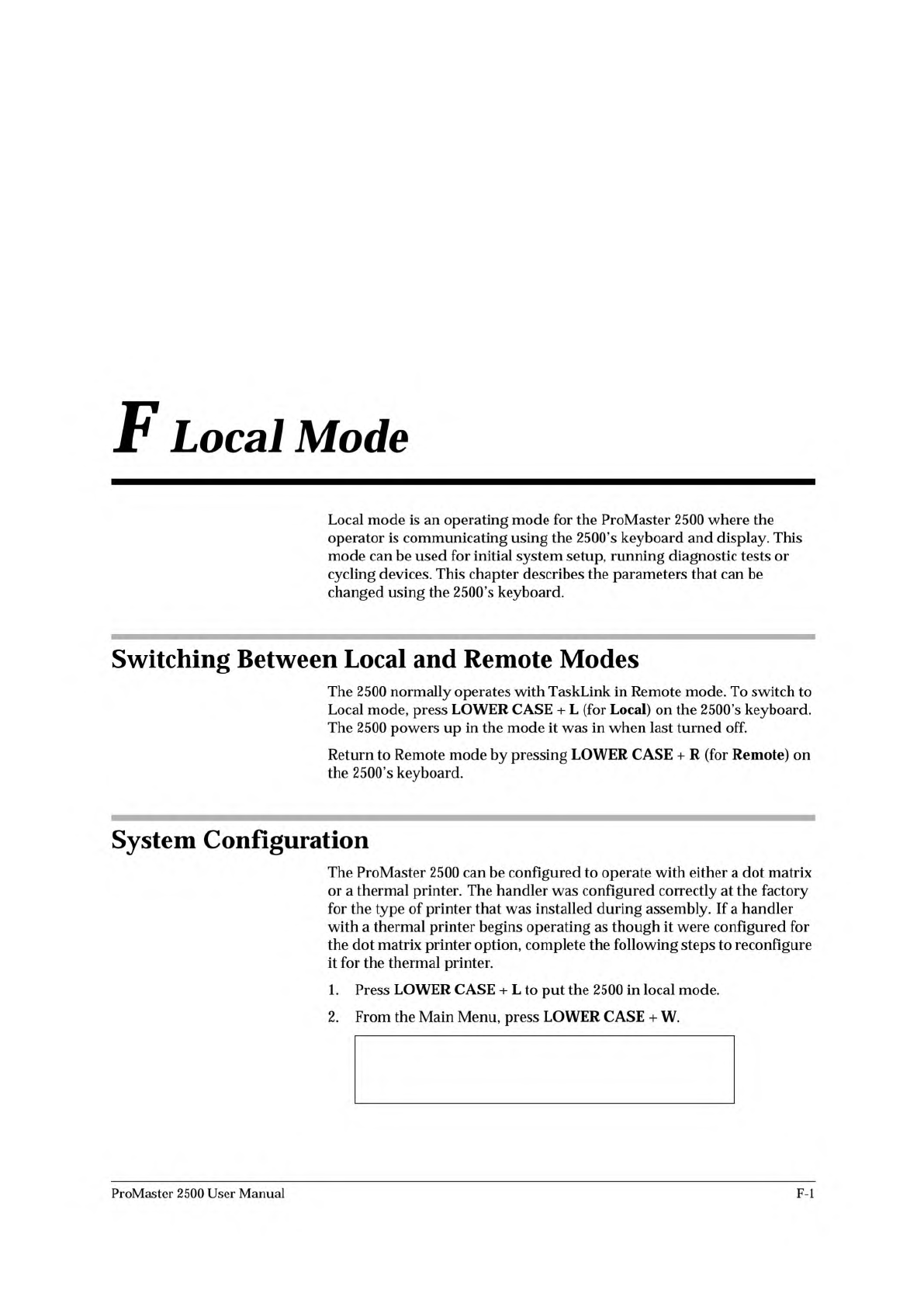
1-DOT MATRIX, 2-THERMAL
ENTER TYPE OF MARKER (2): _
F
Local
Mode
Local
mode
is
an
operating
mode
for
the
ProMaster
2500
where
the
operator
is
communicating
using
the
2500's
keyboard
and
display.
This
mode
can
be
used
for
initial
system
setup,
running
diagnostic
tests
or
cycling
devices.
This
chapter
describes
the
parameters
that
can
be
changed
using
the
2500's
keyboard.
Switching
Between
Local
and
Remote
Modes
The
2500
normally
operates
with
TaskLink
in
Remote
mode.
To
switch
to
Local
mode,
press
LOWER
CASE
+
L
(for
Local)
on
the
2500's
keyboard.
The
2500
powers
up
in
the
mode
it
was
in
when
last
turned
off.
Return
to
Remote
mode
by
pressing
LOWER
CASE
+
R
(for
Remote)
on
the
2500's
keyboard.
System
Configuration
The
ProMaster
2500
can
be
configured
to
operate
with
either
a
dot
matrix
or
a
thermal
printer.
The
handler
was
configured
correctly
at
the
factory
for
the
type
of
printer
that
was
installed
during
assembly.
If
a
handler
with
a
thermal
printer
begins
operating
as
though
it
were
configured
for
the
dot
matrix
printer
option,
complete
the
following
steps
to
reconfigure
it
for
the
thermal
printer.
1.
Press
LOWER
CASE
+
L
to
put
the
2500
in
local
mode.
2.
From
the
Main
Menu,
press
LOWER
CASE
+
W.
ProMaster
2500
User
Manual
F-l