DECAN_S1_Administrator′s_Guide(Eng_Ver1.5)_Print.pdf - 第476页
15-10 Next Generation, Multi-Functional Plac er DECAN S1 Administrator’s Guide 15.2.2. <System Du mp> tab dialog Sets the data related to the dump bo x where picked components are dumped. Figure15.6 “System Dump” t…
15-9
System Setup
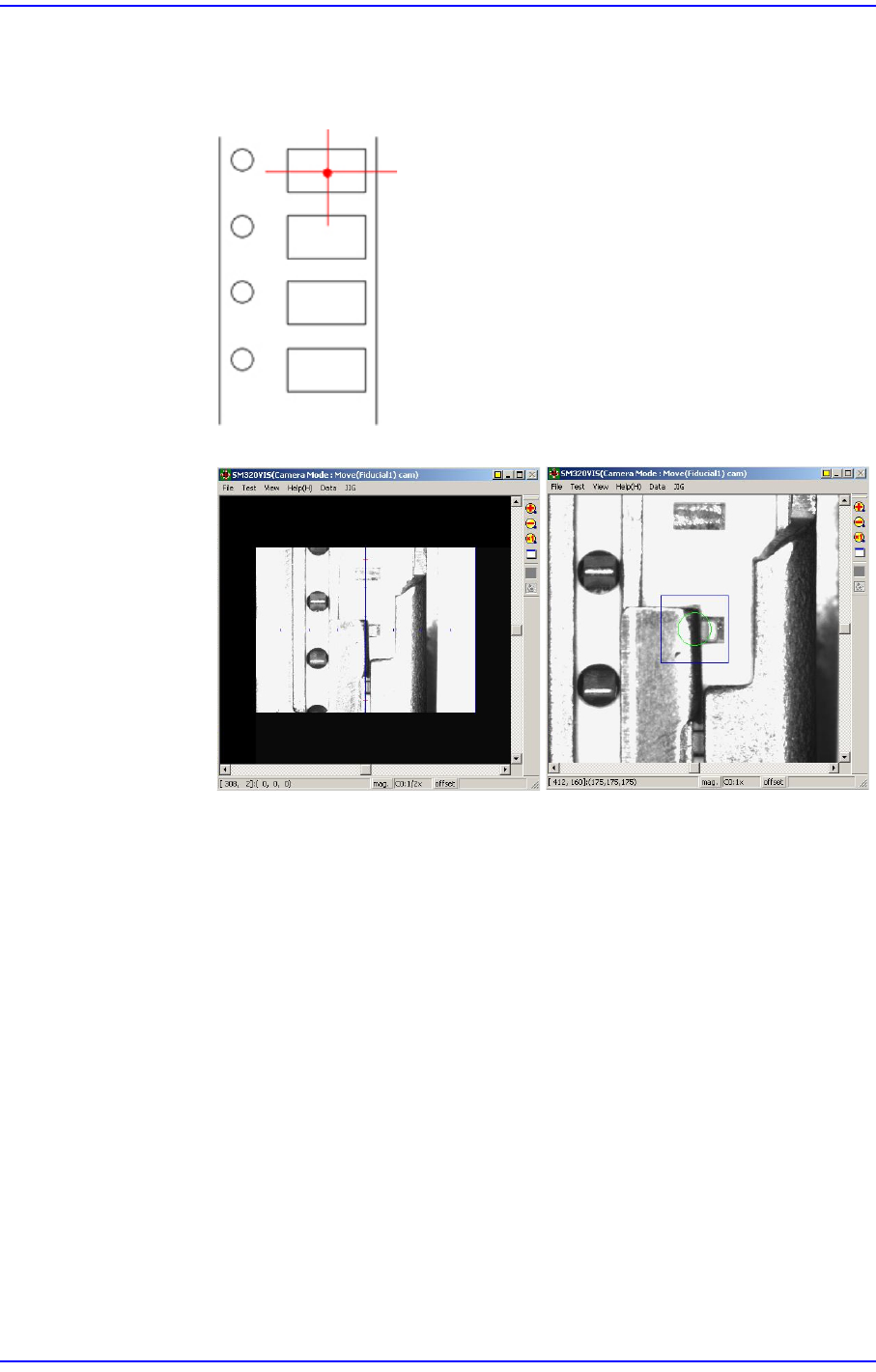
4.Perform teaching the pickup point of the tape feeder using ‘Fiducial Camera’. At
this time, teach the center point as in the figure. Teaching must be done on the
center of the pocket, not on the center of the part.
5.Fit the center of the cross lines of ‘Fiducial Camera’ indicated in the SMVision
window to the pocket center, and input the value of the present coordinates to
the selected edit box by clicking on the <Get> button.
6.In the same way, install the feeder in the 21st slot of the rear feeder base, and
perform teaching.
<Height Offset> edit box
Set the Z value of the feeder base origin.
15-10
Next Generation, Multi-Functional Placer DECAN S1 Administrator’s Guide
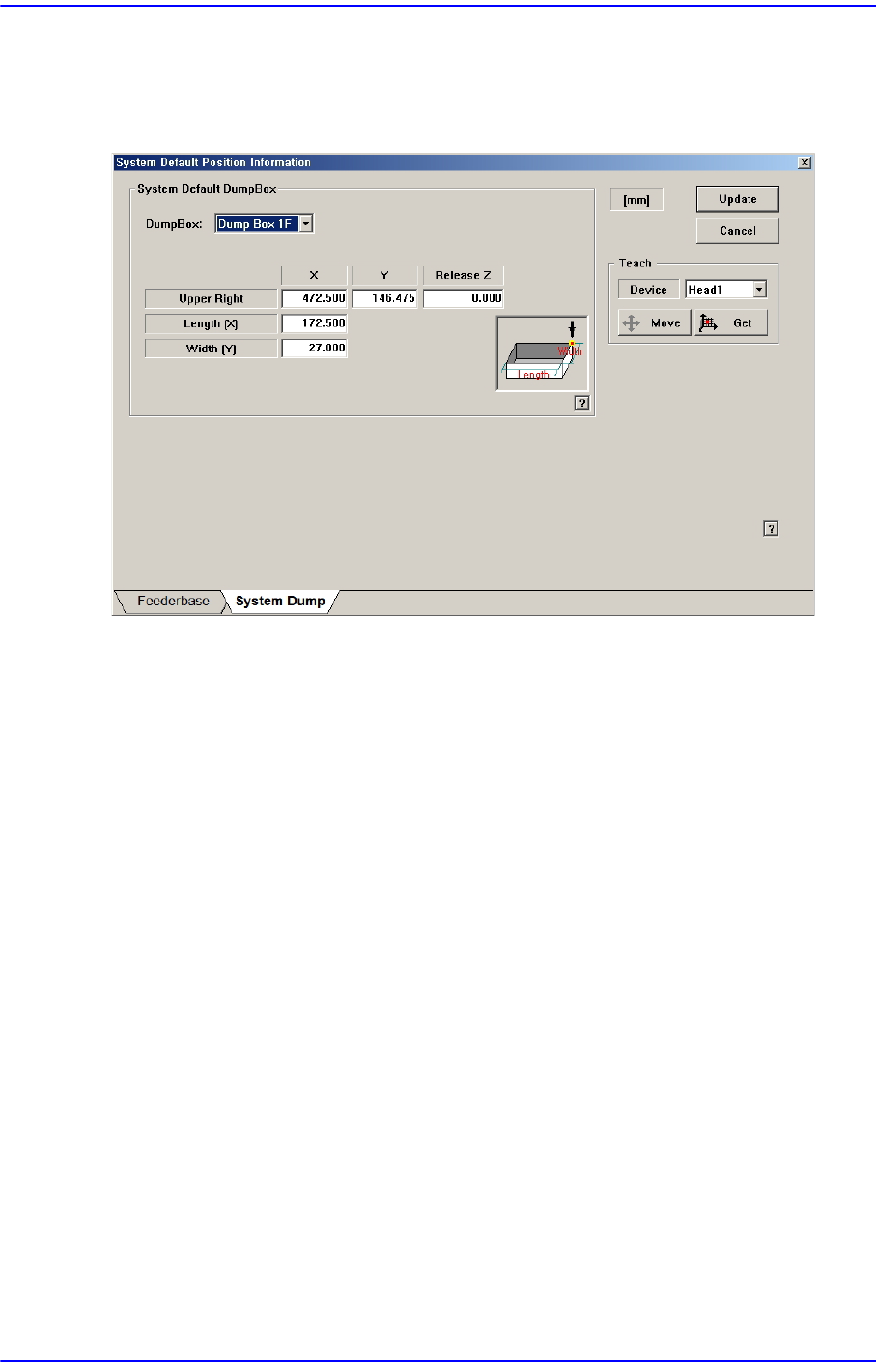
15.2.2. <System Dump> tab dialog
Sets the data related to the dump box where picked components are dumped.
Figure15.6 “System Dump” tab dialog
<System Default Dump Box> group
Inputs the position of the system dump box.
<Dump Box> combo box
Select the dump box to be set.
<Position - X, Y> edit box
Sets the X and Y positions of the head when dumping the components. Teach the
position (dump box center) at which parts are dumped.
<Release Z > edit box
Sets the Z axis of the head spindle when dumping parts.
<Length [X] > edit box
Inputs the dump box length.
<Width [Y] > edit box
Inputs the dump box height.
<Update> button
Transmits the set data to the equipment and closes the dialog box.
<Cancel> button
Ignores the set data and closes the dialog box.
15-11
System Setup
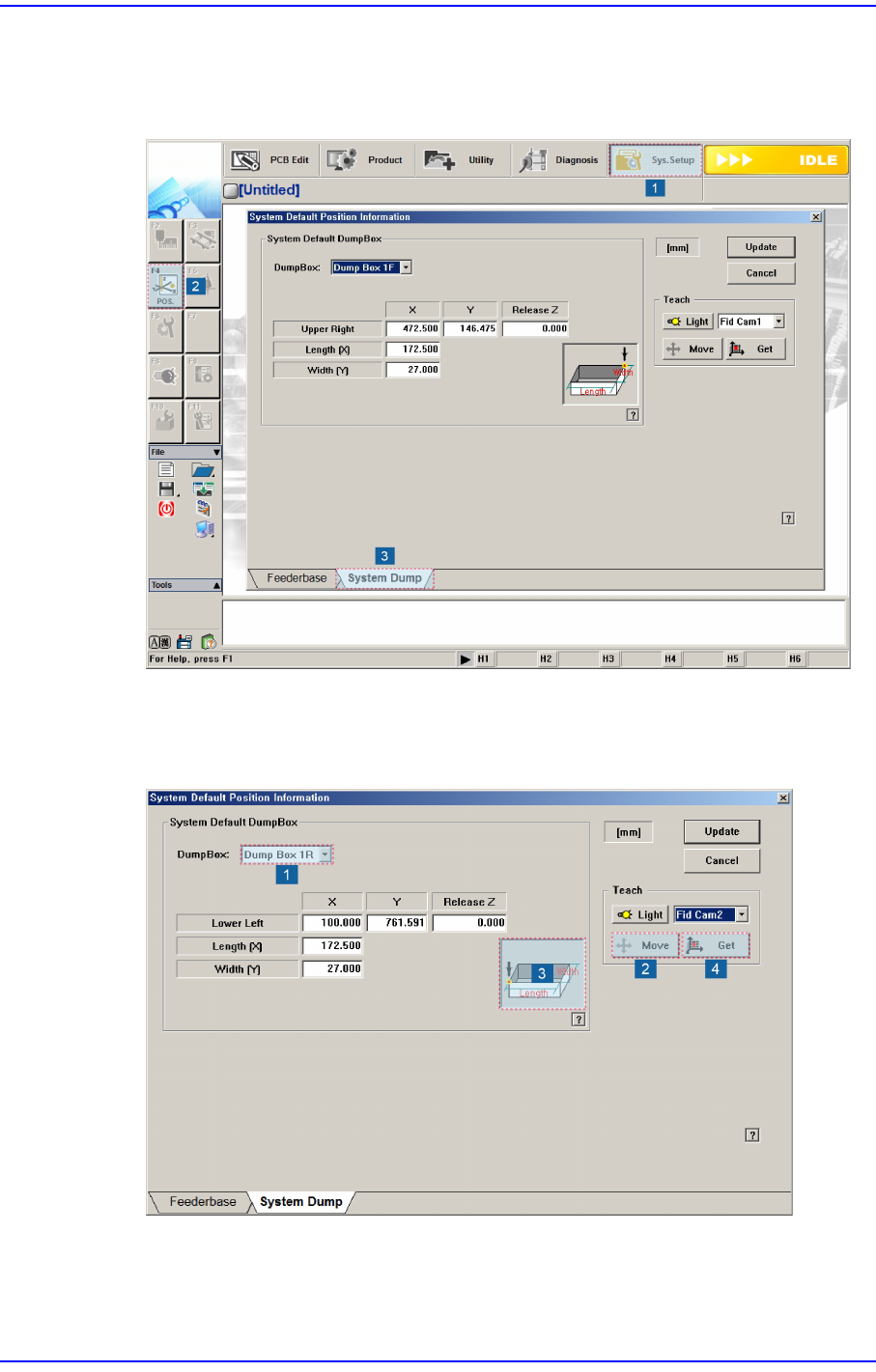
When the air shower option is applied, set the system dump box in the following manner:
1. Execute the System Dump tab dialog box according to the order as shown in the
following figure.
2. Install the dump box at a dump box position of the front conveyor.
3. Move the Fid Cam1 to the No.3 position in the following figure using the jog box and
click the <Get> button to teach the coordinate.