DECAN_S1_Administrator′s_Guide(Eng_Ver1.5)_Print.pdf - 第524页
15-58 Next Generation, Multi-Functional Plac er DECAN S1 Administrator’s Guide Used to back up the MMI file manually wh en the user shuts th e machine down. The user can back up the MMI file manually onl y when the machi…
15-57
System Setup
Enable
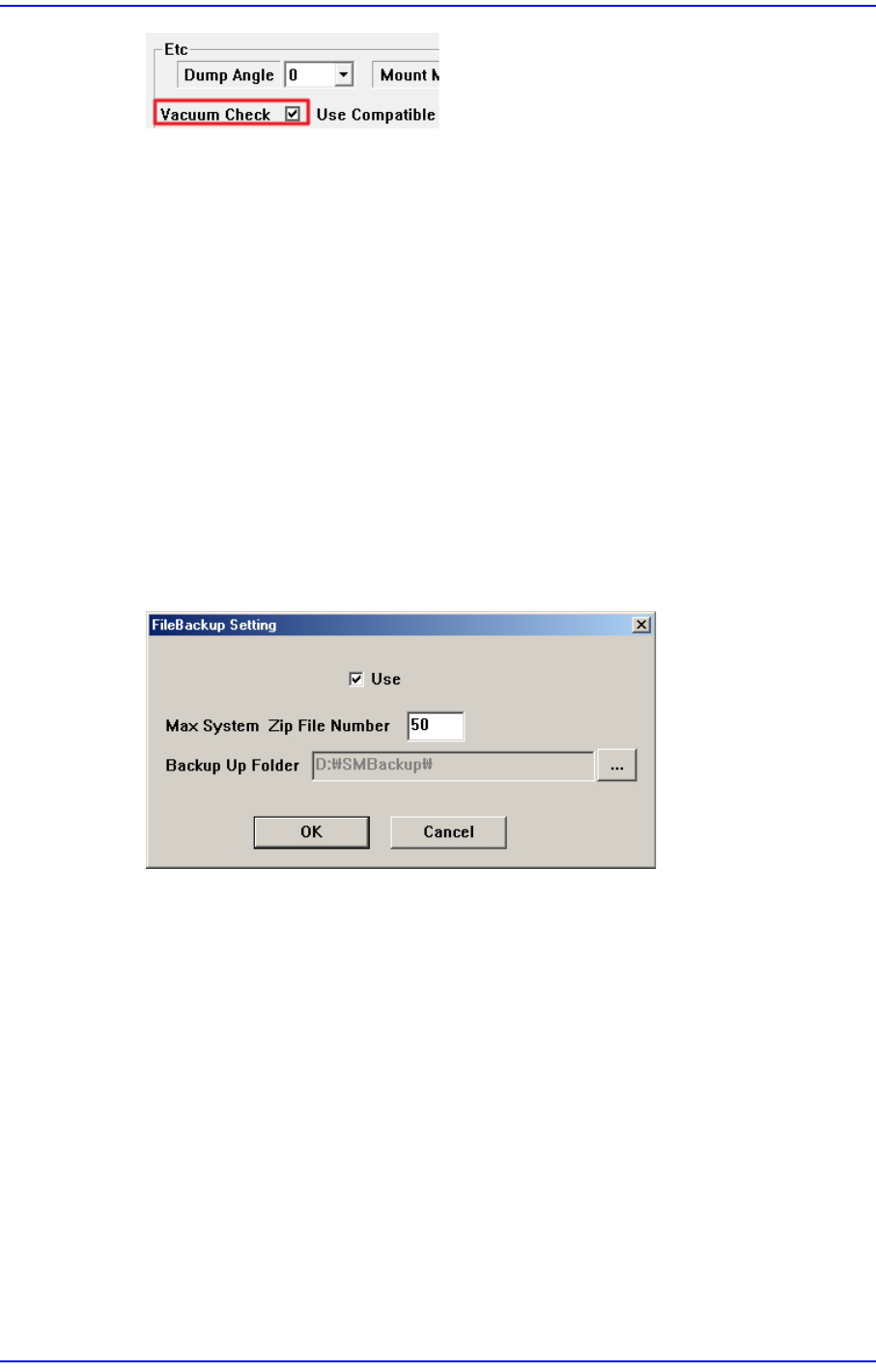
Select this when the “Vacuum Check” function is used. When a Vacuum Check is
performed, if the set value is out of range, an error message will pop up and the
machine will stop.
Disable
Select this when the “Vacuum Check” function is not used.
Ignore
Select this when you use the “Vacuum Check” function, but ignore the error
message that occurs during Vacuum Check and do not stop the machine.
<Use File Backup> button
Backs up the modified system file and restores the MMI file if a problem occurs
during machine operation.
Figure15.18“FileBackup Setting” dialog box
<Use> check box
Checking this check box will allow the file backup function to be used.
<Max System Zip File Number> edit box
Sets the maximum number of backup files.
<Backup Up Folder> edit box
'Sets the path for MMI file backup.
<Use Calibration Guide> check box
After turning on the power to the machine, it is necessary to calibrate the system after
a certain period of time has elapsed before the optimum result can be obtained. When
this check box is selected, a warning message pops up when the “Calibration” menu is
clicked without allowing a certain period of time to elapse.
<Use Auto Error Report> button
15-58
Next Generation, Multi-Functional Placer DECAN S1 Administrator’s Guide
Used to back up the MMI file manually when the user shuts the machine down. The
user can back up the MMI file manually only when the machine is in the idling state.
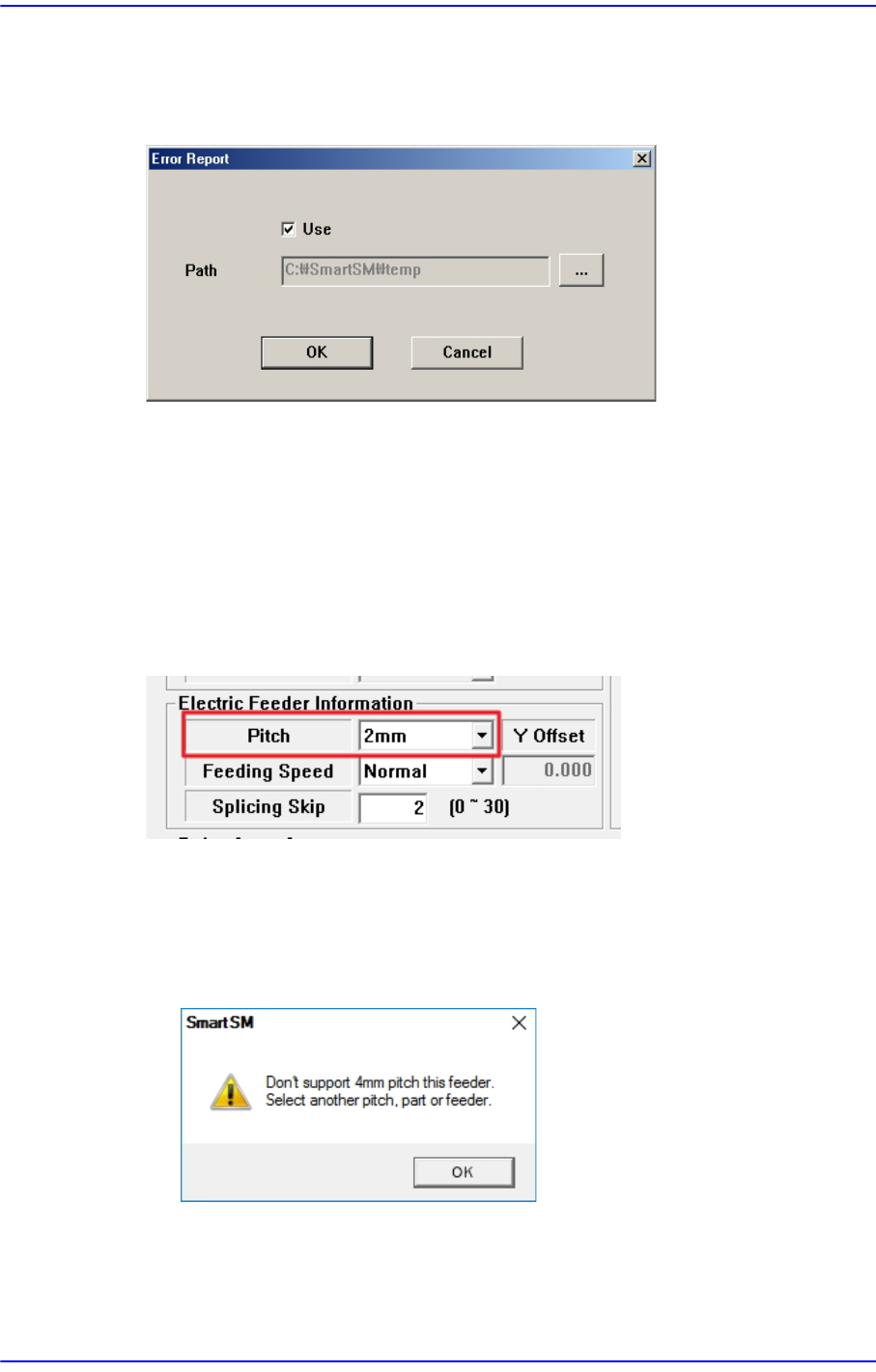
Figure15.19“Error Report” dialog box
<Use> check box
Checking this check box will allow the file backup function to be used.
<Path> edit box
Sets the path for MMI file backup.
<Ignore Restriction Pitch> check box
Ticking this check box will override any constraints on the Feeder Pitch settings of a
part.
When setting the Feeder Pitch of a part, the following restrictions are set by default.
Parts of 1005 or less (the Y size of a part is less than 0.65mm)
Feeder Pitch: Only 2mm or less can be selected
When an unavailable Pitch is selected, the following warning window appears.
Parts of 1608 or more (the Y size of a part is more than 0.65mm)
Feeder Pitch: Only 4mm or less can be selected
When an unavailable Pitch is selected, the following warning window appears.
15-59
System Setup
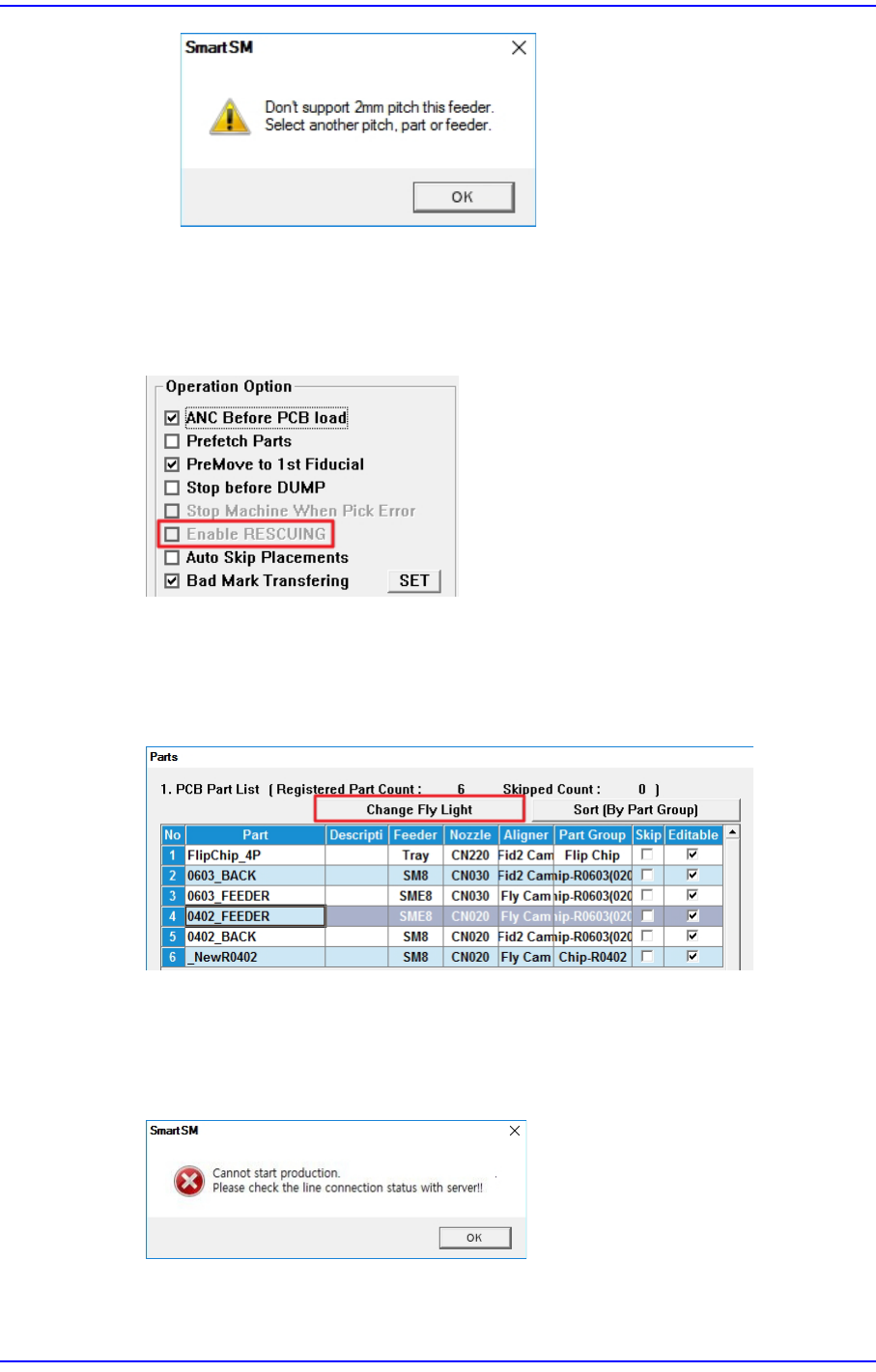
<Use RESCUING> check box
When this check box is ticked, the <Enable RESCUING> check box is activated in the
<Operation Option> area of the “Product” menu. For details on this function, refer to
“13.1.2. Option Setting”.
<Light Sync for Part(Only Fly Cam)> check box
This is used when it is necessary to collectively change the lighting value of parts that
use the fly camera. When this check box is ticked, the <Change Fly Light> button is
activated in the “Parts” window.
<PNP Connection Check> check box
Checks whether the machine and PNP are connected before starting production.
Starting production with the machine not connected to the PNP will display an error
message.
<Use Pickup Offset Sync> check box