User-Manual-of-NeoDen4-PNP-machine.pdf - 第12页
7 the pla cement o f the magne tic fix ture b locks (supplied) on th e table . This is a simple and re liable system, but the ac curacy o f a pro gram dep ends up on the magnetic fixture s being installed to ensu re that…
6
4.
Edit on the Operation Interface
4.1
Edit on the Interface
The entire operation of the NeoDen4 is controlled by a single application that runs automatically after
the operating system boots. Despite the enormous flexibility of the machine, only 7 basic screens are
needed to set up feeders, calibrate the vision system and program pick-and-place operations. This
section contains a brief description of the various commands and parameters in the screens. Section
contains a recommended workflow to set up, program and operate the machine.
This screen is the heart of the programming interface. It has two tabs: “PCB Information”
and “Feeder Settings.” In the following sections, this manual will describe each of the
functions on the two pages. Finally, it will recommend some basic procedures for
programming the machine to manufacture finished boards.
4.2
PCB Information
Figure 4.1
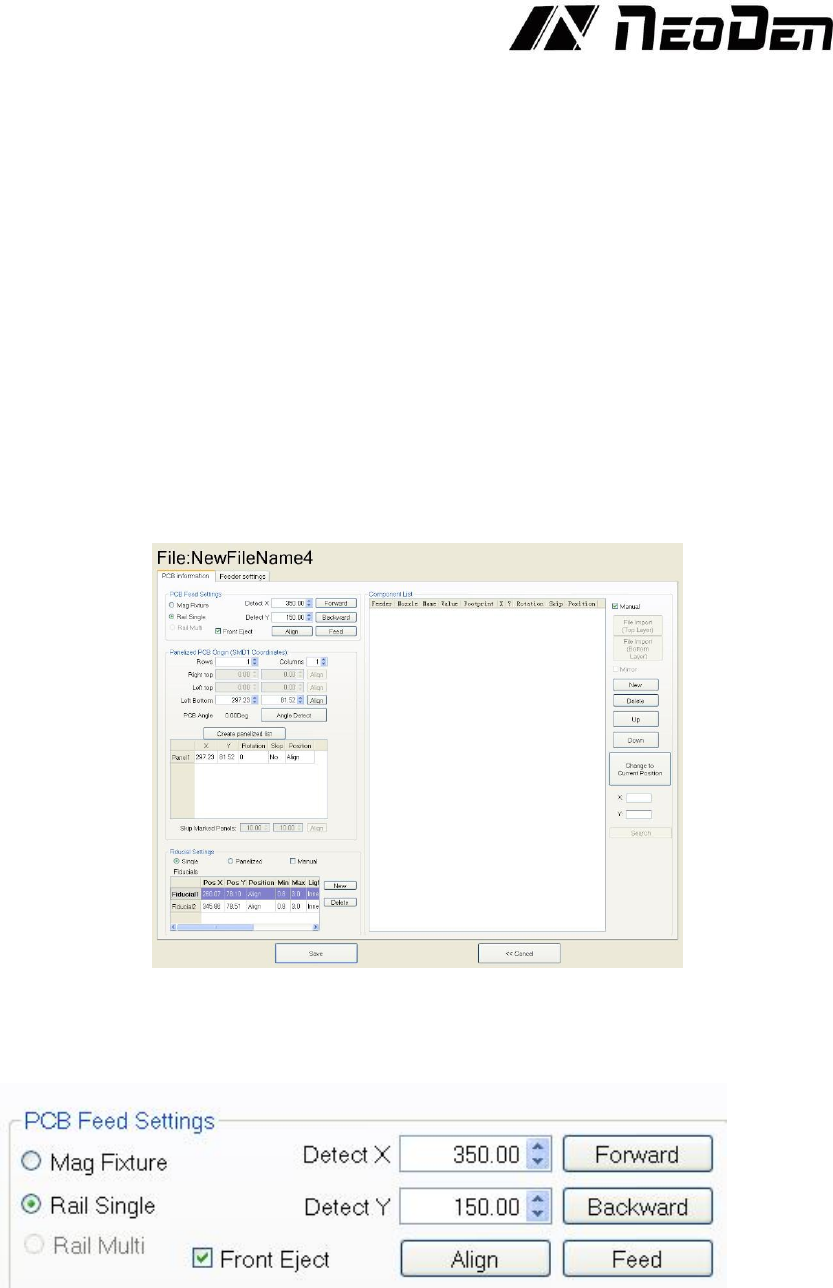
Function: Used to confirm the feeding place, first edit item in manual program, see the Figure 4.1.
4.2.1 PCB Feed Settings.
Figure 4.2
This section determines the manner in which the PCBs will be sent to the machine for pick and
place operations. On machines with the rail system installed, the “Mag fixture”, “Rail Single”, and
“Rail Multi” are available. On machines without the rail system, always select “Mag Fixture”. See
the Figure 4.2.
Mag Fixture: This option assumes that the user will place the board in a location determined by
7
the placement of the magnetic fixture blocks (supplied) on the table. This is a simple and reliable
system, but the accuracy of a program depends upon the magnetic fixtures being installed to ensure
that the placement of the board is essentially the exact placement that existed at the time the
program was created.
(TIP: Users relying on the magnetic fixtures for several different boards should place fixtures on the
table to ensure that the lower left corner remains in the same place for all boards. This will ensure
that the origin of each board remains constant with respect to the machine coordinates. The
remaining fixtures can then be varied to ensure stable placement of different-size boards.)
Rail Single: This option is the most frequently used on machines equipped with the rail system.
Checking this box will cause the machine to feed a single board (or panelized board) to the
appropriate location and then commence fiducial recognition and component placement.
Rail Multi: This option is used when boards (or panels) longer than the machine table are to be
populated. In this mode, the machine will place components between the first set of fiducials, then
advance the board automatically to place components between the next set of fiducials, and so on.
Eject front: When this box is ticked, the rail system will eject the PCB from the machine toward
the front when the program has completed running.
“Forward” and “Backward”: These buttons manually move the PCB within the rail system.
When setting up a new program, use these buttons to move the PCB to a suitable position for
placement operations. Follow the instructions to complete the program without moving the board
until the program is completed, verified and saved.
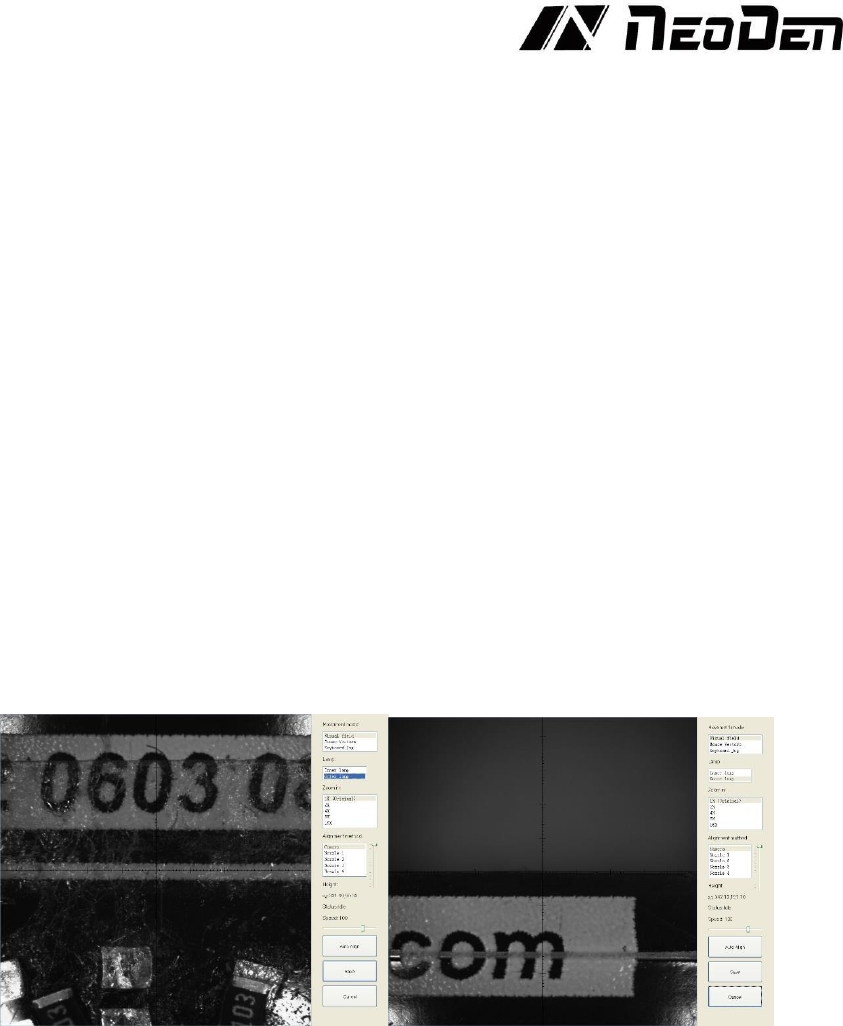
“Align”: This button activates the camera. Once a board has been placed in the desired location
using the “Forward” and “Backward” buttons, press “Align”. Move the head so that the crosshairs
are centered on the leading edge of the board. The X and Y coordinates of the aligned location will
be displayed in the “Detect X” and “Detect Y” fields. Though the user can enter values manually to
change the feed location, this should rarely be necessary. See the Figure 4.3.
Figure 4.3
(TIP: When running a program, the board will advance slightly farther than the edge identified with
the “Align” command. This is normal, and the machine will proceed to recognize fiducials to
properly place components.)
“Feed”: Unlike the “Forward” button, “Feed” will automatically advance the board to the position
identified with the “Align” command. It is not necessary to use this feature in normal operations.
However, if a PCB is moved before programming is completed, verified and saved, this feature can
be useful in restoring the board to its proper position.
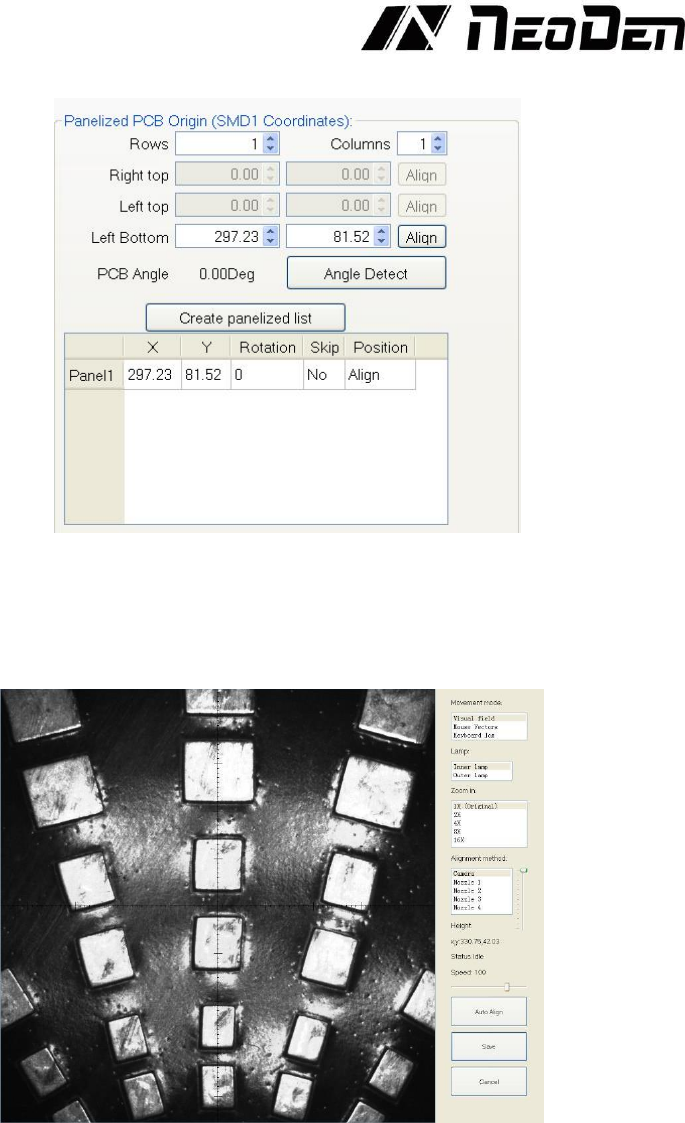
4.2.2 Setting Panelized PCB & first chip
(manual is the same as automatic download), see the Figure 4.4.
8
Figure 4.4
Panelized PCB Origin (SMD1 Coordinate):
Single PCB:
Only need to enter “1” in the row and column, some other useless function will
turn grey. The “left bottom” is functional, which means the first PCB. Then you can press “align”
to go to the screen of vision and get the coordinate of first component. See the Figure 4.5.
Figure 4.5
After saving the coordinate, the screen will automatically turn back to “PCB information”. Click
“Create panelized list” to get the information of “Panel 1”. Now we’ve finished setting of first
component of PCB.
Panelized PCB: the sequence is same to single PCB, but please pay some attention to several
points below.
The row and column are determined by the positioning of PCB on working area. The direction
along the rails is the column. Enter data in the row and column.
About the data collection of “left bottom”, “left top” and “right top”, we should take the “left
bottom” as the basic, and then go to set “left top” and “right top”. Once all the data is collected, the
machine can calculate and process the information of panelized PCB. Please refer to the data
collecting method of each position information as following: