User-Manual-of-NeoDen4-PNP-machine.pdf - 第16页
11 File Import: Figure 4.8 First genera te the coordina tes from PC B diagram and p ut the PCB file on the USB Flash Disk, then insert it to the ma chine (The re are many kin ds of PCB designe r software , the only re qu…
10
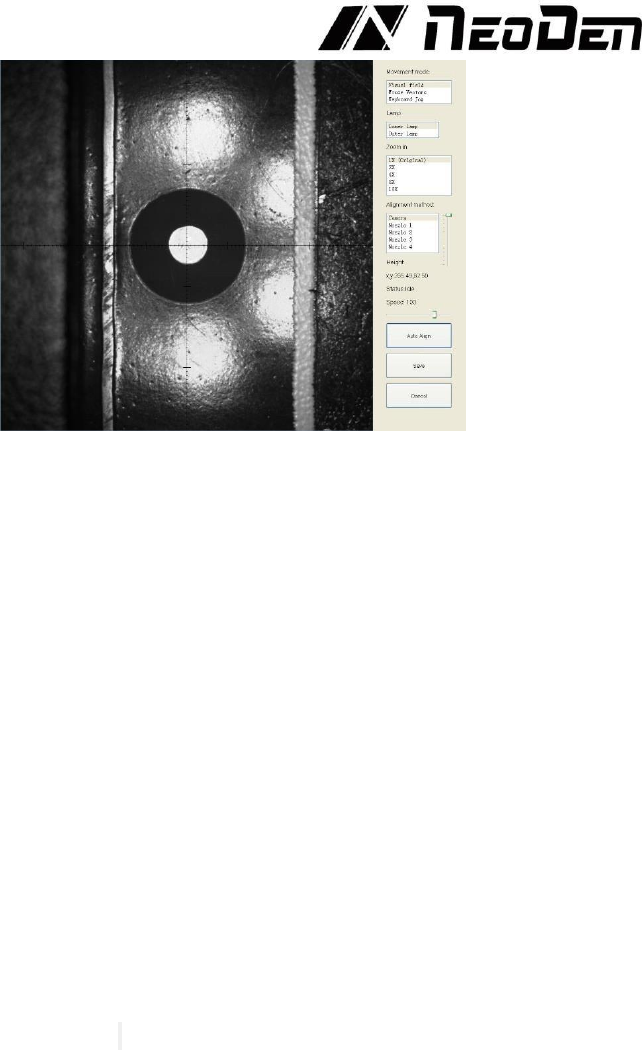
Figure 4.7
Import coordinate: according to the PCB schematic, we get the coordinate of fiducial and write down
manually.
Fiducial information;
Min-Max: Based on different size of fiducial to find the correct position in case of any confusion.
Light source: inner ring and outer ring. Use inner ring if the board holes work as fiducials, use outer
ring if light-spots work as fiducials.
Brightness: Default value
Manual programming: when it’s in Manual Programming status, the function “Alignment” of fiducial
will be effective. Click on it, the camera will go and collect the coordinate of fiducial, save it and go
back. (Note: if the fiducial is far away, please use Overall movement to find it)
No fiducial exists: Generally, we will choose a component that is far away from the first component
as a fiducial, which will make placement effect better.
Add fiducial: the function of adding fiducial
Delete fiducial: the function of deleting fiducial can be used when there is needless fiducial or error
point.
4.2.4 Component list settings
Function: The component list is the heart of the pick and place program. It contains the location and
rotation of every component, along with other identifying information about the components. There
are two ways to add this information: manual programming and import mounting file.
Operation:
(Import PCB coordinate File)
First generate the coordinates from PCB diagram and put the PCB file on the USB Flash Disk,
then insert it to the machine (There are many kinds of PCB designer software, the only request is
can generate the coordinates from them, file format(.csv)-support use Excel to edit
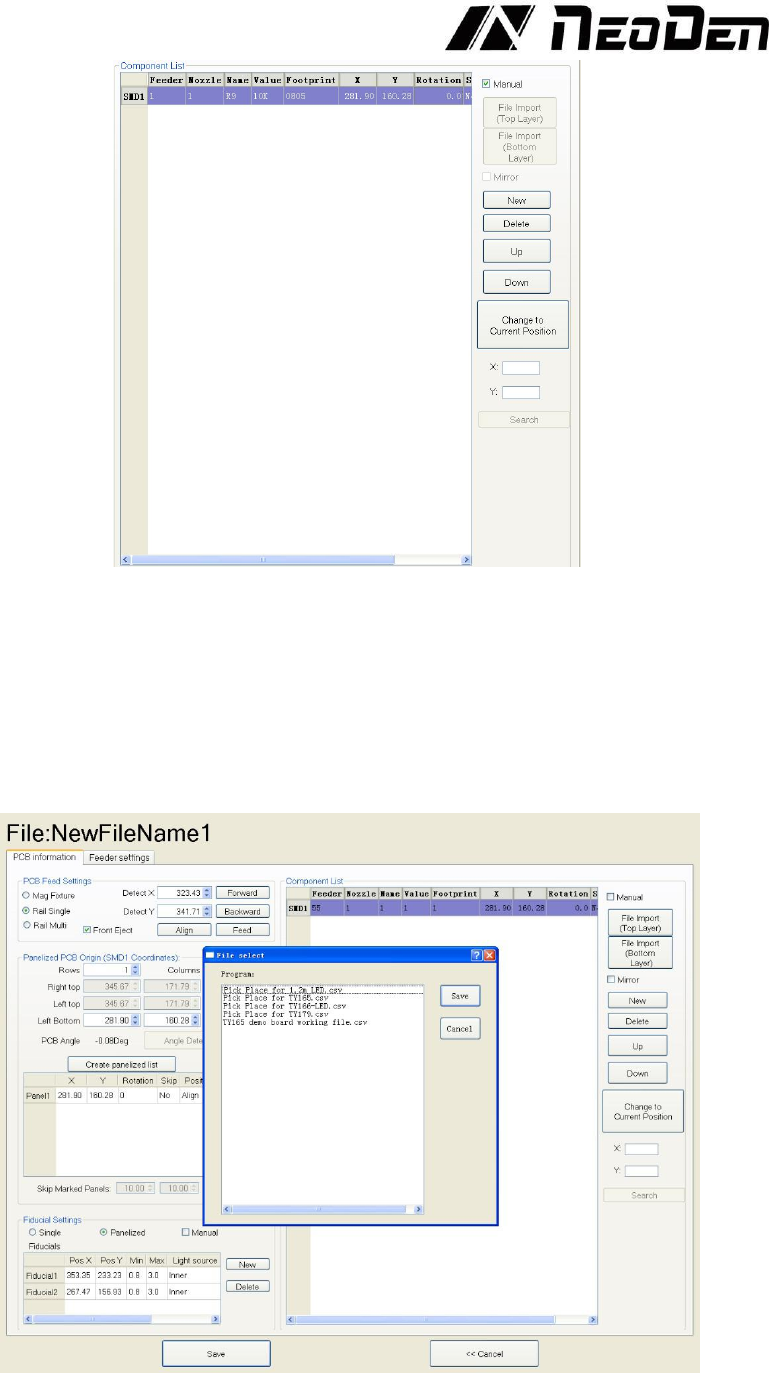
Remove tick mark before the item “Manual Program” and then click “File Import” button, will
pop up one small dialog, select the required PCB file and then click “Save” item, all data will be
automatic imported to Chip List. (Turn to the “Feeder configuration” interface to do next operation).
Re-edit of Coordinates on finished programming working file
In edit mode, click “feed “button and let PCB forward until stop, then click “change to current
position”, the machine will align the fiducial automatically and transfer all original coordinates to
new ones according to current PCB location, finally support do re-edit work.
If want to check component coordinates info, insert X/Y value, click search then will pop out all
corresponding coordinates you want
(1) If you want to find all coordinates which X value is 342.17, then insert 342.17 and click search.
(2) If want to skip one component, choose “Yes”; if want to skip components in column or raw
on PCB, choose anyone component and select “row skip “or “column Skip”-normally use in
long led strip programming work. See the Figure 4.8.
11
File Import:
Figure 4.8
First generate the coordinates from PCB diagram and put the PCB file on the USB Flash Disk, then
insert it to the machine (There are many kinds of PCB designer software, the only request is can
generate the coordinates from them, file format(.csv)-support use Excel to edit
Remove tick mark before the item “Manual program” and then click “File Import”, will pop up one
small dialog, select the required PCB file and then click “Save” item, all data will be automatic
imported to Chip List. (Turn to the “Feeder configuration”interface to do next operation). See the
Figure 4.9.
Manual programming:
Figure 4.9
Manual programming: firstly, check the box of manual programming. There is a sample line of the
12
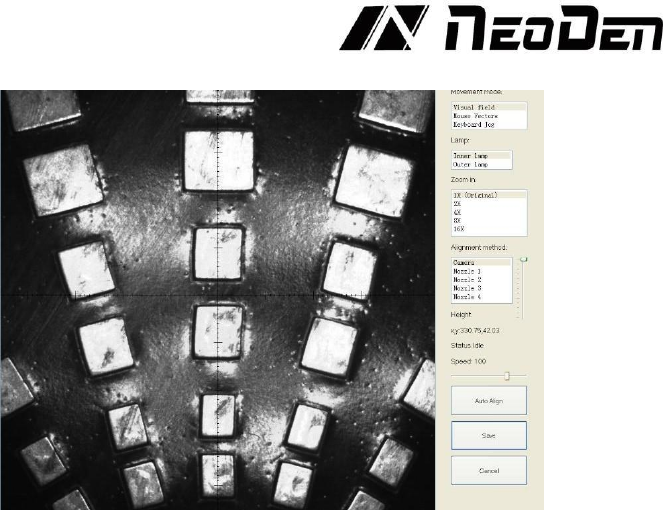
first component, please modify this line firstly. See the Figure 4.10
Figure 4.10
Find and confirm one component’s coordinate by using the function of “Movement Mode”-Click
to move (Visual field/Overall Workbench).Once clicked the “Save” item, the interface will
automatic back to main page, then input the corresponding values(Designator refer to the location,
Specification refer to the value of resistance, Footprint refer to the normal package
info,I.e.0603,0805,1206,Etc.Angle value should be set according to the required direction on the
PCB and polarity ,horizontal direction(0 or 180 degree),vertical direction(90 or -90 degree).the
value should be integer. The first component has been completely created after set all above values.
The next step is click “New” item and will pop up one line (completely copy the previous line), then
click “Align” to find and confirm second component (same operation as before)
Change to current position: This is a powerful feature that will change the coordinates of
the entire component list if the board is placed in a different position on the table than the position
that was used to compute the original origin. To use this feature, locate the first fiducial with the
camera. Press “Cancel”, and press “Change to current position”.
The machine will locate both fiducials and compute the offset from the original program. It will
then change the values in the component list to conform to the new board location. After this
process is complete, it is necessary to ensure that the new coordinates for the first component are
entered in the “Left Bottom” location, and that the “Create Panelized List” button is pressed so that
the XY coordinates of the first component appear in all three locations on the screen.
4.3
Feeder settings screen
(1)
Feeders Arrangement: Left Feeders (Feeder20-48), Right Feeders (Feeder1-19), Special
Feeders (Feeder49-98). Above feeders’ setting is under the ideal situation. According to the
Required Tape’s width from customers, the quantities maybe be cut down. For example, if there
are a lot of components’ information under the “Chip List” item, choose the feeder number and
you will find the drop-down symbol, will display all components’ specifications by click it. Select
one specification and one less in drop-down list, can do same operation in every feeder.
(2)
Feeder Configuration: Select one feeder, tick the item “Apply”, all configurations will be
unlocked for this feeder, then can-do amendment. Total have five items: Nozzle information, Feed-
box information, Feeder basic information, Tray feeder information, Feeder exchange. One item
will be always locked for Feed-box information and Tray feeder information according to the
differences of components. Operation sequence: Feed-box information (Tray feeder
information)—Feeder basic information—Nozzle information—Feeder exchange (used if placed
wrong tape). See the Figure 4.11.