User-Manual-of-NeoDen4-PNP-machine.pdf - 第19页
14 the visio n system is active. Feeder inform ation Figure 4. 13 Function: Adjust the value for feed er an d peeler, se e the Figure 4. 13 Peel Stren gth: Supp ort do a djustmen t acc ording to different c omponen ts’ r…
13
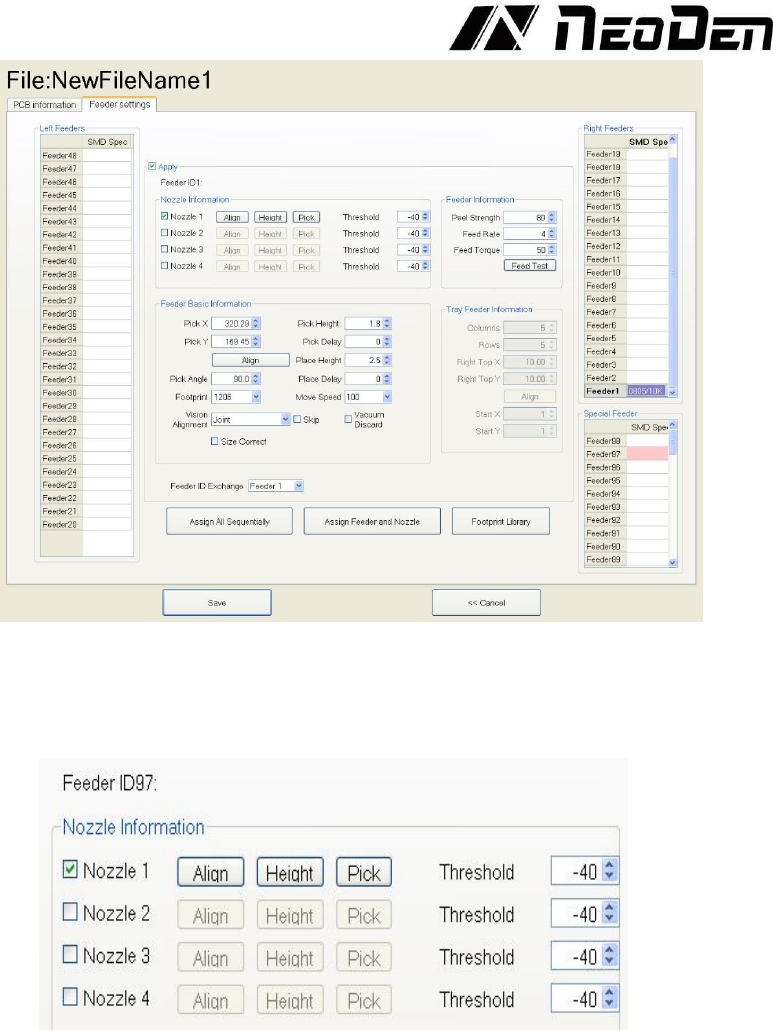
4.3.1 Nozzle information
Figure 4.11
Figure 4.12
(1) Function: Select corresponding nozzles (one or more than one all acceptable) according to the
components and the nozzle have set on the machine, then the machine will automatic assign to
each feeder in order to meet the requirements of single head work or multi heads working together.
Also, have detect functions on this item. See the Figure 4.12.
(2) Align: The nozzle will align to the component’s upside on corresponding feeders when click
this item
(3) Height: After clicking this item, the nozzle will go down and check whether the pick height is
ok. Support do adjustment of pick height on feeder information item if needed.
(4) Pick: After clicking this item, the corresponding nozzle will pick one component and check
whether pick position is ok. Support do adjustment of pick position on feeder information item if
needed. After this feature is activated, the part should be removed from the nozzle with a finger or
tweezers.
(5) Threshold For each feeder, check the nozzle(s) that are sized appropriately for the component
installed in the feeder. We recommend leaving the threshold settings at their default values,
because the vacuum detection feature to which these settings relate is rarely needed or used when
14
the vision system is active.
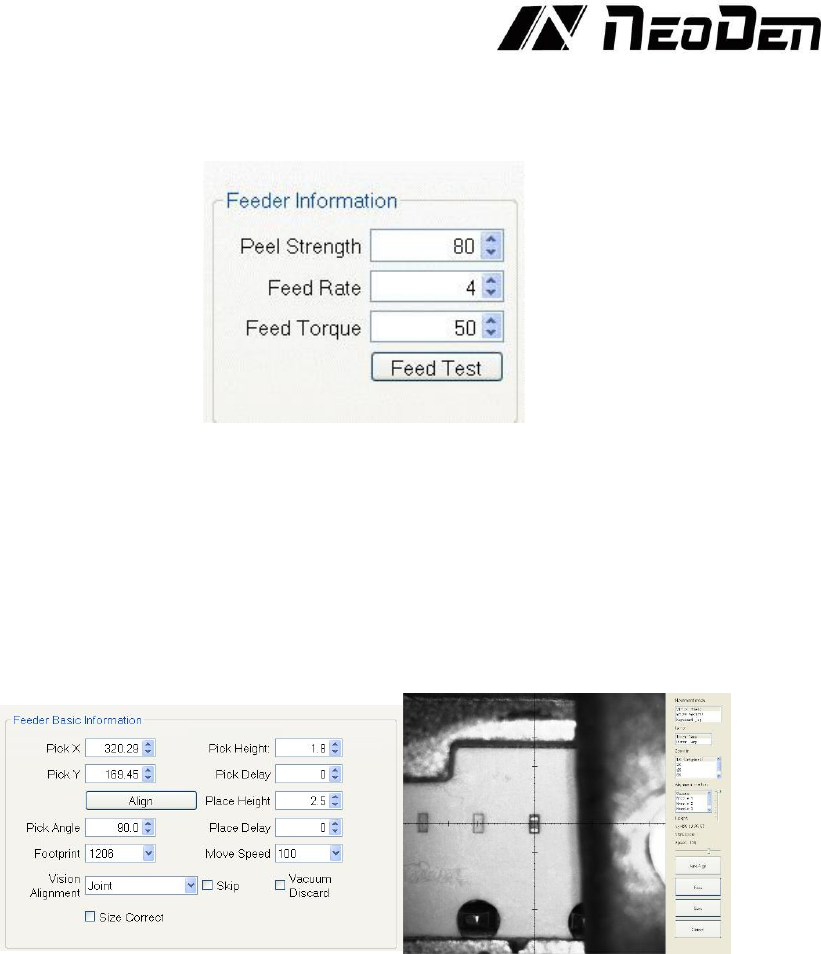
Feeder information
Figure 4.13
Function: Adjust the value for feeder and peeler, see the Figure 4.13
Peel Strength: Support do adjustment according to different components’ required strength, default
value 100
Feed rate: Adjust the feed & peel distance by changing the value
Feed torque: Adjust the feed strength by changing the value, default value 60
Feed test: After finishing above steps, can click this item to test the feed status
4.3.2Feeder Basic information
Figure 4.14
(1) Pick X/Y: First have to lock the position of component on the feeder, once saved the
modification, the XY date will automatically change to the ones after alignment. See the Figure 4.14.
NOTE: For feeders installed in the far back of the machine (often feeders 18 and 19 on the left side)
the camera, which is mounted on the front of the head, will not be able to be moved far enough to
view the necessary location. For these feeders, after clicking “Align”, select the desired nozzle as
the “Alignment method” on the right side of the screen. Then use the mouse to move the nozzle to
the desired pick location, and slowly pull the vertical slider down to lower the nozzle. Continue to
fine-tune the location of the nozzle until it is centered in the hole in the tape. Click save.
(2) Pick Angle: The initial default angle of the right-side feeders is 90 degrees, the initial default
angle of the left side feeders is -90 degrees, normally does not need to be changed because the
machine automatically sets this value based on the feeder’s location on the left or right rail. For
trays and sort tapes, however, this value may need to be changed to 0 or 180.
(3) Footprint: Select corresponding footprint, when use the function “Vision Alignment”, will refer
to the values in date base. If the correct size is not in the menu, it is possible to create new footprints
by entering the footprint library.
(4) Vision Alignment: The Vision Alignment setting is normally set at “Individual.” This setting
directs the NeoDen4 to transport each “picked” component to the upward-looking camera to ensure

15
that a component is attached to the nozzle and analyze its position to compensate for X-Y and
rotational errors before traveling to place the component on the board. For large ICs, choose “large
component” in this field.
(5) The Pick Height setting is critical to reliable operation. The nozzles offer 12 mm of total
downward travel from their resting position in the head. The value entered in this field represents
the distance in millimeters from the maximum extension. Therefore, smaller values indicate greater
downward travel. The best way to choose this value is to press “Align,” ensure the camera is
properly centered over a component, and then select an appropriate nozzle as the alignment method.
Drag the vertical slider down until the nozzle gently touches the component, and note the value
shown – this is the value to be entered in the “pick height” field. Should you notice repeated failures
to pick a part, the pick height may need to be reduced.
(6) The Place Height setting determines the extension of the nozzle when the component is released
into the solder paste. Proper setting of this parameter is important to protect components and
nozzles, and to ensure accurate placement. We recommend the following procedure:
Mount a PCB in the rails or magnetic fixtures;
In the “Nozzle information” area, check the nozzle (or nozzles) appropriate for the component in the
feeder.
Press “Pick.” The Head will move to the feeder and the designated nozzle will pick up a part. Verify
visually that a part is attached to the nozzle.
Go to the PCB Information page, and click “Align” on any component. Select the nozzle holding
the picked component as the Alignment Method. The component should now be held by the nozzle,
suspended above the PCB.
Slide the vertical slider down slowly until the component barely contacts the PCB – usually, you
will hear a small click when the component touches down.
Note the value shown by the slider display and enter it in the Place Height field.
The Pick Delay and Place Delay settings allow a short pause after a nozzle comes into contact with
a part, and before it leaves contact. This small pause allows for stable vacuum and cessation of any
vibration from the rapid movement of the head that might cause imprecise placement. We
recommend entering a value from 100-300 in these two fields for every feeder.
The Move Speed setting has a default value of 100. This is a very fast setting, and users are advised
to start with a slower setting, e.g. 70 for each feeder to verify proper operation of a program. Once
satisfied with the program and its accuracy, faster settings may be attempted. For very large
components, start with a much slower setting, e.g. 30.
Vacuum Discard: Once set one vacuum value which help judge if qualified or not before placement.
Once the actual vacuum won’t reach this range, the machine will drop away this components and re-
pick one. We therefore do not recommend its use except in special circumstances.
Skip: Once select this item, will skip all placement for this feeder.