User-Manual-of-NeoDen4-PNP-machine.pdf - 第32页
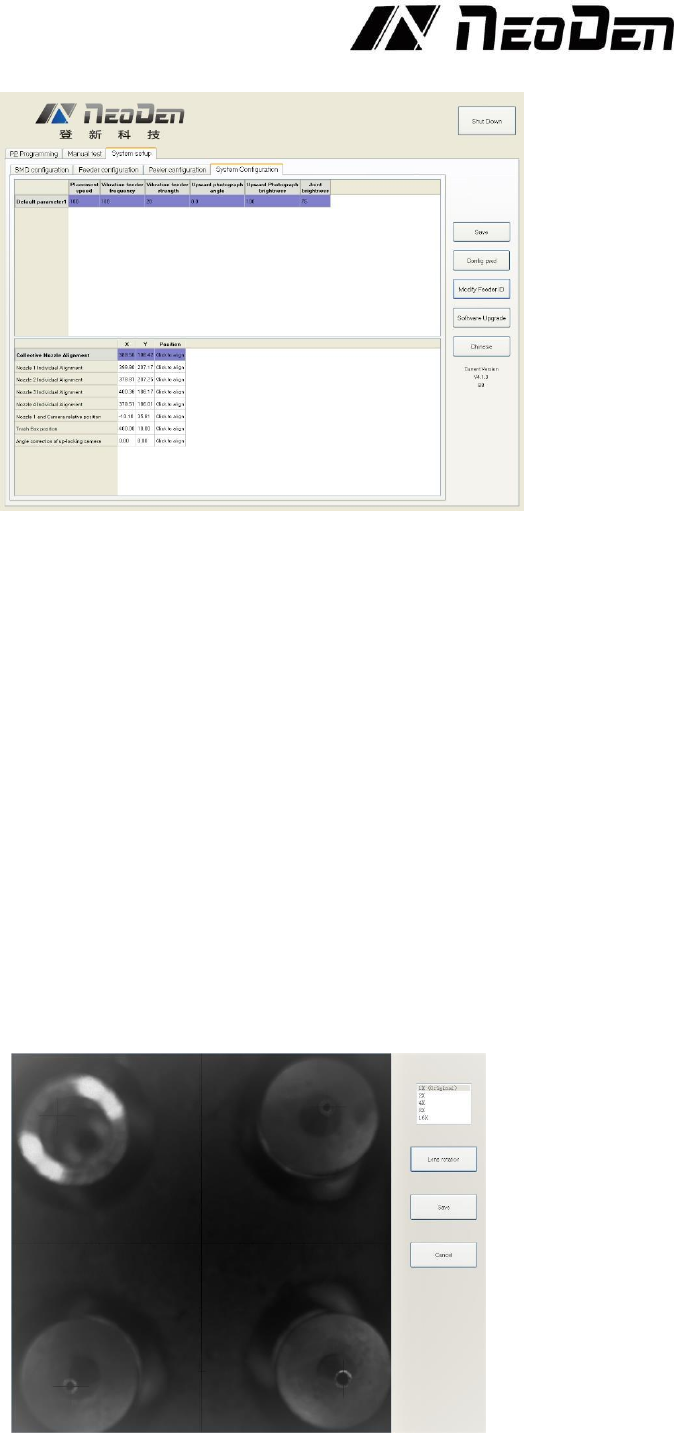
27 4.7 .6 System c onfiguration Figure 4. 27 When used in co mbination w ith th e “Config pwd” butto n, this page allows the use r to se t the machine’s default p lacement sp eed, the vibration feeder freq uency and vibr…
26
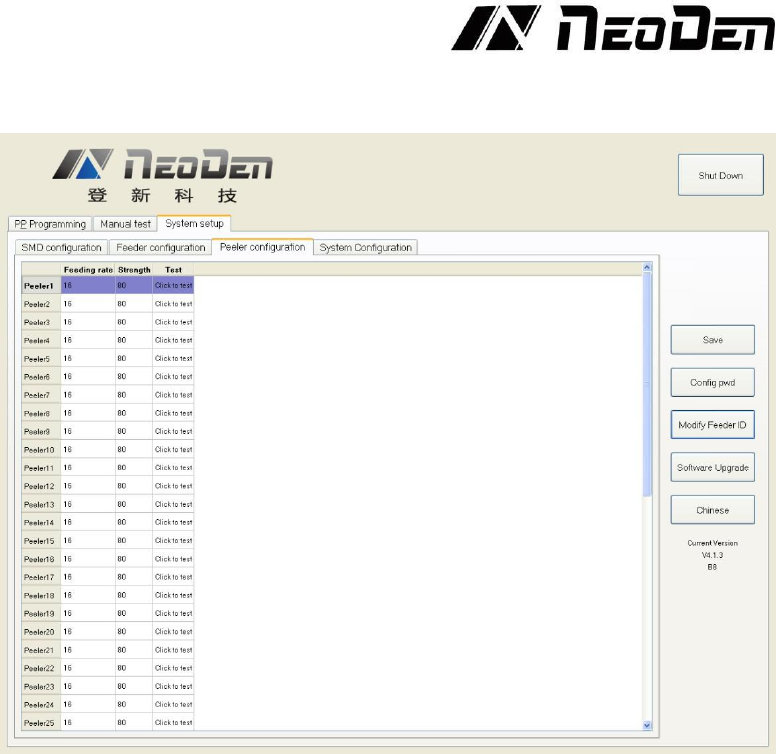
4.7.5 Peeler configuration page
Figure 4.26
Function: Peeler configuration as above figure show, used to set the values for all peel boxes, see
the Figure 4.26.
Feeding rate: Similar meaning in Feeder, mean length of rotation each time. It determines the
approximate distance that the peeler will attempt to peel the cover tape. The default value for this
setting is 16, and there is often no need to reduce it the distance. The cover tape normally can slip
inside the moving gears of the peeler, and a larger peeling distance helps keep the cover tape taut
and out of the way of the components that have advanced into the pick position inside the feeder.
Strength: Torque setting of Peeler (Plastic tape will be difficult strip away in the case of being
affected with damp, can adjust bigger values of torque here). Smaller values (e.g. 50) result in
quieter operation, and are often adequate for smooth peeling.
Test: activates the peeler (but not its associated feeder). This function, when activated, should leave
the cover tape stretched tightly between the feeder and peeler, with no loose tape slop over the
components to be fed. If the cover tape does not advance when the peeler is activated, check the
installation. For proper operation, the tape must lie flat between the peeler gears; it must not be
wrinkled, stretched to deformity or twisted. The tape also must not be installed so that any part lies
outside the width of the gears. Tapes with long leaders make peeler installation much easier.
27
4.7.6 System configuration
Figure 4.27
When used in combination with the “Config pwd” button, this page allows the user to set the
machine’s default placement speed, the vibration feeder frequency and vibration feeder strength,
and brightness of the camera lighting systems. Default values normally require no change. The
interface also contains sophisticated nozzle alignment routines. Because these are set at the factory,
there is normally no need to access them and any use of these functions should be done in
cooperation with NeoDen tech support. See the Figure 4.27.
Function: it is mainly for correction the position of suction nozzle. (Notice: In case change by
mistake, we’ve locked it. It can be changed by clicking the button of “Config pwd” and then click
“ok” button. Strongly recommend operating it under our engineer’s guidance).
Default parameters 1 setting:
(1) Placement speed: placement head movement speed under overall situation, priority is not as fast
as speed set in stacks.
(2) Vibration feeder frequency: setting the frequency of vibration feeder. Discharge state will be
more stable if frequency high.
(3) Vibration feeder strength: it depends on the component, if component too small and strength set
high it will shake out the component easily, of course if strength small, the discharging speed will
be slower.
Collective nozzle Alignment setting:
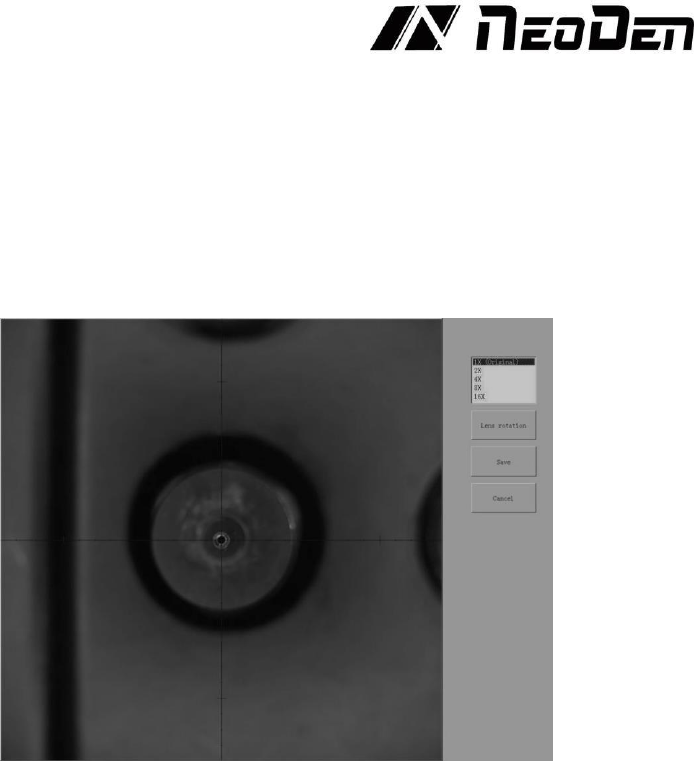
Click the “Click to align” and go into interface below, see the Figure 4.28.
Figure 4.28
28
(4) Click the central point among four nozzles under the shot can set the central point.
(5) Another way is pressing CTRL button then click the mouse to make each nozzle to identify their
own central point in the four quadrants.
(Notice: Please click the LENS ROTATION before setting the suction nozzle, then PnP machine
will collect nozzle’s 360-degree rotation photos to synthesize. After that, press CTRL button to set
each nozzle’s identification of central point.)
(6) Save it after finishing the setting.
Correct nozzle 1~nozzle 4 separately.
Click “click to align” and go into interface below, see the Figure 4.29.
Figure 4.29
(7) Operation steps:
a. Click the button of “LENS ROTATION” to let machine take photos of nozzle’s 360-degree
rotation.
b. Click the central point of nozzle
c. Click the save button.
d.Nozzle1 and camera relative position: it is for the synchronism of nozzle and camera, setting it
when placement position does not match with the camera position.
Click “click to align” then go into interface below, see the Figure 4.30.