User-Manual-of-NeoDen4-PNP-machine.pdf - 第27页
22 Figure 4.2 2 function d escription of butto n on right side, see the Figure 4.22 (1) “Save ”: click it fo r s aving after modify the parameters, s aves any changes to configuration to the internal SSD. (2) “Con fig pw…
21
4.5.4 Feeder test
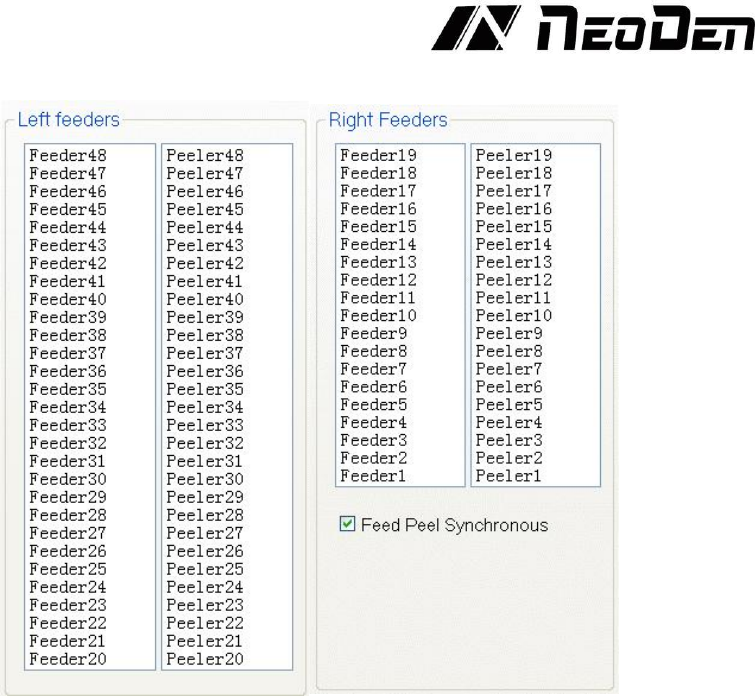
Figure 4.21
Function, test each feeder’s matching and feeder& peeler function. See the Figure 4.21.
1. Select “Feed Peel synchronous”, then test function of feeder and peeler.
2. Click any feeder randomly, feeder and peeler will appear corresponding actions.
Use these tests conservatively when parts are loaded, because the feeder will advance and a
component will be ejected from the tape.
4.6
System setup
Function, this part arm at machine’ global parameter settings, any modified parameter will influence
all mounting files, when modify this part please consider seriously. Especially the last page system
settings, we suggest after using a period of time or under the guidance of our engineers then change
its parameter. (Notice, before our machines leave factory, all parameter already be set and no need
to change). This user manual just introduces all setting functions briefly, more details about
parameter modification please refer to comments from our engineers.
22
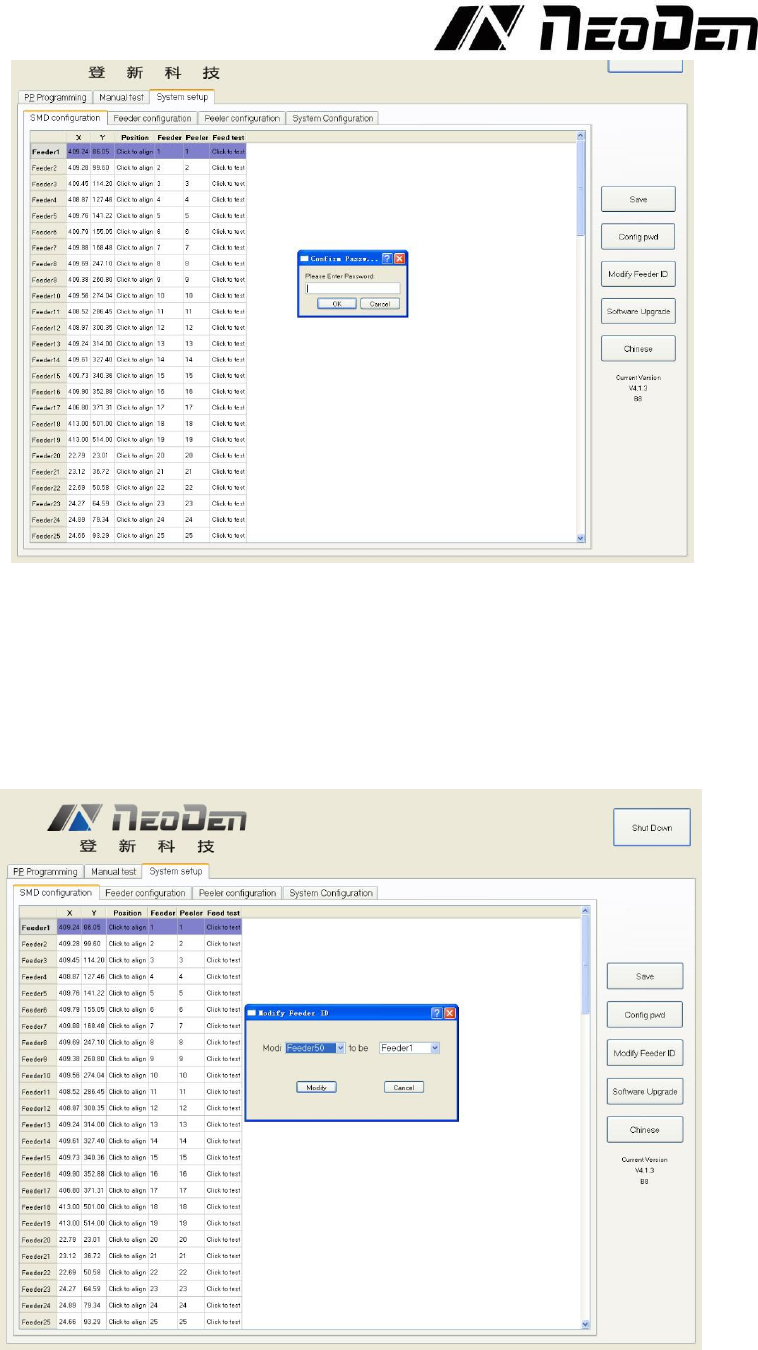
Figure 4.22
function description of button on right side, see the Figure 4.22
(1) “Save”: click it for saving after modify the parameters, saves any changes to configuration to the
internal SSD.
(2) “Config pwd” is only used on the “System configuration” tab. Pressing this Button and then
pressing “OK” (with no password entered) allows access to the nozzle alignment functions and
other settings. Normally, there is no need for a user to enter these functions. See the Figure 4.23
Figure 4.23
(3) “Modify Feeder ID” allows the user to change any feeder’s software ID to any value.
(4) “Software Upgrade” will enable the user to upgrade the system software to the newest version
when a new file is available on the USB drive.
23
(5) “Chinese” changes the system language to Chinese. DO NOT PRESS THIS BUTTON.
To restore the language to English, a unique password must be generated at the factory for each
unique motherboard.
4.7
Feeder and peeler installation
(1) Feeders and peelers are easy to install, but working in the area of the feeder reels becomes
difficult when components are installed in adjacent feeders. Machines purchased from NeoDen
come equipped with all feeders in the owner’s order pre-installed. But if additional feeders are
selected before setup we strongly recommend installing them according to the procedures below
before attempting any configuration. The process of installing new feeders is easier when there are
no reels loaded nearby.
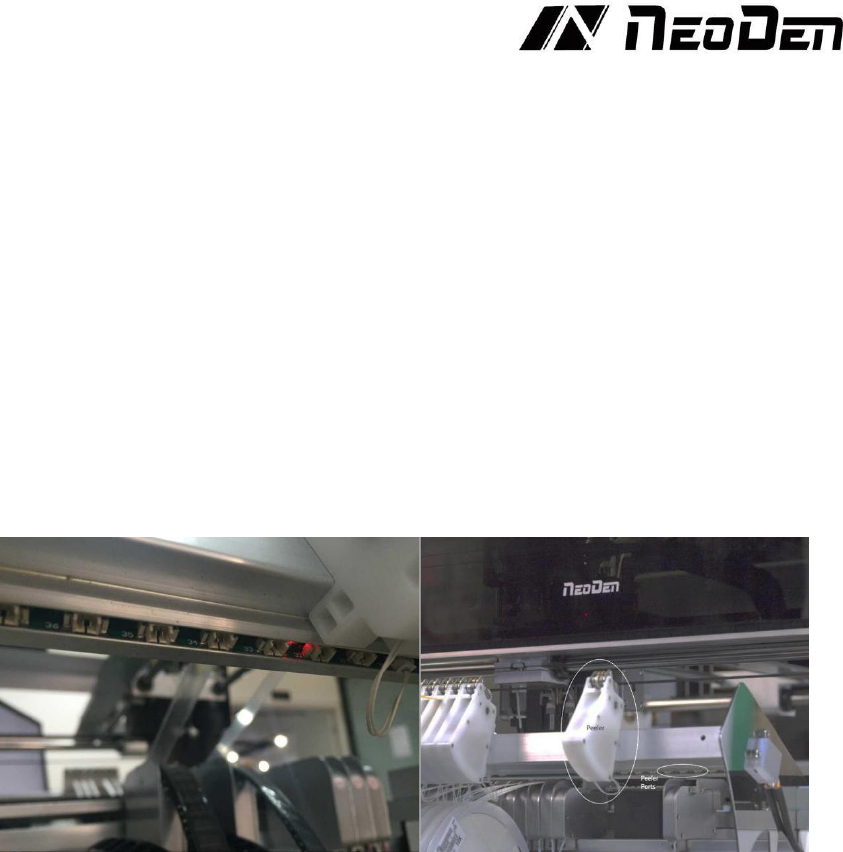
(2) The feeders are installed on the lower rails, and the peelers are installed on the upper rails. Each
is attached with a single Allen screw, and connected with a single cable. The feeders are connected
with 4-pin cables, and are addressed digitally over a data bus. It therefore does not matter which
feeder is plugged into which port – the feeder ID code determines which feeder will be activated.
On the other hand, peelers are addressed with analog power signals. Therefore, activation of a
peeler depends entirely on the two-pin port to which it is connected. The software interface allows
the user to assign different combinations of peeler and feeder IDs when it is desired to use a feeder
with a certain ID in a position that corresponds to a different peeler ID.See the Figure 4.24
Figure 4.24
(3) When installing new feeders, it is necessary to assign it an ID using the “Modify Feed ID”
button. New feeders come with an assigned ID of 50, which cannot be used in pick and place
operations. By using the “Modify Feed ID” button, any feeder ID can be changed to any other ID.
This is a powerful tool, and can quickly create confusion if not used carefully. For this reason, we
recommend the following steps be followed without variation or exception:
a. Install a single feeder;
b. Change its ID (usually from 50) to the intended value;
c. Calibrate the feeder and verify its intended operation;
d. Install the related peeler;
e. Test the peeler;
f. Test the feeder-peeler in combination;
g. Proceed to the next feeder.
Important: Install feeders and set their ID codes one at a time. Please do not attempt to set ID codes
with more than one unassigned feeder plugged into the machine!
4.7.1 Physical installation of feeders:
(1) Using a short 3mm Allen wrench (supplied in the toolkit included with every machine), loosen
the bolt in back of the feeder a few turns.
(2) Select a data port for the feeder. Plug the 4-pin connector into the port (the side of the connector
with visible pin detents faces up).