User-Manual-of-NeoDen4-PNP-machine.pdf - 第21页
16 4.3 .3 Tray feeder information (available for feeder 54-98) Figure 4. 15 Function: Use to se t the components’ information from tray and tube p ackages, complete picking up operation for specia l feede rs by c hanging…

15
that a component is attached to the nozzle and analyze its position to compensate for X-Y and
rotational errors before traveling to place the component on the board. For large ICs, choose “large
component” in this field.
(5) The Pick Height setting is critical to reliable operation. The nozzles offer 12 mm of total
downward travel from their resting position in the head. The value entered in this field represents
the distance in millimeters from the maximum extension. Therefore, smaller values indicate greater
downward travel. The best way to choose this value is to press “Align,” ensure the camera is
properly centered over a component, and then select an appropriate nozzle as the alignment method.
Drag the vertical slider down until the nozzle gently touches the component, and note the value
shown – this is the value to be entered in the “pick height” field. Should you notice repeated failures
to pick a part, the pick height may need to be reduced.
(6) The Place Height setting determines the extension of the nozzle when the component is released
into the solder paste. Proper setting of this parameter is important to protect components and
nozzles, and to ensure accurate placement. We recommend the following procedure:
Mount a PCB in the rails or magnetic fixtures;
In the “Nozzle information” area, check the nozzle (or nozzles) appropriate for the component in the
feeder.
Press “Pick.” The Head will move to the feeder and the designated nozzle will pick up a part. Verify
visually that a part is attached to the nozzle.
Go to the PCB Information page, and click “Align” on any component. Select the nozzle holding
the picked component as the Alignment Method. The component should now be held by the nozzle,
suspended above the PCB.
Slide the vertical slider down slowly until the component barely contacts the PCB – usually, you
will hear a small click when the component touches down.
Note the value shown by the slider display and enter it in the Place Height field.
The Pick Delay and Place Delay settings allow a short pause after a nozzle comes into contact with
a part, and before it leaves contact. This small pause allows for stable vacuum and cessation of any
vibration from the rapid movement of the head that might cause imprecise placement. We
recommend entering a value from 100-300 in these two fields for every feeder.
The Move Speed setting has a default value of 100. This is a very fast setting, and users are advised
to start with a slower setting, e.g. 70 for each feeder to verify proper operation of a program. Once
satisfied with the program and its accuracy, faster settings may be attempted. For very large
components, start with a much slower setting, e.g. 30.
Vacuum Discard: Once set one vacuum value which help judge if qualified or not before placement.
Once the actual vacuum won’t reach this range, the machine will drop away this components and re-
pick one. We therefore do not recommend its use except in special circumstances.
Skip: Once select this item, will skip all placement for this feeder.
16
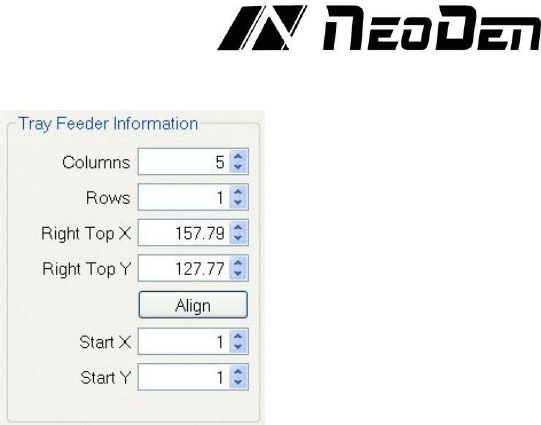
4.3.3 Tray feeder information (available for feeder 54-98)
Figure 4.15
Function: Use to set the components’ information from tray and tube packages, complete picking up
operation for special feeders by changing the values, see the Figure 4.15.
(1) Column: Quantity of components on each column
(2) Row: Quantity of components on each row
(3) Right top X/Y: Find the position of right top component, this component is usually the last
component in IC tray, and left bottom side is the first component in IC tray.
(4) Start X/Y: This setting is used to define the position of 1st component, its default setting is X1,
Y1 (in 1st column, 1st row). If the 1st component is on 2nd column, 1st row, you can enter X2, Y1.
After finish setting of all above feeders’ information, then click “assign feeder and nozzle to Chip
list”, the NeoDen4 will automatically select the appropriate feeder and nozzle for each component
in the Component List.
4.4
Running the program
On the P&P Programming page, select the program you wish to run and press “Mount”.
If the vibration feeders are needed, activate them with the checkbox.
Place a PCB on the magnetic fixtures or load one into the rail system so that the PCB is in snug
contact with the guide belts.
There are two ways to run a program: Step Mode and Continuous Mode. Pressing step will cause
the NeoDen4 to execute the program one move at a time. This can be helpful in troubleshooting or
double- checking the integrity of a program before letting the machine run free. Pressing
Continuous will cause the program to run on its own. The NeoDen4 will first check each nozzle
called for by the program. It will the locate the fiducials on the board and begin placement
operations.
17
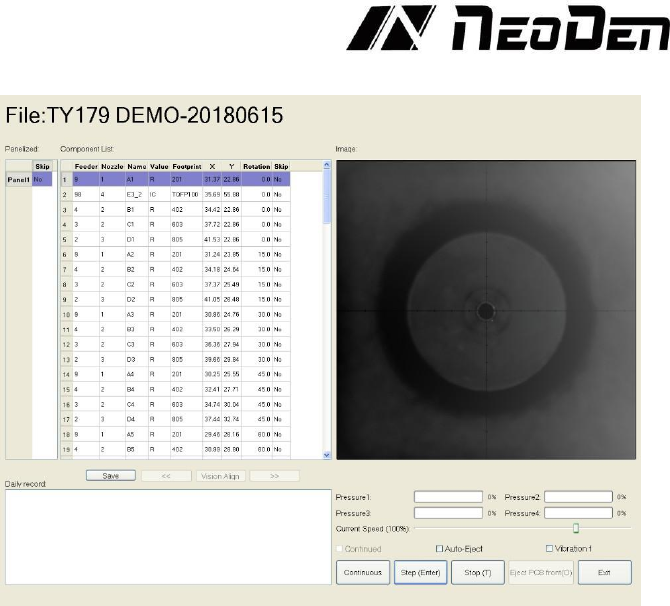
File Mounting
:
Figure 4.16
1.Method to mount one file:
First select one file, click “mount”, then you will enter into one mounting page, above picture is an
example of one file in mounting. See the Figure 4.16
(1) On the top-left corner shows mounting process, chip list---by the variation of blue line, you can
track process of mounting constantly.
(2) On the bottom-left corner shows some feedback during mounting process.
(3) On the top-right corner shows the status of picking and picking alignment
(4) On the bottom-right corner shows some control information
a. Air pressure of 4 nozzles
b. Placement speed, can be changed by manual during mounting
c. Non-stop mount, this is used in one-stop SMT production line, add conveyors in front and
behind,
d. Auto-eject PCB once finished, when select this option, after finished mounting task, PCB will
eject its working area automatically
e. Another control information, Continuous/Step/Pause/Eject PCB front-side manually/Stop
Continuous, the machine will obey its order and work constantly
f. Step, the machine will work one single step Pause, the machine will stop its work instantly
g. Eject PCB front-side manually, in order to catch the PCB, after PCB assembly, click this
option, PCB will eject from its feeding position. Kindly notice: After pause the machine then you
can carry out this order.
h. Stop, before click this option, you need to click “pause” first
i. Vibration Feeder: Tick this item and then the vibration motor will be on.
4.5
Manual Test
The second tab at the top of the interface opens the manual test screen. This screen contains a
convenient selection of tools to verify the operational status of most components of the NeoDen4.
Most functions of the manual test screen can also be accessed from other areas of the interface.