User-Manual-of-NeoDen4-PNP-machine.pdf - 第18页
13 4.3 .1 Nozzle information Figure 4 .11 Figure 4.12 (1) Function: Selec t c orrespon ding nozzles (one or more tha n one all acce ptable) ac cording to the componen ts and th e no zzle have set on the machine, then the…
12
first component, please modify this line firstly. See the Figure 4.10
Figure 4.10
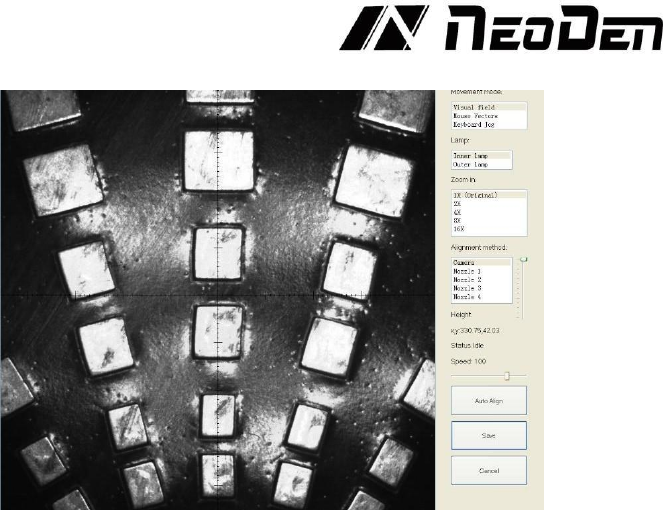
Find and confirm one component’s coordinate by using the function of “Movement Mode”-Click
to move (Visual field/Overall Workbench).Once clicked the “Save” item, the interface will
automatic back to main page, then input the corresponding values(Designator refer to the location,
Specification refer to the value of resistance, Footprint refer to the normal package
info,I.e.0603,0805,1206,Etc.Angle value should be set according to the required direction on the
PCB and polarity ,horizontal direction(0 or 180 degree),vertical direction(90 or -90 degree).the
value should be integer. The first component has been completely created after set all above values.
The next step is click “New” item and will pop up one line (completely copy the previous line), then
click “Align” to find and confirm second component (same operation as before)
Change to current position: This is a powerful feature that will change the coordinates of
the entire component list if the board is placed in a different position on the table than the position
that was used to compute the original origin. To use this feature, locate the first fiducial with the
camera. Press “Cancel”, and press “Change to current position”.
The machine will locate both fiducials and compute the offset from the original program. It will
then change the values in the component list to conform to the new board location. After this
process is complete, it is necessary to ensure that the new coordinates for the first component are
entered in the “Left Bottom” location, and that the “Create Panelized List” button is pressed so that
the XY coordinates of the first component appear in all three locations on the screen.
4.3
Feeder settings screen
(1)
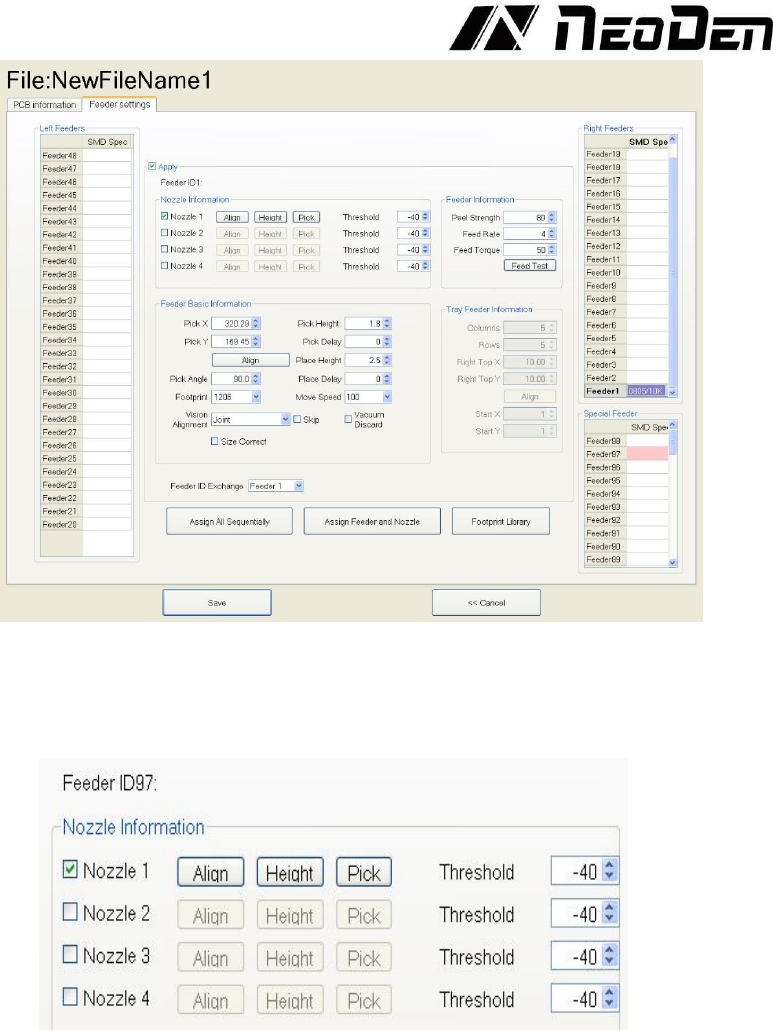
Feeders Arrangement: Left Feeders (Feeder20-48), Right Feeders (Feeder1-19), Special
Feeders (Feeder49-98). Above feeders’ setting is under the ideal situation. According to the
Required Tape’s width from customers, the quantities maybe be cut down. For example, if there
are a lot of components’ information under the “Chip List” item, choose the feeder number and
you will find the drop-down symbol, will display all components’ specifications by click it. Select
one specification and one less in drop-down list, can do same operation in every feeder.
(2)
Feeder Configuration: Select one feeder, tick the item “Apply”, all configurations will be
unlocked for this feeder, then can-do amendment. Total have five items: Nozzle information, Feed-
box information, Feeder basic information, Tray feeder information, Feeder exchange. One item
will be always locked for Feed-box information and Tray feeder information according to the
differences of components. Operation sequence: Feed-box information (Tray feeder
information)—Feeder basic information—Nozzle information—Feeder exchange (used if placed
wrong tape). See the Figure 4.11.
13
4.3.1 Nozzle information
Figure 4.11
Figure 4.12
(1) Function: Select corresponding nozzles (one or more than one all acceptable) according to the
components and the nozzle have set on the machine, then the machine will automatic assign to
each feeder in order to meet the requirements of single head work or multi heads working together.
Also, have detect functions on this item. See the Figure 4.12.
(2) Align: The nozzle will align to the component’s upside on corresponding feeders when click
this item
(3) Height: After clicking this item, the nozzle will go down and check whether the pick height is
ok. Support do adjustment of pick height on feeder information item if needed.
(4) Pick: After clicking this item, the corresponding nozzle will pick one component and check
whether pick position is ok. Support do adjustment of pick position on feeder information item if
needed. After this feature is activated, the part should be removed from the nozzle with a finger or
tweezers.
(5) Threshold For each feeder, check the nozzle(s) that are sized appropriately for the component
installed in the feeder. We recommend leaving the threshold settings at their default values,
because the vacuum detection feature to which these settings relate is rarely needed or used when
14
the vision system is active.
Feeder information
Figure 4.13
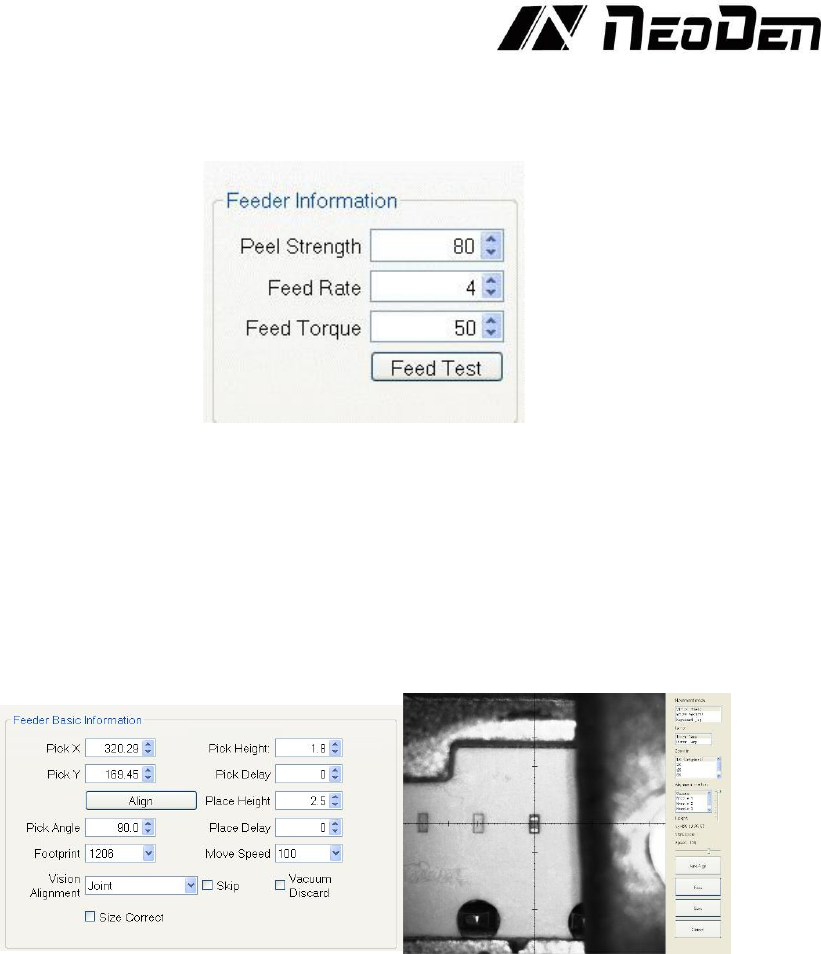
Function: Adjust the value for feeder and peeler, see the Figure 4.13
Peel Strength: Support do adjustment according to different components’ required strength, default
value 100
Feed rate: Adjust the feed & peel distance by changing the value
Feed torque: Adjust the feed strength by changing the value, default value 60
Feed test: After finishing above steps, can click this item to test the feed status
4.3.2Feeder Basic information
Figure 4.14
(1) Pick X/Y: First have to lock the position of component on the feeder, once saved the
modification, the XY date will automatically change to the ones after alignment. See the Figure 4.14.
NOTE: For feeders installed in the far back of the machine (often feeders 18 and 19 on the left side)
the camera, which is mounted on the front of the head, will not be able to be moved far enough to
view the necessary location. For these feeders, after clicking “Align”, select the desired nozzle as
the “Alignment method” on the right side of the screen. Then use the mouse to move the nozzle to
the desired pick location, and slowly pull the vertical slider down to lower the nozzle. Continue to
fine-tune the location of the nozzle until it is centered in the hole in the tape. Click save.
(2) Pick Angle: The initial default angle of the right-side feeders is 90 degrees, the initial default
angle of the left side feeders is -90 degrees, normally does not need to be changed because the
machine automatically sets this value based on the feeder’s location on the left or right rail. For
trays and sort tapes, however, this value may need to be changed to 0 or 180.
(3) Footprint: Select corresponding footprint, when use the function “Vision Alignment”, will refer
to the values in date base. If the correct size is not in the menu, it is possible to create new footprints
by entering the footprint library.
(4) Vision Alignment: The Vision Alignment setting is normally set at “Individual.” This setting
directs the NeoDen4 to transport each “picked” component to the upward-looking camera to ensure