User-Manual-of-NeoDen4-PNP-machine.pdf - 第26页
21 4.5 .4 Feeder test Figure 4. 21 Function, test each feeder’s match ing a nd fe eder& pe eler function . See the Figure 4.21. 1. Selec t “Feed Peel sync hronous”, then test fu nction of feed er and peeler. 2. Click…
20
4.5.3 Host control
Figure 4.20
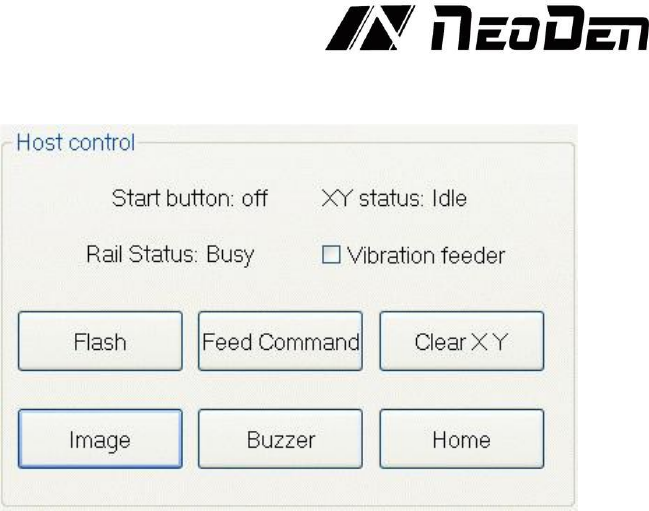
In the “Host Control” section, seven controls complete the manual test interface. See the Figure 4.20.
Start button status, on the left side of machine, it has one start button, press this button the status will
change
The “Flash” button activates the lighting system for the upward- looking camera. A second press
turns off the lights.
The
“Image”
button verifies operation of the upward-looking camera by displaying an image on
the screen. Because the camera focus is set to take very sharp pictures of the nozzles and any
components they are carrying, pressing this button may produce only a blurry image unless an
object (like the head) is present over the camera at the correct height. Pressing “Cancel” returns the
user to the main screen. (The Lens Rotation and Save buttons are used for nozzle alignment
purposes, and perform no valuable function in the Manual Test context).
The
“Feed Command”
activates the rail system for those units so equipped.
The “Buzzer” button sounds the internal warning tone for as long as it is pressed.
The “Clear X Y” button should only be used to correct an error condition displayed in the “XX
Status” annunciator position. When the status reads “Idle,” the system is functioning normally and
there is no need to use this button.
The
“Home”
button causes the X and Y drives to return the head to the machine’s home position,
and reset the X-Y geometry based on the physical limit switches in the unit. Use this button to
verify operation of the limit switches, and also to restore the home position in the event of an
accidental head crash into an object inadvertently left on the table.
The
“Vibration feeder”
check-box will activate the vibration feeder motor when checked.
Leave the box unchecked except for this brief test.
21
4.5.4 Feeder test
Figure 4.21
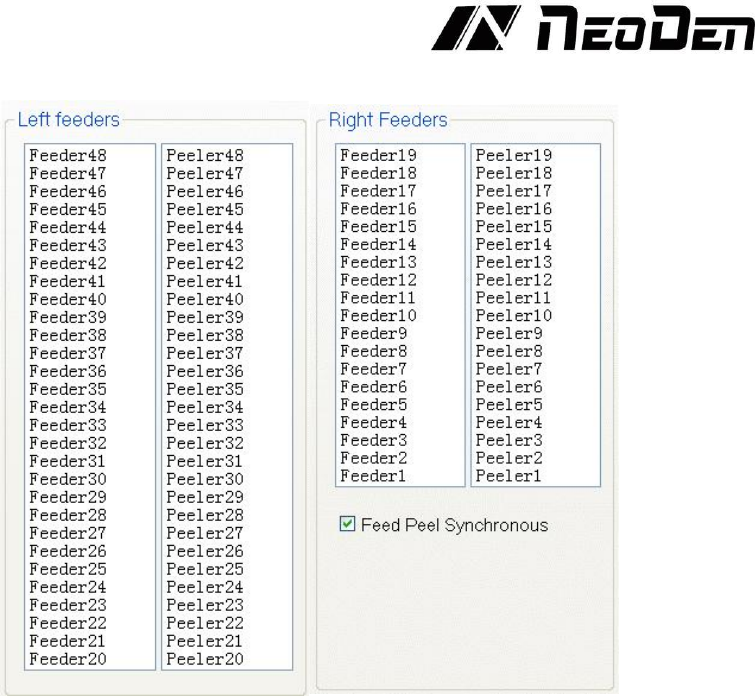
Function, test each feeder’s matching and feeder& peeler function. See the Figure 4.21.
1. Select “Feed Peel synchronous”, then test function of feeder and peeler.
2. Click any feeder randomly, feeder and peeler will appear corresponding actions.
Use these tests conservatively when parts are loaded, because the feeder will advance and a
component will be ejected from the tape.
4.6
System setup
Function, this part arm at machine’ global parameter settings, any modified parameter will influence
all mounting files, when modify this part please consider seriously. Especially the last page system
settings, we suggest after using a period of time or under the guidance of our engineers then change
its parameter. (Notice, before our machines leave factory, all parameter already be set and no need
to change). This user manual just introduces all setting functions briefly, more details about
parameter modification please refer to comments from our engineers.
22
Figure 4.22
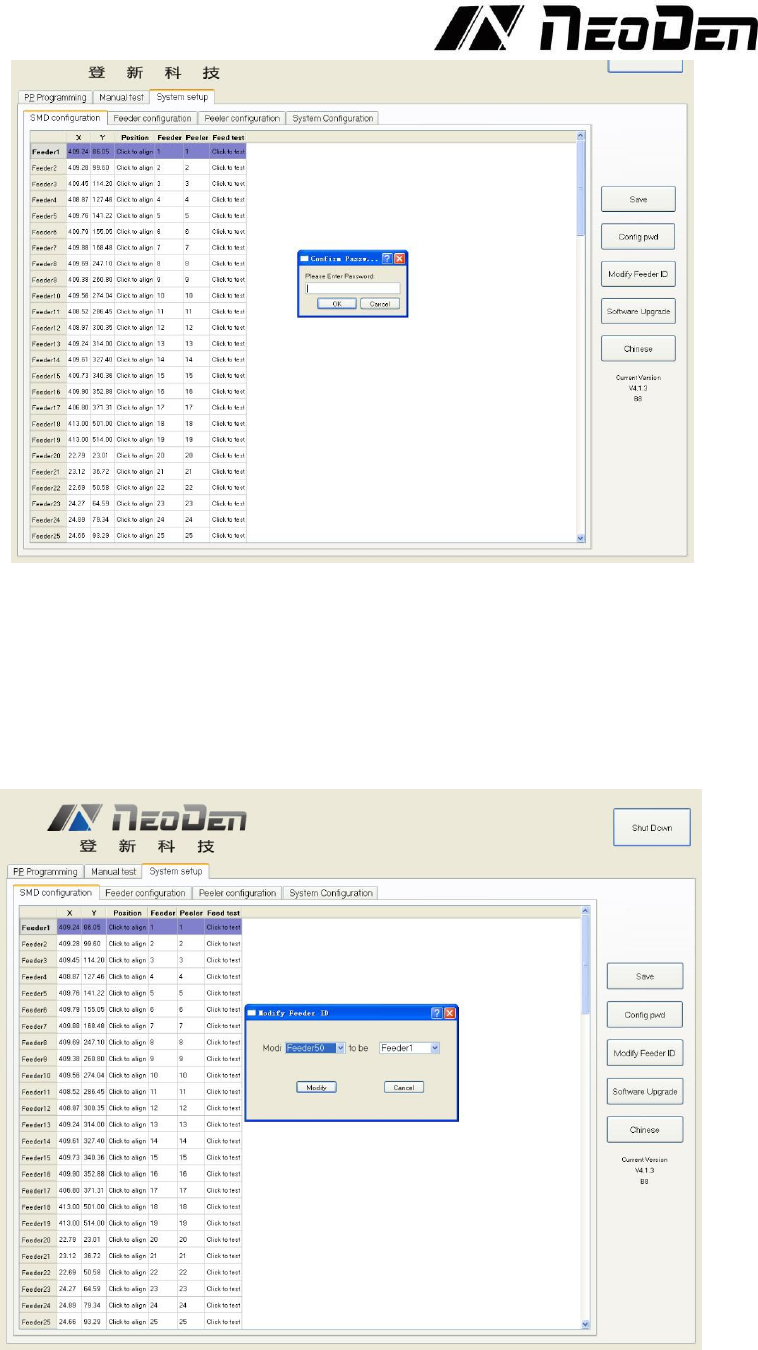
function description of button on right side, see the Figure 4.22
(1) “Save”: click it for saving after modify the parameters, saves any changes to configuration to the
internal SSD.
(2) “Config pwd” is only used on the “System configuration” tab. Pressing this Button and then
pressing “OK” (with no password entered) allows access to the nozzle alignment functions and
other settings. Normally, there is no need for a user to enter these functions. See the Figure 4.23
Figure 4.23
(3) “Modify Feeder ID” allows the user to change any feeder’s software ID to any value.
(4) “Software Upgrade” will enable the user to upgrade the system software to the newest version
when a new file is available on the USB drive.