User-Manual-of-NeoDen4-PNP-machine.pdf - 第29页
24 (3) Place the feed er on the lower rail (feede rs can b e pla ced touc hing eac h other). (4) Tighte n the Allen scre w until snug (do not overtighten ). (5) In the System Setup Interfa ce (o n an y of the fo ur scre …
23
(5) “Chinese” changes the system language to Chinese. DO NOT PRESS THIS BUTTON.
To restore the language to English, a unique password must be generated at the factory for each
unique motherboard.
4.7
Feeder and peeler installation
(1) Feeders and peelers are easy to install, but working in the area of the feeder reels becomes
difficult when components are installed in adjacent feeders. Machines purchased from NeoDen
come equipped with all feeders in the owner’s order pre-installed. But if additional feeders are
selected before setup we strongly recommend installing them according to the procedures below
before attempting any configuration. The process of installing new feeders is easier when there are
no reels loaded nearby.
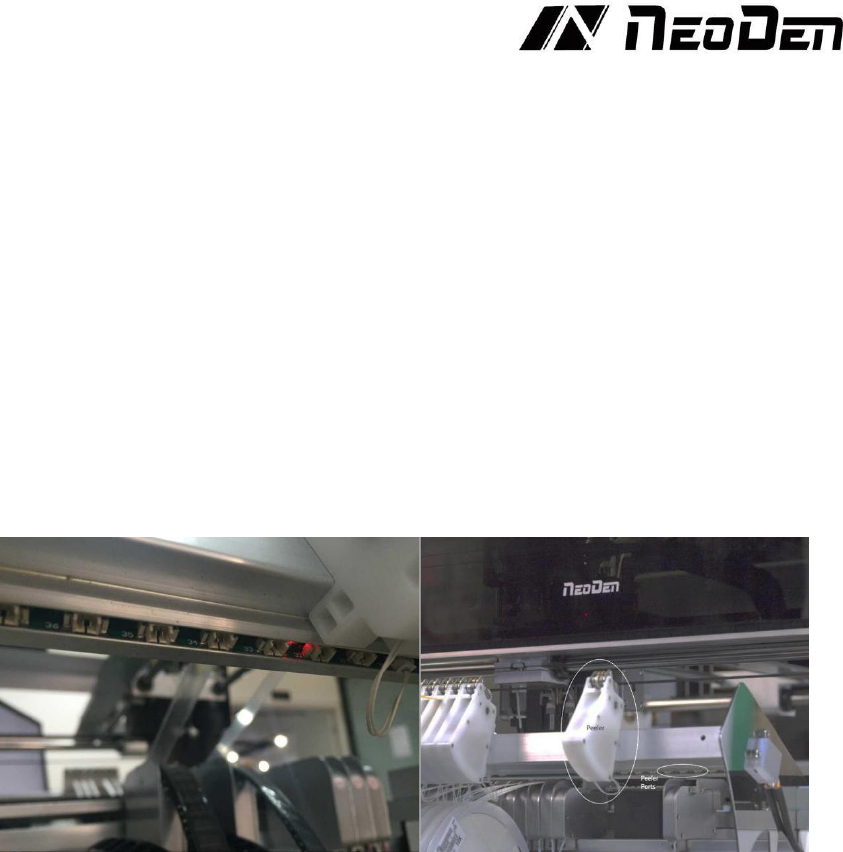
(2) The feeders are installed on the lower rails, and the peelers are installed on the upper rails. Each
is attached with a single Allen screw, and connected with a single cable. The feeders are connected
with 4-pin cables, and are addressed digitally over a data bus. It therefore does not matter which
feeder is plugged into which port – the feeder ID code determines which feeder will be activated.
On the other hand, peelers are addressed with analog power signals. Therefore, activation of a
peeler depends entirely on the two-pin port to which it is connected. The software interface allows
the user to assign different combinations of peeler and feeder IDs when it is desired to use a feeder
with a certain ID in a position that corresponds to a different peeler ID.See the Figure 4.24
Figure 4.24
(3) When installing new feeders, it is necessary to assign it an ID using the “Modify Feed ID”
button. New feeders come with an assigned ID of 50, which cannot be used in pick and place
operations. By using the “Modify Feed ID” button, any feeder ID can be changed to any other ID.
This is a powerful tool, and can quickly create confusion if not used carefully. For this reason, we
recommend the following steps be followed without variation or exception:
a. Install a single feeder;
b. Change its ID (usually from 50) to the intended value;
c. Calibrate the feeder and verify its intended operation;
d. Install the related peeler;
e. Test the peeler;
f. Test the feeder-peeler in combination;
g. Proceed to the next feeder.
Important: Install feeders and set their ID codes one at a time. Please do not attempt to set ID codes
with more than one unassigned feeder plugged into the machine!
4.7.1 Physical installation of feeders:
(1) Using a short 3mm Allen wrench (supplied in the toolkit included with every machine), loosen
the bolt in back of the feeder a few turns.
(2) Select a data port for the feeder. Plug the 4-pin connector into the port (the side of the connector
with visible pin detents faces up).

24
(3) Place the feeder on the lower rail (feeders can be placed touching each other).
(4) Tighten the Allen screw until snug (do not overtighten).
(5) In the System Setup Interface (on any of the four screens), press the Modify Feed ID button.
Using the menus, change Feeder ID 50 to the desired ID. The interface should report that the ID was
successfully changed.
(6) If the interface reports that the change failed, check for the following:
(7) Feeder is not plugged in correctly.
(8) Feeder ID was not set to 50 when installed. Proceed to the Feeder Configuration page, and test
various feeder IDs to activate the feeder. If the feeder was installed so that it inadvertently shares an
ID with another feeder, both will activate.
(9) If the feeder has a unique ID other than 50, change it to the desired value.
(10) If the feeder shares an ID, unplug one of the feeders. This will enable the change of ID on a
single feeder.
(11) Once satisfied that the new feeder has been assigned the correct ID, go to the Feeder
Configuration page, and press “calibrate feeder”. The feeder should run continuously for several
seconds. Repeat this step to verify smooth operation of the feeder.
4.7.2 Physical installation of peelers:
Using a short 3mm Allen wrench, loosen the bolt in back of the peeler a few turns.
Plug the 2-pin connector into a numbered power port (the side of the connector with visible pin
detents faces up).
Place the peeler on the upper rail (peelers can be placed touching each other).
Line up the peeler so that it is parallel with the tape path in the feeder.
Tighten the Allen screw until snug (do not overtighten).
Go to the Peeler Configuration page, and press “Click to Test”. The peeler gears should turn, and
the peeler motor should be audible.
If both feeder and peeler tests are successful, proceed to the SMD Configuration page.
4.7.3 SMD configuration page
(1) This page contains the master configuration settings for the feeder/peeler combinations. Use this
page for the electric feeders (1- 48). It is not necessary for the special feeders (49-98). Following is
a description of the data displays and functions of the screen:
(2) For each feeder, the X-Y coordinates of the component location are listed. These coordinates
should be set by pressing the “Click to align” button to center the crosshairs in the pocket in the tape,
not necessarily the center of the component. This is because components shift significantly in the
tape, and any errors in component positioning can be corrected by the upward-looking camera
during pick and place operations.
(3) The “Feeder” and “Peeler” columns contain dropdown menus that allow the user to assign any
combination of feeder and peeler to serve as the numbered feeder indicated in the leftmost column.
By default, the Feeder and Peeler numbers are set to the same values.
(4) The “Click to test” button activates both the feeder and peeler assigned to the numbered feeder,
and each will advance according to the parameters defined in the Feeder Configuration and Peeler
Configuration pages.
25
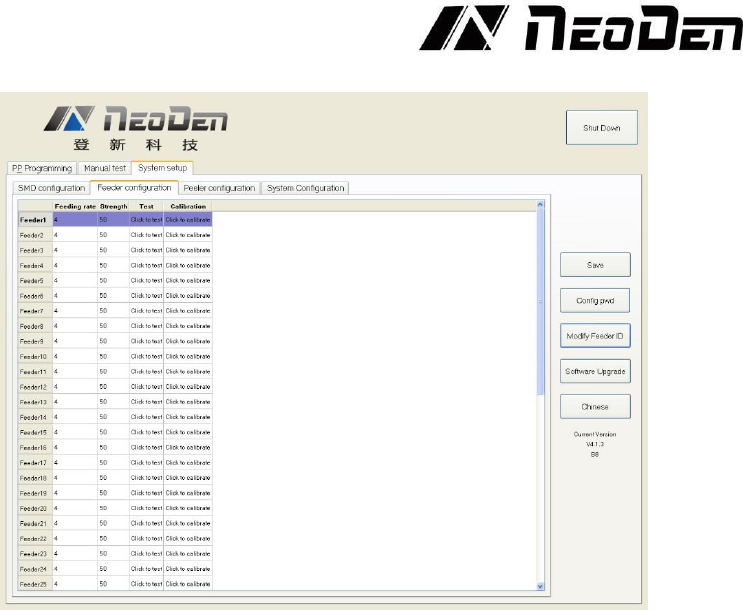
4.7.4 Feeder configuration
Figure 4.25
Feeding Rate. For each feeder, this dropdown menu allows the user to set the distance in mm
that the feeder advances. For 0402 and 0201 components, this value is normally set at 2. For
components including 0603, 0805 and 1206, the value is normally set at 4. Certain larger
components will require larger values. See the Figure 4.25.
Strength. Determines the torque applied to the component tape. Values from 50-80 are common,
but the value should be adjusted so that the tape feeds consistently and smoothly.
Test. Clicking “Test” for any feeder on this screen will advance the feeder (but not the peeler)
by the distance set in the Feeding rate column.
Calibration. “Click to calibrate” advances the feeder continuously for several seconds. This
function verifies the smooth operation of the feeder motor and transmission. Because the feeder
advances quite far, it is best to avoid clicking this button when components are present in the feeder.
The button can be useful if needed to exhaust a long section of leader that contains no components.