User-Manual-of-NeoDen4-PNP-machine.pdf - 第14页
9 The data of “left b ottom” is collecte d acc ording to first compon ent in programming file. Press “align” find the le ft b ottom p anel which is nea rest to the feeding position, afte r saving the d ata, it will retur…
8
Figure 4.4
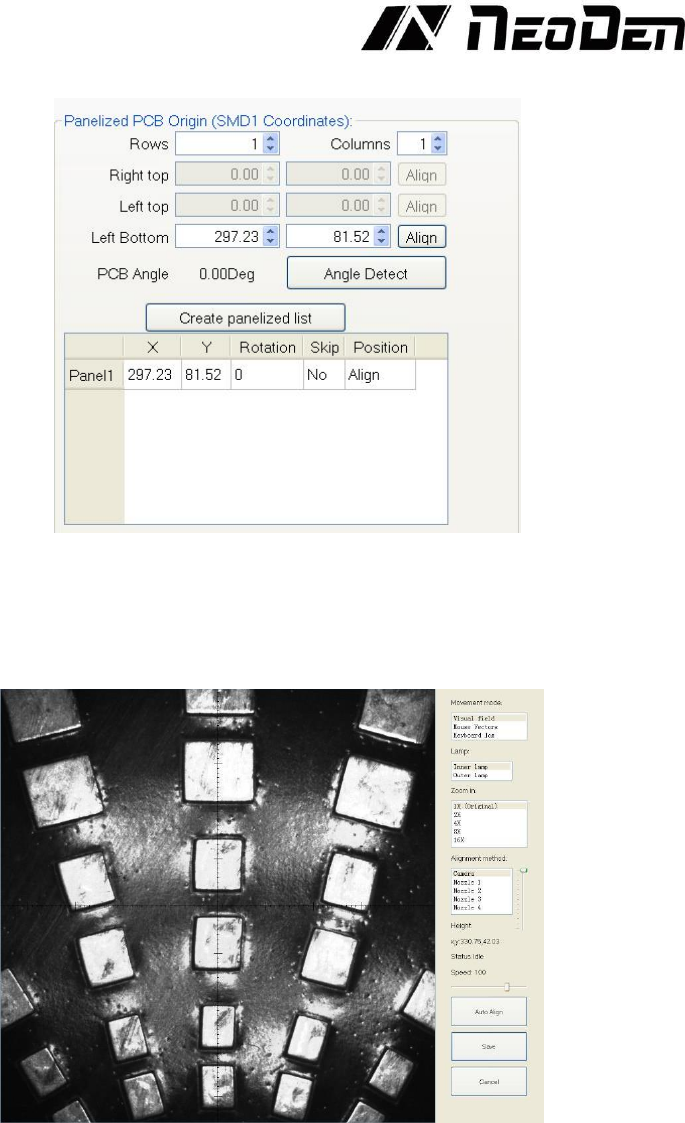
Panelized PCB Origin (SMD1 Coordinate):
Single PCB:
Only need to enter “1” in the row and column, some other useless function will
turn grey. The “left bottom” is functional, which means the first PCB. Then you can press “align”
to go to the screen of vision and get the coordinate of first component. See the Figure 4.5.
Figure 4.5
After saving the coordinate, the screen will automatically turn back to “PCB information”. Click
“Create panelized list” to get the information of “Panel 1”. Now we’ve finished setting of first
component of PCB.
Panelized PCB: the sequence is same to single PCB, but please pay some attention to several
points below.
The row and column are determined by the positioning of PCB on working area. The direction
along the rails is the column. Enter data in the row and column.
About the data collection of “left bottom”, “left top” and “right top”, we should take the “left
bottom” as the basic, and then go to set “left top” and “right top”. Once all the data is collected, the
machine can calculate and process the information of panelized PCB. Please refer to the data
collecting method of each position information as following:
9
The data of “left bottom” is collected according to first component in programming file. Press “align”
find the left bottom panel which is nearest to the feeding position, after saving the data, it will return
to the “PCB information” automatically.
The data of “left top” is collected according to component (its position is same to that on “left
bottom”). Press “align” find the left top panel which is furthest to the feeding position, after saving
the data, it will return to the “PCB information” automatically.
The data of “right top” is collected according to component (its position is same to that on “left
bottom”). Press “align” find the right top panel which is furthest to the feeding position, after saving
the data, it will return to the “PCB information” automatically.
After setup, click “create panelized list”, the data will be generated accordingly in the blank.
Create Panelized List:
This button automatically creates component lists and their coordinates
for each board in a panel (or for a single board) based upon the number of columns and rows entered
for the panel in the Panelized PCB Origin field(s).
Function: This is mainly to determine the first component on single or panelized PCB of manual
programmed or imported file. The principle is to collect and calculate the data of each board’s
relative spacing, in order to achieve the effect of the actual placing.
PCB angle correction: angle deviation of PCB board compares to rails
Skip marked panels: used for find the bad PCB board and skip
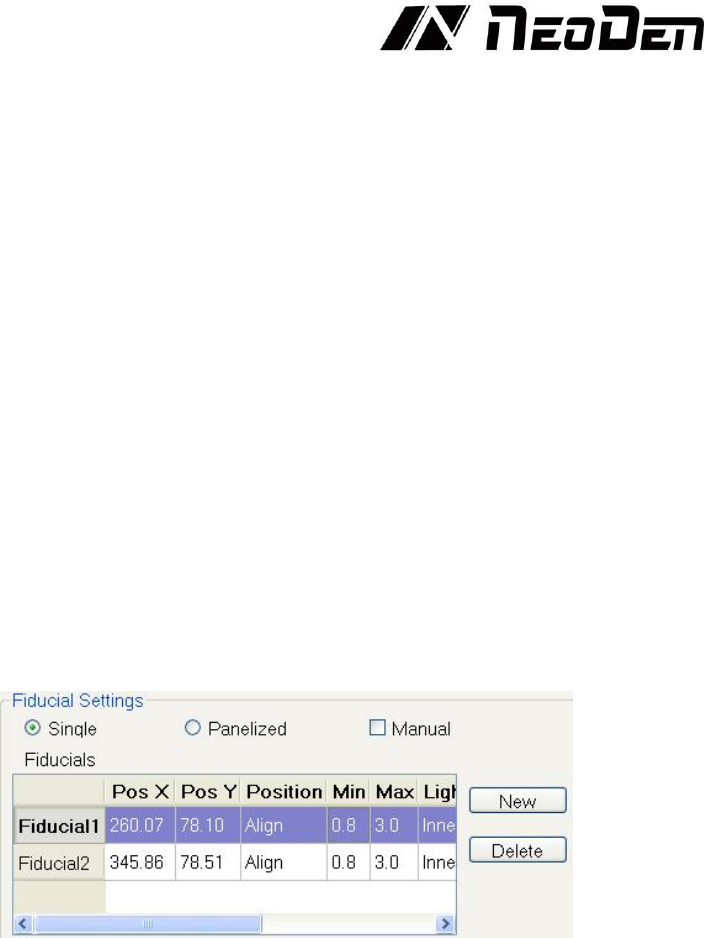
4.2.3 PCB fiducial setting
Figure 4.6
Function: After completing setup of the fiducials, with which the machine can locate the position of
PCB and identify the set-up fiducials, so that the next step can be followed, see the Figure 4.6.
Operation method:
Fiducial on single PCB: this mainly applies on single PCB or a whole board that consists of a few
boards (take them as a single board). General we need to set 2 fiducials.
Penalized PCB: this mainly applies on multiple PCB (we need to set fiducials on each PCB)
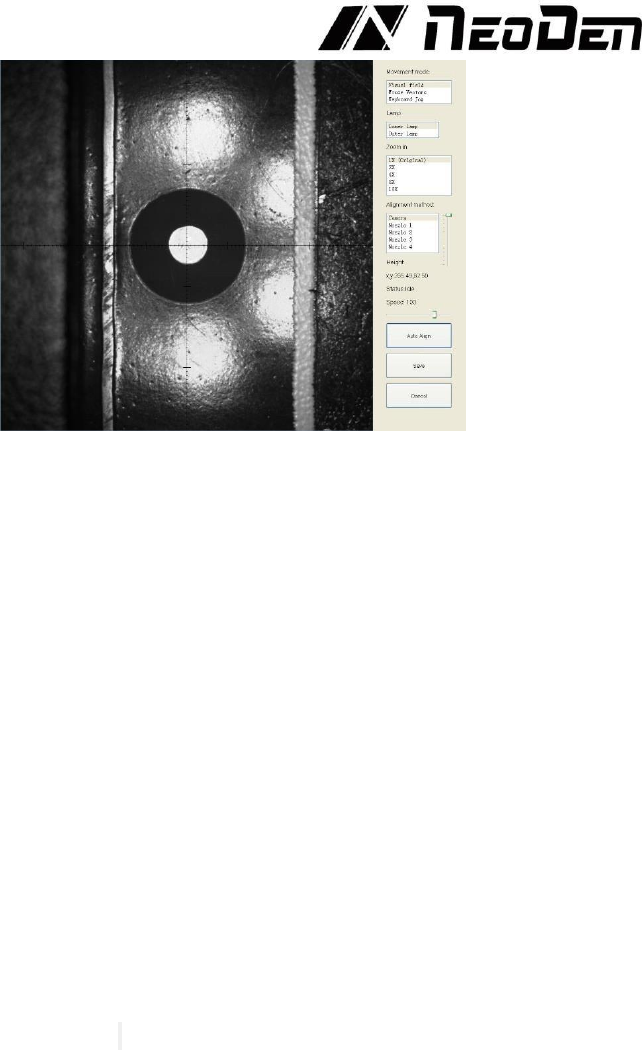
Manual alignment: if there is no fiducial on PCB, you can use some positioning holes or some other
referential points as subsidies to locate the PCB. See the Figure 4.7.
10
Figure 4.7
Import coordinate: according to the PCB schematic, we get the coordinate of fiducial and write down
manually.
Fiducial information;
Min-Max: Based on different size of fiducial to find the correct position in case of any confusion.
Light source: inner ring and outer ring. Use inner ring if the board holes work as fiducials, use outer
ring if light-spots work as fiducials.
Brightness: Default value
Manual programming: when it’s in Manual Programming status, the function “Alignment” of fiducial
will be effective. Click on it, the camera will go and collect the coordinate of fiducial, save it and go
back. (Note: if the fiducial is far away, please use Overall movement to find it)
No fiducial exists: Generally, we will choose a component that is far away from the first component
as a fiducial, which will make placement effect better.
Add fiducial: the function of adding fiducial
Delete fiducial: the function of deleting fiducial can be used when there is needless fiducial or error
point.
4.2.4 Component list settings
Function: The component list is the heart of the pick and place program. It contains the location and
rotation of every component, along with other identifying information about the components. There
are two ways to add this information: manual programming and import mounting file.
Operation:
(Import PCB coordinate File)
First generate the coordinates from PCB diagram and put the PCB file on the USB Flash Disk,
then insert it to the machine (There are many kinds of PCB designer software, the only request is
can generate the coordinates from them, file format(.csv)-support use Excel to edit
Remove tick mark before the item “Manual Program” and then click “File Import” button, will
pop up one small dialog, select the required PCB file and then click “Save” item, all data will be
automatic imported to Chip List. (Turn to the “Feeder configuration” interface to do next operation).
Re-edit of Coordinates on finished programming working file
In edit mode, click “feed “button and let PCB forward until stop, then click “change to current
position”, the machine will align the fiducial automatically and transfer all original coordinates to
new ones according to current PCB location, finally support do re-edit work.
If want to check component coordinates info, insert X/Y value, click search then will pop out all
corresponding coordinates you want
(1) If you want to find all coordinates which X value is 342.17, then insert 342.17 and click search.
(2) If want to skip one component, choose “Yes”; if want to skip components in column or raw
on PCB, choose anyone component and select “row skip “or “column Skip”-normally use in
long led strip programming work. See the Figure 4.8.